Windows User-Based Software Deployment
Software deployment is the process of distributing the software to the endpoints in your network from a central location. For deploying a Windows software, creating a software package is essential. Using Endpoint Central, you can create Windows packages manually or using the predefined software Templates.
After creating the software package, the next step is to proceed with the software deployment.
Table of contents
Steps to Install/Uninstall Windows Software
Follow the below steps to install or uninstall Windows User-based software.
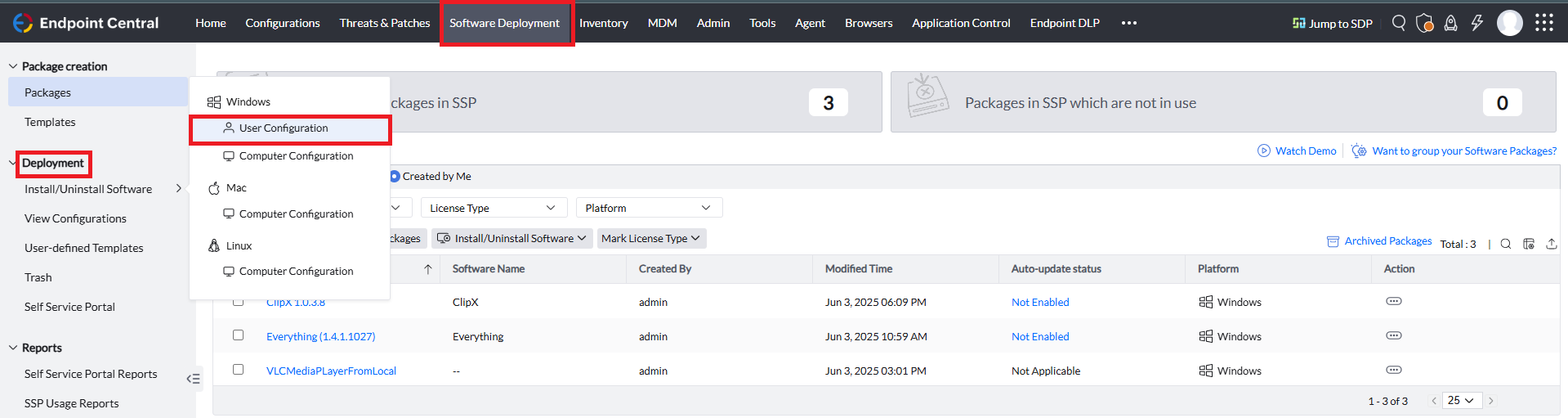
- In the Endpoint Central console, navigate to the Software Deployment tab > Deployment > Install/Uninstall Software > Windows > User Configuration
Name the Configuration

Provide a Name and Description for the configuration.
Defining the Configuration

Define the configuration based on your requirement to install or uninstall software to the the Windows users in your network.
Under Install/Uninstall Software, define the Package Settings as,
For Software Installation:
Select the Package Type as Install and select the installation package you want to deploy from the Package Name field's drop-down menu.
For Software Uninstallation:
Select the Package Type as Uninstall and select the uninstallation package you want to deploy from the Package Name field's drop-down menu.
Configuring the Install/Uninstall Option

While deploying the software to target Windows users, certain users might require elevated permissions to deploy the software. Thus, based on your requirement after defining the Package Settings, specify the user account using which the software needs to be installed or uninstalled.
In the Install As field, select the following options based on your requirement,
System User: The software will be installed using the default System User account, which has the highest privilege. This user account has full access to make system level changes.
Run As User: While deploying software to users with limited privileges, it is recommended to deploy those software using Run As User. The software gets deployed to the targeted users using the configured Domain user account with elevated privileges. It is recommended to configure the Domain Admin credentials in the Credential Manager. The software gets deployed to the target users using the configured Domain user account. It is recommended to configure the Domain Admin credentials in the Credential Manager.
Target User: The deployed software will be deployed using the User's credentials defined in the Define Target section.
Kindly note that it is recommended to deploy a computer software in the computer session using the System User account's privileges and to deploy a user software in the user session using the Run As User or Target User option.
Add More Packages: To deploy multiple packages in the same deployment, click on Add More Packages to add your required packages.
Deployment Policy
Deployment Policies are a set of customized policies configured to deploy the software based on the enterprise needs. You can configure the deployment window to schedule when the deployment should take place, configure the reboot or shutdown policy, configure users to skip the deployment or reboot, and configure the notification message that needs to be conveyed to the end user when the deployment takes place.
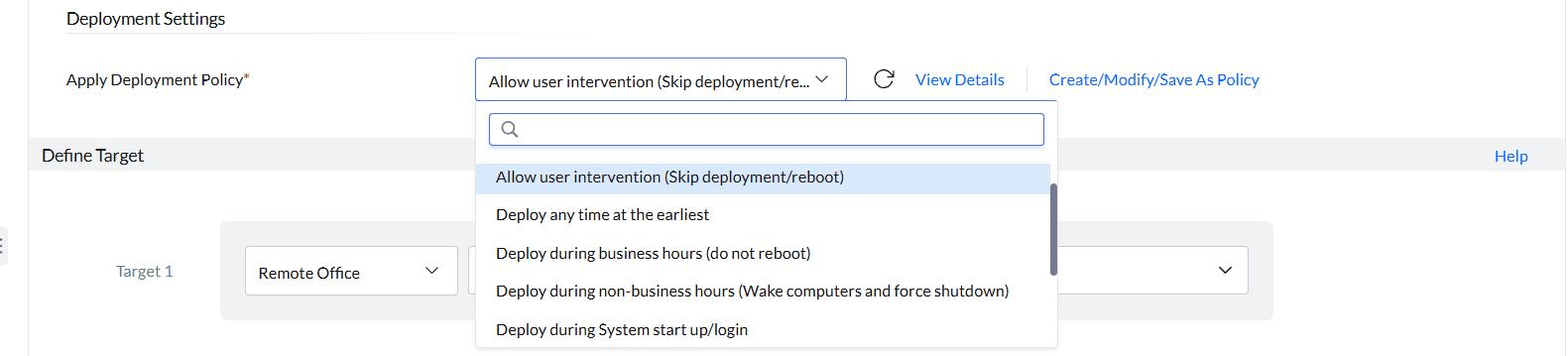
Endpoint Central comes with a set of predefined policies that you can utilize by choosing the policies from the drop-down menu in the Apply Deployment Policies field under.

You can also create your custom Deployment Policy by selecting the Create/Modify/Save As Policy option.
To learn more about deployment policies refer to this link.

Execution Settings and Scheduler Settings
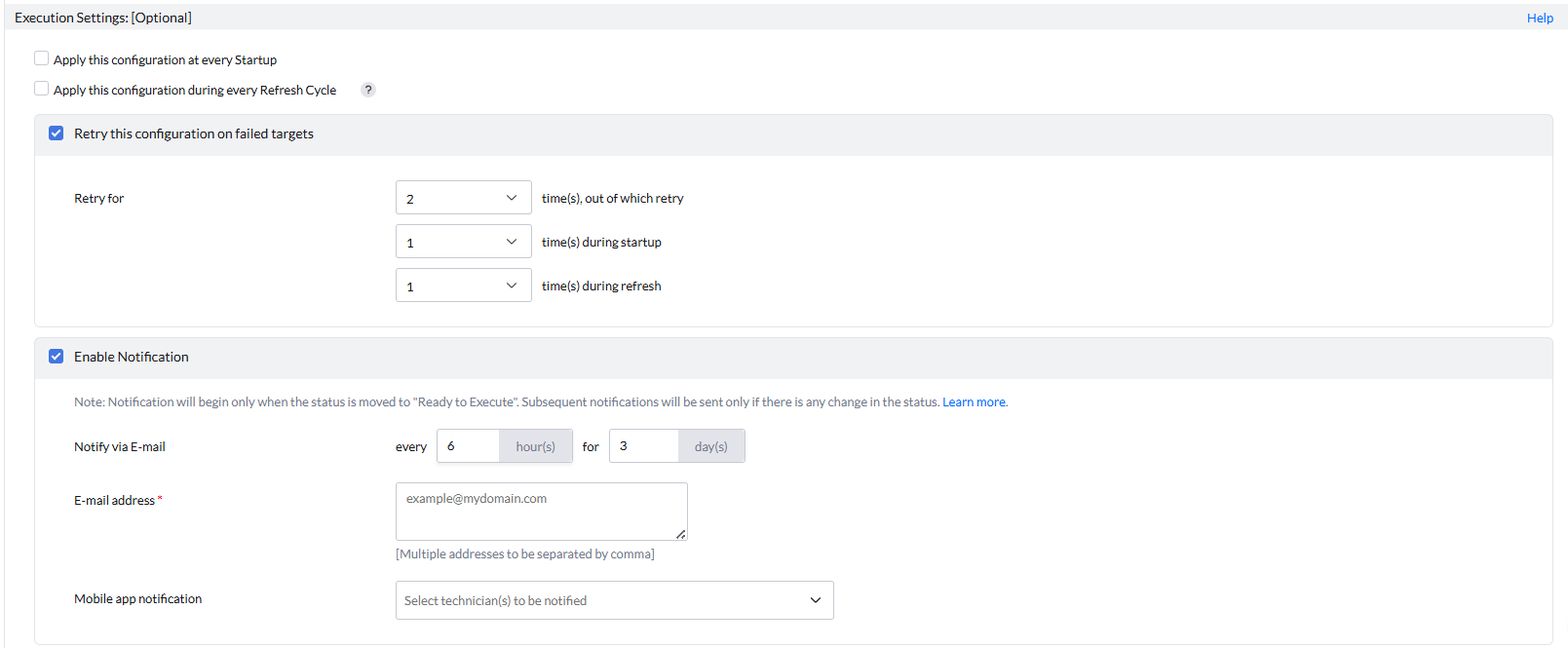
Configuring the Execution Settings is optional, thus, based on your requirement, configure them. The Execution settings include:
- Apply this configuration at every Logon
- Apply this configuration during every Refresh Cycle
- Retrying the Configuration on failed targets
- Enable Notification
To learn more about the Execution Settings, refer to this link

Under the Scheduler Settings, you can configure the below based on your requirement:
- Install After: The deployment will take effect after the Date and Time specified.
- Do not apply this configuration after the time specified:The deployment will not be applied to the targets after the Date and Time specified.
Deploying the Configuration
Select Deploy to deploy the configuration during the 90-minute Refresh Cycle or System Start-up or during the deployment window configured in the Deployment Policy.
Kindly note that while deploying software to target users in Remote Office with the Distribution Server, the deployment will take place once the files required for deployment are replicated in the Distribution Server based on the Replication Policy configured. To learn more about the deployment flow in a Remote Office with Distribution Server, refer to this link.
Saving the Configuration
The created Software Deployment configuration can be saved as,
- Draft:The created Software Deployment can be saved as a draft, which can be utilized later based on your requirement.
- User Defined Templates:The created software deployment can be saved as a template, which can be re-utilised instead of creating a new configuration while deploying certain enterprise software to the newly added computers or users in the organization. Refer to this link to learn more about User-Defined Templates.
Kindly note that the User Defined Templates can be used in case of creating a deployment template that can be utilized by all the users while deploying a group of enterprise specific software that are required to be deployed.
Modifying the Configuration
The created Software Deployment configuration can be modified based on your requirement.
Follow the steps below to modify the configuration:
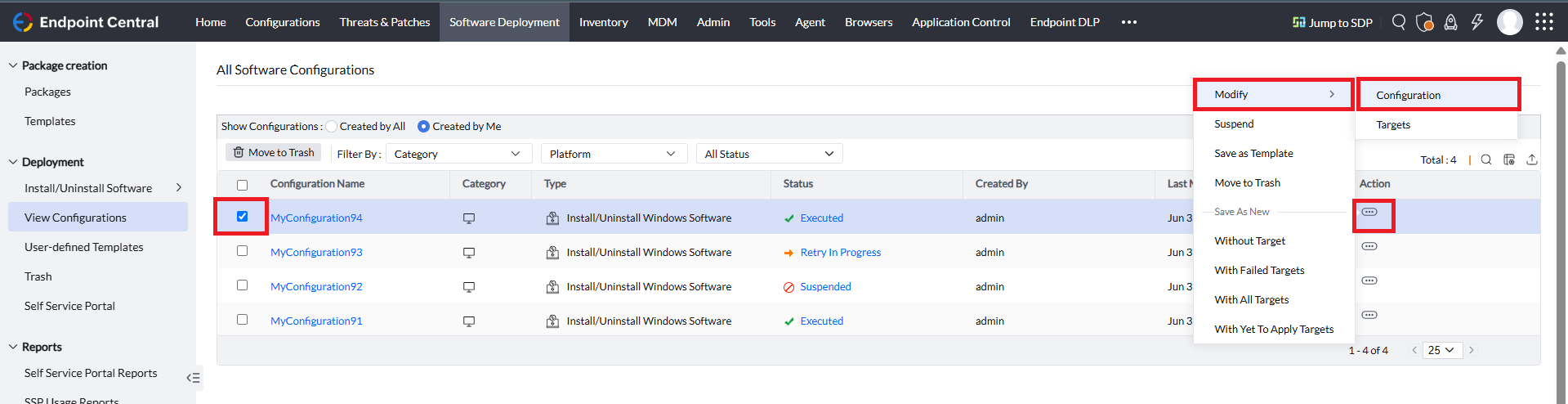
- In the Endpoint Central console, navigate to the Software Deployment tab > Deployment > View Configurations
- Select the configuration you want to modify.
- Under the Action column, select the three dots icon and select Modify > Configuration.
Moving Configuration to Trash
The created Software Deployment configuration can be moved to trash when the configuration is no longer required or can be moved to trash based on your requirement.
To move the configuration to trash, follow the steps below:
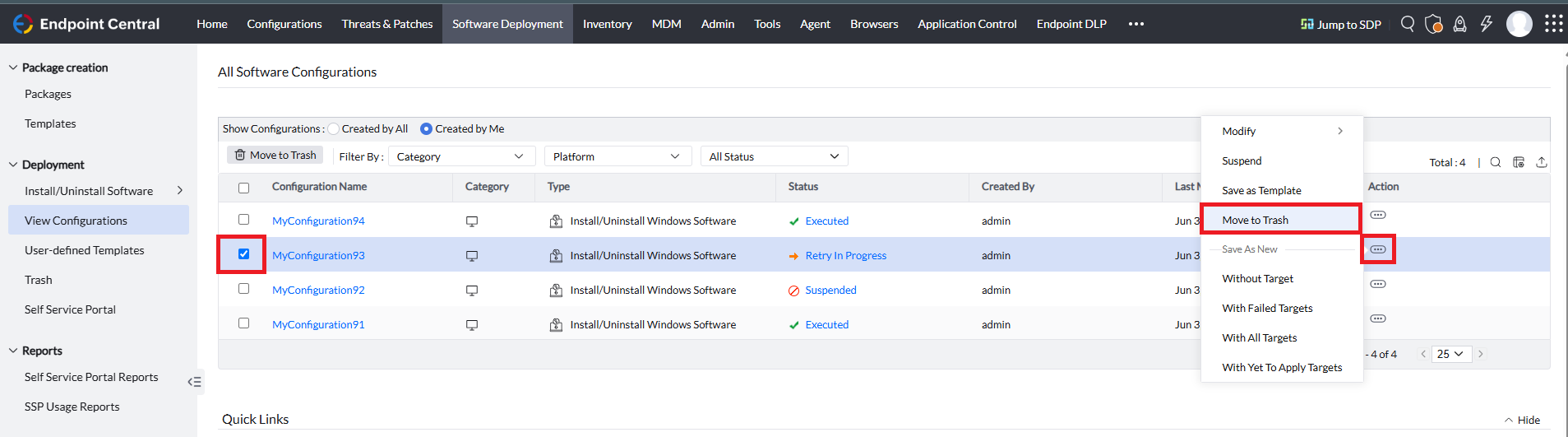
- In the Endpoint Central console, navigate to the Software Deployment tab > Deployment > View Configurations
- Select the configuration you want to move to trash.
- Under the Action column, select the three dots icon and select Move to Trash.
Kindly note that when a configuration is moved to trash, the configuration will still work fine, and the configuration will be applied to the targets that are in progress or if the retry is in progress. If you want to completely stop the configuration from being deployed, suspend the configuration and then move it to trash.
Suspending and Resuming the Configuration
The created Software Deployment configuration for certain reasons needs to be stopped from being deployed to the target computers, then those configurations can be suspended.
To suspend the configuration, follow the steps below:
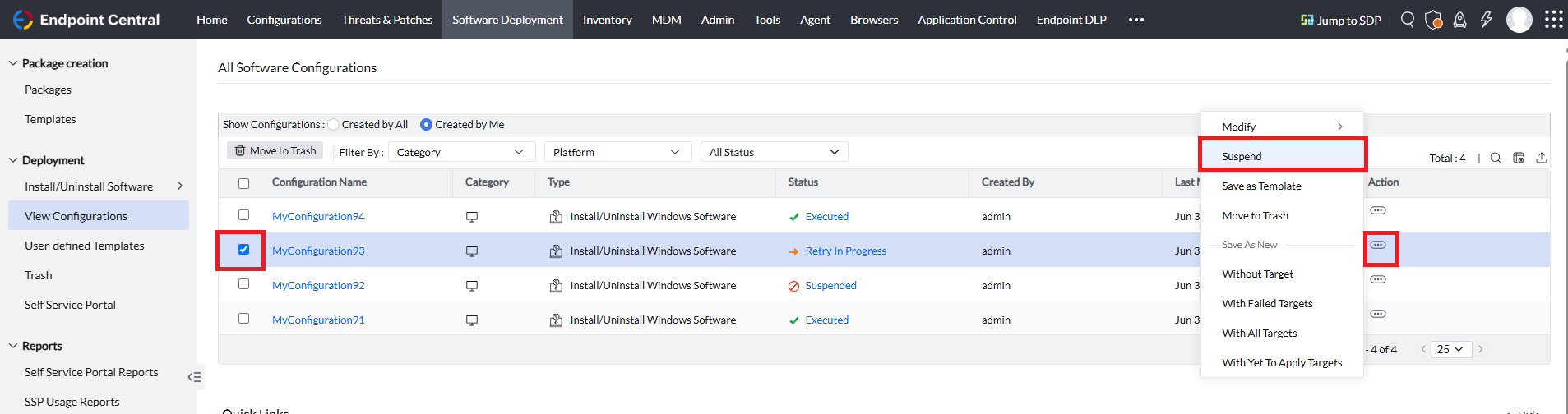
- In the Endpoint Central console, navigate to the Software Deployment tab > Deployment > View Configurations
- Select the configuration you want to suspend.
- Under the Action column, select the three dots icon and select Suspend.
You can resume the suspended Software Deployment configuration. To resume the configuration, follow the steps below:
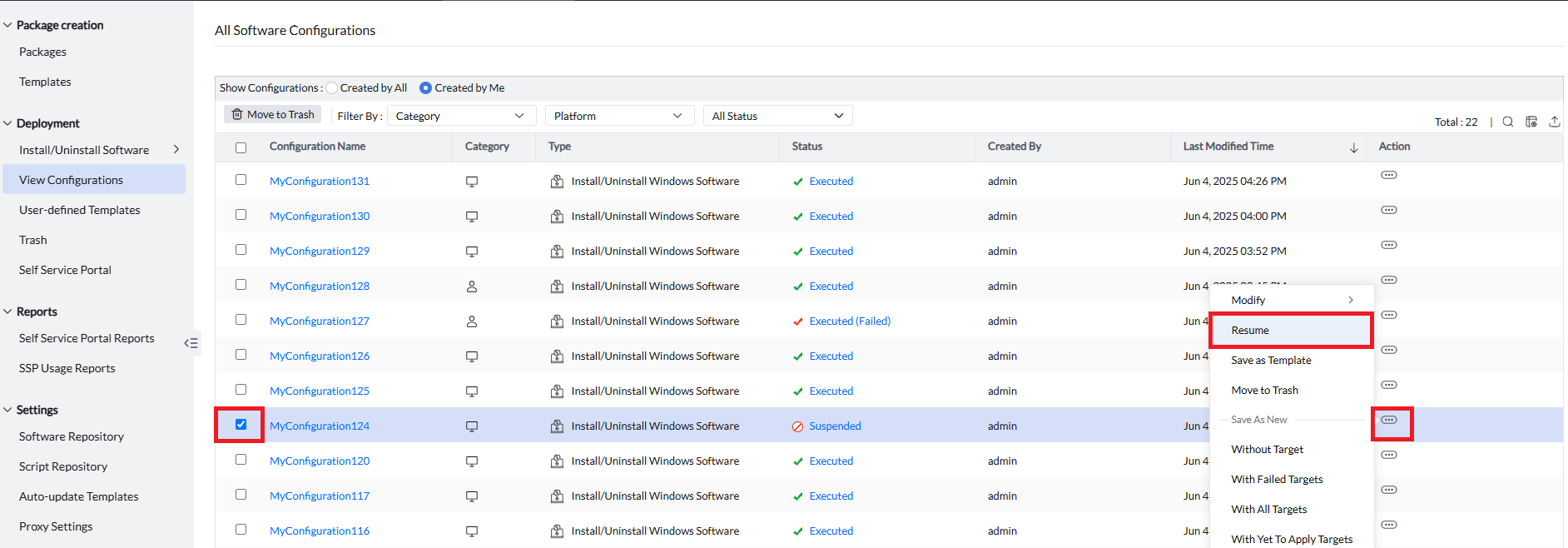
- In the Endpoint Central console, navigate to the Software Deployment tab > Deployment > View Configurations.
- Select the suspended configuration you want to resume.
- Under the Action column, select the three dots icon and then select Resume.