- Knowledge base
- Active Directory management
- Active Directory reports
- Active Directoy integrations
- Active Directory automation
- Active Directory delegation
- Governance, risk, and compliance
- Microsoft 365 management and reporting
- AD migration
- Access certification
- Identity risk assessment
- Risk exposure management
- FAQs
- Pricing
- Online demo
- Request support
- Get quote
Managing Windows configuration on non-domain or standalone endpoints is a challenge every IT admin eventually faces. The Local Group Policy Editor, also referred to as gpedit.msc, is the native Windows tool that admins commonly use to manage individual machines.
What is the Local Group Policy Editor?
The Local Group Policy Editor is a Microsoft Management Console (MMC) snap-in, accessible via gpedit.msc, that provides a graphical interface for managing the Local Group Policy Object (LGPO) on a computer. It allows admins to configure hundreds of Windows settings, from password policies and user rights assignments to software restrictions, registry values, and security options.
Unlike the Group Policy Management Console (GPMC), which manages GPOs deployed across an entire AD domain, the Local Group Policy Editor helps in managing the GPOs that only affect the machine on which it is running.
The settings are divided into two primary root nodes:
- Computer Configuration: Contains all policies that apply to the machine regardless of who logs in.
- User Configuration: Contains policies configured to specific users once logged in.
Each node contains three sub-containers: Software Settings, Windows Settings, and Administrative Templates. Administrative Templates is by far the largest sub-container, holding thousands of registry-backed policies sourced from ADMX template files.
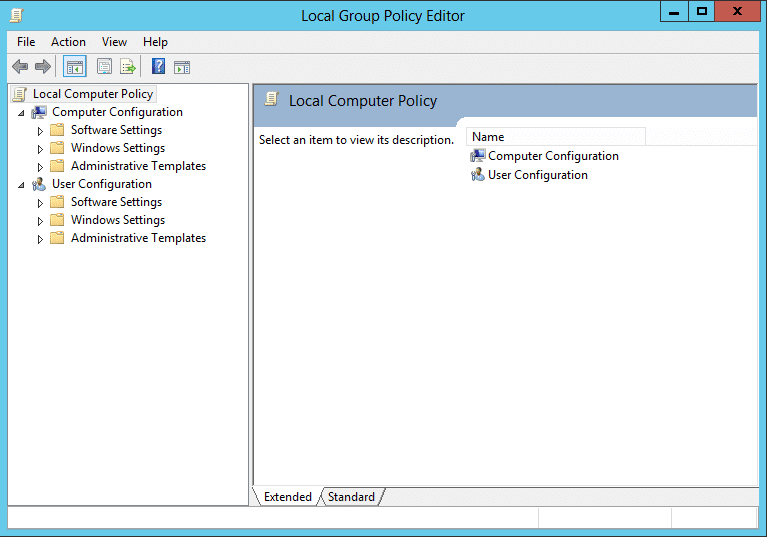
LGPOs should not be confused with domain GPOs managed via the GPMC. In AD environments, domain GPOs typically override local settings when conflicts occur.

Local Group Policy vs. Domain Group Policy
What is a Local Group Policy?
A Local Group Policy is a set of configuration rules stored directly on a single Windows machine. It uses a local policy, a collection of Computer Configuration and User Configuration settings that Windows applies to the local machine at startup and logon respectively. The local policy lives entirely on that one machine at C:\Windows\System32\GroupPolicy and has no connection to AD or any other machine on the network.
What is a Domain Group Policy?
A Domain Group Policy refers to the GPOs created with AD and managed through the GPMC on a domain-joined machine or domain controller (DC). These GPOs are stored in SYSVOL, a replicated folder on all domain controllers, and are linked to AD containers: sites, domains, or organizational units (OUs). When a domain-joined Windows machine starts up or a user logs in, it contacts a DC, then downloads and applies the applicable GPOs. A single domain GPO can enforce settings across hundreds or thousands of machines simultaneously with no machine-related configuration required. Unlike LGPOs, domain GPOs support versioning, delegation, security filtering, WMI filtering, and full audit logging.
The LSDOU processing order
To understand the difference between a Local Group Policy and a Domain Group Policy, it is important to understand how a Windows machine processes GPOs.
When a computer is joined to a domain, it evaluates both local and domain policies. To prevent conflicts, Windows follows a specific processing order known as LSDOU:
- Local Group Policies
- GPOs linked to Sites
- GPOs linked to Domains
- GPOs linked to OUs
Because domain and OU policies are processed last, they overwrite any conflicting settings defined in the Local Group Policy. For example, if a LGPO allows a USB drive but a Domain Group Policy prohibits it, the USB drive will be blocked.
When should you use Local Group Policy?
The Local Group Policy Editor is the right tool for a specific set of scenarios. Outside of these, domain GPOs or a centralized management tool are almost always superior. These include:
- Standalone or workgroup machines: Endpoints that are not domain-joined and cannot be enrolled in AD.
- Kiosk or single-purpose stations: Locked-down point-of-sale terminals, kiosk browsers, or reception computers that require a specific local policy lockdown.
- Pre-domain-join baseline configuration: A security baseline applied to a freshly imaged machine before it joins the domain.
- Troubleshooting: Testing performed on a machine to see if a specific policy setting resolves an issue before rolling it out via AD.
- Non-domain servers: Application servers, file servers, or edge devices in workgroup environments.
On domain-joined machines, use gpresult /h C:\gp-report.html to generate a Resultant Set of Policy (RSoP) report. This shows exactly which GPOs are applied and what their effective settings are, helping teams quickly diagnose conflicts between local and domain policies.
How to open the Local Group Policy Editor
There are multiple ways to launch gpedit.msc in Windows 11 depending on your workflow and what you need to target.
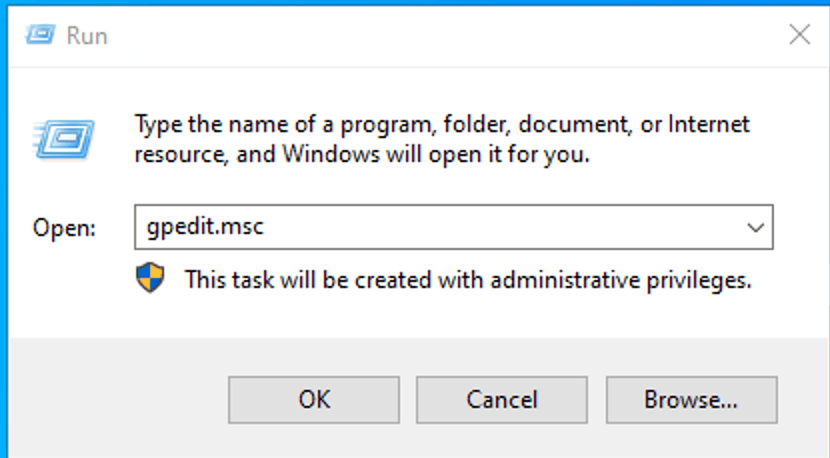
Open Group Policy Editor using the Run dialog box
- Press Win + R to open the Run dialog.
- Type gpedit.msc and press Enter or click OK.
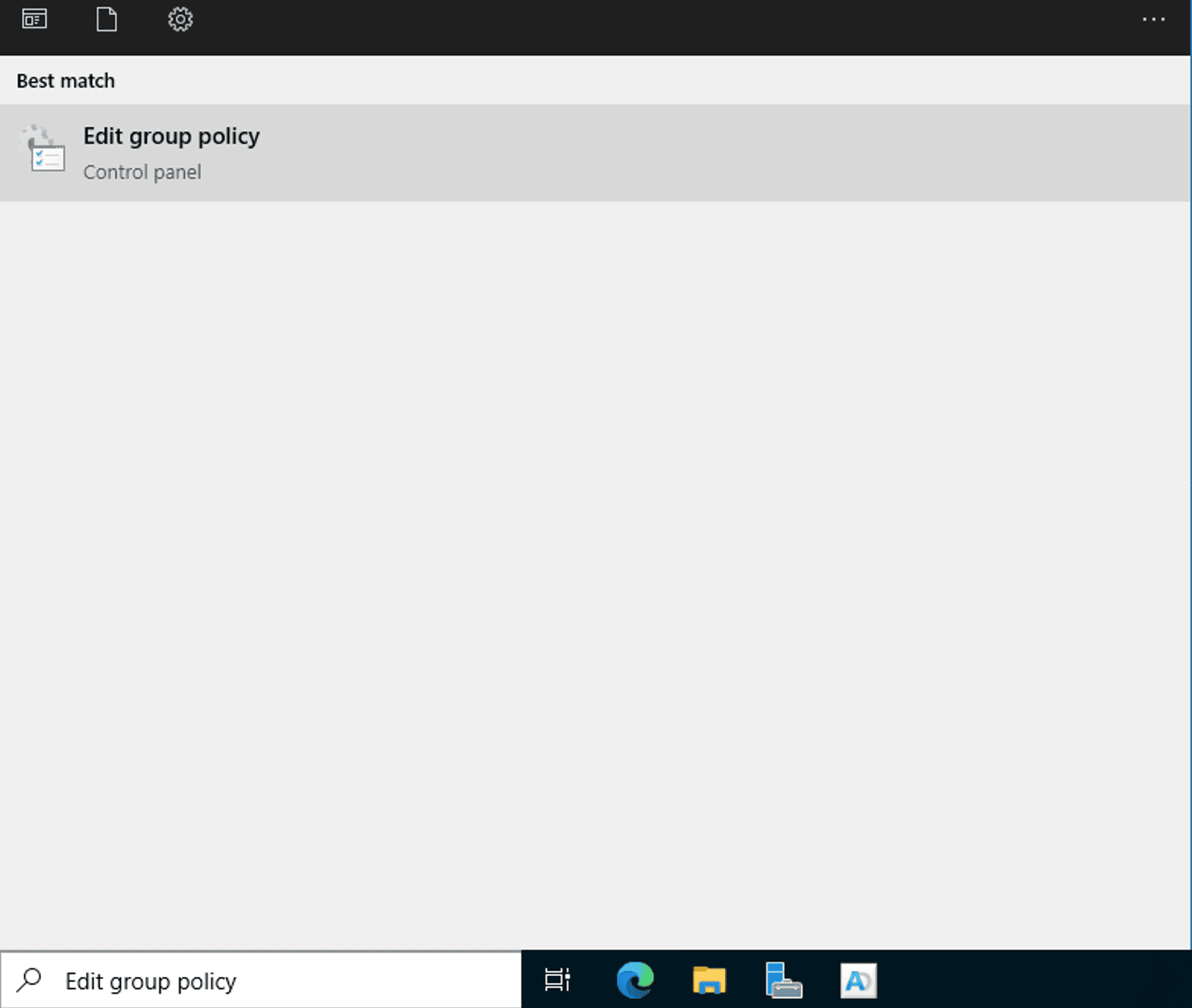
Open Group Policy Editor using Windows Search
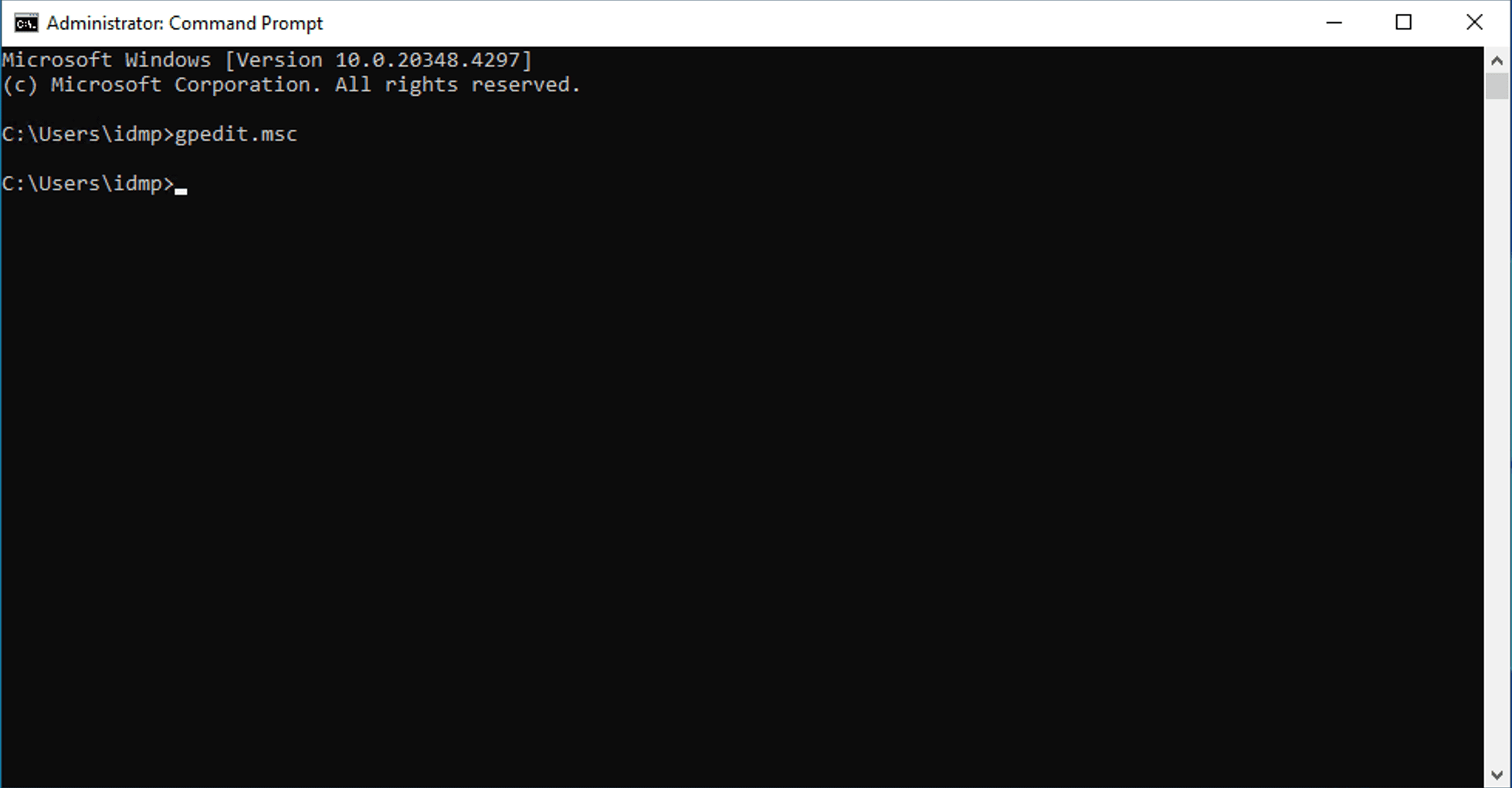
Open Group Policy Editor using Command Prompt or PowerShell
Open Group Policy Editor from File Explorer
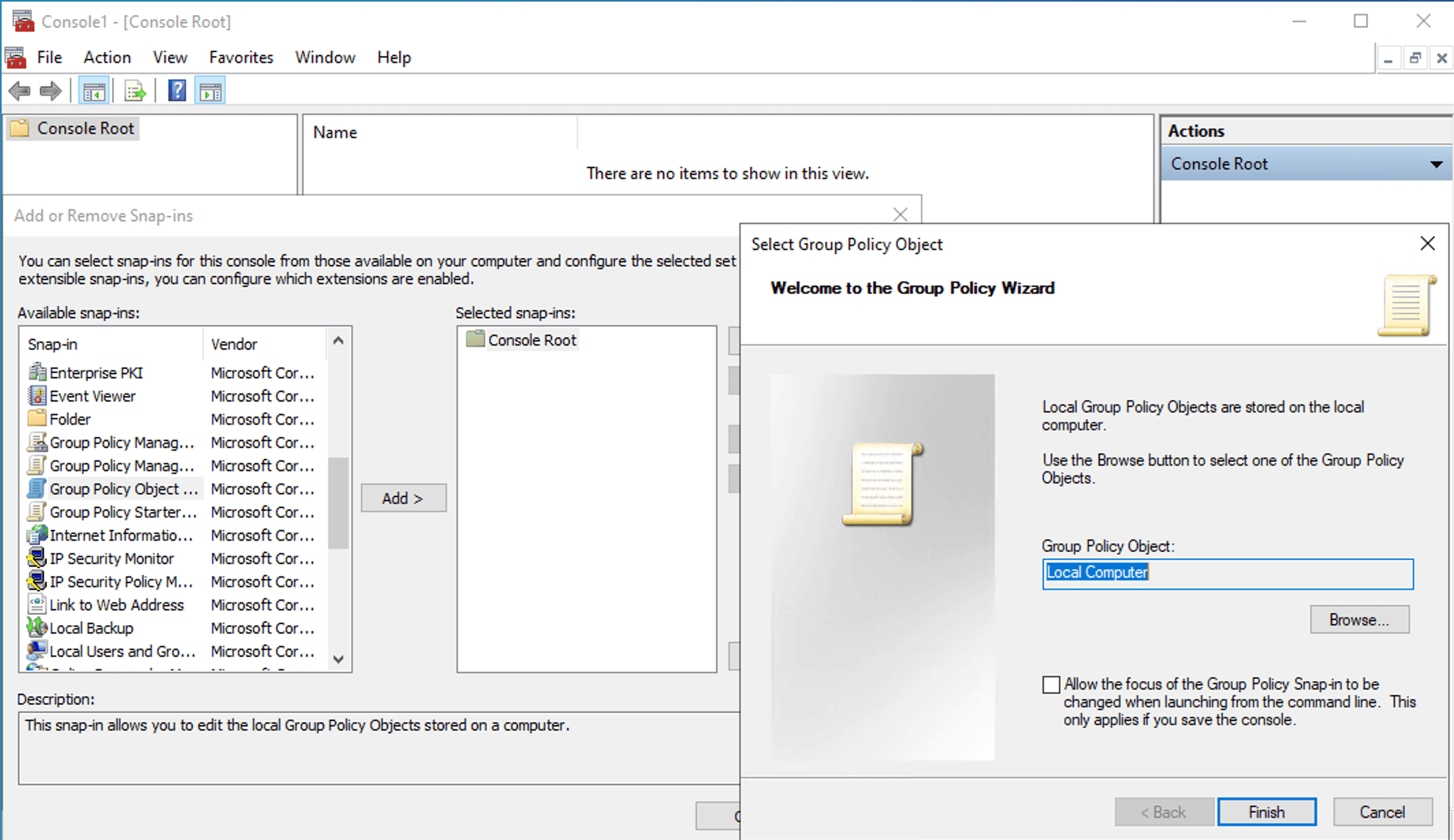
Open Group Policy Editor as a MMC snap-in
How to use the Local Group Policy Editor
Admins primarily use the editor to enforce security baselines and restrict hardware or software access on standalone machines.
- Open the Local Group Policy Editor.
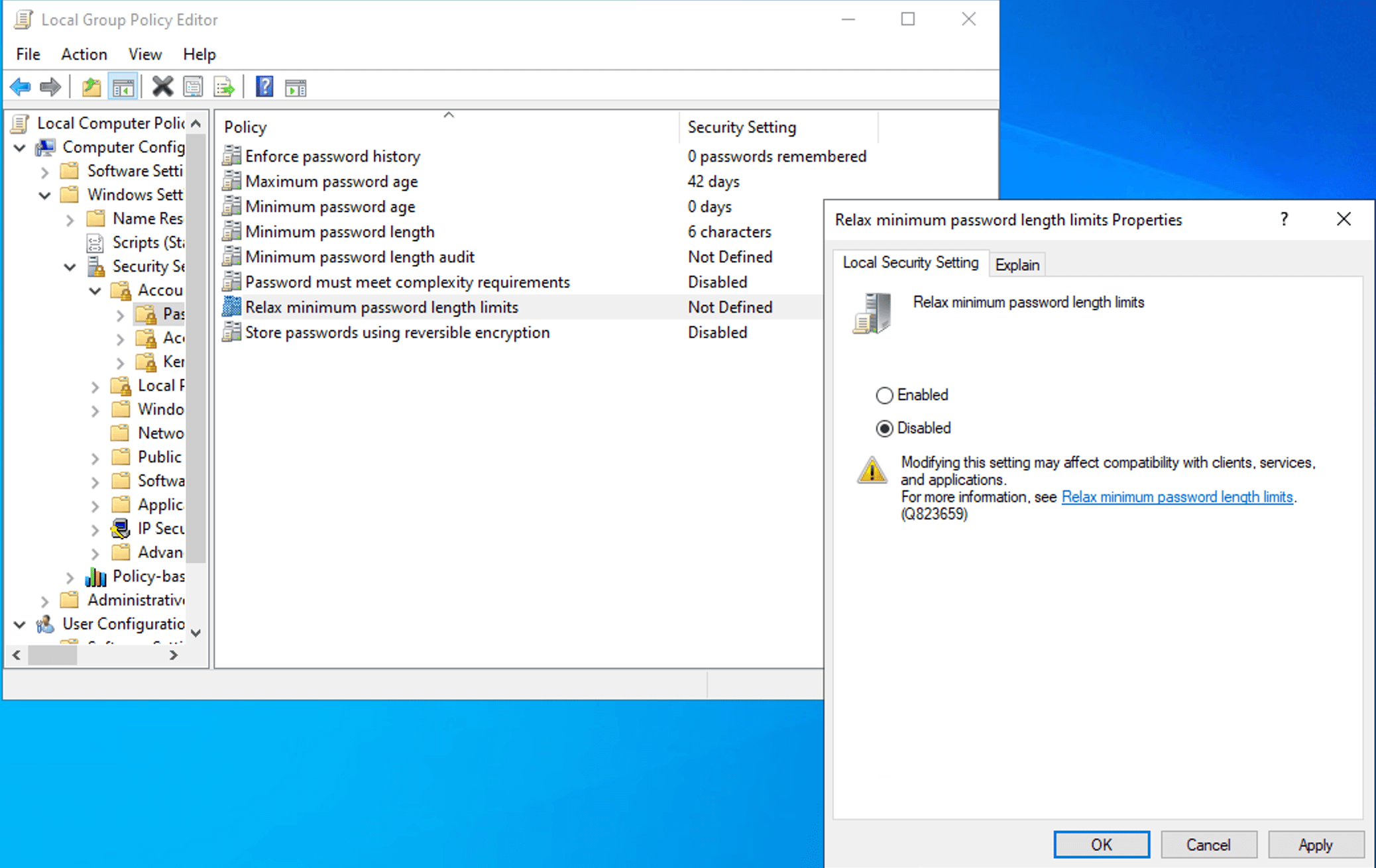
- Navigate to the appropriate node. For example, to enforce a minimum password length, navigate to Computer Configuration > Windows Settings > Security Settings > Account Policies > Password Policy.
- Locate the target setting that you would like to edit and double-click it to open its Properties dialog.
- In the Local Security Setting tab, select Enabled or Disabled. If applicable, you can also set the value directly.
- Configure any available options in the Options tab, if applicable.
- Before confirming, click the Explain tab to verify that the setting does exactly what you expect.
- Click OK.
- Open an elevated Command Prompt and run gpupdate /force to apply the setting immediately without waiting for the next refresh cycle.
How to apply Local Group Policies to specific users
- Press Win + R, type mmc.exe, and press Enter.
- Go to File > Add/Remove Snap-in.
- Choose Group Policy Object Editor from the list and click Add.
- In the Select Group Policy Object wizard, click Browse instead of Finish.
- Navigate to the Users tab.
- Select a specific local user or the non-admins group.
- Click OK.
- You will now see a policy root with a label similar to Local Computer\Guest Policy. Any changes made under User Configuration here will apply only to that specific user.
Enabling audit logging for Local Group Policy changes
- Open the Local Group Policy Editor.
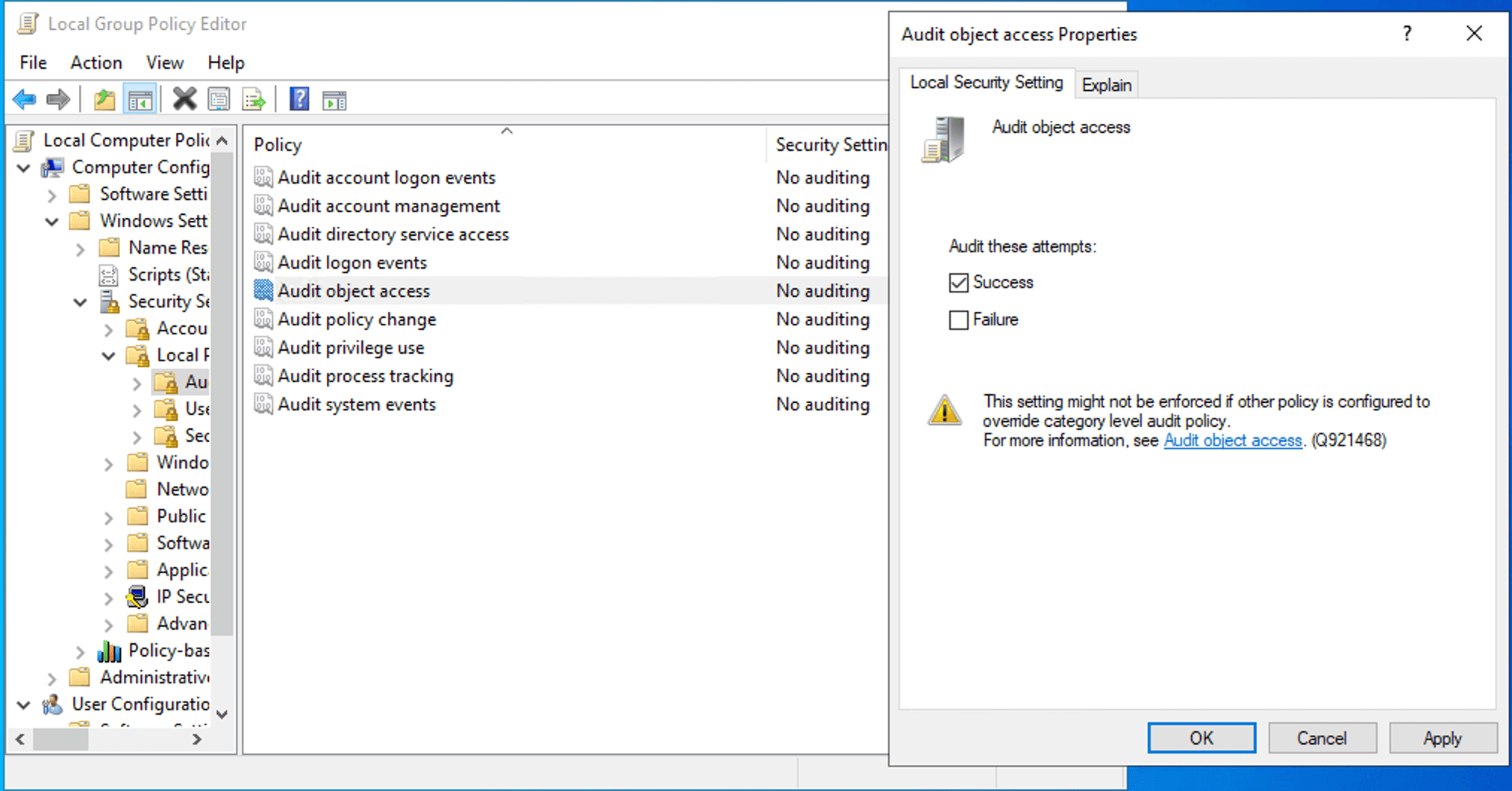
- Navigate to Computer Configuration > Windows Settings > Security Settings > Local Policies > Audit Policy.
- Enable Audit object access for both Success and Failure.
- Open Windows Explorer, navigate to C:\Windows\System32\GroupPolicy.
- Right-click Properties and navigate to the Security tab, then click Advanced > Auditing.
- Add an audit entry for everyone or a specific admin group for Write, Delete, and Change Permissions actions.
If you need to deploy a consistent Local Group Policy configuration across multiple standalone machines without AD, the LGPO.exe utility in the Microsoft Security Compliance Toolkit is the right tool for the job.
Limitations of the Local Group Policy Editor
The Local Group Policy Editor leaves no native audit trail. When an admin or attacker with admin rights modifies a LGPO using gpedit.msc, Windows does not write a corresponding event to the Security Event Log by default. There is no built-in record of what changed, when it happened, or who made the change. This is a significant security gap, especially in environments where local admin credentials are shared or where endpoint compromise is a concern. Unauthorized LGPO modification is an effective persistence and privilege escalation technique. If auditing is not explicitly configured, attackers can use gpedit.msc to disable Windows Defender, remove account lockout policies, and modify user rights, all without generating a security event.
Troubleshooting common Local Group Policy Editor issues
- Error: Windows cannot find gpedit.msc.
Solution: This might occur when you try to install the Local Group Policy Editor on computers running Windows Home. Upgrade your computers to Windows Pro or Enterprise (versions 10 or 11) to resolve this issue.
- Error: MMC could not create the snap-in.
Solution: This error appears when launching gpedit.msc or when adding the Local Group Policy Object Editor snap-in manually via mmc.exe. This could be because of a corrupt or missing snap-in registration. Reregister the core Group Policy dynamic link libraries (DLLs) from an elevated Command Prompt or restart the machine and attempt to open gpedit.msc again. This error can also appear because the snap-in was run as a non-administrative user. You can resolve this by right-clicking gpedit.msc or mmc.exe and selecting Run as administrator.
- Error: Group Policy changes are not applying.
Solution: Changes made in gpedit.msc apply on the next refresh cycle. To force an immediate refresh, execute the gpupdate /force cmdlet from an elevated Command Prompt.
- Instantly create new GPOs and link them to the appropriate OUs, domains, or sites from a single place.
- Take full control of your AD by managing GPOs and their links with a few clicks.
- Maintain strict security baselines by enforcing GPOs or managing GPO inheritance to ensure critical policies are never bypassed.
- Effortlessly migrate GPOs across different domains within a forest, ensuring consistent policy application during restructuring or mergers.
- Gain real-time insights into your environment with specialized GPO reports.
- What is the Local Group Policy Editor?
The Local Group Policy Editor is a Microsoft Management Console (MMC) snap-in that provides a single interface for managing all the settings of local GPOs. It allows IT admins to manage system and Windows components without manually editing the registry.
- Is the Local Group Policy Editor the same as the Group Policy Management Console?
No. The Local Group Policy Editor manages the Local Group Policy Object (LGPO) on a single machine while the Group Policy Management Console (GPMC) manages the GPOs within AD, applying settings via AD to multiple machines, including OUs, domains, and sites. Both the Local Group Policy Editor and the GPMC use similar interfaces, but their scope, storage, and precedence are completely different.
- How do I open the Local Group Policy Editor?
The most direct way to open the editor is to press Win + R, type gpedit.msc in the Run dialog box, then press Enter. You can also find it by searching for Edit group policy in the Windows Start menu or by typing gpedit.msc into a Command Prompt or PowerShell window.
- Is Local Group Policy overridden by AD GPOs?
Yes. Windows processes policies in a specific order known as LSDOU: local (L), site (S), domain (D), and then organizational units (OU). Since local policies are processed first and domain and OU policies are processed last, any conflicting settings in an AD GPO will override the Local Group Policy setting.
- How do I reset the Local Group Policy to default?
To reset all local policies, you must delete the policy storage folders. Navigate to C:\Windows\System32\GroupPolicy and C:\Windows\System32\GroupPolicyUsers, delete the contents of both folders (you may need to show hidden files), then run the command gpupdate /force in an elevated Command Prompt.
- Can I use the Local Group Policy Editor on a domain-joined computer?
Yes, you can use the tool to configure settings locally. However, it is generally discouraged in enterprise environments because local changes are difficult to audit. Furthermore, if a Domain Admin creates a GPO that contradicts your local setting, the Domain GPO will take precedence.
- What is the difference between gpedit.msc and secpol.msc?
The Local Group Policy Editor manages all local settings, including UI and system behavior, while secpol.msc is a subset that focuses exclusively on security-specific settings like password policies and audit rights.
- How do I enable gpedit.msc on Windows 11 Home?
The Local Group Policy Editor is not included in Windows 11 Home by default and is only available on Pro, Enterprise, and Education editions.
- How do I reset Group Policy settings to default?
You can reset the Group Policy settings by deleting or renaming the GroupPolicy and GroupPolicyUsers folders located in C:\Windows\System32\GroupPolicy, then restarting the system. Alternatively, you can also execute the following script in a Command Prompt:
Click to copy scriptRD /S /Q "%WinDir%\System32\GroupPolicy"
RD /S /Q "%WinDir%\System32\GroupPolicyUsers"Once deleted, run the command gpupdate /force in an elevated Command Prompt to refresh the local registry and return settings to their Windows defaults.
- Can changes made in Group Policy Editor be undone?
Yes, but the method depends on the type of change. For individual settings, you can return a policy to its non-configured state, which typically removes the registry key associated with that policy. However, since gpedit.msc does not have a native undo button or version history, it is difficult to track exactly what was changed.
- Does Group Policy Editor work on Windows Server?
Yes, the Local Group Policy Editor is available on all modern versions of Windows Server. While servers are typically managed via Domain GPOs through GPMC, gpedit.msc is frequently used on them for Local Security Policy hardening and for configuring specific roles before any are joined to an AD domain.
Managing GPOs at scale
The Local Group Policy Editor is a capable tool when the intended scope is a single machine, a specific user, or a small handful of standalone endpoints. Beyond that, it becomes an operational liability.
ADManager Plus provides IT teams with a centralized platform for managing and reporting on Group Policies across the AD environment. From a single console, admins can: