gpupdate is a command that manually refreshes Group Policy settings on a local or domain-joined computer, applying new or changed configurations immediately rather than waiting for the default background refresh cycle.
Group Policy Objects (GPOs) are collections of settings that control the behavior of users and computers in an Active Directory (AD) environment. By default, Windows refreshes Group Policies automatically every 90 minutes with a random offset of up to 30 minutes and at every user logon or computer reboot, while domain controllers (DCs) refresh their own policies every five minutes.
However, there may be instances when an IT administrator needs to apply updated policies instantly without waiting for the next refresh cycle. In such situations, the gpupdate command and its /force switch are used to enforce a policy update, giving administrators a way to trigger a refresh on demand.
Here's the syntax for the gpupdate command:
gpupdate [/target:{computer | user}] [/force] [/wait:<value>] [/logoff] [/boot] [/sync] [/?]
| Parameter | Description |
|---|---|
| /target:{computer | user} | Limits the refresh to either computer or user policy settings. Use this parameter to speed up updates when only one side has been modified. |
| /wait:<value> | Specifies the number of seconds to wait for policy processing to finish before returning the command prompt. The default value is 600 seconds. Set to 0 to return immediately without waiting, or -1 to wait indefinitely. |
| /logoff | This logs off the current user after the Group Policy update completes. |
| /boot | This restarts the computer after the Group Policy update completes. |
| /sync | Ensures that the next foreground policy application at user logon or computer startup runs synchronously and ensures that the desktop does not load until policy processing is complete. When /sync is specified, the /force and /wait parameters are ignored. |
| /? | Displays the help information for the gpupdate command, listing all available parameters and their syntax. |
gpupdate performs an incremental refresh and checks for new or changed Group Policy settings since the last update and applies only those. gpupdate /force, on the other hand, reapplies every policy assigned to the computer and user, regardless of whether anything has changed. You can use gpupdate for routine refreshes after making a policy change and gpupdate /force when you suspect a policy is not applying correctly or when you need to revert unauthorized local changes.
| Aspect | gpupdate | gpupdate /force |
|---|---|---|
| What it updates | New and changed policies only | All policies, whether modified or not |
| Processing scope | Incremental and skips unchanged settings | Full reapplication of every policy |
| DC load | Low | Higher because more data is transferred |
| Speed | Faster | Slower |
| Usecase | Routine refresh after making a policy change | Urgent policy deployment, troubleshooting policy application issues, and reverting unauthorized local changes |
| Risk | Minimal; only changed policies are reprocessed, so DC and network load is low | Higher in large environments; every assigned GPO is reprocessed for each client, which can strain DCs and increase network traffic if run across many machines simultaneously |
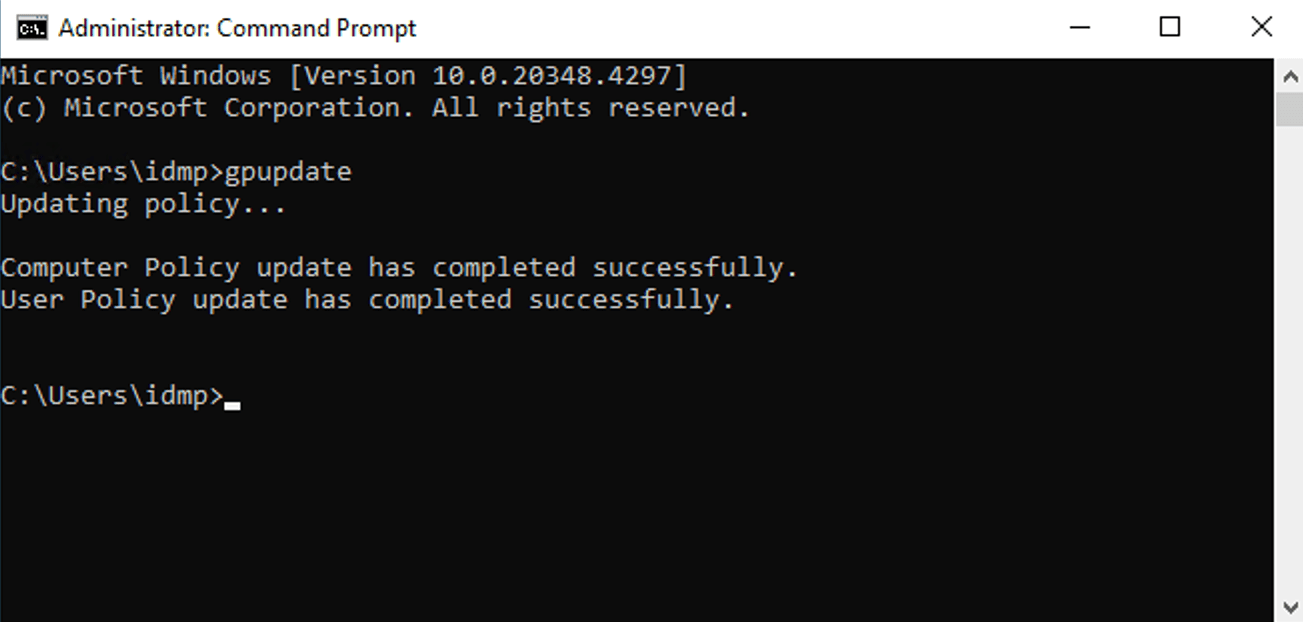
When you run gpupdate, the following sequence occurs:
gpupdate
gpupdate /force
gpupdate can also be run without administrator privileges for a user-level refresh, though computer policy settings require elevated rights.
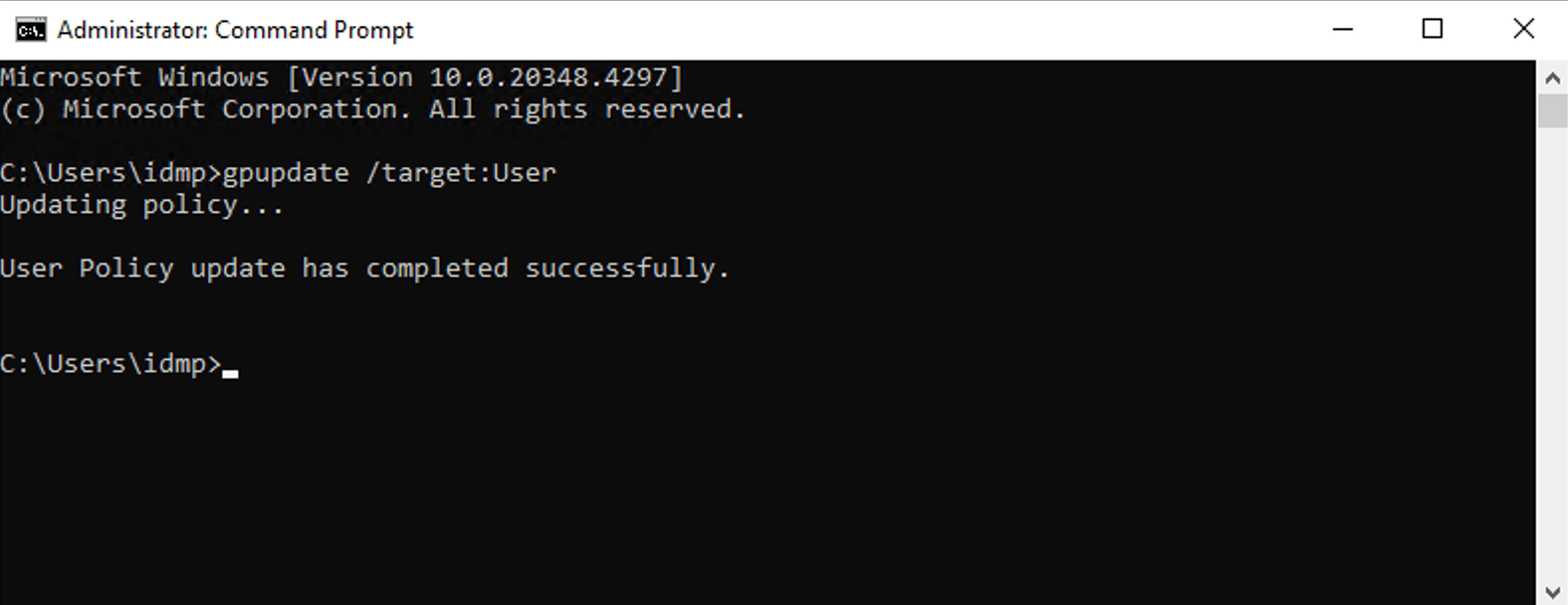
To refresh only user-side Group Policy settings without processing computer policies, use the /target:user parameter. This is useful when you have made changes exclusively to User Configuration settings in a GPO, such as desktop restrictions, logon scripts, or folder redirection, and want a faster refresh without triggering the full computer-side policy cycle.
gpupdate /target:user
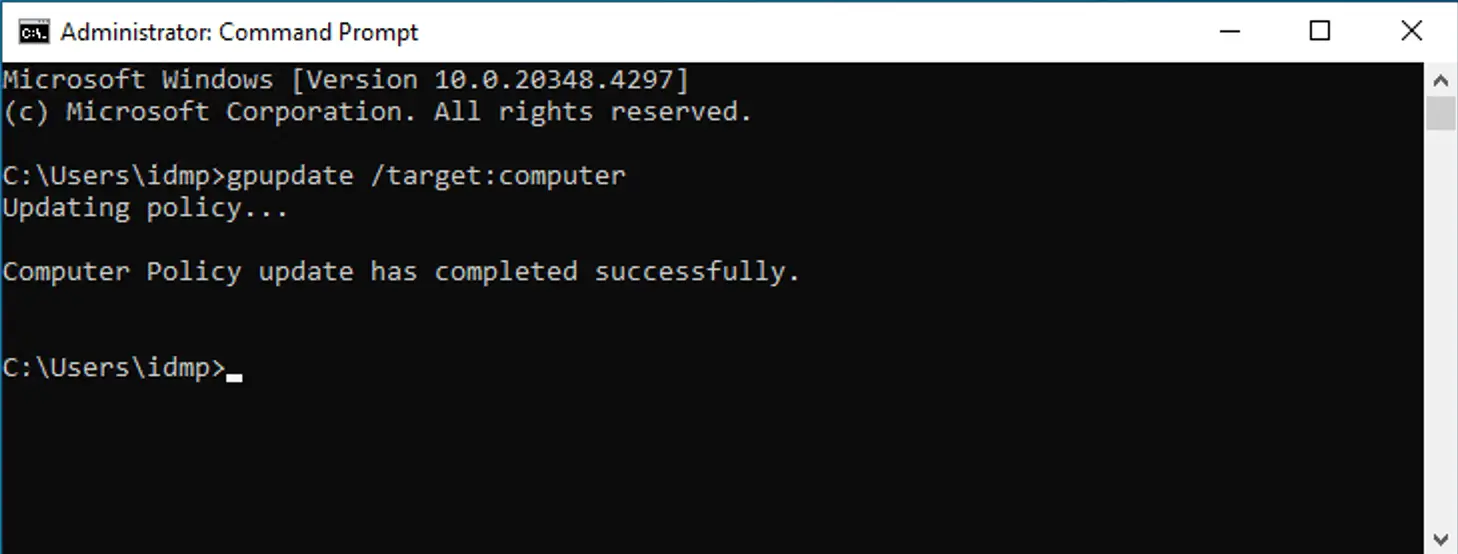
To refresh only computer-side Group Policy settings without processing user policies, use the /target:computer parameter. This is useful when changes were made to Computer Configuration settings, such as security baselines, startup scripts, or software deployment, and you want to apply them without a full refresh.
gpupdate /target:computer
gpupdate /force /logoff
gpupdate /force /wait:0
gpupdate /force /boot
gpupdate /sync
Invoke-GPUpdate is a PowerShell command that lets you trigger a Group Policy refresh on one or more remote computers without logging in to each machine individually. It works by scheduling a remote task that runs gpupdate /force on the target.
This command, however, requires the following:
Invoke-GPUpdate -Computer
											Get-ADComputer -Filter * -SearchBase "OU=Workstations,DC=corp,DC=local" |
ForEach-Object { Invoke-GPUpdate -Computer $_.Name -Force -RandomDelayInMinutes 0 }
After running gpupdate, you can use the gpresult command to confirm the update was applied correctly.
To view a summary of applied policies for the current user and computer:
gpresult /r
The Group Policy Management Console (GPMC) is an MMC snap-in that can be used to manage GPOs. It uses gpupdate /force internally to trigger a forced Group Policy update on all computers within an OU and applies a random delay of up to 10 minutes to spread the load across DCs.
The GPMC method targets all computers in the selected OU and any OUs nested within it. However, it cannot target individual computers or the default Computers container.
The results window shows whether the update was scheduled successfully and not whether the policy applied successfully. To verify actual policy application, use the gpresult command or check the GroupPolicy\Operational log in Event Viewer.
While the gpupdate command and the GPMC work well for small-scale updates, they become cumbersome in large environments and require either machine-by-machine access or scripted PowerShell deployments.
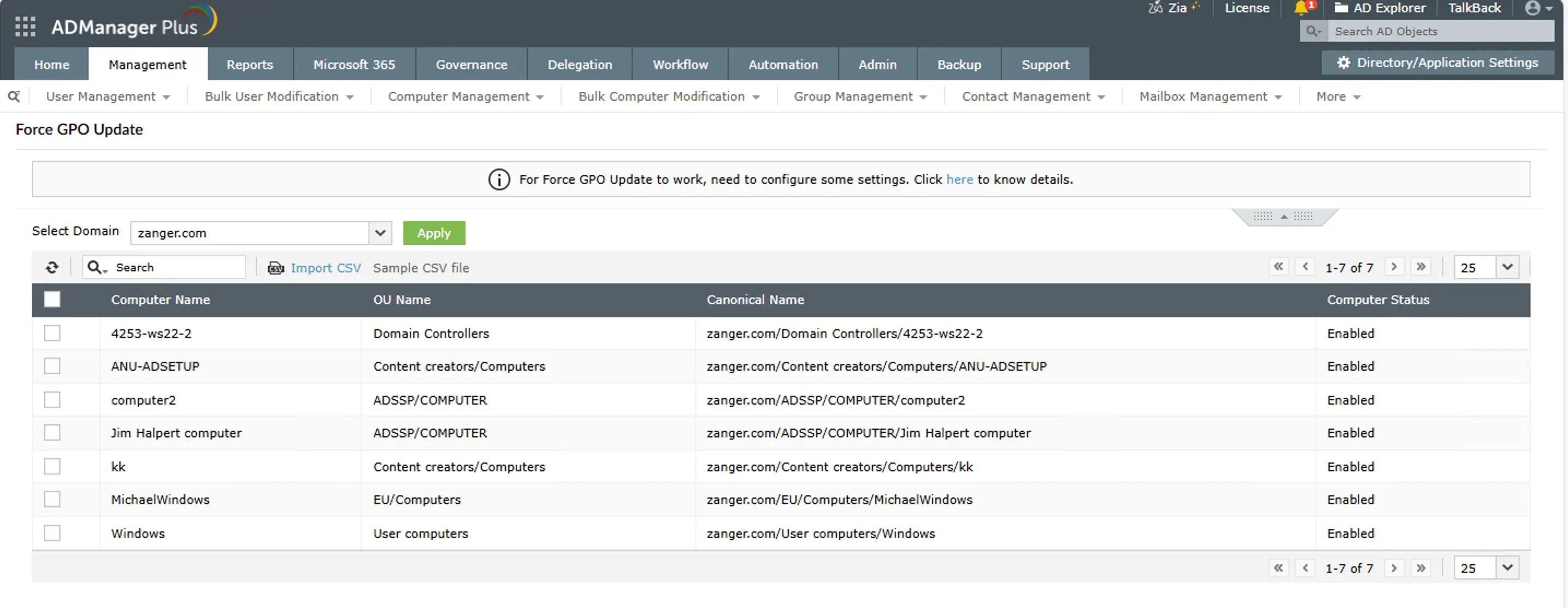
ADManager Plus offers a built-in GPO update feature that lets you push policy updates to any combination of DCs in just a click, without needing to run scripts or open GPMC on individual machines.
ADManager Plus triggers the update across all selected computers simultaneously, bypassing the 90-minute default refresh cycle and without requiring scripts or direct machine-level connectivity from your workstation.
Cause: The most common causes are DNS resolution failure, loss of connectivity to the DC, expired credentials, or a corrupt user profile.
To fix this error:
Cause: This is often caused by a corrupt Registry.pol file in the local Group Policy folder.
To fix this error:
Cause: Policy processing is hanging, often due to a slow or unreachable DC, a large number of GPOs, or a CSE waiting for a foreground event.
To fix this error:
Cause: This error occurs when Group Policy processing is interrupted mid-execution, most commonly because the Group Policy Client service timed out, the RPC connection to the DC was dropped, or a client-side extension (CSE) stalled during processing. It is frequently seen on machines with slow network links or after a DC failover.
To fix this error:
In most cases, a standard update is sufficient for a policy change to apply. Reserve the /force parameter for situations when a policy is genuinely not taking effect.
Use the GPMC's built-in Group Policy Update, which adds a random delay, or Invoke-GPUpdate with -RandomDelayInMinutes to spread load across DCs.
Running gpresult /r after an update confirms the policies that were applied and surfaces any denials or errors before they cause downstream issues.
If you only modified a user-side setting, gpupdate /target:user is faster and avoids unnecessary computer-side processing.
If you modify the default 90-minute cycle, record it in your change management system, as unexpected intervals can complicate troubleshooting later.
For bulk policy refreshes across multiple computers or domains, ADManager Plus' Force GPO Update feature provides a controlled, auditable approach without requiring direct CLI access to each machine.
Managing Group Policy at scale across multiple domains, hundreds of computers, and diverse OU structures quickly outgrows what native tools can handle comfortably. ADManager Plus, a GPO management and reporting solution, replaces the need for the GPMC and PowerShell scripts for most day-to-day tasks. Using ADManager Plus, you can:
gpupdate /force is a Windows command that forces a complete reapplication of all Group Policy settings on a computer, regardless of whether any policies have changed since the last update. It is commonly used for troubleshooting and for applying urgent policy changes immediately.
Yes, you can run gpupdate without admin rights for user-side policies. Running gpupdate does not require an elevated prompt for user configuration settings. However, computer policy settings require administrator privileges.
Use the Invoke-GPUpdate PowerShell command and the following script:
Invoke-GPUpdate -Computer "PCName" -Force
However, this requires WinRM to be enabled and administrative access to the remote machine.
Run gpresult /r immediately after gpupdate to check if Group Polices are updated. This displays the applied policies for the current user and computer. For a more detailed view, export an HTML report with gpresult /h C:\GPReport.html.
Group Policy refreshes every 90 minutes on client machines with a 0-30 minute random offset, at every user logon, and at computer startup.
It increases load on DCs because each client requests and processes every assigned GPO rather than only changed ones. In large environments, running /force on many machines simultaneously can cause significant network and DC load. Use staged rollouts or ADManager Plus to manage this.
gpupdate /force may not work due to the following reasons:

