How to generate and export group policy settings report

You can generate and export group policy settings using native tools such as Windows PowerShell and ADManager Plus.  The following is a comparison between obtaining an AD group policy settings report with Windows PowerShell and ADManager Plus.

Windows PowerShell

Steps to obtain group policy settings using PowerShell:

  • Identify the domain from which you want to retrieve the report.
  • Identify the LDAP attributes you need in group policy settings retrieval.
  • Identify the primary DC to fetch the GPO report.
  • Compile the script 
  • Execute it in Windows PowerShell.
  • The report will be exported in the given format.
  • To obtain the report in a different format, modify the script accordingly to the needs of the user.

Sample Windows PowerShell script:

Copied

Import-Module ActiveDirectory
Import-Module GroupPolicy 
$dc = Get-ADDomainController
-Discover -Service PrimaryDC
Get-GPOReport -All -Domain mse1.com
-Server $dc.Name -ReportType HTML
-Path C:\Scripts\GPOReportsAll.html

Click to copy entire script

ADManager Plus

To obtain the report,

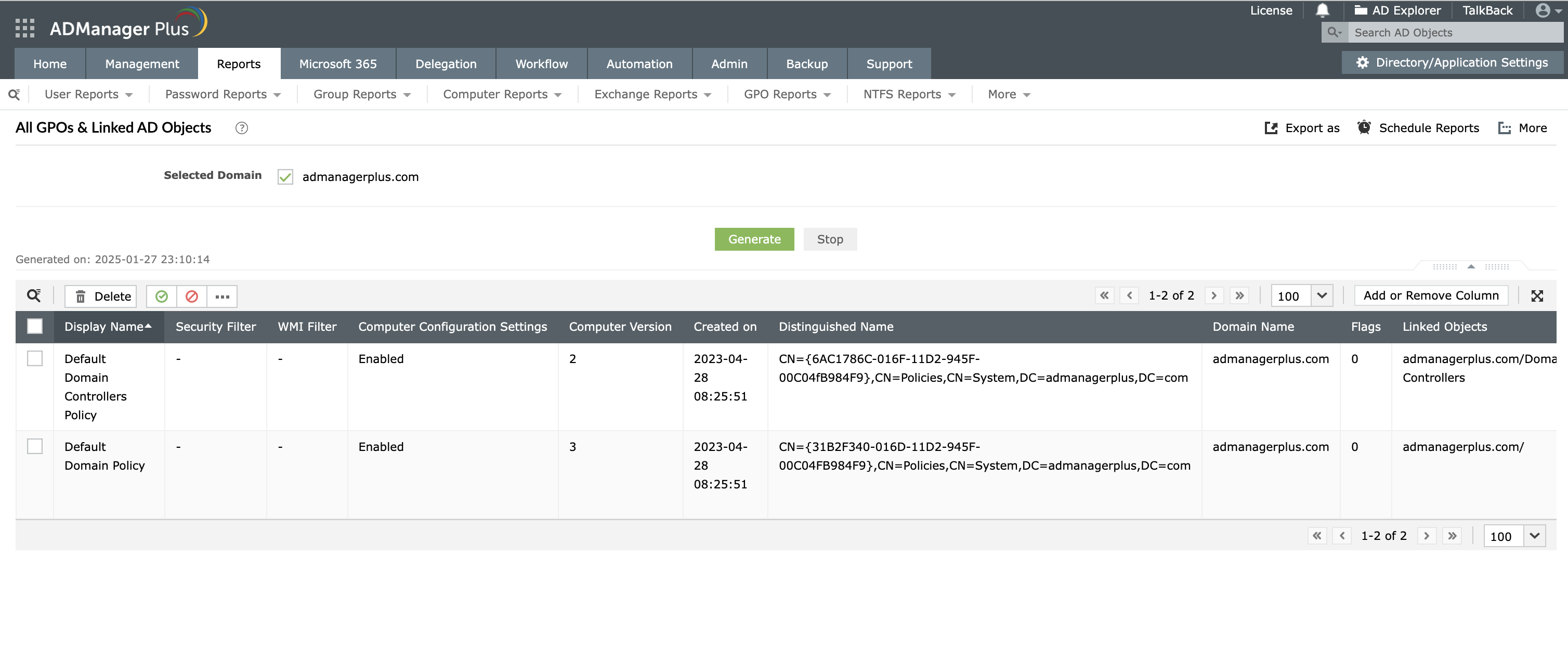
  • Select 'All GPOs and Linked AD objects' from GPO Reports . 
  • Select the desired domain, and click Generate.
  • Select 'Export as' to export the report in any of the desired formats (CSV, PDF, HTML, CSVDE and XLSX)

Screenshot

» Start 30-day Free Trial

Following are the limitations to obtain a report on group policy settings using native tools like Windows PowerShell.

  • To export Group policy settings using PowerShell, the script requires commands to identify the primary DC to obtain the GPO report. 
  • This script could be run only from the computers which has Active Directory Domain Services role.
  • In every instance of PowerShell commands being run, the data is retrieved from the AD whereas ADManager Plus populates the values to database instead of the DC to retrieve the report.  
  • Other formats of reports such as PDF/CSV/XLSX cannot be obtained with the help of this script. 
  • Complexity in generating reports based on enabled/disabled GPOs

In contrast, to export Group Policy settings using ADManager Plus, we can simply generate the pre-defined report by selecting 'All GPOs and Linked AD objects' feature and choose any of the available formats to export the report in a simple, intuitively designed UI .

Schedule and export reports on GPO settings without PowerShell scripting.

  Get 30-day free trial.

Embark on your script-free AD management, reporting, and automation journey with ADManager Plus.

  •  
     
  • By submitting you agree to processing of personal data according to the Privacy Policy.

Thanks

Your download should begin automatically in 15 seconds. If not, click here to download manually.

Related Powershell How-to Guides:

The one-stop solution toActive Directory Management and Reporting

Email Download Link Email the ADManager Plus download link