Read on to know how to modify file/folder permissions and ACL in Active Directory using PowerShell and how you can get it done easily with ADManager Plus.
Screenshot
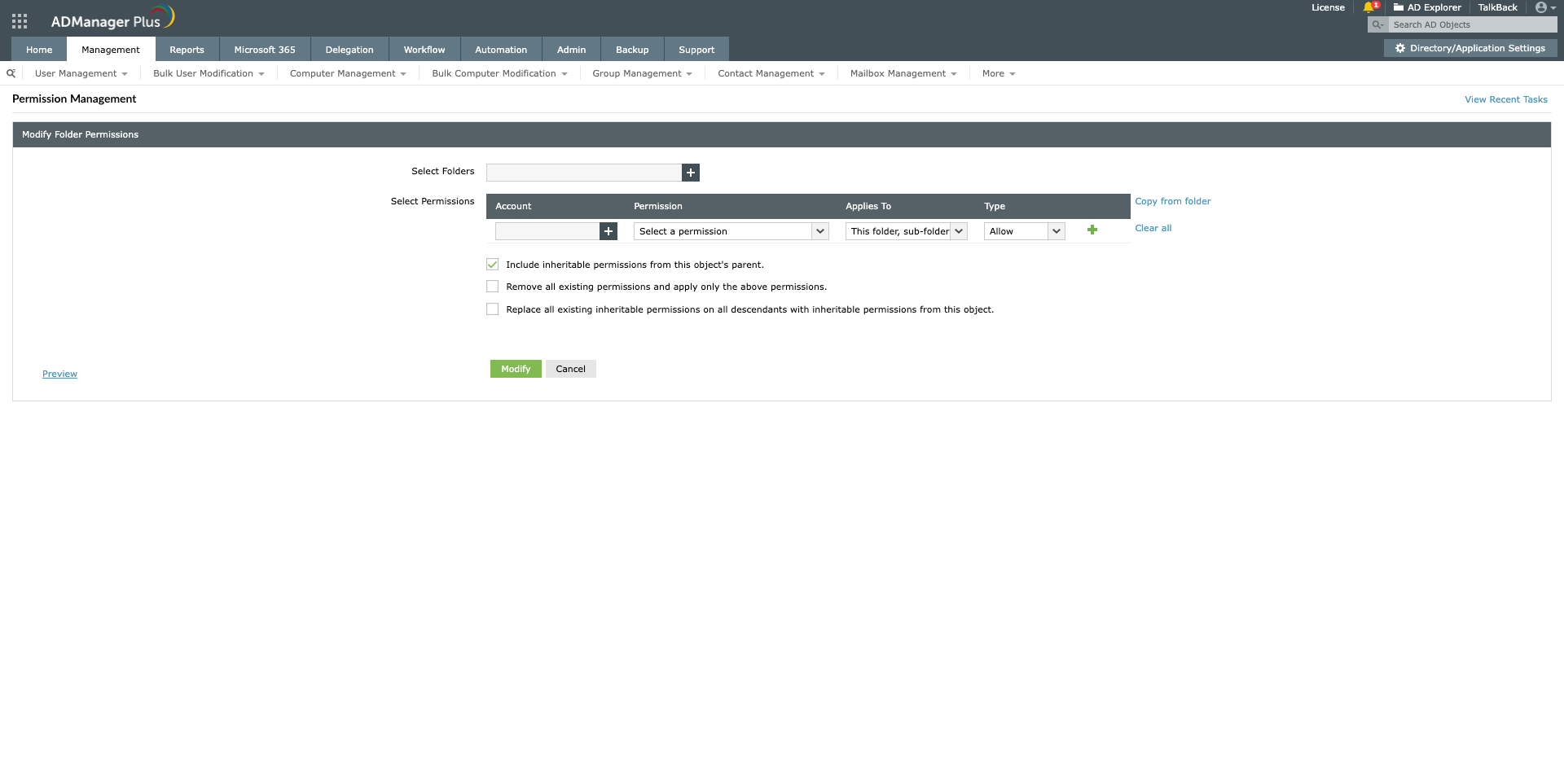
Although modifying NTFS permissions for AD accounts with native tools like PowerShell looks simple, it comes with a few limitations:
ADManager Plus lets you perform the same with a few clicks from its web-based GUI console. It also has options for viewing the access control lists for folders with it's pre-built reports with on-the-fly management that lets you modify the permissions right from the report. You can learn more about it here.
Gain complete control over NTFS permissions and file shares with purpose-built reports.
Get 30-day free trial.Your download should begin automatically in 15 seconds. If not, click here to download manually.
For AD User Management
For AD User Reporting
For GPO Management
For Password Management
For AD Group Management
For File Access Management
For AD Computer Management
For Office 365 Management
For Exchange Management
For Microsoft Graph PowerShell
Entra ID user management
Entra ID reporting
Entra ID group management and reporting
Entra ID domain management
Entra ID contact management and reporting
Other Entra ID tasks
For Azure AD PowerShell
Entra ID user management
Entra ID reporting
Entra ID group management
Entra ID group reporting
Entra ID domain management
Entra ID contact management and reporting
Other Entra ID tasks


