How to integrate ADManager Plus with Splunk and syslog servers
Last updated on:In this article
ADManager Plus' integration with Splunk and Syslog servers enables organizations to forward logs of all Active Directory, Microsoft 365, and Google Workspace management actions performed in ADManager Plus.
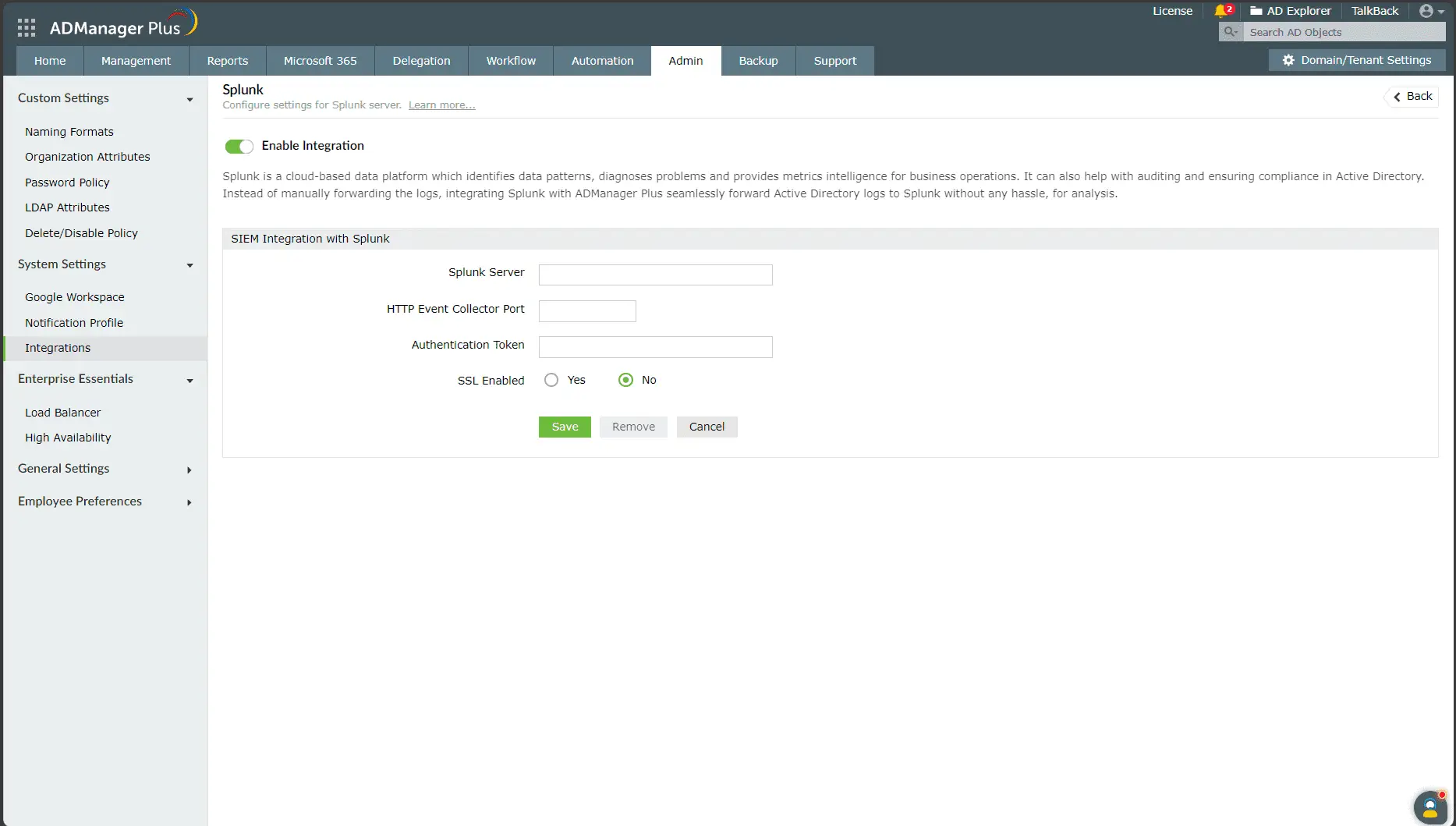
Steps to integrate ADManager Plus with Splunk
- Log in to ADManager Plus.
- Navigate to the Admin tab.
- Under System Settings, click Integrations.
- Under Log Forwarding, click Splunk.
- Configure the following:
- Splunk Server: Enter the Splunk server name.
- HTTP Event Collector Port: Enter the port number used by the HTTP Event Collector.
- Authentication Token: Enter the HTTP Event Collector authentication token. Ensure that in the Splunk Event Collector settings, the Default Source Type is log4j and the Default Index is history. Click here to learn how to create an Event Collector token in your Splunk server.
- SSL Enabled: Select Yes or No based on whether SSL is enabled or not in your Splunk server. If you select Yes, then specify the path at which the certificate is located in the Root CA Certificate Path field.
- Click Save.
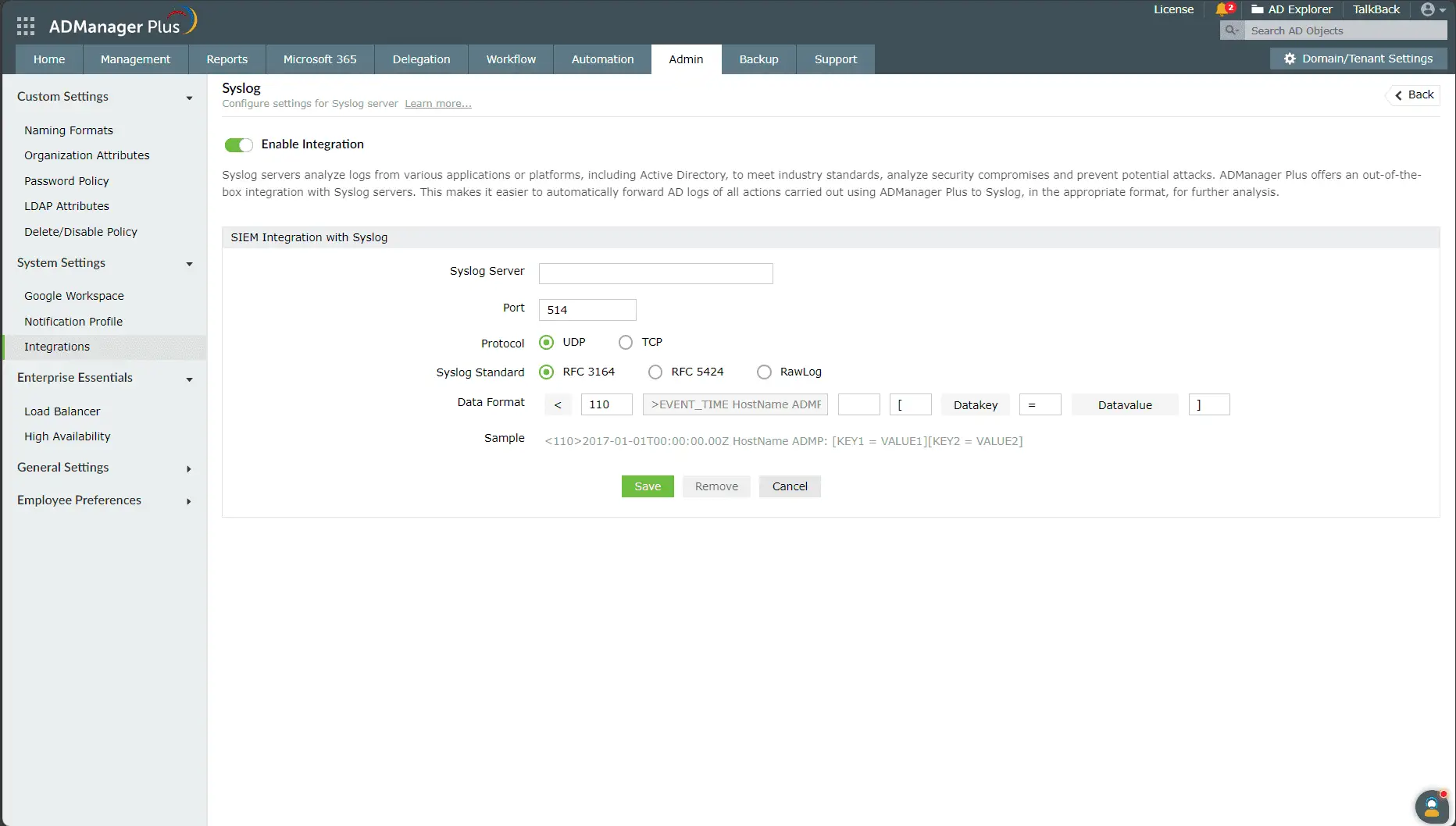
Steps to integrate ADManager Plus with syslog servers
- Log in to ADManager Plus.
- Navigate to the Admin tab.
- Under System Settings, click Integrations.
- Under Log Forwarding, click Syslog.
- Configure the fields with the respective values:
- Syslog Server: Enter the syslog server name.
- Port: Enter the port number.
- Protocol: Choose the appropriate protocol, TCP or UDP, for forwarding logs.
- Syslog Standard: Select the desired syslog message format, RFC 3164, RFC 5424, or RawLog.
- Data Format: Enter the data format. Sample data can be seen below this field.
- Click Save to save the configuration.


 Free Edition