The recovery playbook every IT team needs to get ahead of downtime
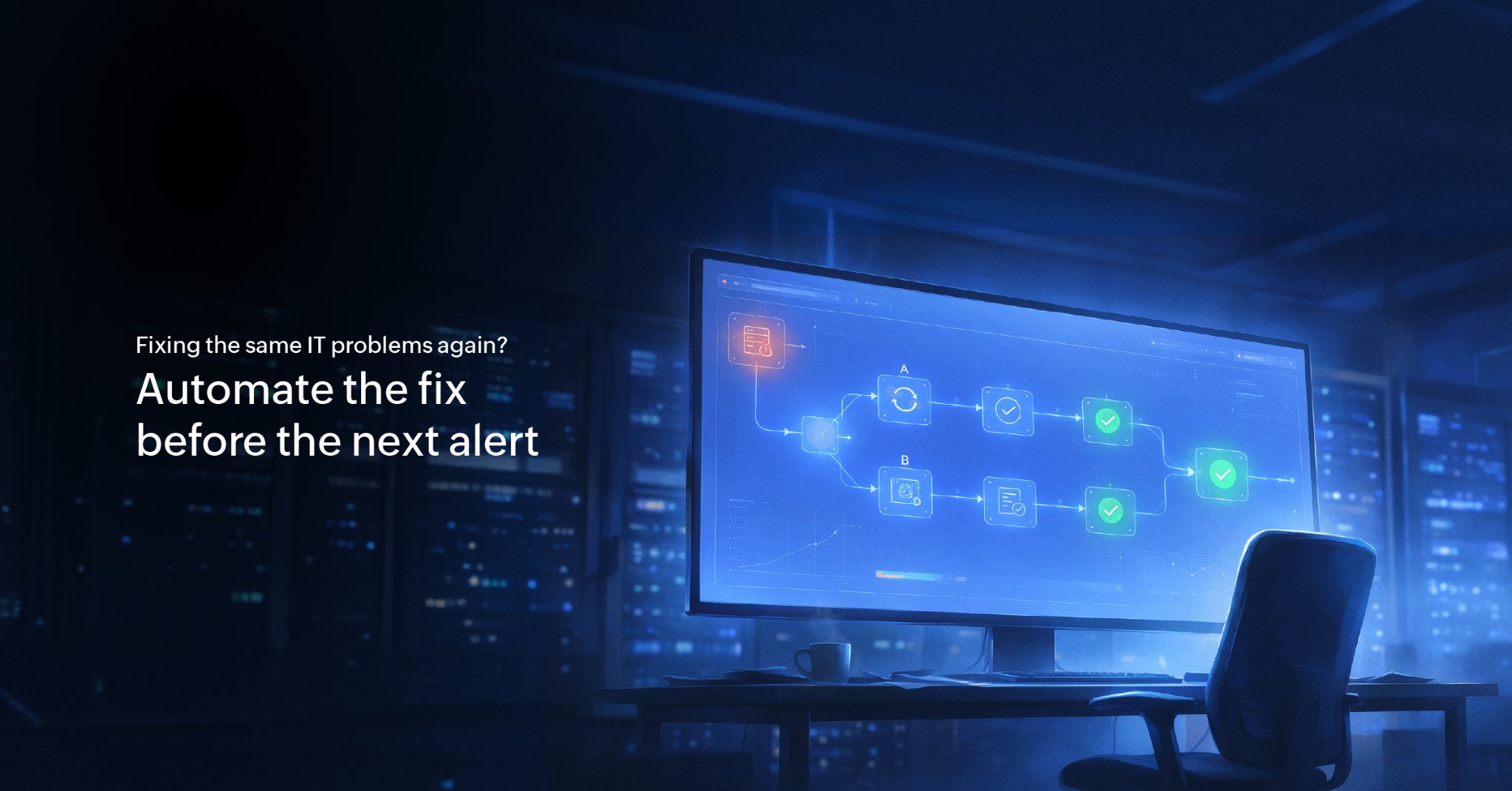
Most downtime doesn't come from problems your team can't solve. It comes from problems they've already solved sitting in a runbook or a text file, waiting for someone to run the fix manually. The fix is documented, and the steps are proven, yet the recovery still takes 40 minutes because a human has to log in and type it out. Workflow automation exists specifically to close that gap: The fix runs the moment the alert is triggered, not when someone sees it.
That wait is where most downtime actually lives. So, IT incident recovery today isn't about responding faster. It's about making sure the fix doesn't have to wait for you at all. Here's a playbook built on that idea: three problems every IT team will recognize and the workflow automation play for each.
The real cost of fixing things manually
Theoretically, manual recovery looks cheap: An engineer gets the alert, runs the fix, and closes the incident. In practice, the costs hide in places your uptime report doesn't show.
There's a gap between detection and action. Monitoring catches the issue in seconds, but the fix waits for someone to see the alert and get started, and that gap is what keeps the MTTR stuck even when your team is fast. There's also inconsistency: The same fix looks slightly different depending on who runs it, and a step skipped under pressure becomes a new incident by the morning. Then there's the toll on your team. Every hour spent rerunning known fixes is an hour taken from work that actually needs an engineer's judgment.
Workflow automation in OpManager Nexus, in short
With workflow automation in OpManager Nexus, you build your known fixes into workflows once, and from then on, they run on their own. You can run prebuilt actions, like Restart Service, Stop a Service, Delete File, and Ping Device, alongside service controls, REST API calls, and major cloud platforms, including AWS, Azure, GCP, and Oracle Cloud Infrastructure.
Workflows run in two ways: event-triggered (firing the moment an alert is raised) and scheduled (running at a frequency you set). For event-triggered workflows, you associate the workflow with a monitor directly from its threshold and availability settings, so the fix runs the moment that monitor triggers an alert. Either way, you define the response once, and it runs exactly as you designed it.
Here's an example to make this concrete: A CPU alert is triggered on a critical server. The workflow runs a ping check to confirm reachability, attempts a service restart, opens a ticket in your ITSM tool, and notifies your team on Slack—all without anyone touching a keyboard. That sequence, which would take an engineer 15–20 minutes to run manually, is completed in under a minute, every time.
Here are three workflow plays you can build once and associate with a monitor today:
Play 1: The service that stops responding
A critical service on a server goes down. Your team gets the alert, and someone logs in, restarts the service, confirms it's back, and logs the incident. The fix takes five minutes if they're at their desk—40 if they're not.
The play:
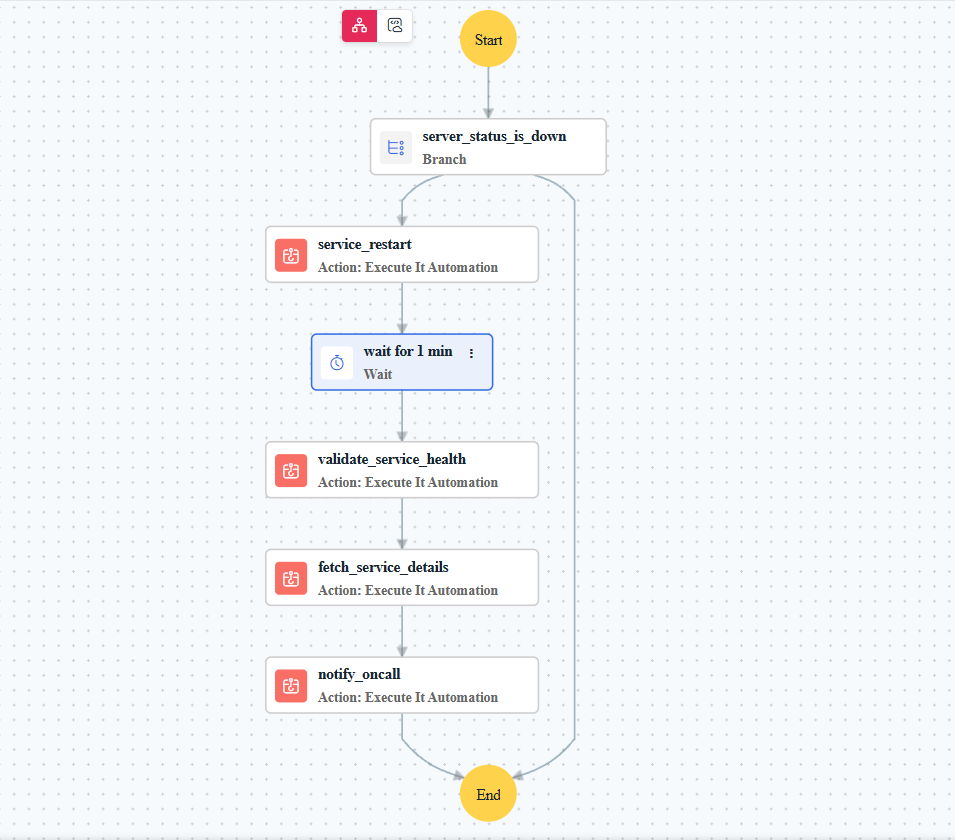
Attach a workflow to the service monitor. The moment the service status turns to Down, automated remediation kicks in; it attempts a restart, escalates to a full reboot of the service if the first attempt fails, then validates the status and logs the result.
The fix runs in seconds, identically on every shift, whether it's a weekday afternoon or a Sunday night. Your MTTR drops, and nobody runs that particular fix by hand again.
Play 2: The critical alert that needs a ticket
When a high-severity incident happens and no ticket gets created, the cost shows up later: no owner, no audit trail, and three engineers who assumed someone else had picked it up. When tickets do get created manually, they're inconsistent: different fields, different severity ratings, and different teams assigned, depending on who logged it and how much pressure they were under. In a post-incident review, you're piecing together what happened from chat logs instead of a clean incident record.
The play:
Let the alert create its own ticket. ITSM ticket automation through OpManager Nexus opens the ticket in your ITSM tool (such as ManageEngine ServiceDesk Plus, Jira Service Management, Zendesk, or any REST-enabled platform) with full incident context, routes it to the right team, and appends updates as remediation runs. Every critical incident gets a complete, consistent ticket trail with zero manual data entry.
Play 3: The maintenance that keeps getting skipped
Health checks, log rotation, and disk cleanups are the small jobs that quietly prevent big outages. When they depend on someone remembering them, they get skipped, and skipped runs become next month's incidents.
The play:
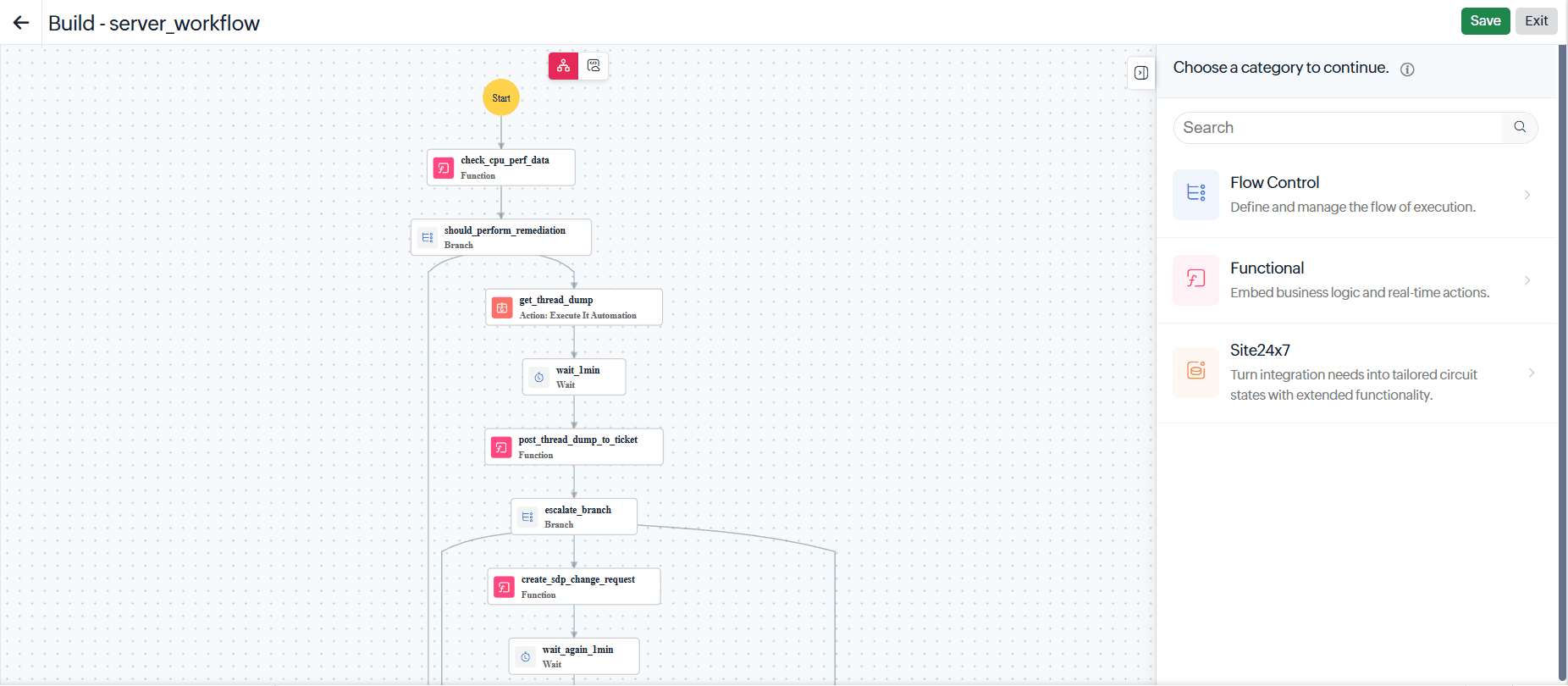
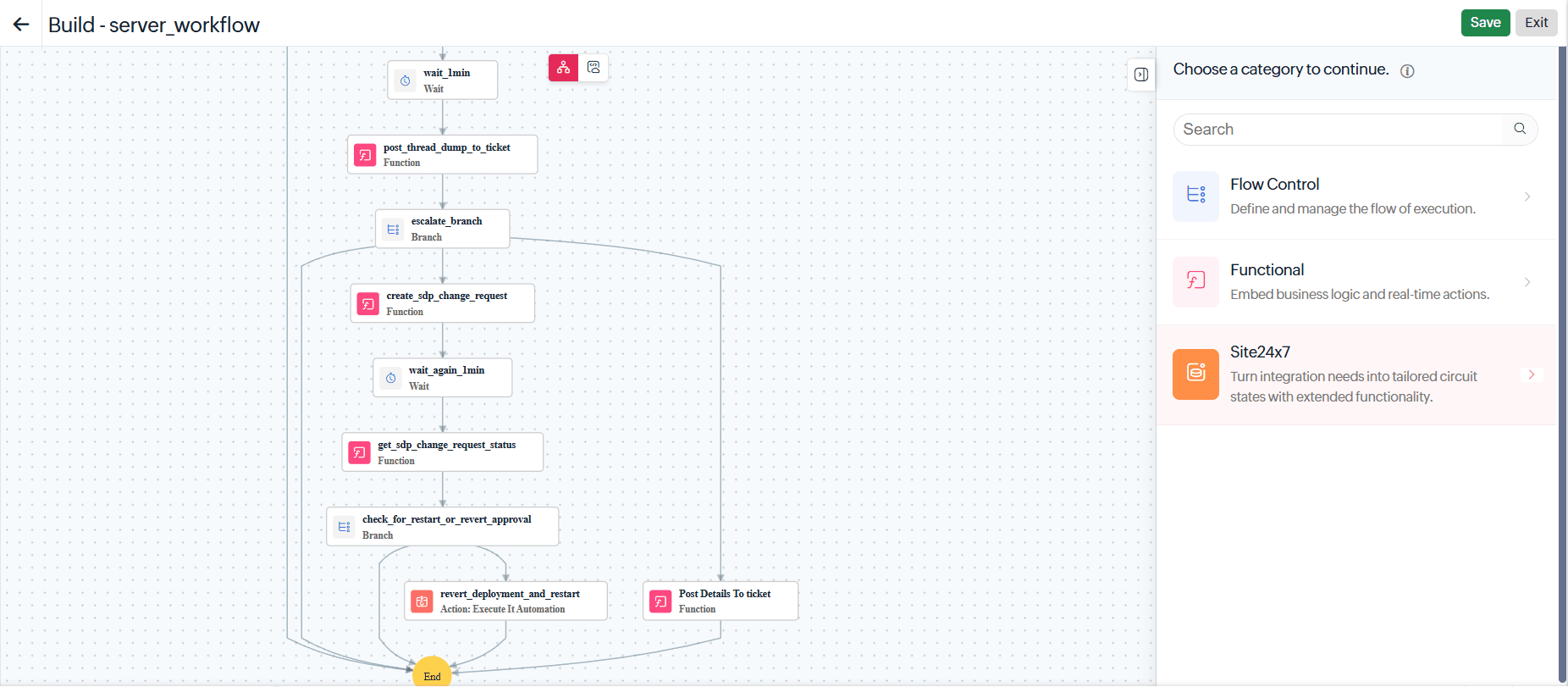
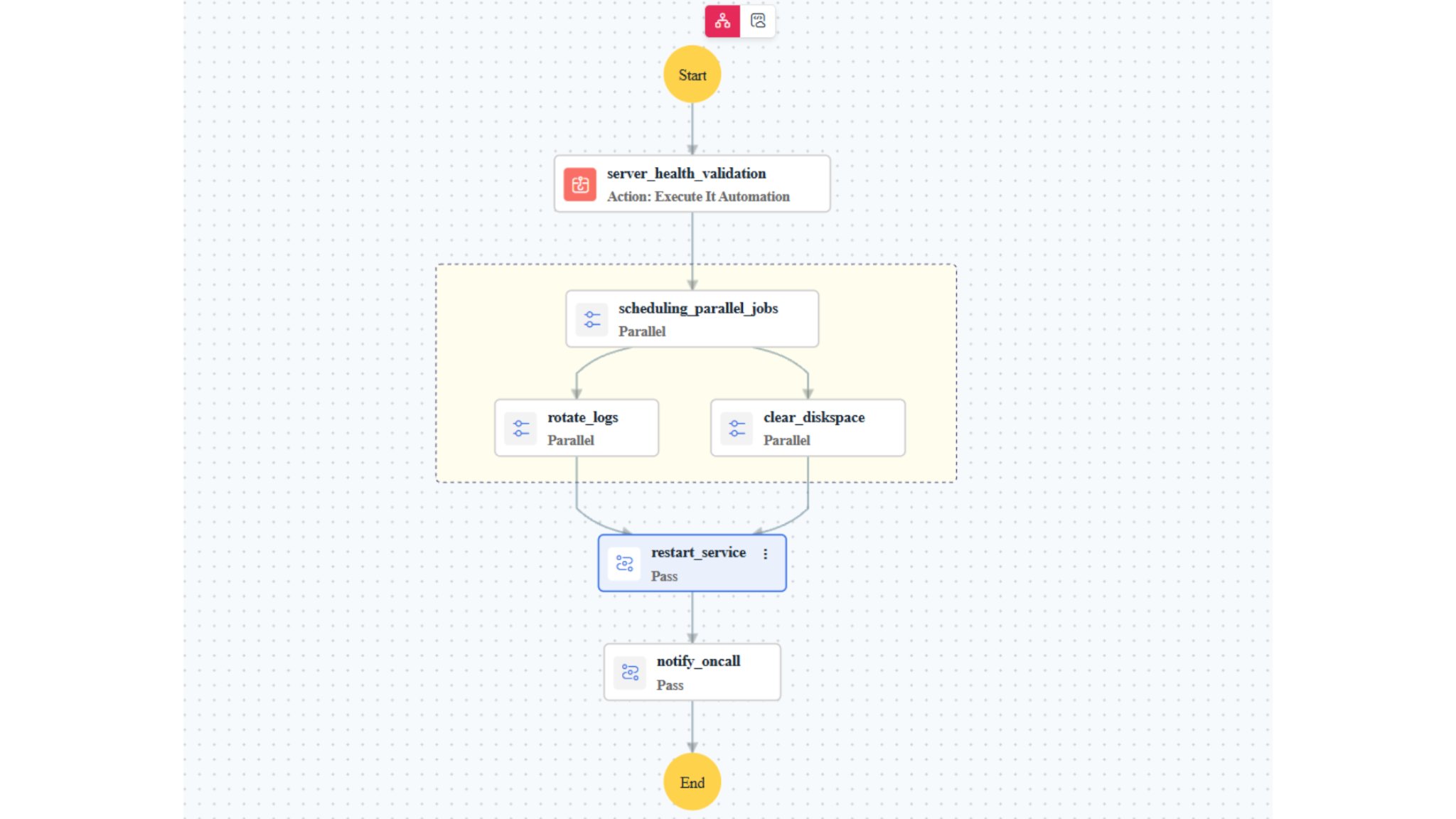
Put the maintenance on a schedule instead of a memory. A scheduled workflow runs health validations, rotates logs, clears disk space, and restarts designated services daily, weekly, or monthly. This is how self-healing infrastructure actually works in practice: not dramatic autonomous recovery but routine jobs that run reliably without a human trigger. The routine work happens on time, every time, and your engineers get those hours back.
What makes these plays safe to run
A fair question: What stops automation from making things worse? The answer is two things, built into every play above:
Guardrails: You decide what runs instantly and what waits for approval, so routine fixes are executed immediately, while critical actions get a human sign-off.
Proof: Every execution is recorded in Workflow Logs with its name, status, and outcome, so you can trace exactly what ran and what it did. Reviews get faster, and every successful run builds the confidence to automate the next play.
Start with 1 play
Pick the problem that costs your team the most time—usually the unresponsive service or the skipped cleanup—and build that one workflow. Watch it run a few times. Then ask yourself what else your team is still fixing by hand. Every documented fix in your runbooks is a candidate for IT runbook automation: one workflow at a time.
Start your free, 30-day trial and run your first play this week.
FAQ
1. Is workflow automation available for on-premises infrastructure, or only for cloud environments?
Yes. For on-premises environments, OpManager Nexus uses closed-loop remediation; it detects an issue, triggers the defined workflow, and validates the fix automatically. For cloud infrastructure, workflow automation covers major cloud platforms, hybrid environments, Kubernetes clusters, and VMs, all from the same automation layer. No separate setups are needed for each environment.
2. Do I need to build every workflow from scratch?
No. OpManager Nexus includes prebuilt IT automation templates covering common remediation actions like restarting services, clearing disk space, and running health checks. You can pick a template and have your first workflow running without building the logic from scratch.
3. Can workflows notify my team through Slack or other collaboration tools?
Yes. Workflows can send notifications through email, webhooks, and Slack. You can configure notifications as a step within the workflow, so stakeholders are informed automatically as remediation runs, without anyone drafting a manual status update.
4. Do I need scripting knowledge to build workflows in OpManager Nexus?
No. The workflow builder is fully visual: drag-and-drop, with no code required. You map out the remediation steps you want and set the trigger, and OpManager Nexus handles the execution. Anyone on the team can build and modify workflows without depending on a developer.
5. Can workflow automation integrate with third-party tools?
Yes. Workflows can invoke any REST API, which means you can connect to ITSM tools, communication platforms, or any custom endpoint your stack depends on. ManageEngine ServiceDesk Plus is natively supported for automated ticket creation and routing.
6. How do I know if a workflow ran successfully or failed?
Every execution is recorded in Workflow Logs in OpManager Nexus with the task name, timestamp, severity status, and result message for each step. If something fails, the log shows exactly where the sequence broke and what the output was.
7. What is the difference between workflow automation and Zia Agents in OpManager Nexus?
Workflow automation is monitor-specific: When configuring a monitor's threshold and availability settings, you can associate a workflow directly with it so a targeted fix runs the moment that monitor triggers an alert. Zia Agents operate at a broader level, handling automation across your environment without being tied to a single monitor. Use workflows when you know exactly what should happen for a specific monitor; use Zia Agents when you want intelligence applied across the whole stack.