Adding an Aruba Central monitor
Add and configure your Aruba Central monitor in OpManager Nexus for performance monitoring and alerting.
Adding an Aruba Central monitor
- Log in to your OpManager Nexus account.
- Navigate to Network > SDN > Aruba Central.
- Click the plus icon + beside Aruba Central in the left navigation pane.
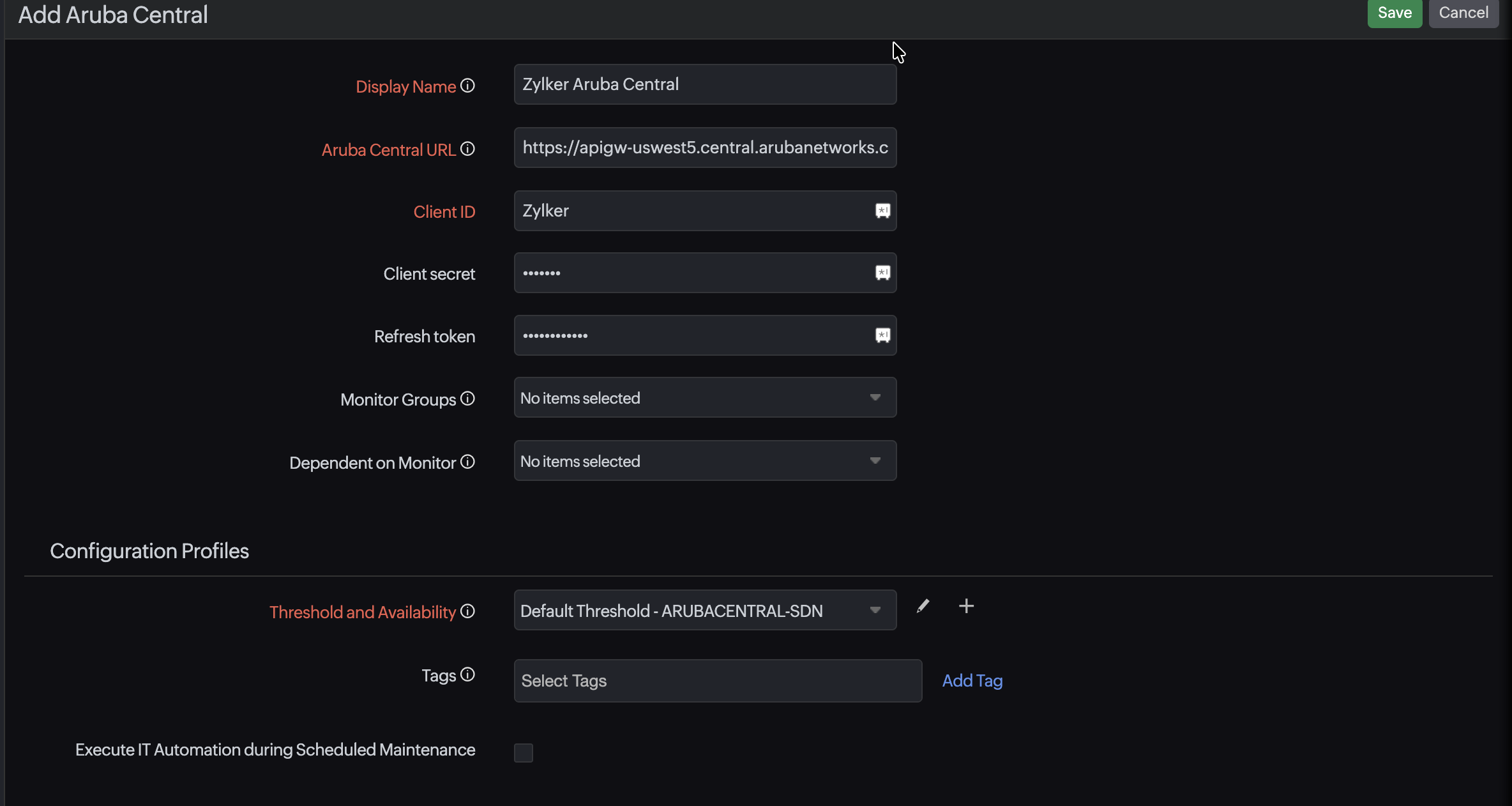
- Provide the following details:
- Display Name: A unique name to identify your Aruba Central account.
- Aruba Central URL: The cloud console URL with an https:// prefix.
- Client ID: The API Client ID generated in Aruba Central.
- Client Secret: The authentication secret for secure access.
- Refresh Token: The token used to refresh authentication without manual input.
- Monitor Groups (optional): Assign the monitor to an existing monitor group or add a new one by clicking the plus icon + beside the field.
- Dependent on Monitor (optional): Set a dependency to suppress alert noise.
- Provide details for the Configuration Profiles, Alert Settings, and Third-Party Integrations sections.
- Click Save.
Related articles
-
On this page
- Adding an Aruba Central monitor
- Related articles