Adding a Cisco Catalyst SD-WAN monitor
Add and configure your Cisco Catalyst SD-WAN (vManage) instance in OpManager Nexus for performance monitoring and alerting.
Adding a monitor
- Log in to your OpManager Nexus account.
- Navigate to SDN > Catalyst.
- Click the plus icon + beside Cisco Catalyst SD-WAN.
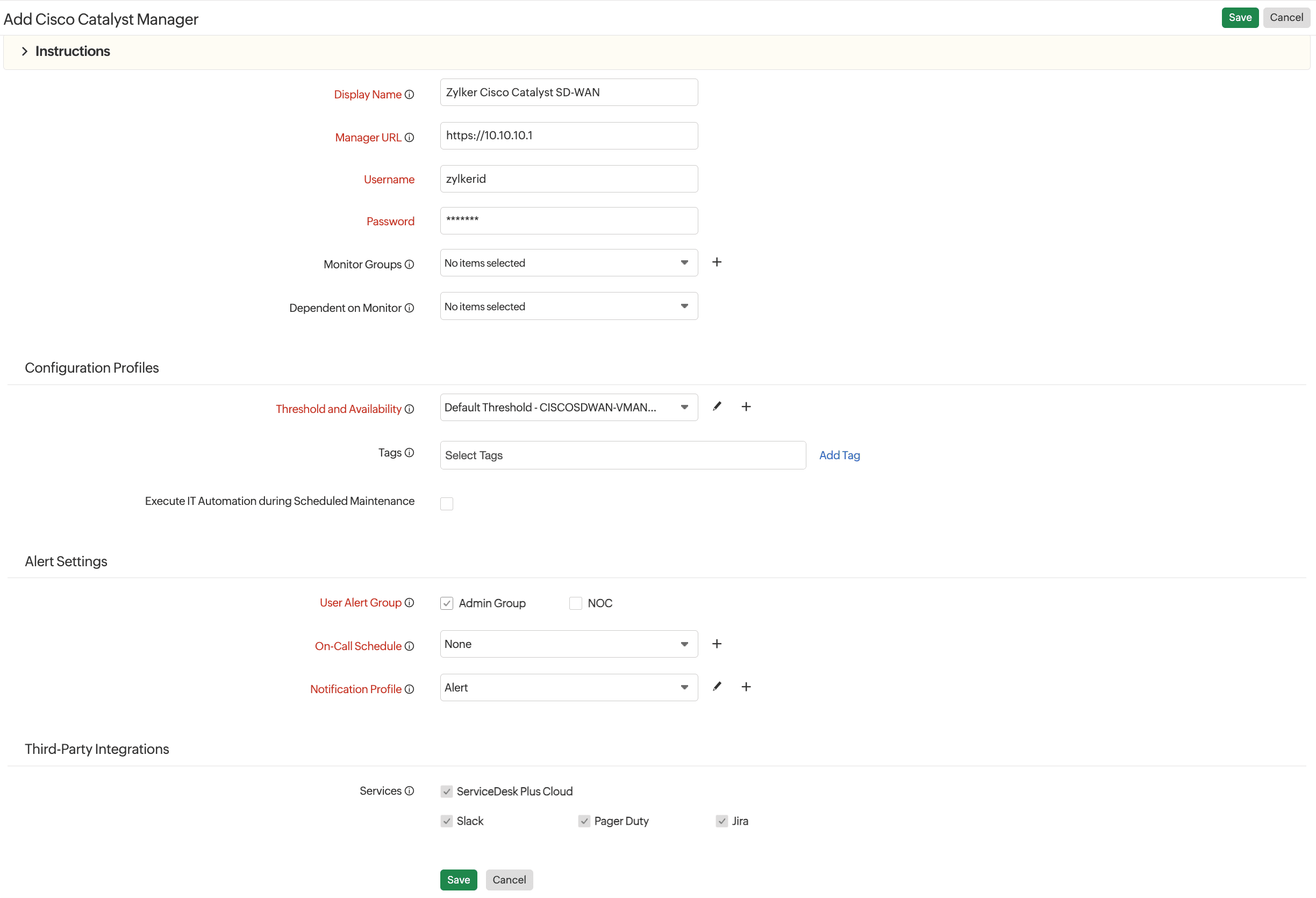
- In the Add Cisco Catalyst Manager form that opens, provide the following details:
- Display Name: Enter a unique name to identify the monitor.
- Manager URL: Enter the HTTPS URL of your Cisco Catalyst SD-WAN manager. This is the endpoint used for API communication. You can use either https://vmanage.yourdomain.com or a public IP address to access vManage.
- Username: Enter the access username for the Cisco Catalyst SD-WAN manager.
- Password: Enter the associated password for the Cisco Catalyst SD-WAN manager user account.
NoteEnsure the credentials provided have read privileges.
- Monitor Groups: Associate the manager with a predefined monitor group for better organization.
- Dependent on Monitor: Select a monitor dependency if this manager's availability relies on another resource.
- Configuration Profiles:
- Threshold and Availability: Choose a predefined threshold profile or create a new one to define alert conditions such as CPU, memory, and response time limits.
- Tags: Add custom tags to group and filter monitors efficiently.
- Execute IT Automation during Scheduled Maintenance: Enable this option to allow automated actions during planned maintenance windows.
- Alert Settings:
- User Alert Group: Choose user groups that should receive alerts. You can select multiple groups.
- On-Call Schedule: Assign an on-call schedule to route alerts based on time-based responsibilities.
- Notification Profile: Select the alerting profile to define how and when alerts are sent.
- Third-Party Integrations: Select the services where alerts or incidents should be pushed.
- Click Save.
Related article
-
On this page
- Adding a monitor