Adding a VMware Snapshot Monitor
Add all the snapshots associated with your datastore for monitoring so that you can effectively manage your space requirements. Using OpManager Nexus's Snapshot Monitoring feature, you can monitor the snapshots that belong to the virtual machines that are a part of that datastore. VMware Snapshot Monitoring also allows you to monitor the performance at each snapshot-level and configure thresholds for each of them. Learn about VMware snapshots location.
Prerequisites
- OpManager Nexus On-Premise Poller version 4.6.4. or above.
- VMware Datastore.Browse privileges required for datastore monitoring.
- You can monitor only those snapshots that are associated with the VMware datastore and VMware VM monitors that are monitored by OpManager Nexus.
- You can obtain VM-wise space split-up stats for all the VMware VM monitors monitored by OpManager Nexus.
Adding a monitor
Add your snapshots for monitoring by:
- Enabling Snapshot Monitoring for your existing datastores.
- Configuring autodiscovery for all associated snapshots.
Enabling Snapshot Monitoring for your existing datastores
You can enable Snapshot Monitoring for all your existing datastores from the Datastore tab. To do this:
- Log in to your OpManager Nexus account.
- Navigate to VMware > Datastores.
- Click a datastore name, and navigate to the Snapshots tab.
- Click Enable Monitoring.
Configuring autodiscovery for all associated snapshots
To automatically add all the snapshots associated with your datastores for monitoring, you have to configure autodiscovery by editing the corresponding datastore monitor. To do this:
- Navigate to VMware > Datastores.
- Click on the hamburger icon next to the desired datastore monitor.
- In the Edit Datastore page, under Discover and Auto Add Resources, toggle to Yes next to Snapshot Discovery.
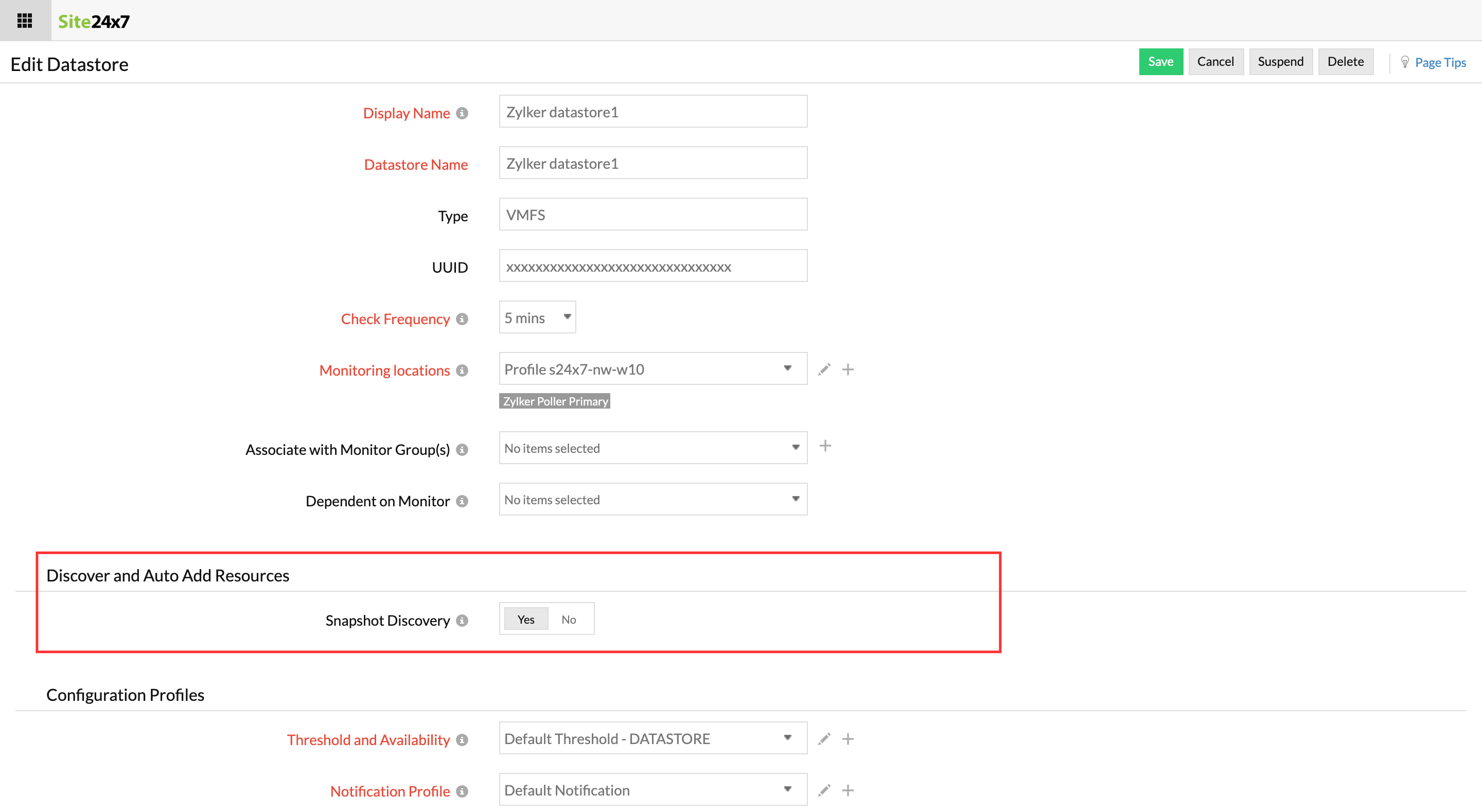
From now on, all the snapshots associated with this datastore will be automatically added for Snapshot Monitoring.