Browser Push Notifications
OpManager Nexus offers native browser push notifications for OpManager Nexus status alerts in Chrome, Firefox, Safari, and Opera browsers. OpManager Nexus uses this feature to provide you with notifications in the background. During the first time alone, you'll be asked for permission by OpManager Nexus to send notifications to your browser. Once you assign permission, you'll start to receive push notifications for all down, trouble and up alerts. Once you click this notification, you'll be redirected to the relevant monitor details page inside the client.
Customize Push Notifications in Chrome
- Login to OpManager Nexus client from your Chrome browser.
- You'll be prompted to choose whether to receive the notifications on your chrome browser or not.
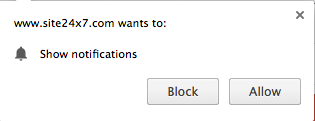
- If you've selected Allow, you'll start to receive notifications from OpManager Nexus.
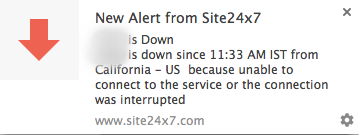
- However, if you wish to change the notification permissions, you've to follow the steps below:
- Click on the
 icon on the top-right corner of your browser. Click Settings.
Note
icon on the top-right corner of your browser. Click Settings.
NoteYou'll be redirected to Chrome settings page.
- Inside the Chrome settings page, click Settings > Show Advanced Settings.
- Click Settings > Privacy > Content Settings.
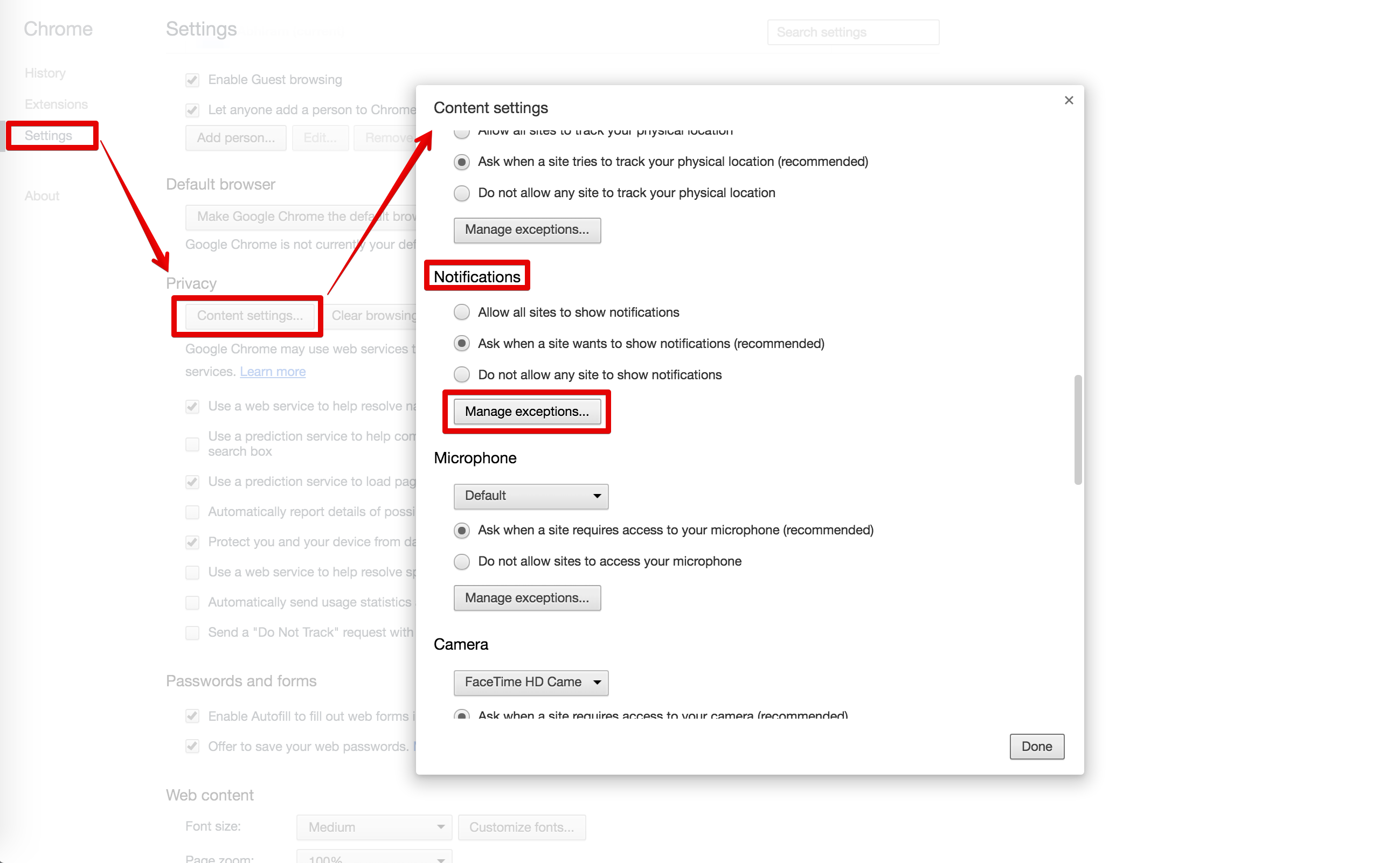
- Under Notifications, click the radio button–Ask when a site wants to show notifications.
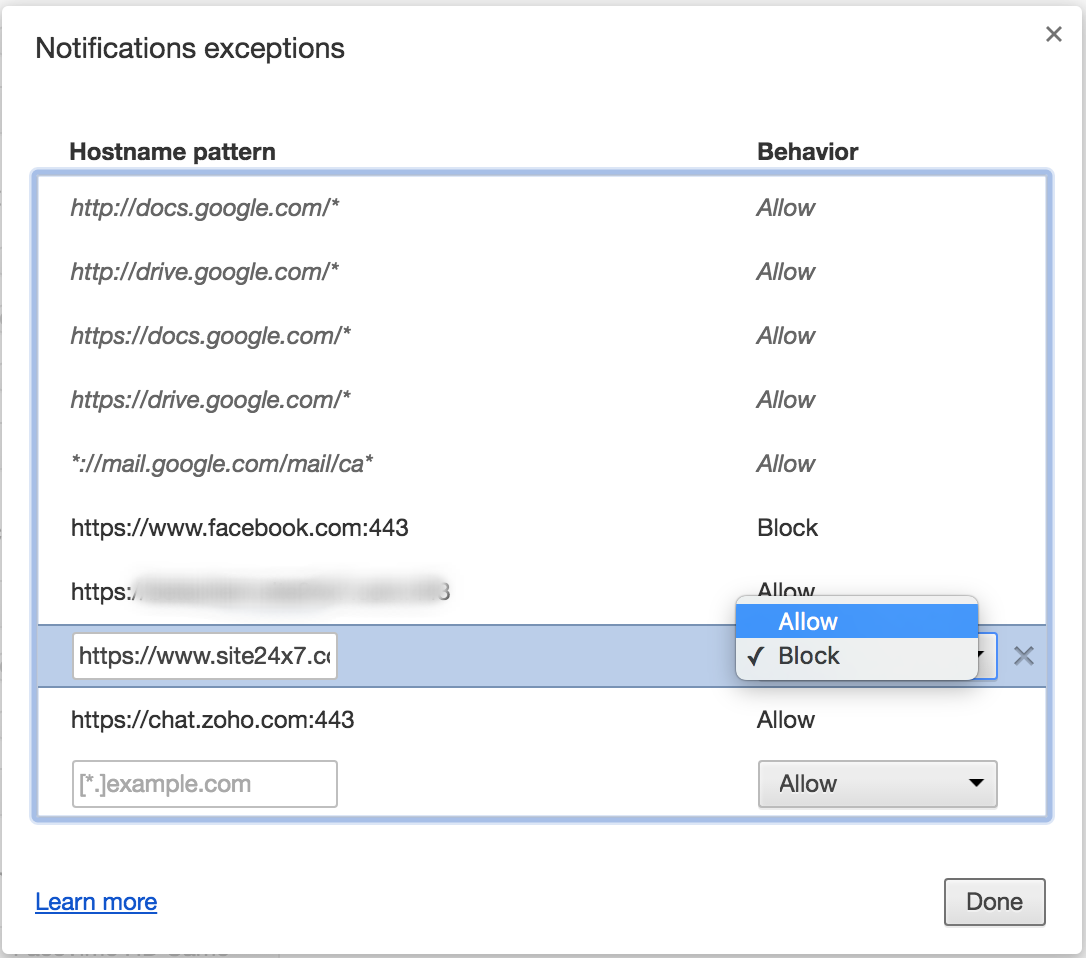
- Click Manage Exceptions button.
- In the notifications exceptions pop-up; select OpManager Nexus and choose behaviour as Block. Once done, click Done.
NoteThe above action will stop the notifications from OpManager Nexus. New site permissions will take effect after reloading the page.
NoteIf you want to receive notifications again, you just have to follow the same steps listed above and choose Allow as the behaviour inside notifications exceptions.
- Click on the
Customize Push Notifications in FireFox
- Login to OpManager Nexus client from your Firefox browser.
- You'll be prompted to choose whether to receive the notifications from OpManager Nexus or not.
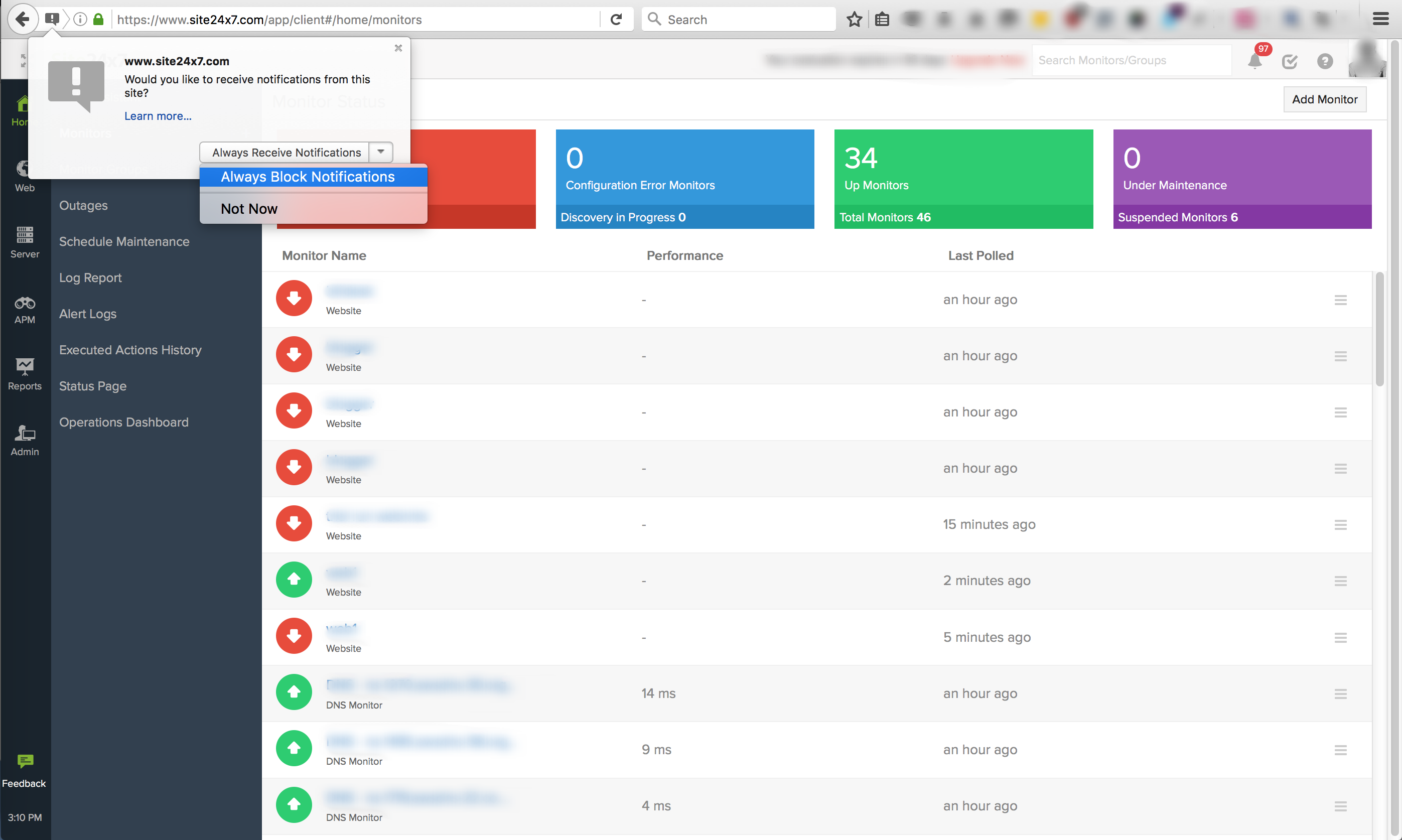
- Based on your preference, you'll start receiving notifications from OpManager Nexus.
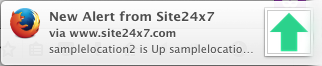
- Now, if you wish to modify your notification permissions on your Firefox browser, you can follow the steps below:
- Click the green lock icon near the address bar of your firefox browser.
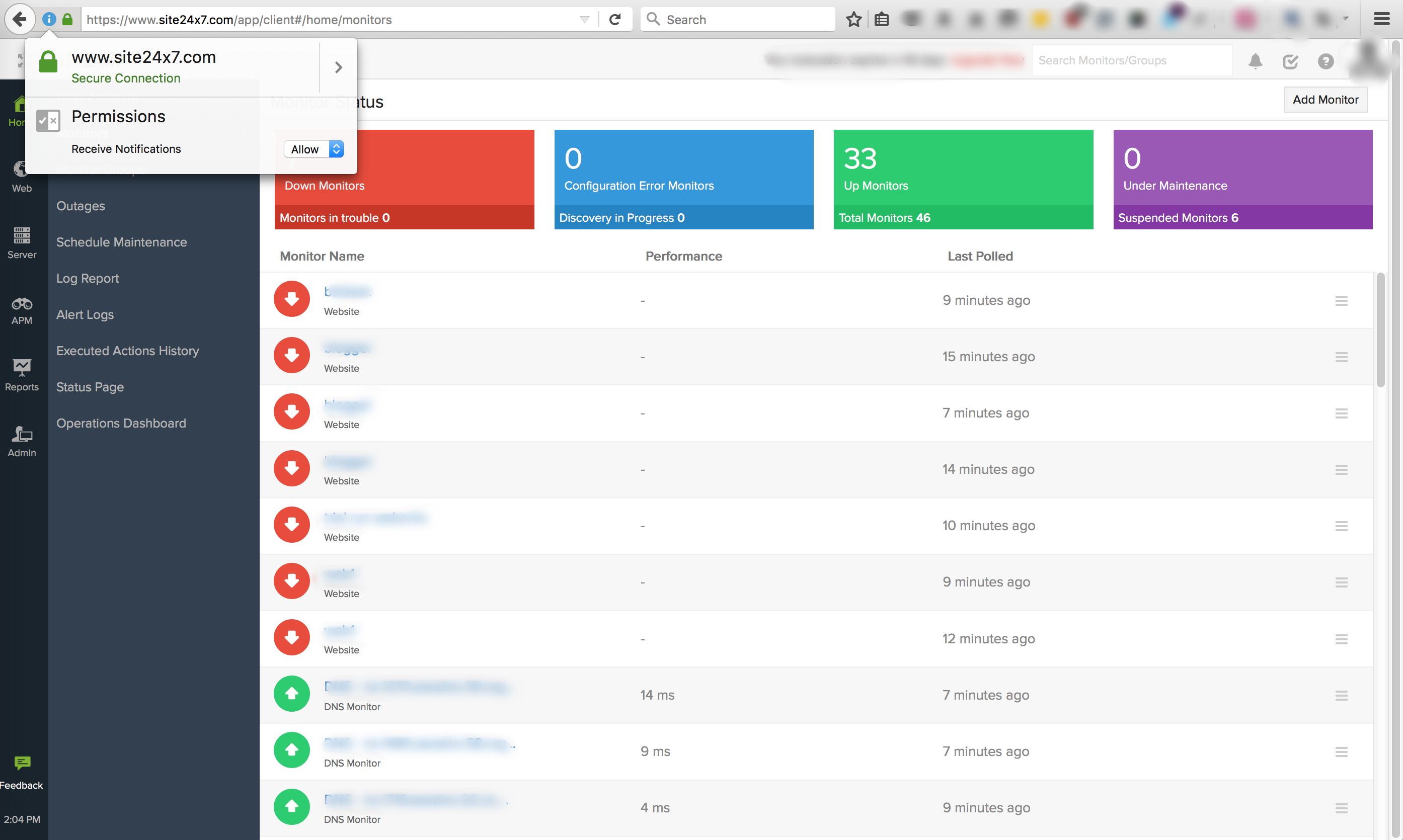
- Under Permissions, choose Allow to start receiving OpManager Nexus notifications or Block to stop notifications in your Firefox browser.
- To customize notification permissions, you may also perform the following steps:
-
- Click on the browser icon on the top-right corner.
- Click on the browser
-
- Click Preferences > Content > Notifications.
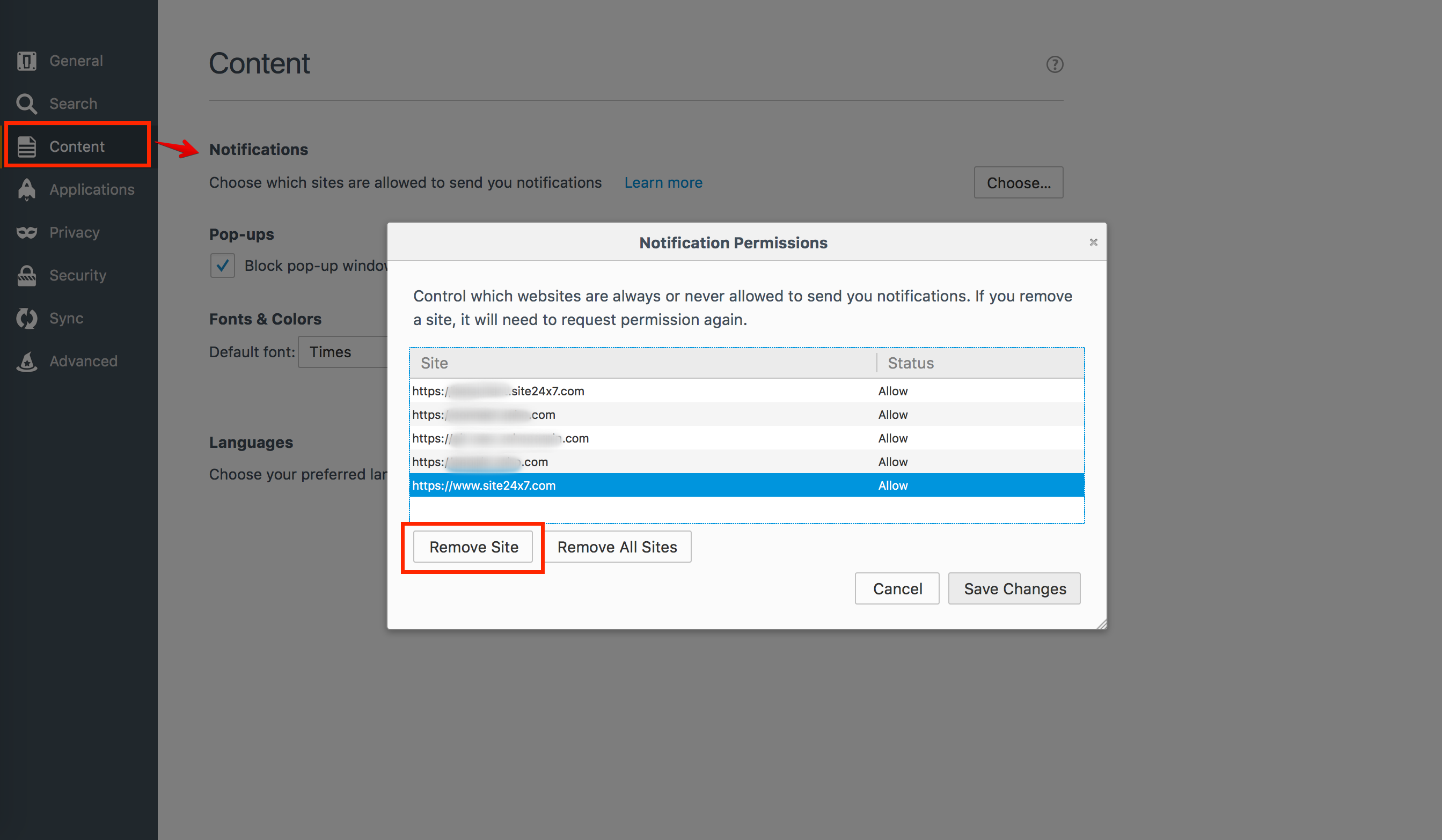
- Click Choose to modify Notification permissions.
Note
Notification Permissions lets you control which websites are always or never allowed to send you notifications. If you remove OpManager Nexus, it will need to request permission again.
- Click Preferences > Content > Notifications.
- Click the green lock icon near the address bar of your firefox browser.
Customize Push Notifications in Safari
- Login to OpManager Nexus client from your Safari browser.
- You'll be prompted to choose whether to receive a notification from Safari or not. Choose Allow or Deny based on your preference.
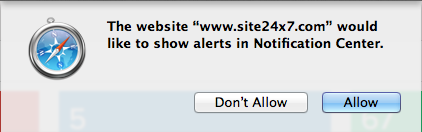
- You'll start receiving notifications if you've chosen Allow in the above step.

- If you wish to modify your current notification permissions, follow the steps below:
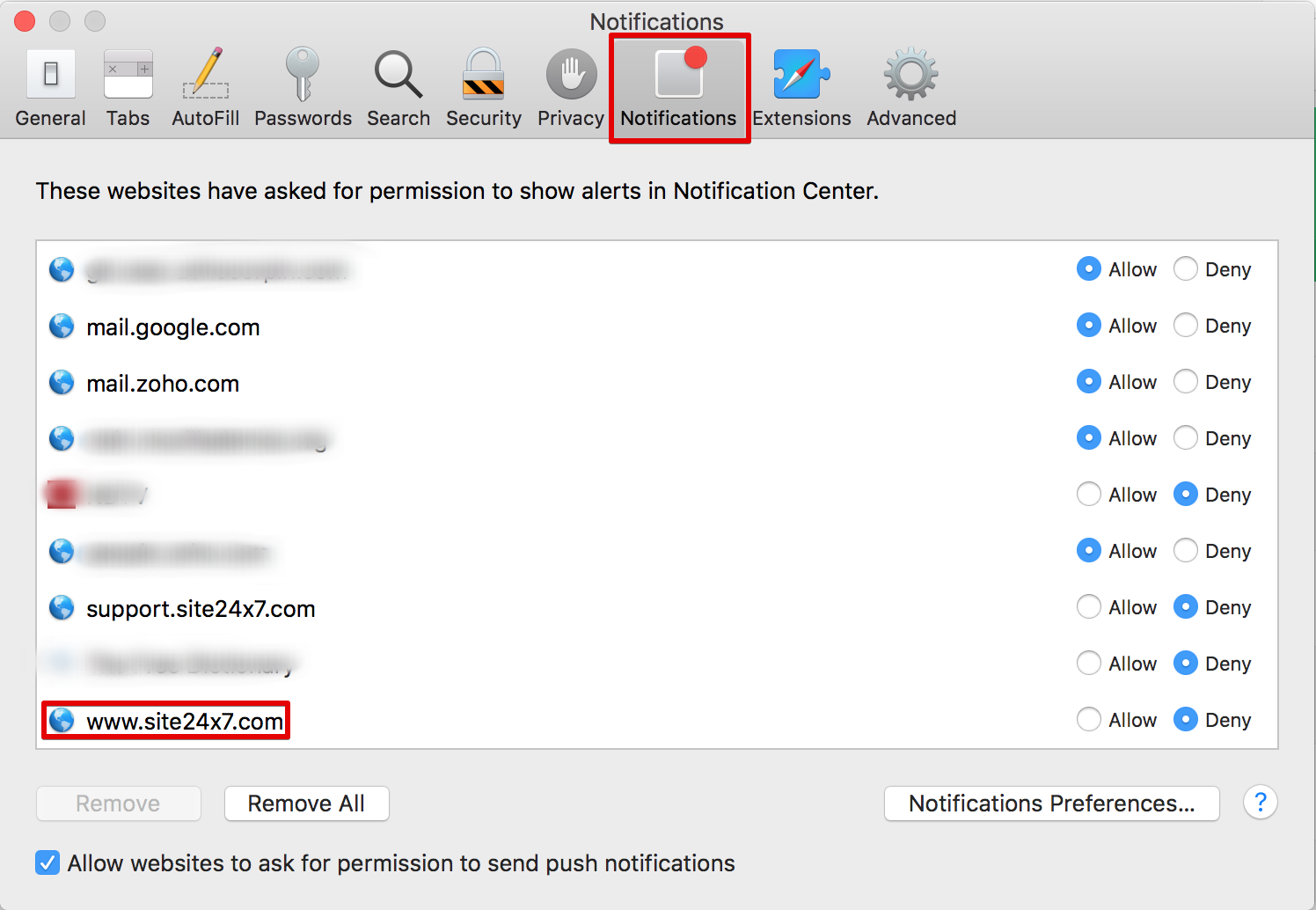
- Click the Safari icon on the top-left menu bar of your browser. Choose Preferences.
- Select Notifications tab. Choose whether to receive the notifications or not, by clicking the relevant radio button.
Note
Click the Allow radio button to receive notifications and Deny radio button to stop receiving the notifications in your Safari browser.
Customize Push Notifications in Opera
- Login to OpManager Nexus from your Opera Browser.
- You'll be prompted to choose whether to receive a notification from Safari or not. Choose Allow or Deny based on your preference.
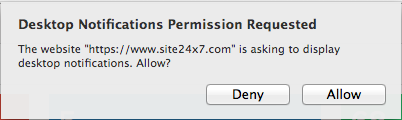
- If you've chosen Allow in your selection, you'll start receiving alert notifications from OpManager Nexus.

- If you wish to modify your current notification permissions, follow the steps below:
- Click Opera listed at the top left corner of your browser window. Choose Preferences.
- Click Websites > Notifications. Click Manage Exceptions button to customize your notification settings on your opera browser.
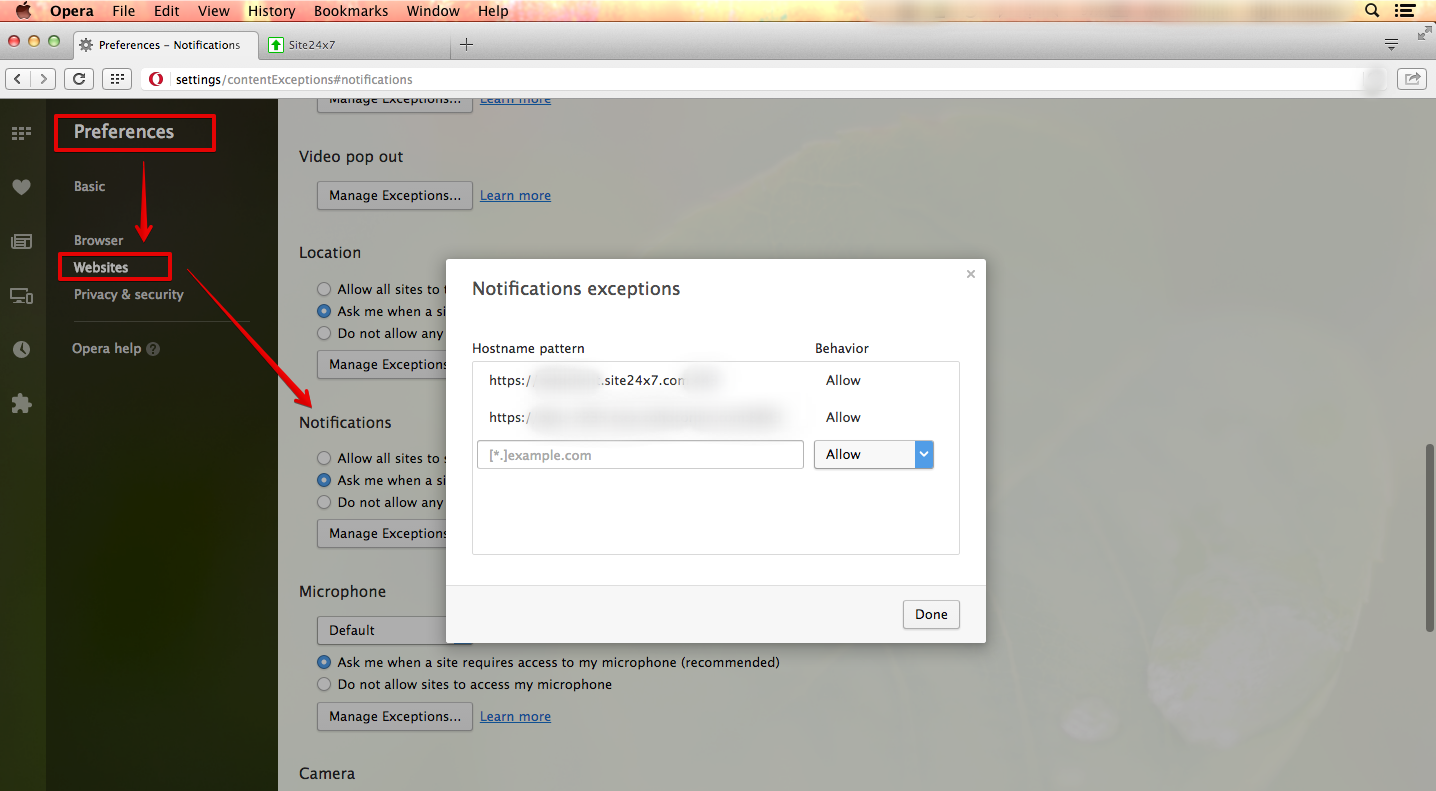
- Choose Deny from the drop-down menu and click Done. This will stop notifications from OpManager Nexus.
NoteIf you want to receive notifications again, you just have to follow the same steps listed above and choose Allow as the behaviour inside notifications exceptions.
Manage Sound Alarms in OpManager Nexus
MSP Admin or Operator
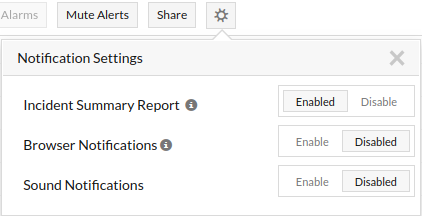
OpManager Nexus gives the option to alert you with sound alarms when the browser notifications are enabled in the Browser. You can manage these settings using Notification Settings in Alarms Tab.
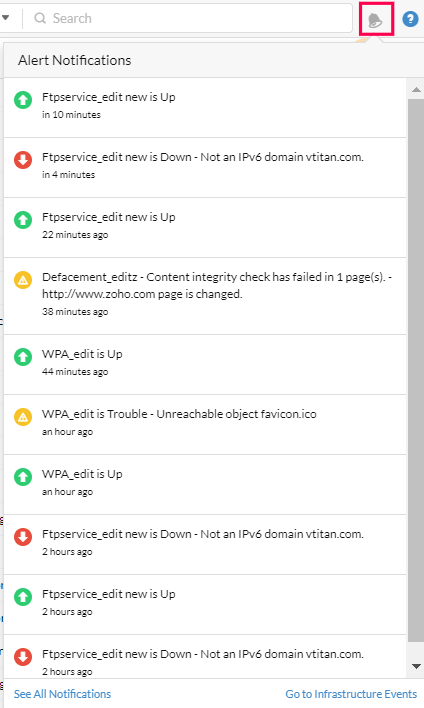
The alarm icon will be visible, only if the push notification permission is granted for OpManager Nexus. Get to know how to cutomize push notifications in Chrome, Firefox, Safari, and Opera.
All other users can navigate to Alarms > Settings icon. In the new Notification pop-up you can manage your Notification Settings including Browser notifications, Sound notifications, and Incident Summary Report.