ilert integration
ilert is a platform for alerting, on-call scheduling, and status pages. Users can integrate OpManager Nexus with ilert to reduce response times to critical alerts by enhancing monitoring, incident management, and other alert sources with reliable alerting, automatic escalations, on-call schedules, and other features.
Key capabilities of the integration
- Simplify alerting by automatically sending OpManager Nexus alerts to ilert for centralized incident management.
- Track incidents by converting alerts into actionable incidents, ensuring a structured response process.
- Automate ticketing to create, update, and close incident tickets automatically based on OpManager Nexus alert statuses. When the monitor status is Up again, the related ticket is updated or closed in ilert.
Prerequisites for ilert integration
- You need an ilert account with the required permissions to create and manage alert sources.
- Copy and securely retain the hook URL provided by ilert. After successful integration, OpManager Nexus will post status alerts to this hook URL.
Configuring the ilert side of the integration
To integrate with OpManager Nexus from ilert, follow the integration steps mentioned here.
Configuring the OpManager Nexus side of the integration
Once you've generated the ilert hook or integration URL, you must log in to your OpManager Nexus account to complete the integration process. Follow these steps:
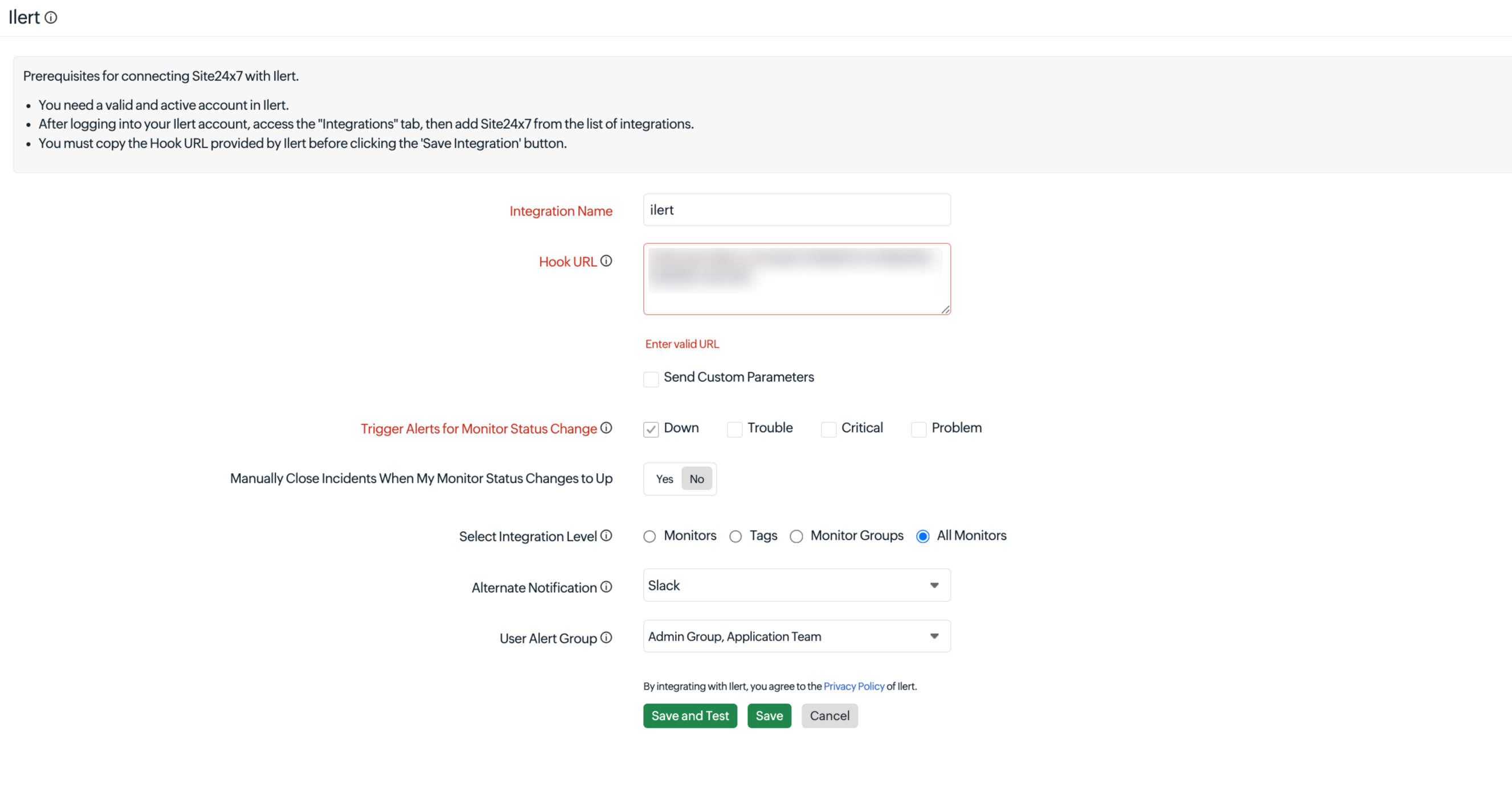
- Log in to your OpManager Nexus account.
- Navigate to Admin > Third-Party Integrations.
- Click the Add Third-Party Integration button. Select ilert from the list.
- Provide the mandatory information in the ilert integration form to complete the integration process:
- Integration Name: Provide the name of your integration.
- Hook URL: Paste the copied unique ilert hook URL here.
- Send Custom Parameters: Write specific code in the URL itself and pass the variables using Incident Parameters or Custom Parameters.
- Trigger Alerts for Monitor Status Change: Use the check boxes to choose the monitor status changes (Down, Trouble, or Critical) for which you wish to receive alerts. Choose at least one status for the integration.
- Manually Close Incidents When My Monitor Status Changes to Up: Use the toggle button to decide whether to close incidents manually or automatically in ilert when the OpManager Nexus monitor status changes to Up. By default, the incidents are resolved automatically in ilert.
- Select Integration Level: Choose your preferred integration level to send alerts from your OpManager Nexus account to the relevant ilert channel. You have the following options:
- Monitors: Select at least one specific monitor to send alerts and RCA links from only that monitor to your ilert channel.
- Tags: Select at least one specific tag to send OpManager Nexus alerts and RCA links corresponding to that tag to your ilert channel.
- Monitor Groups: Choose at least one monitor group to send alerts and RCA links from that group to your desired ilert channel.
- All Monitors: Opt to send all OpManager Nexus alerts and RCA links to your chosen ilert channel.
NoteWhen tags are associated with your monitor group, only alerts from the parent-level monitors in the group will be logged in ilert. If there are monitors at the subgroup level, their alerts will not be recorded.
- Alternate Notification: Select an alternative service to be activated if the primary or current third-party notification service encounters an issue to ensure that alerts are not missed.
- User Alert Group: Choose who should be notified if this integration fails. Select one or more User Alert Groups so OpManager Nexus can automatically notify the appropriate team whenever an integration failure occurs. This enables faster troubleshooting and helps prevent failures from going unnoticed.
- Click the Save and Test button to save the integration and receive a test alert. You can also click the Save button to finish the integration.
When you update an integration configuration and click Save or Save and Test, OpManager Nexus displays a review page that highlights the modified fields. You can click View Diff to compare the updated configuration with the existing configuration and verify the changes before proceeding.
Once the setup process is completed, the ilert integration will be listed on the Third-Party Integrations listing view. You can set up multiple such ilert integrations in your OpManager Nexus account.
Suspend, activate, or delete the ilert integration
Follow the steps below to suspend an active ilert integration:
- Log in to OpManager Nexus.
- Navigate to Admin > Third-Party Integrations.
NoteAll the integrations will be listed here on the Third-Party Integrations dashboard.
- Initiate a test alert to check whether the integration is a success or has any configuration error by clicking the Trigger Test Alert
 button.
 - Open the active ilert integration that you want to suspend and click the Suspend button in the top-right corner of the integration window.
Note- Upon suspending your ilert integration, all incident tickets being sent to your ilert account will be stopped temporarily.
- To reactivate a suspended ilert integration, click the Activate button.
To delete an integration permanently, open the active ilert integration and click the Delete button in the top-right corner of the integration window.
Managing incident tickets in ilert
After successful integration, OpManager Nexus status alerts are posted to the ilert hook URL, which in turn creates incident tickets in the ilert account.
You can acknowledge an incident ticket on the Alerts tab, delegate it to someone, snooze it temporarily, or even delete it permanently. When an alert is triggered in OpManager Nexus, an incident ticket is automatically created in ilert. Based on predefined escalation policies and on-call schedules, the alert is routed to the appropriate team members.
Once the alert is acknowledged, team members can update the ticket status, add notes, and collaborate in real time. If the issue is resolved in OpManager Nexus, the corresponding incident ticket in ilert is automatically closed.
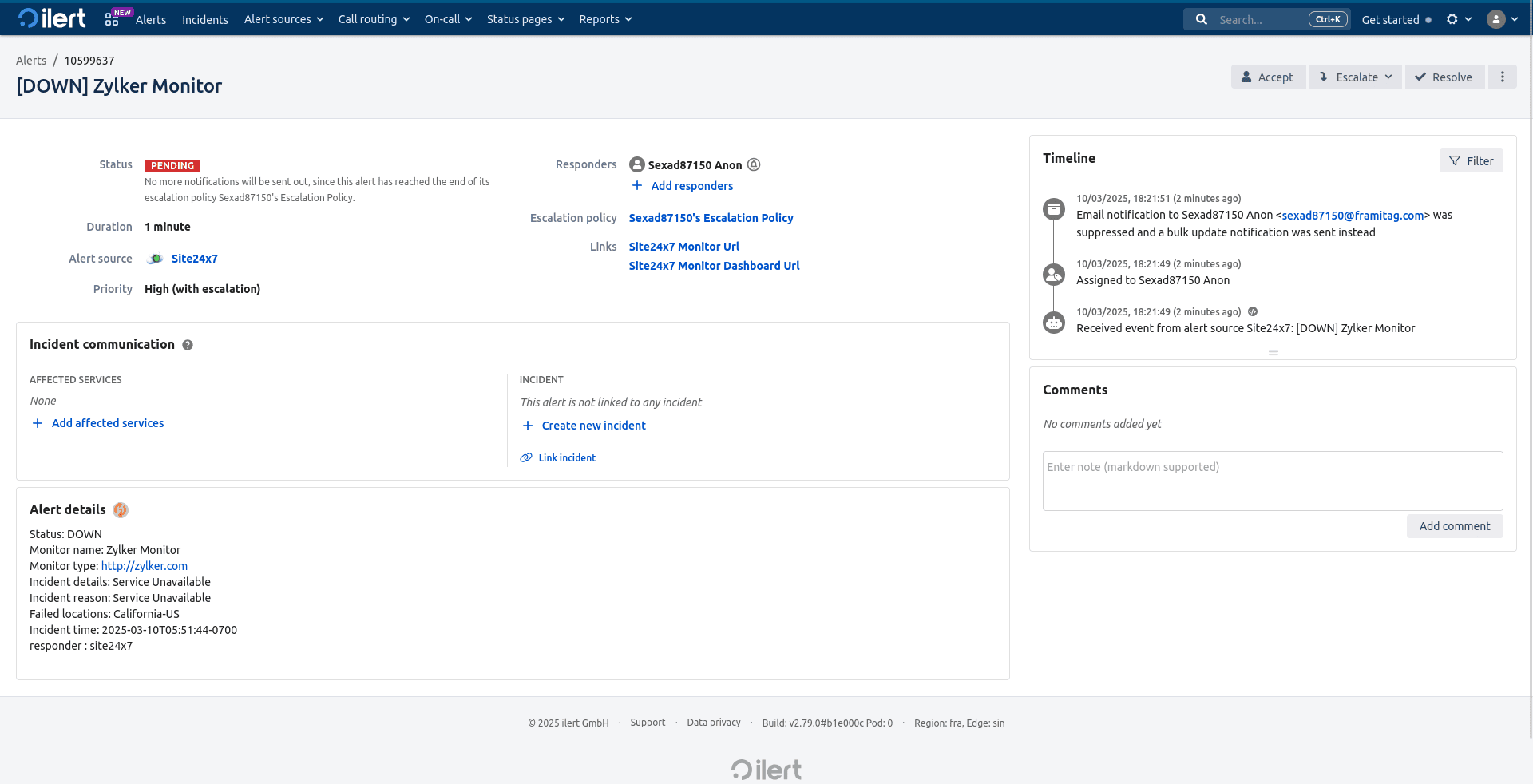
Parsing Custom Parameters in ilert
To pass Custom Parameters from OpManager Nexus and use them in ilert:
- Log in to your ilert account.
- From the Alert sources drop-down, select the OpManager Nexus integration. The following page will be displayed:
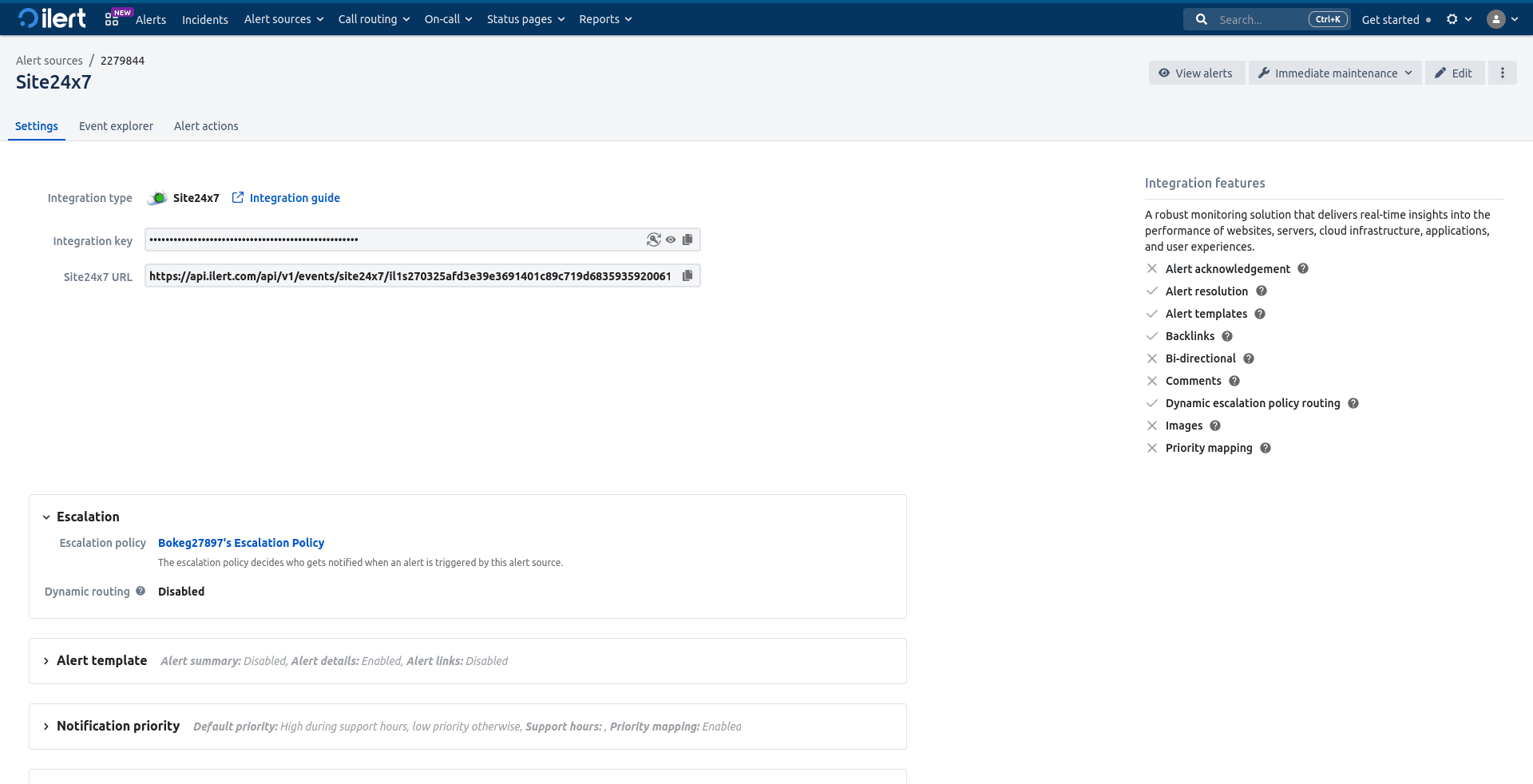
- Click the Edit button. On the edit page, add the Custom Parameters and the Incident Parameters as shown below:
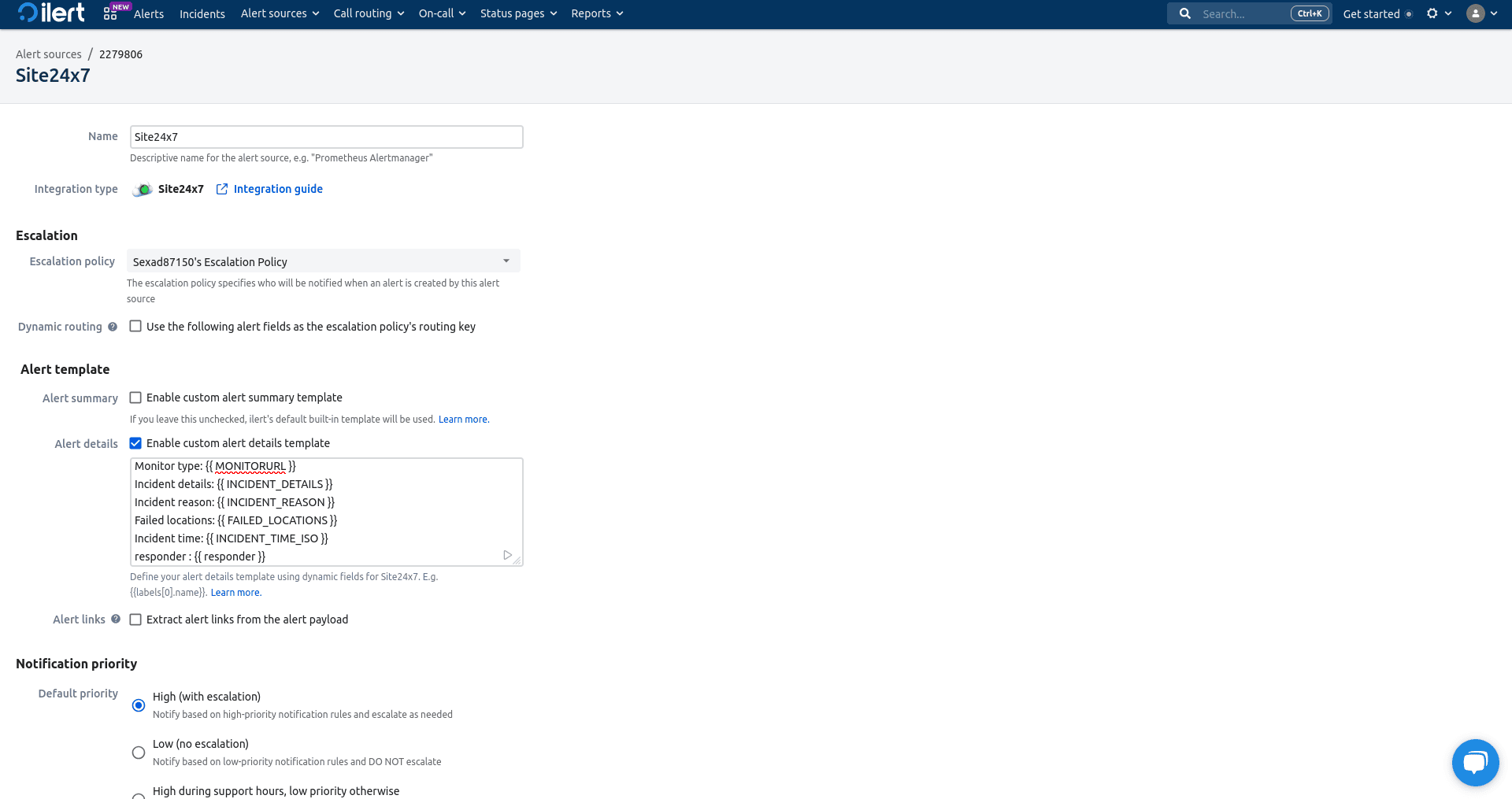
-
In OpManager Nexus's ilert integration form, add the Custom Parameter as {"responder" : "OpManager Nexus"} and click Save.
Custom Parameters will be reflected in the Alert details section of ilert's integration page.
Set the priority for and manually close tickets
To set the priority for and manually close tickets from OpManager Nexus and use them in ilert:
- Log in to your ilert account.
- From the Alert sources drop-down, select the OpManager Nexus integration. The following page will be displayed:
screenshot - Click the Edit button. On the edit page:
- Enable the Priority mapping check box to set the priority.
- Enable Auto-resolution to close tickets within the preferred timeframe automatically.
screenshot
- Click Save to apply the changes
-
On this page
- Key capabilities of the integration
- Prerequisites for ilert integration
- Configuring the ilert side of the integration
- Configuring the OpManager Nexus side of the integration
- Suspend, activate, or delete the ilert integration
- Managing incident tickets in ilert
- Parsing Custom Parameters in ilert
- Set the priority for and manually close tickets