Zendesk integration
The OpManager Nexus-Zendesk integration works to provide cross-channel support to customers. It makes services accessible by providing conversational support. The unified workplace makes it easier to track and prioritize responses to customers.
Generate a Zendesk integration key and other parameters
Services in Zendesk let any application, service, or team open incidents in Zendesk. You can create a OpManager Nexus service in Zendesk to trigger incidents in Zendesk. Incidents will open when the monitor status changes to Down, Trouble, or Critical. The incident will be closed when the monitor status changes to Up.
To enable this integration, you must generate a Zendesk integration key. Follow the steps below to generate an integration key:
- Log in to your Zendesk account
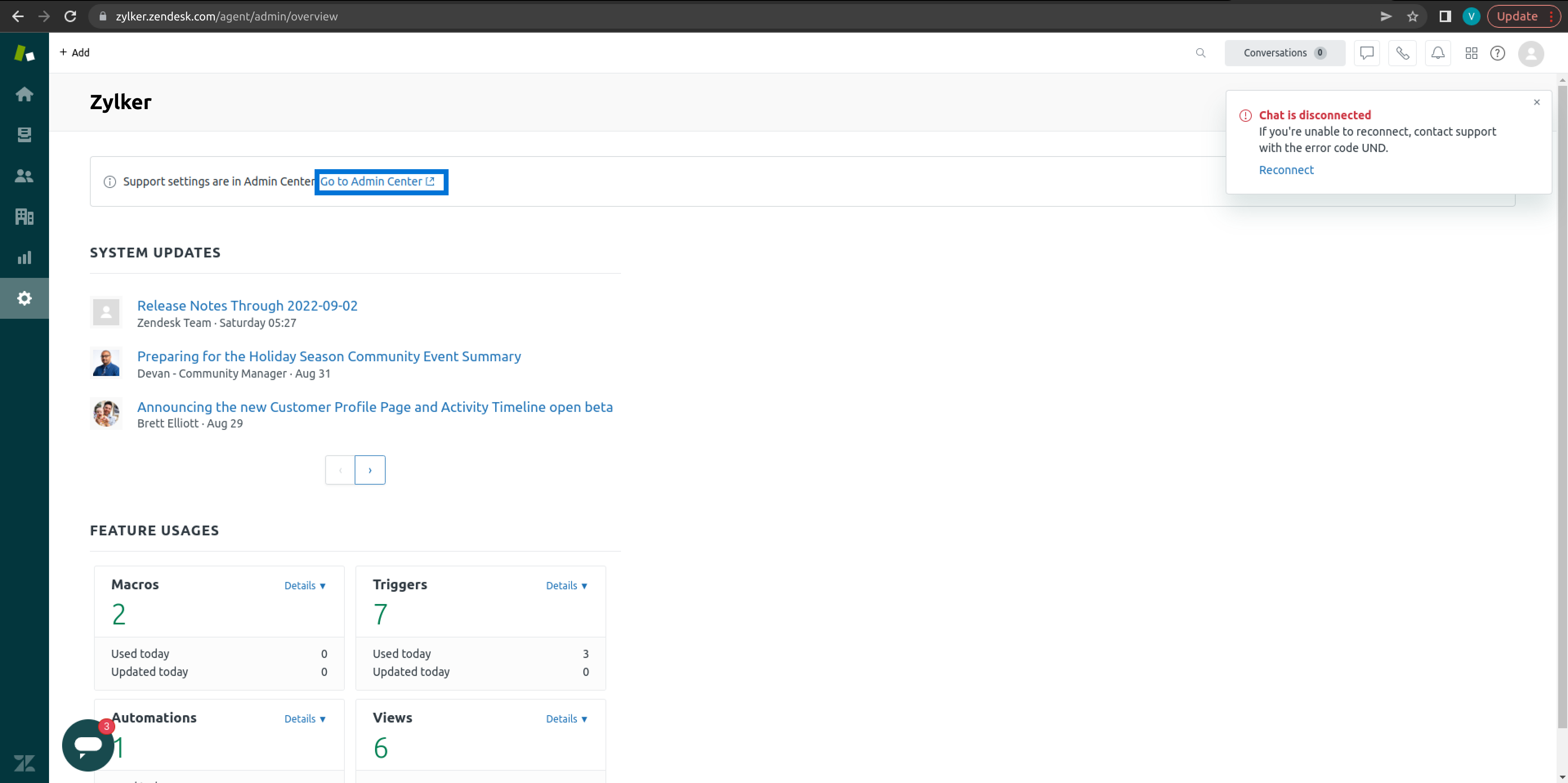
- Click Settings > Admin Center
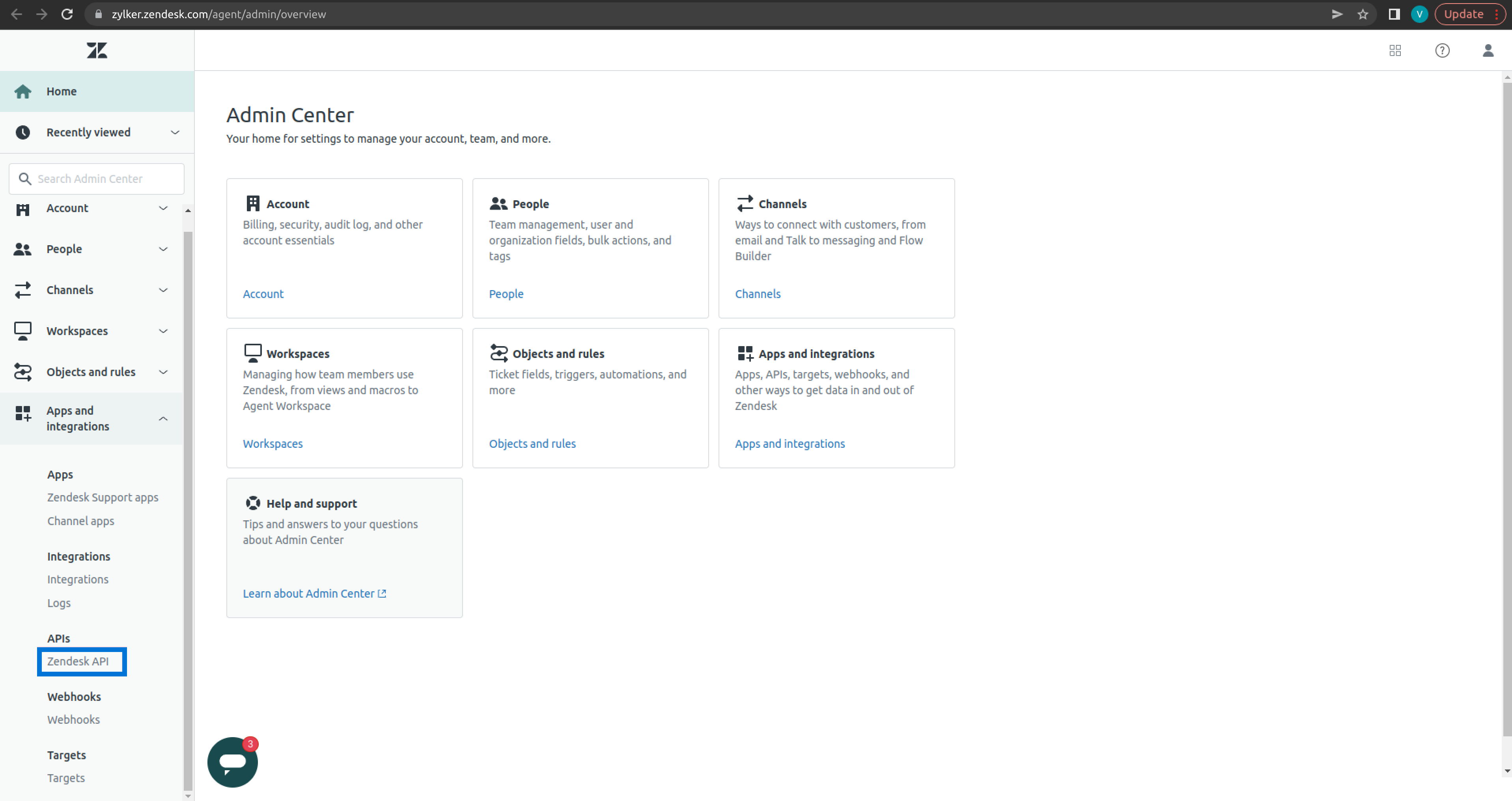
- The Admin Center page will open now. Click Zendesk API under the Apps and Integrations section.
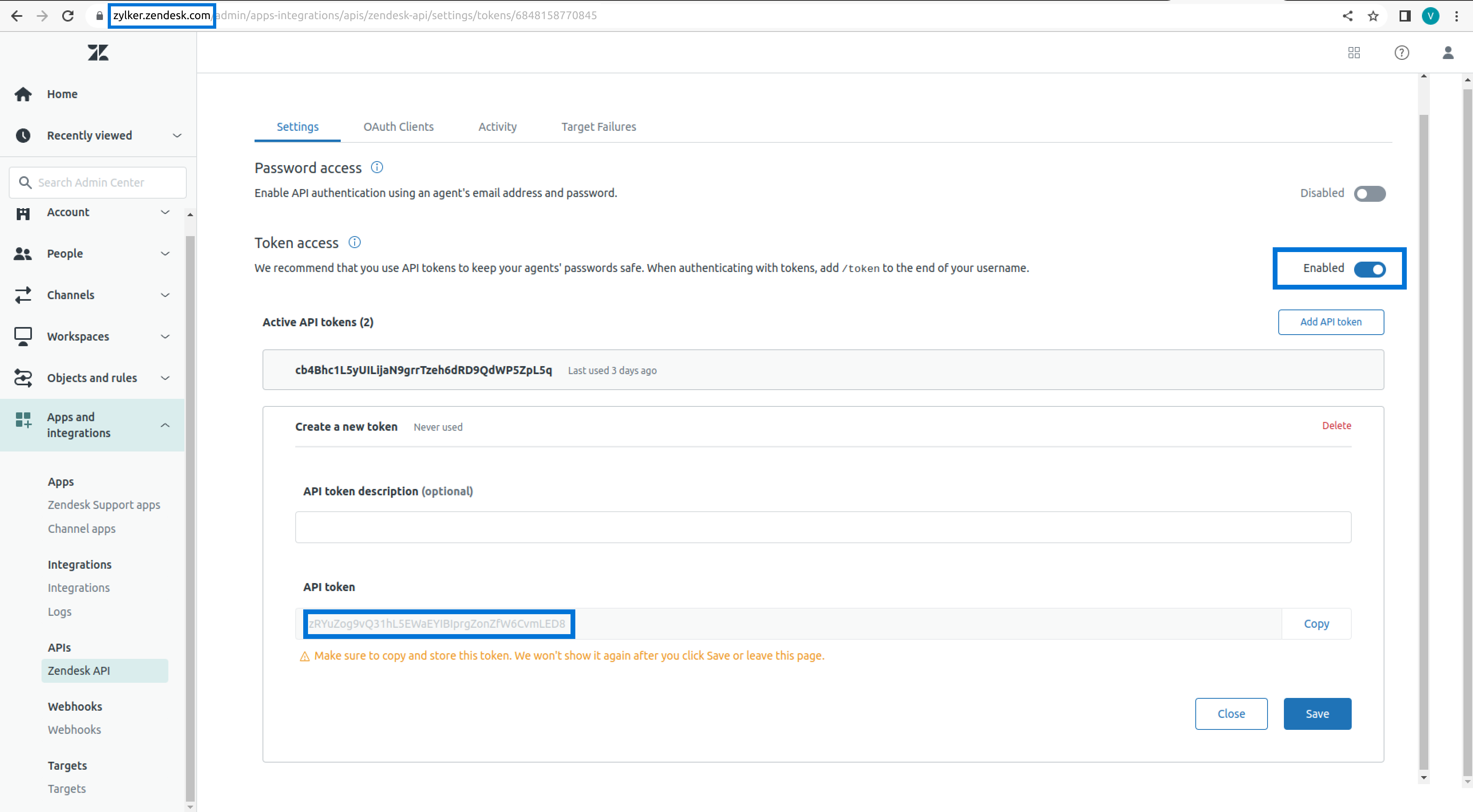
- Click Add API token. Copy the API token in the API token section. Save it somewhere for future reference.
- In the same page, enable Token access in the Token access section.
- Next, copy the domain nameof the page. Save it somewhere for future reference.
Integrate OpManager Nexus with Zendesk
- Log in to OpManager Nexus.
- Click Admin > Third-Party Integration > Zendesk.
-
Specify the following details in the integrations page:
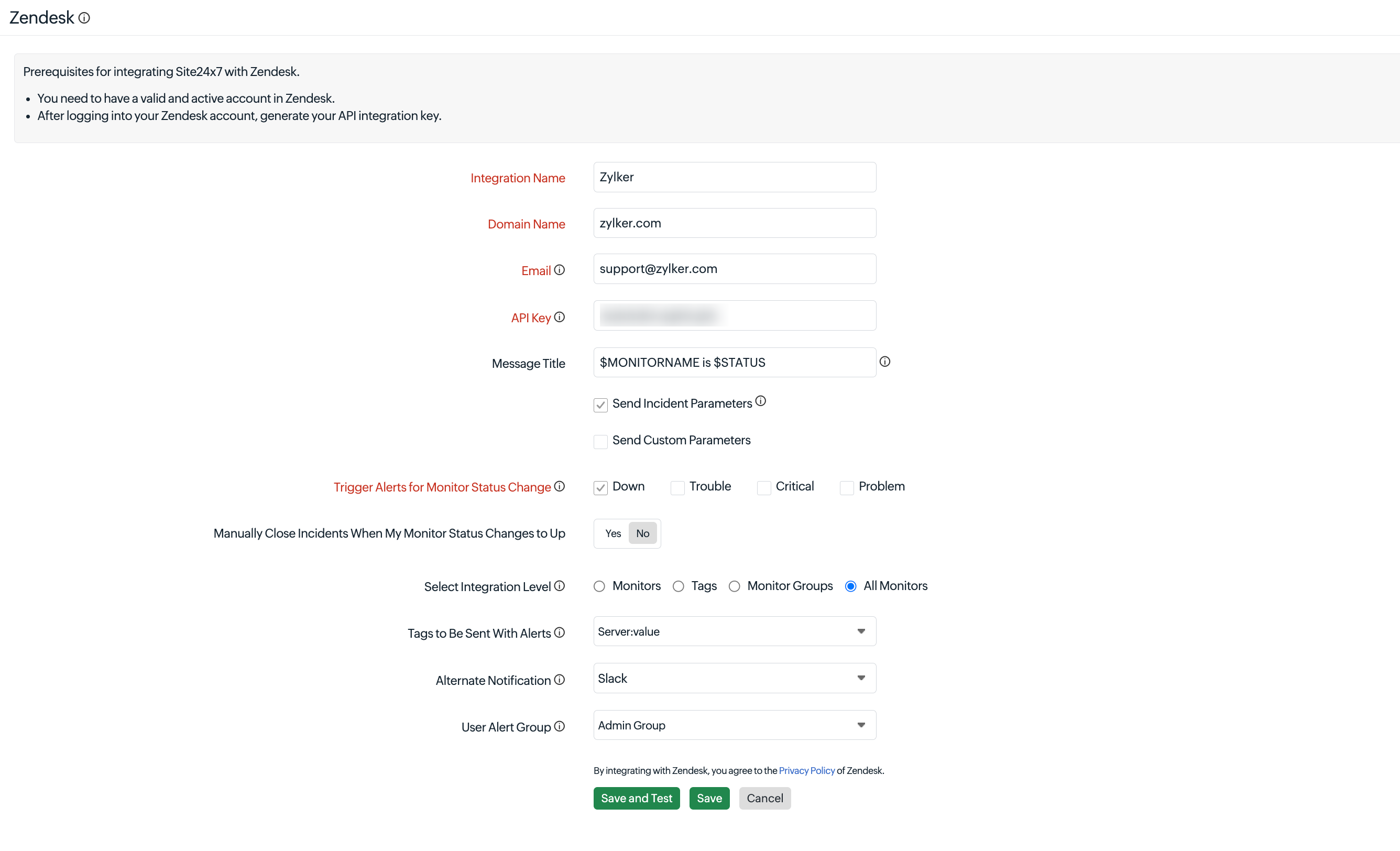
- Integration Name: Enter the name of your integration.
- Domain Name: Paste the copied domain name here.
- Email: Enter the email address you provided in the Zendesk account.
- API Key: Paste the copied Zendesk API Key here.
- Message Title: Enter the $ symbol and pick from the available incident parameters to customize your message title for OpManager Nexus notifications. Learn more about incident parameters. You can also use OpManager Nexus's global parameters to customize your message titles.
- Trigger Alerts for Monitor Status Change: Use the check boxes to choose the monitor status changes (Down, Trouble, and Critical) for which you wish to receive alerts.
- Manually Close Incidents When My Monitor Changes to Up: Use the radio button to decide whether to close incidents manually or automatically in Zendesk when the OpManager Nexus monitor status changes to Up. By default, the incidents are resolved automatically in Zendesk.
- Select Integration Level: Use the radio button to decide whether to create incidents in Zendesk for your specific Monitors, all monitors and monitor groups associated to the selected Tags, monitors associated with the selected Monitor Groups, or All Monitors in your account.
NoteFor tags associated to your monitor group that have monitors at the parent level and a few monitors at the subgroup level, alerts from only the parent monitors get logged as Zendesk incidents.
- Tags to Be Sent With Alerts: Select the tag keys associated with the monitor that need to be sent with the alert. When an alert is triggered, tags that match with the monitor will be included in the alert notifications. If no tags are selected, all the tags associated with the monitor will be present in the alert notifications.
- Alternate Notification: If the primary third-party notification medium for sending alerts encounters an issue, an alternative notification medium will be activated to ensure that alerts are not missed.Once the Zendesk integration form opens, specify the following details:
- User Alert Group: Choose who should be notified if this integration fails. Select one or more User Alert Groups so OpManager Nexus can automatically notify the appropriate team whenever an integration failure occurs. This enables faster troubleshooting and helps prevent failures from going unnoticed.
- Click Save and Test to save the integration and to receive a test alert. Or you can click Save to finish the integration.
When you update an integration configuration and click Save or Save and Test, OpManager Nexus displays a review page that highlights the modified fields. You can click View Diff to compare the updated configuration with the existing configuration and verify the changes before proceeding.
Once the setup process is completed, the Zendesk integration will be listed in the Third-Party Integration dashboard. You can set up multiple Zendesk integrations in your OpManager Nexus account by using multiple Zendesk integration keys from same or different Zendesk accounts.