Discover Applications
The Discover Applications feature in APM Insight allows you to automatically detect and add applications running on your server for monitoring.
Note
This feature currently supports IIS-based applications.
Prerequisites
- Ensure the IIS server monitor is added first.
- When APM Insight is enabled, the .NET agent is automatically installed and instrumented for the first IIS application. Subsequent applications are added to the agent’s filter without needing reinstallation.
Note
An IIS reset will take place on the server during the initial enabling of APM Insight.
Accessing Discover Applications
- Log in to your OpManager Nexus client.
- Navigate to APM > APM Insight > Discover Applications.
- The list of detected applications running on IIS will be displayed.
Note
If an application is not listed, try clicking Fetch Applications to refresh the list.
- Enable APM Insight for the applications that you want to monitor.
Note
You can also select multiple applications and then click Activate Application to enable them all at once.
- Once enabled, OpManager Nexus will begin monitoring the application, collecting key performance metrics, traces, and errors.
Note
You can enable or disable the applications any time using the Enable or Disable APM Insight toggle.
Parameters displayed
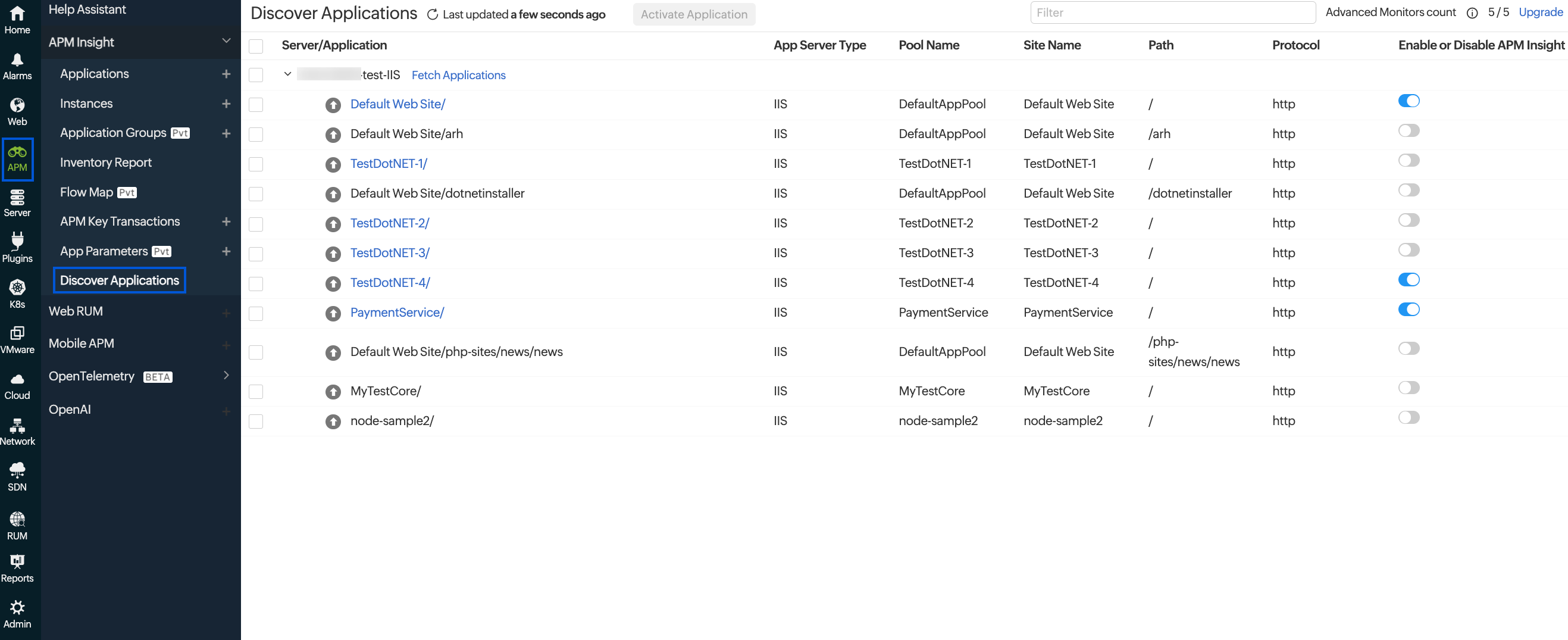
| Parameter | Description |
|---|---|
| Server/Application | The name of the detected application |
| App Server Type | The type of application server running the application (e.g., IIS) |
| Pool Name | The name of the application pool associated with the application |
| Site Name | The name of the site under which the application is hosted |
| Path | The relative path where the application is deployed |
| Protocol | The transfer protocol used by the application (e.g., HTTP, HTTPS) |
| Enable or Disable APM Insight | Toggle to enable or disable OpManager Nexus APM Insight monitoring |