Configure Application Filters in the Settings dialog
OpManager Nexus APM Insight can be configured to exclude selected .NET applications from monitoring. This will help eliminate unwanted applications, resulting in the most effective use of your license.
Follow the steps below to monitor selected .NET applications with OpManager Nexus APM Insight.
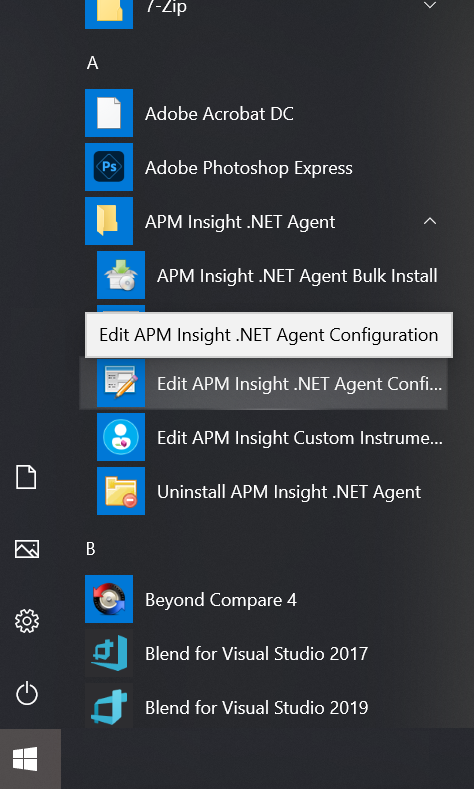
Go to Start and click the Edit APM Insight .NET Agent Configuration tool to launch it.
NoteThe Edit APM Insight Configuration tool is automatically installed when you install your APM Insight .NET agent.
Once the tool is launched, navigate to the Applications tab.
NoteThis dialog box is launched automatically during the APM Insight .NET agent installation.
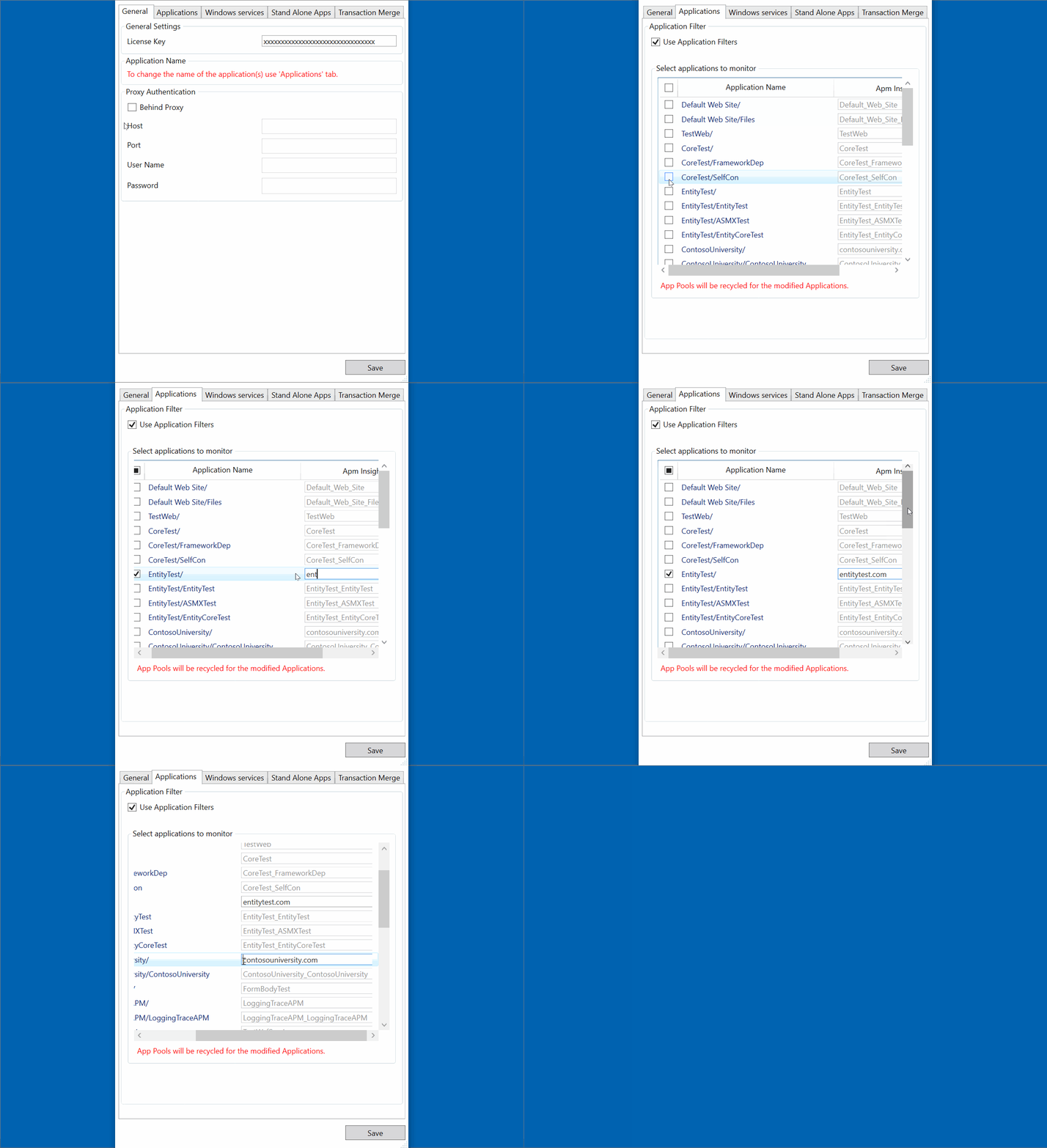
Select the Use Application Filters check box.
NoteAll the IIS-hosted applications will be listed in the Applications tab. Only the selected applications will be monitored.
Select the applications you want to monitor.
NoteBy default, all applications will be selected for monitoring.
Provide a unique name for each application selected in the text box under the Apm Insight key column.
NoteThis will not affect IIS.
Click Save.
NoteApplication pools will be recycled immediately for the modified applications.