Install the OpManager Nexus PHP Agent in an Azure Web App
Follow these steps to install and configure the OpManager Nexus APM Insight PHP Agent in an Azure Web App.
Step 1: Create a deployment script
- Navigate to the directory /home/site24x7/ (create it if it doesn’t exist).
- Create a new shell script named apm-phpagent-deploy.sh in this location.
- Add the following contents to the script:
#!/bin/sh

apt update && apt install -y wget unzip procps

export S247_LICENSE_KEY=YourLicensekey
export ZPA_APPLICATION_NAME=YourApplicationName

wget -O InstallDataExporter.sh https://staticdownloads.site24x7.com/apminsight/S247DataExporter/linux/InstallDataExporter.sh
sh InstallDataExporter.sh

wget -O InstallAgentPHP.sh https://staticdownloads.site24x7.com/apminsight/agents/AgentPHP/linux/InstallAgentPHP.sh
sh InstallAgentPHP.sh
Note- Replace YourLicenseKey with your OpManager Nexus license key.
- Replace YourApplicationName with your application name in OpManager Nexus.
Step 2: Modify the Startup command
- Open the Azure Portal.
- Navigate to your Web App.
- Go to Settings > Configuration.
- Under the General Settings tab, locate the Startup Command field.
- Enter the following command:
/home/site24x7/apm-phpagent-deploy.sh
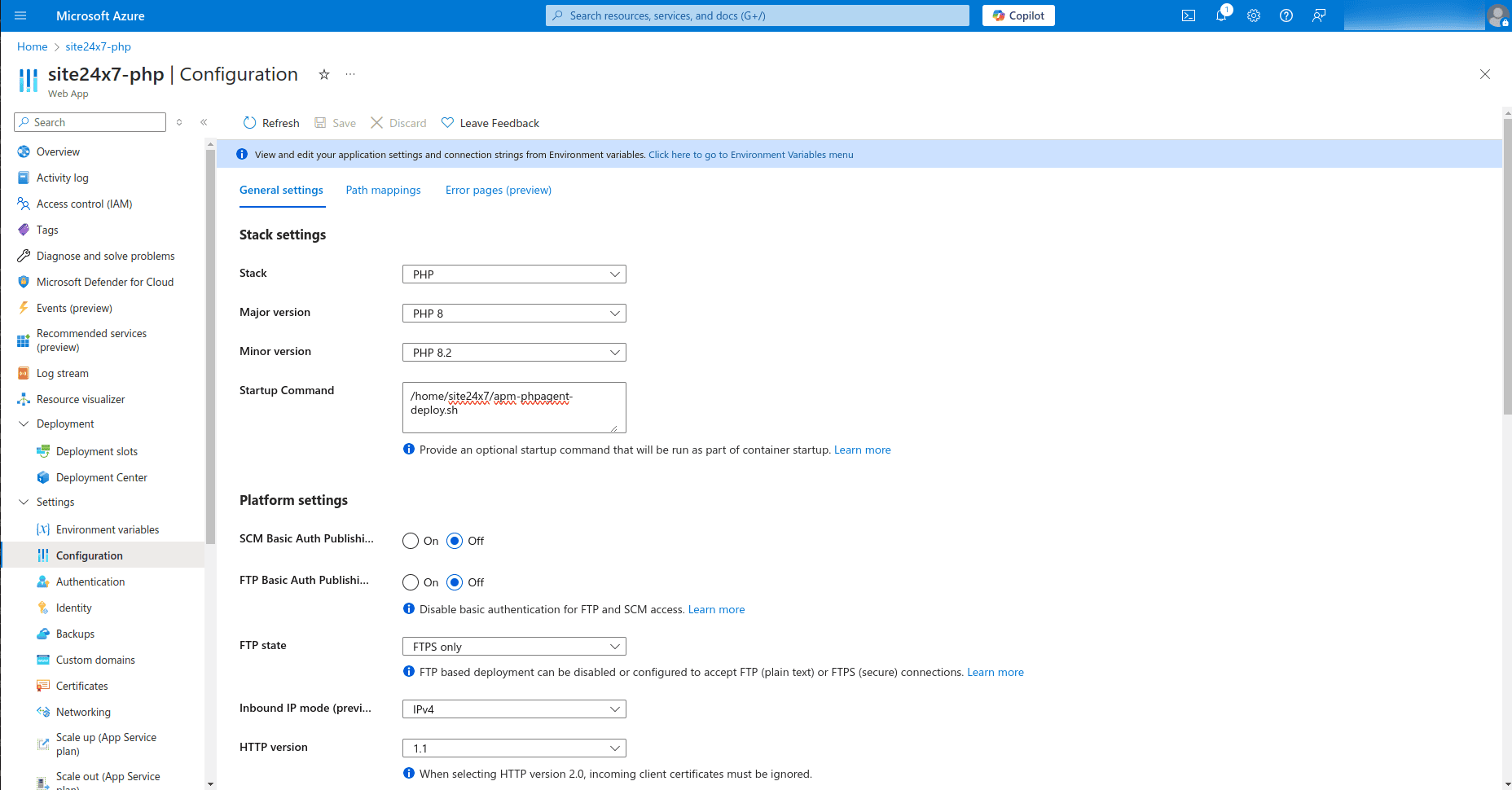
- Click Save.
Step 3: Restart the Web App
After updating the startup command:
- In the Azure Portal, navigate to your Web App.
- Click Restart.
Next step:
Go to your OpManager Nexus APM Insight dashboard and check if the application appears.