Monitor websites built in WordPress using OpManager Nexus Real User Monitoring
OpManager Nexus Real User Monitoring (RUM) can monitor the performance of your websites built on WordPress.
Follow the steps given below to do so.
Prerequisite
You should have a OpManager Nexus account to monitor your websites.
Sign up for a free account and add a RUM application before proceeding with the following steps.
Steps to install the plugin
- Log in to your WordPress account and navigate to Admin > Plugins.
- Search for the OpManager Nexus RUM plugin.
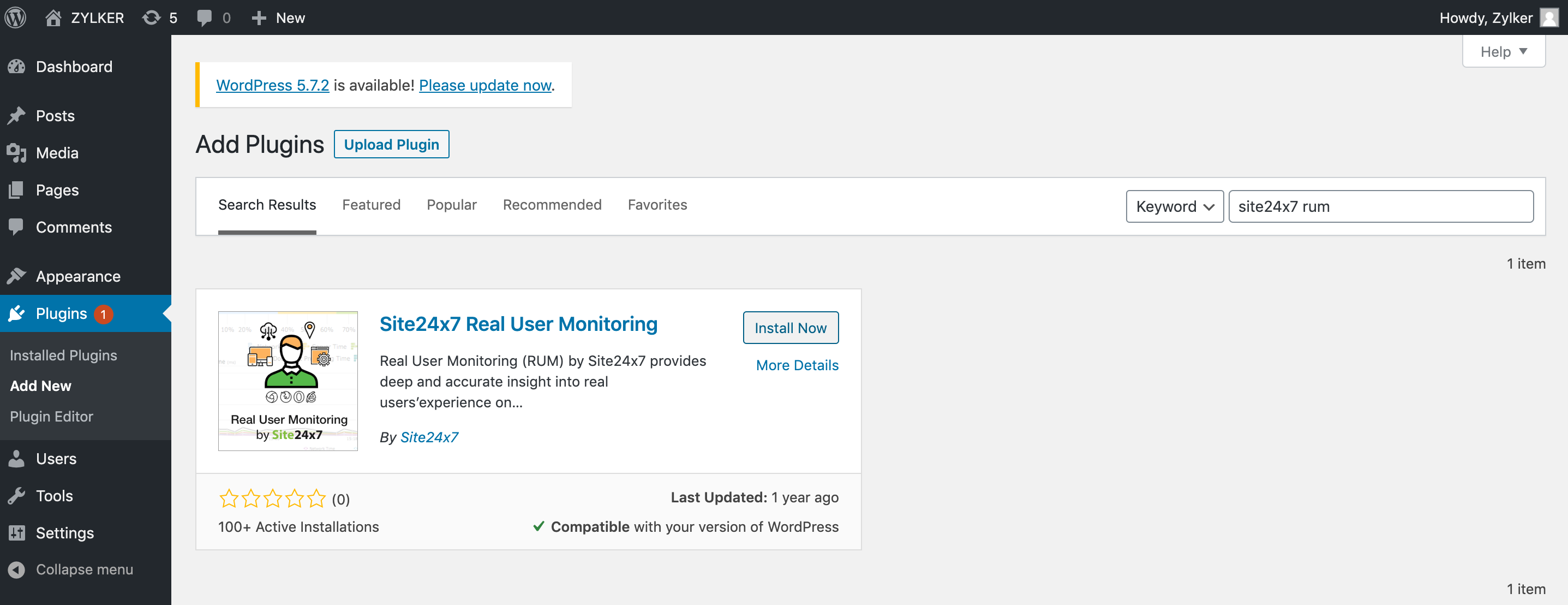
- Click Install Now, then click Activate.
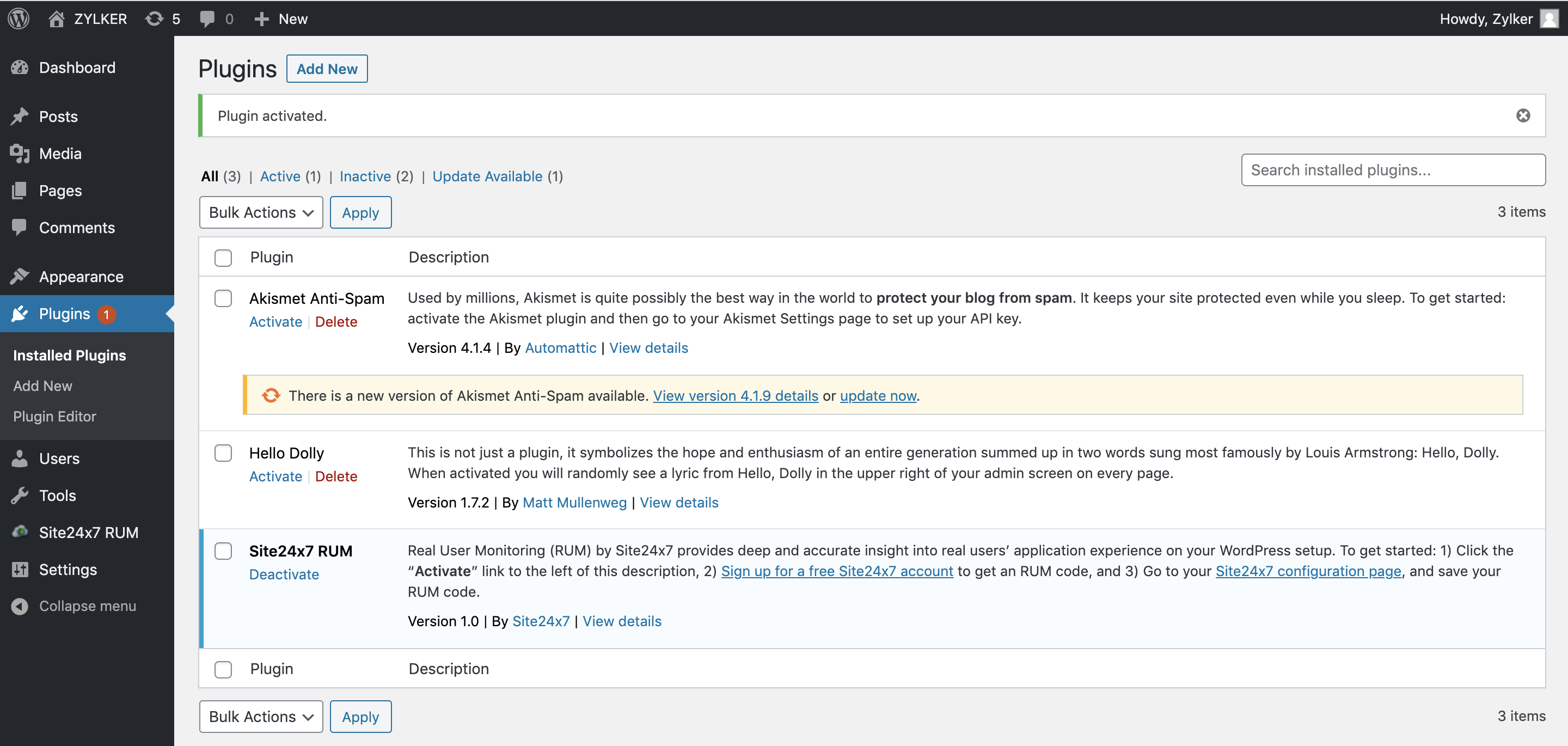
- Click the OpManager Nexus Configuration Page link and paste your RUM key, obtained from the OpManager Nexus console (OpManager Nexus > RUM > RUM Application > Copy Webscript>RUMkey).
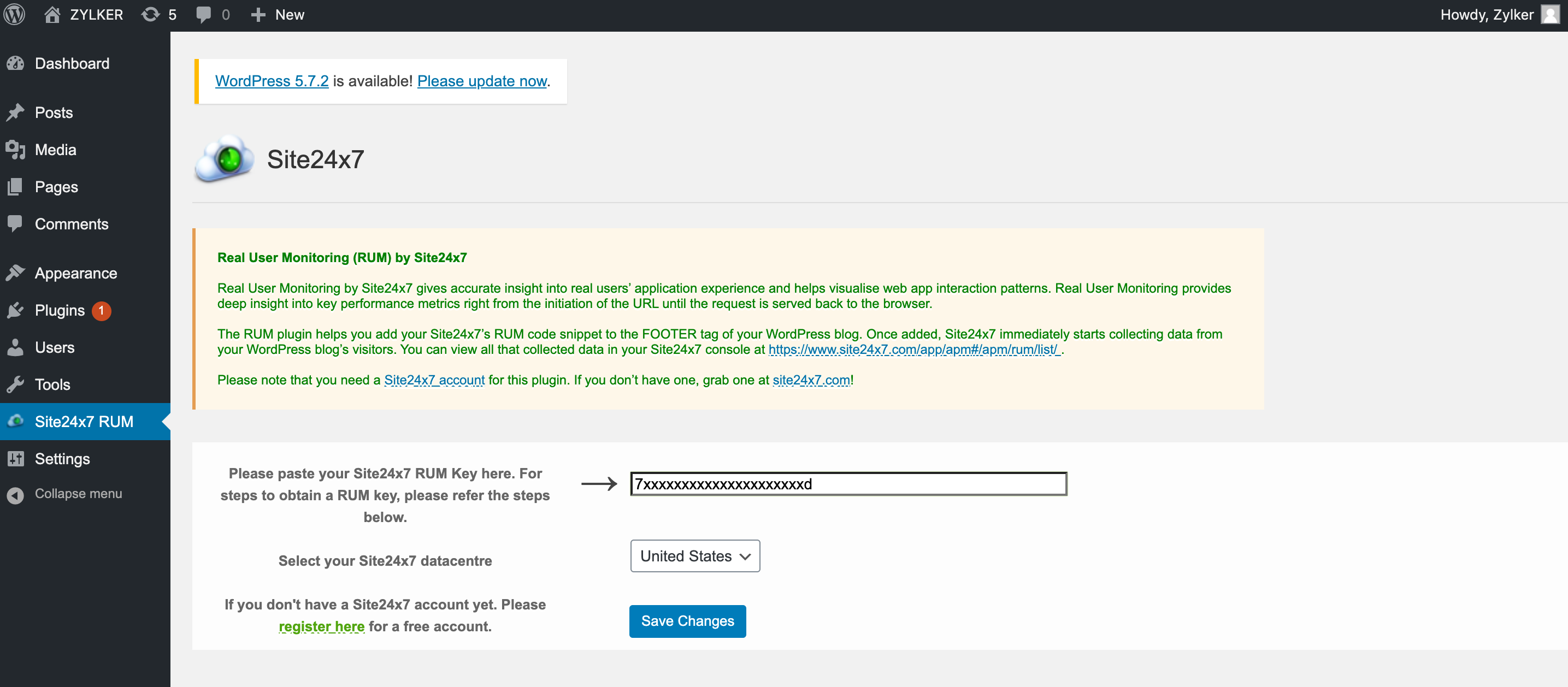
- Choose your preferred data center (DC), and click Save Changes.
Alternatively, you can manually download the OpManager Nexus RUM plugin and install it.
- Go to WordPress and download the plugin.
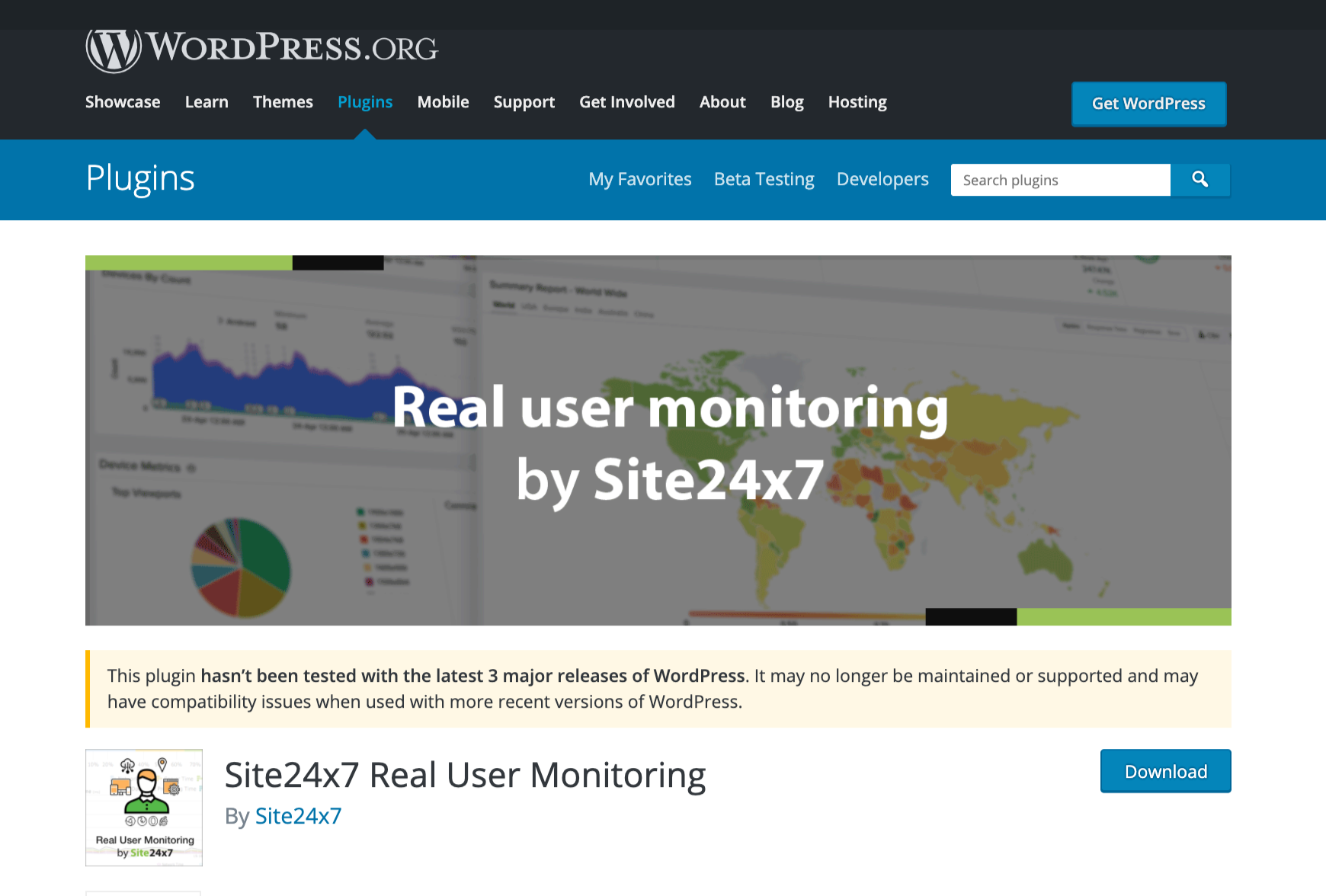
- Extract the downloaded ZIP file to the WordPress Plugins folder (e.g. wp-content/plugins).
- Install and activate the plugin.
- Click the OpManager Nexus Configuration Page link and paste your RUM key, obtained from the OpManager Nexus console (OpManager Nexus > RUM > RUM Application > Copy Webscript > RUM key).
- Choose your preferred data center (DC), and click Save Changes.
-
On this page
- Prerequisite
- Steps to install the plugin