How to authenticate DigitalOcean for OpManager Nexus monitoring
To monitor your DigitalOcean resources with OpManager Nexus, you need to provide valid credentials that allow OpManager Nexus to authenticate with your DigitalOcean account and discover your cloud resources.
OpManager Nexus supports two authentication methods. Choose the method that best fits your environment:
- Token-based authentication: Personal Access Token (PAT) for straightforward setups
- OpManager Nexus OAuth provider: OAuth-application-based access for environments that require a higher level of security
Prerequisites
- An active DigitalOcean account with Resource Viewer permissions to view team resources such as Droplets, Kubernetes clusters, Load Balancers, and Databases
- API access enabled on your DigitalOcean account
- Access to the DigitalOcean Control Panel or the Developer API portal
- A OpManager Nexus account with sufficient licenses to add cloud monitors
Method 1: Token-based authentication
Use a manually generated PAT if OAuth access is not suitable for your environment, for example, in straightforward or non-restricted setups.
Step 1: Sign in to the DigitalOcean console
- Go to https://cloud.digitalocean.com/login.
- Sign in with your DigitalOcean credentials.
Step 2: Navigate to API settings
- In the left navigation panel, click API.
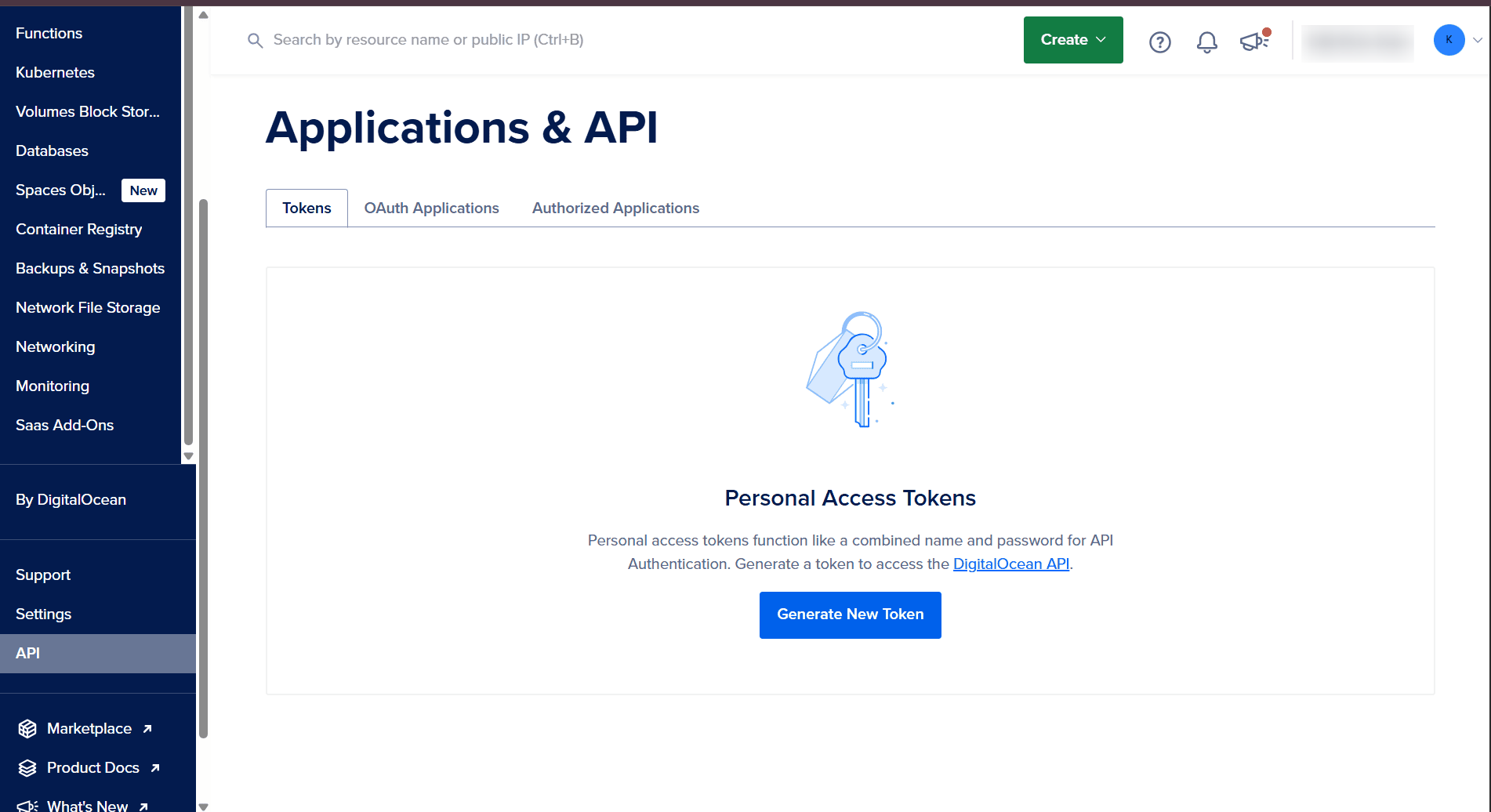
- Under the Tokens section, select Generate New Token.
Step 3: Generate a PAT
- Enter a name for the token, for example, site24x7-monitoring.
- Under Permissions, select Read. For OpManager Nexus monitoring, read access is sufficient.
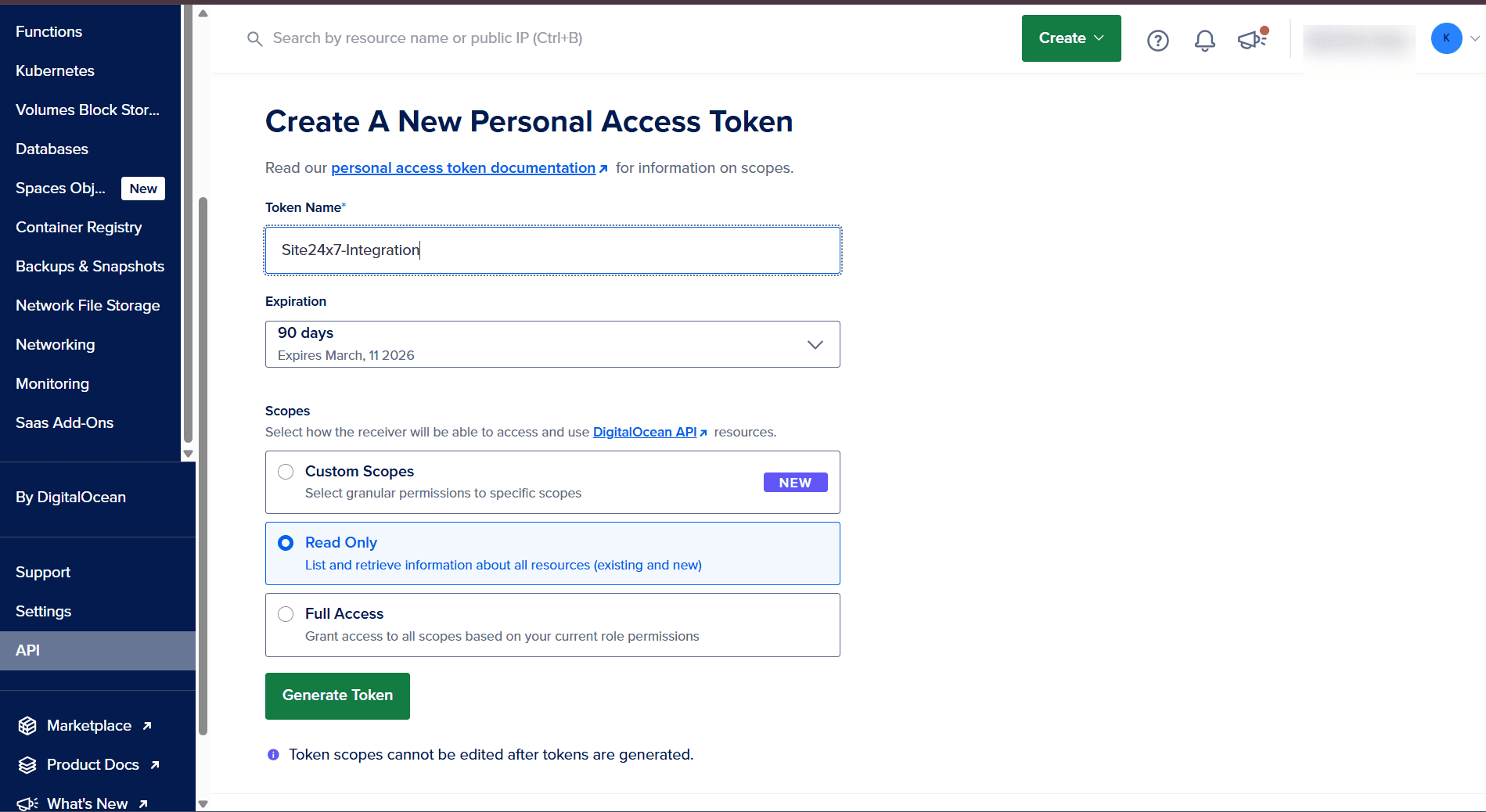
- Click Generate Token.
Once the token is generated, copy and store it securely. You will not be able to view it again later.
Step 4: Add the DigitalOcean monitor in OpManager Nexus
- Log in to your OpManager Nexus account.
- Navigate to Admin > Monitor > Add Monitor > DigitalOcean.
- Verify that the following prerequisites are met for the PAT:
- Read permission granted on the token.
- The DigitalOcean account has Resource Viewer permissions.
- API access is enabled.
- Access to the DigitalOcean Control Panel or Developer API is confirmed.
- Paste the token copied in step three into the Access Token field.
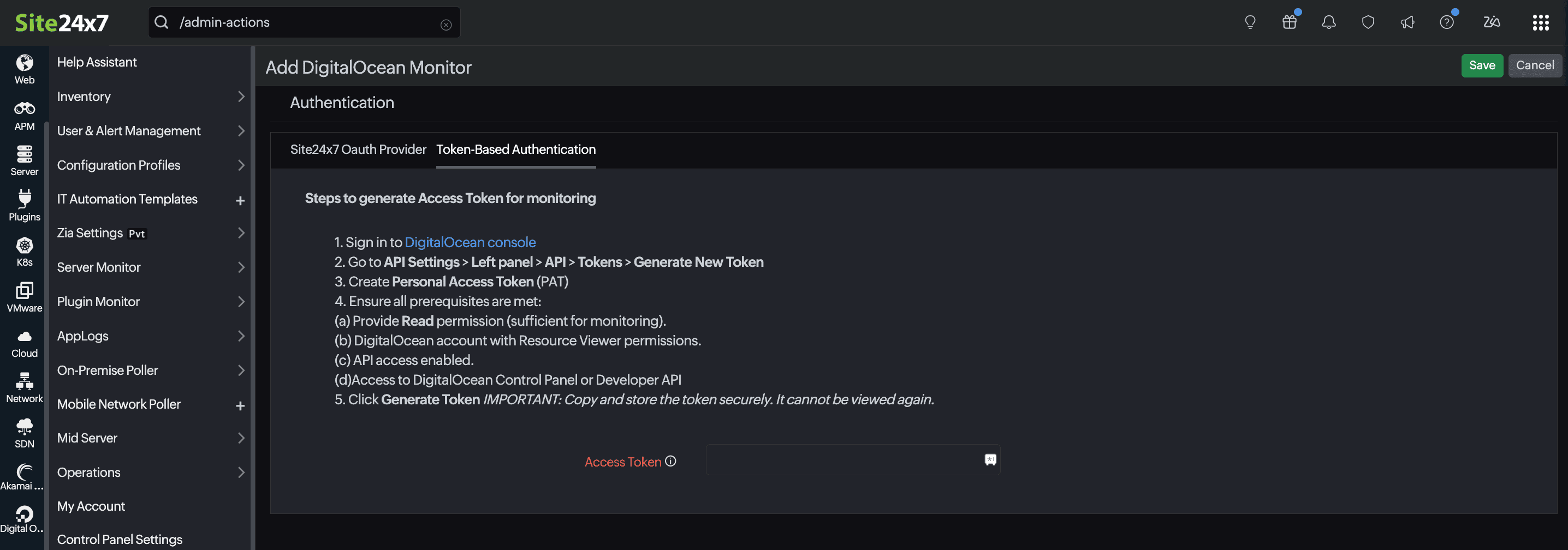
Once the credentials are saved, OpManager Nexus will authenticate with your DigitalOcean account, auto-discover the monitored resources, and begin collecting performance metrics shortly.
Method 2: OpManager Nexus OAuth provider
Use OAuth-application-based access for more secured environments, such as restricted enterprise setups. OpManager Nexus provides an OAuth provider option that lets you register a DigitalOcean OAuth application and use it for monitoring.
Step 1: Register the OAuth application in DigitalOcean
- Sign in to DigitalOcean Cloud at https://cloud.digitalocean.com.
- Open the API / OAuth section via Console > API > OAuth Applications, then click Register OAuth Application.
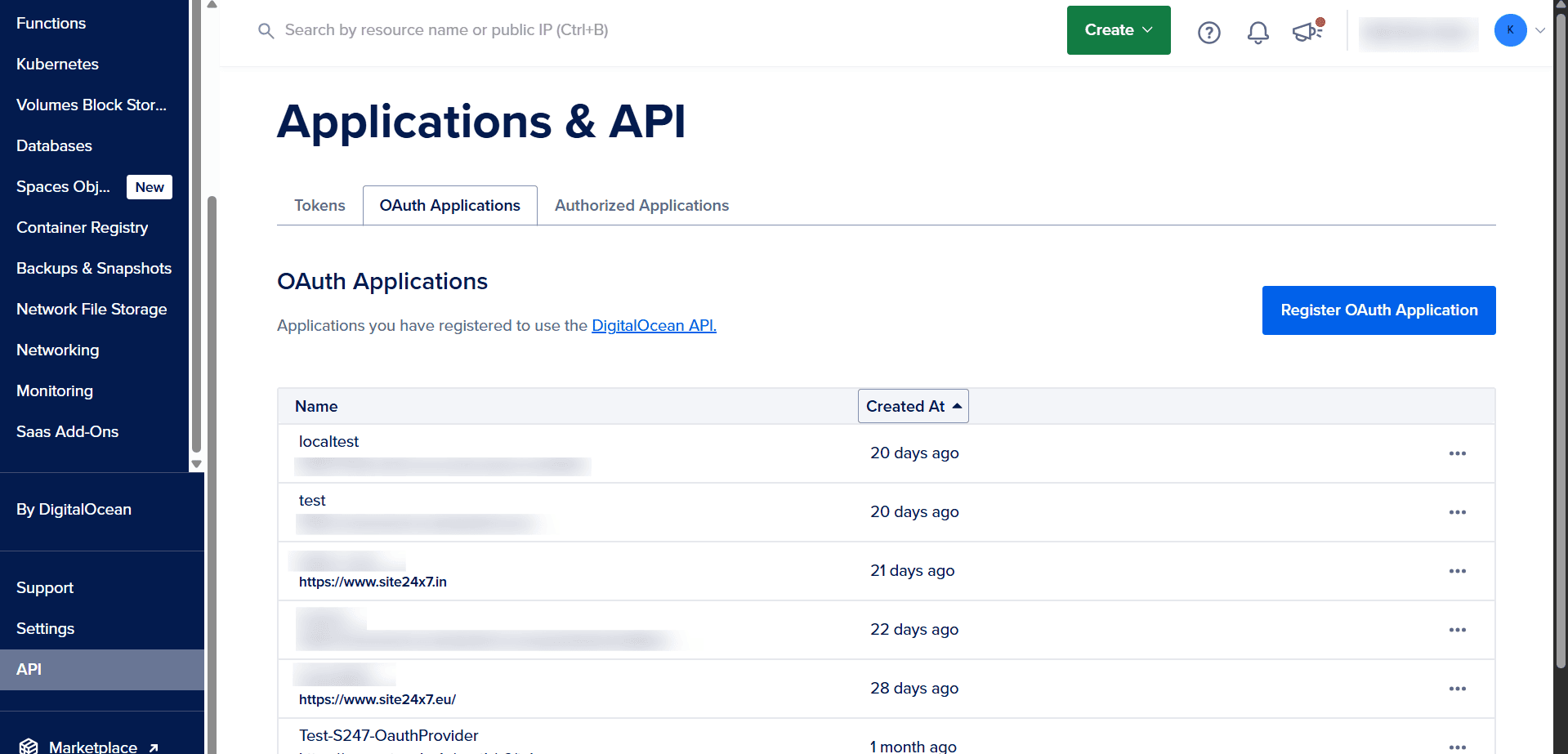
- Fill in the registration form with the following details:
- Name: OpManager Nexus - DigitalOcean Integration (example)
- Homepage URL: https://www.site24x7.cn
- Description: OpManager Nexus integration for DigitalOcean monitoring (example)
- Callback / Redirect URL: https://www.site24x7.cn/app/OAuth2CallBack (this must match exactly with your OAuth provider)
- Click Save. DigitalOcean will provide a Client ID and a Client Secret. Store the Client Secret in a secure secrets manager and do not commit it to source control.
The redirect URI used in OAuth requests must exactly match the registered callback URL, or you will receive an invalid_redirect_uri or invalid_grant error.
Step 2: Add the OAuth provider in OpManager Nexus
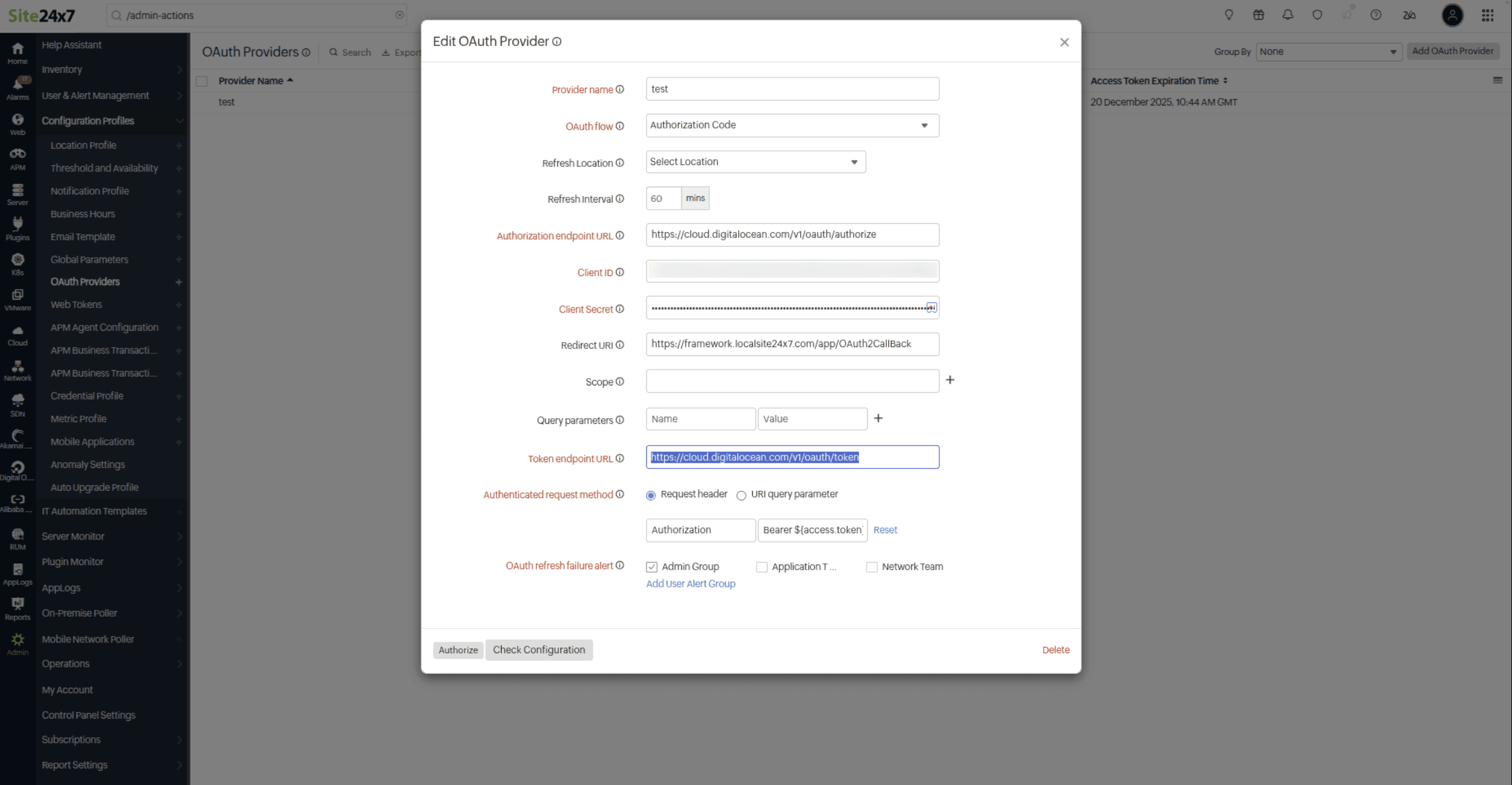
- In the OpManager Nexus console, navigate to Admin > Configuration Profiles > OAuth Providers > Add OAuth Provider.
- Set the Provider Name to DigitalOcean OAuth.
- Set the OAuth Flow as Authorization Code.
- In the Authorization Endpoint URL field, enter:
https://cloud.digitalocean.com/v1/oauth/authorize - In the Token Endpoint URL field, enter:
https://cloud.digitalocean.com/v1/oauth/token - Enter the Client ID and Client Secret generated in step one.
- Ensure that the Redirect URI matches exactly what was registered in DigitalOcean:
https://www.site24x7.eu/app/OAuth2CallBack - Leave the Query Parameters section empty. No additional parameters are required for DigitalOcean OAuth.
- Under Authenticated Request Method, select Request header. Confirm the header format is:
Authorization: Bearer ${access.token} - Keep the Refresh Interval at the default of 60 minutes unless a shorter refresh window is required.
- Select the appropriate User Alert Groups to receive OAuth refresh failure notifications.
- Click Authorize and complete the DigitalOcean consent screen to generate the initial access token.
- Once authorization succeeds, click Check Configuration to validate token retrieval and refreshing.
Step 3: Add the DigitalOcean monitor in OpManager Nexus
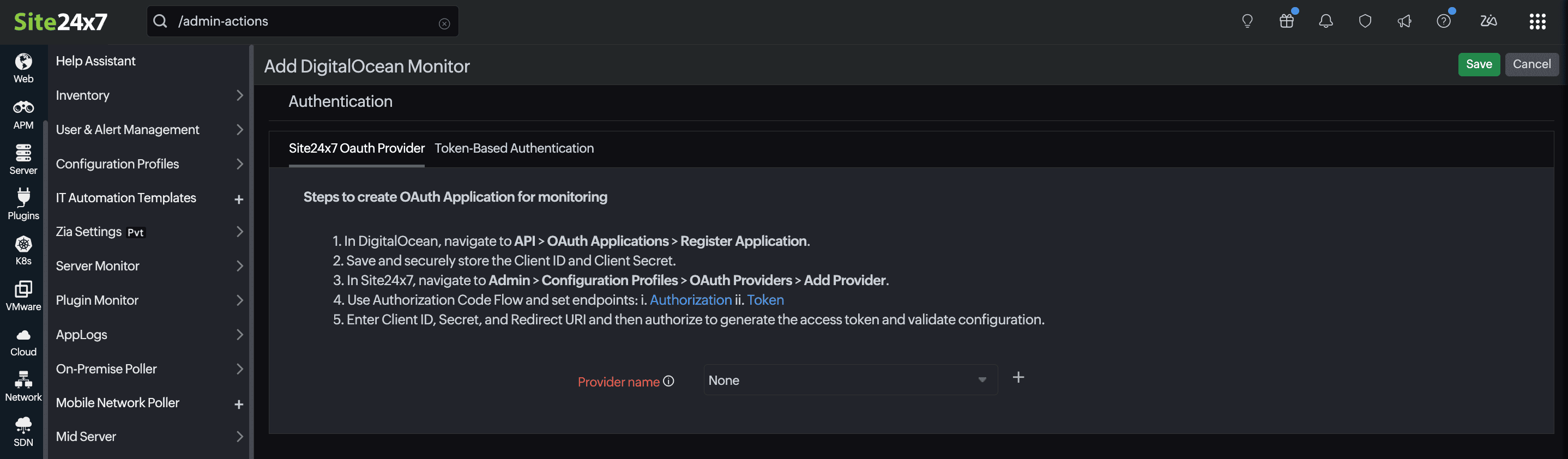
- In the OpManager Nexus console, navigate to Admin > Monitor > Add Monitor > DigitalOcean.
- Under Authentication, select the OpManager Nexus OAuth Provider configured in step two.
- Select the Provider name drop-down. OpManager Nexus will list the DigitalOcean resources automatically once it has been added.
- Authorize OpManager Nexus to access your DigitalOcean cloud resources and complete the monitor setup.
Once the OAuth provider is linked, OpManager Nexus will authenticate with your DigitalOcean account, auto-discover the monitored resources, and begin collecting performance metrics shortly.