Syslogs
OpManager Nexus AppLogs enhances Syslog monitoring with log content segregated into relevant fields like date & time, application, host, PID, and message. With this, you can easily pinpoint the necessary data over multiple lines of log information as it is presented in one simple and intuitive web client. Learn more about log management with OpManager Nexus.
Getting started
- Log in to your OpManager Nexus account.
- Download and install the OpManager Nexus Server Monitoring agent (Linux).
- Go to Admin > AppLogs > Log Profile and Add Log Profile.
- Select Syslog from the Choose the Log Type drop-down.
- Logs file path: Each application writes logs in different folders and files. By default, Syslogs are sourced from the below-mentioned folder path for the respective Operating System. If you have logs in a different folder, you can mention it under the File Path to source them from that particular folder while creating a log profile.

/var/log/syslog*
/host/var/log/syslog*
/var/log/messages*
/host/var/log/messages*
/var/log/auth.log*
/host/var/log/auth.log*
/var/log/secure*
Sample logs and log patterns
Following are the two sample logs and their log pattern applicable to Syslogs:
Sample 1
$DateTime:date$ $Host$ $Application$[$PID$]: $Message$
This is the pattern defined by OpManager Nexus for parsing Syslogs based on the sample mentioned below.
Aug 7 07:35:02 Zylker systemd[1]: Stopping CUPS Scheduler...,
The above sample log can be separated into 5 fields, each of which will take its respective value from here and will then be uploaded to OpManager Nexus.
| Field name | Field value |
| DateTime | Aug 7 07:35:02 |
| Host | Zylker |
| Application | systemd |
| PID | 1 |
| Message | Stopping CUPS Scheduler..., |
Sample 2
$DateTime:date:yyyy-MM-dd'T'HH:mm:ss.SX$ $Host$ $Application$![$ProcessId$]!: $Message$
This is the pattern defined by OpManager Nexus for parsing Syslogs based on the sample mentioned below.
2024-03-07T07:35:01.138862+01:00 log-host systemd[1]: Stopping CUPS Scheduler...
The above sample log can be separated into 5 fields, each of which will take its respective value from here and will then be uploaded to OpManager Nexus.
| Field name | Field value |
| DateTime | 2024-03-07T07:35:01.138862+01:00 |
| Host | log-host |
| Application | systemd |
| PID | 1 |
| Message | Stopping CUPS Scheduler... |
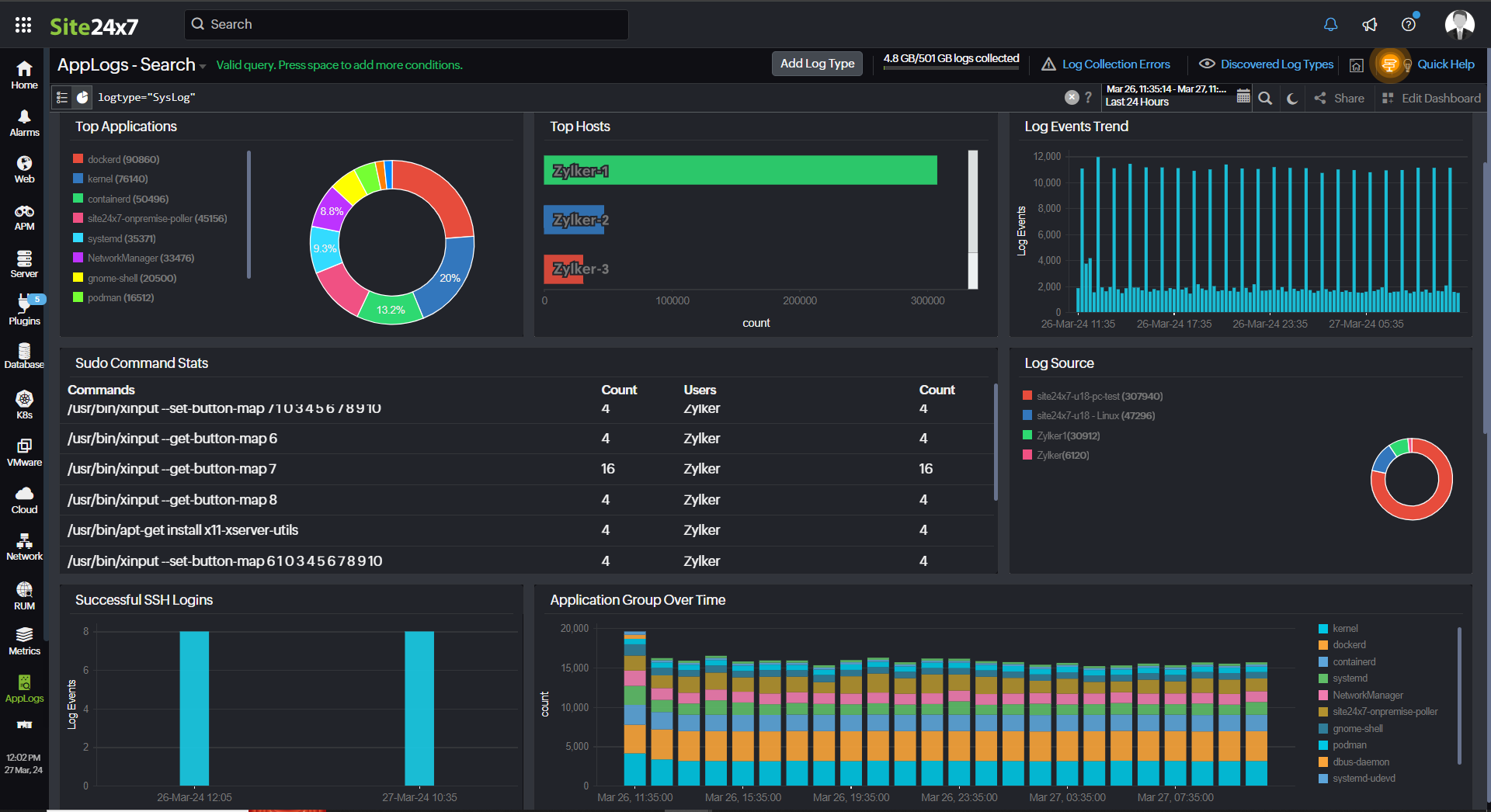
Syslogs dashboard
AppLogs creates an exclusive dashboard for every Log Type, and shows a few widgets by default. Here's a list of the widgets available in the Syslogs dashboard:
- Successful SSH Logins
- Top Applications
- Top Hosts
- Log Events Trend
- Sudo Command Stats
- SSH Login Attempts
- Successful SSH Logins
- New User/Group
In addition to the default widgets, your saved searches will also be added to the dashboard automatically.
Related log types
Further reading
Blog: Log-based search and alert queries for syslog monitoring
-
On this page
- Getting started
- Sample logs and log patterns
- Syslogs dashboard