SSL Vulnerabilities and Key Takeaways
Key Manager Plus Cloud scans SSL certificates in its inventory and flags certificates that are prone to vulnerabilities. This way, users are informed about certificates or server configurations that are insecure. Users can then take necessary steps to remediate the SSL certificates or server configurations. Key Manager Plus Cloud scans your SSL environment for the following categories of vulnerability: SSL Certificate Revocation Status and SSL end-server vulnerability.
By the end of this document, you will have learned the following topics:
- SSL Certificate Revocation Status
- End-Server Vulnerability
- Key Takeaways
- SSL Vulnerability Scan
- Weak Cipher Suites List
1. SSL Certificate Revocation Status
This check is performed to get information about the revocation status of a selected certificate. If the certificate for any of your domains in use is revoked, you have to take steps to replace it immediately. Revocation status for a certificate is obtained using two methods.
1.1 Certificate Revocation List (CRL)
i. Error
The selected certificate is revoked and can no longer be trusted.
ii. What is the issue?
Certificate Revocation List (CRL) is a list of SSL certificates that are revoked by the Certificate Authorities (CAs) before their expiration date. Certificates are revoked because of various reasons such as mis-issuances, private key compromise, CA compromise etc., CRLs are a kind of blacklist used by browsers to verify the validity of a certificate. Such tests are essential because SSL certificates are the means by which browsers and users trust your identity and an invalid SSL certificate undermine trust in the organization.
Key Manager Plus Cloud checks CRL revocation status for your certificates and flags certificates that have been revoked. Click here to know more about CRL.
1.2 Online Certificate Service Protocol (OCSP) Revocation Status
i. Error
The selected certificate is revoked and can no longer be trusted.
ii. What is the issue?
Online Certificate Service Protocol (OCSP) is an internet protocol used for obtaining the revocation status of a digital certificate. Web browsers send the certificate in question to the appropriate Certificate Authority (CA). The CA then returns the response - valid, revoked, or unknown. Key Manager Plus Cloud checks OCSP revocation status for your certificates and flags certificates that have been revoked. Click here to learn more about OCSP revocation.
iii. Workaround
If any of the above tests render positive for certificate revocation, replace the particular certificate immediately. Failing to do so might cause browsers to throw security errors for your website.
You can replace the revoked certificates with the new certificates from trusted third-parties directly from Key Manager Plus Cloud. Refer to this help document to learn more about certificate request and deployment using Key Manager Plus Cloud.
2. End-Server SSL Vulnerability
End-server vulnerability is predominantly caused due to improper configuration of SSL protocol in your domain server. Key Manager Plus Cloud tests your domain servers for the following end-server vulnerability.
2.1 Heartbleed Bug
i. Error
The selected server is prone to Heartbleed vulnerability.
ii. What is the issue?
Heartbleed bug is a vulnerability in the OpenSSL, a popular open source cryptographic library that helps in the implementation of SSL and TLS protocols. This bug allows attackers to steal private keys attached to SSL certificates, usernames, passwords and other sensitive data without leaving a trace.
Key Manager Plus Cloud checks your domain servers for Heartbleed bug vulnerability and flags the affected servers. Click here to learn more about the Heartbleed bug.
iii. Workaround
Patch your OpenSSL software. Replace the vulnerable versions with safe versions of the software.
2.2 POODLE SSL
i. Error
The selected server is prone to POODLE attack.
ii. What is the issue?
The POODLE is a form of a man-in-the-middle attack that exploits the vulnerability in the CBC encryption scheme as implemented in the SSL 3.0 protocol. Though POODLE is not as serious as the Heartbleed vulnerability. However, it is recommended to identify and mitigate the issue as quickly as possible.
Key Manager Plus Cloud scans your servers and flags servers that are vulnerable to POODLE attack. Click here to learn more about POODLE.
iii. Workaround
Disable SSL 3.0 protocol and enable TLS protocols (1.0, 1.1 and 1.2) on the client-side. It is to be noted that by default, Key Manager Plus Cloud disables SSL 3.0 protocol on the Key Manager Plus Cloud agent installed server.
2.3 SSL 3.0 Enabled
i. Error
The selected server exploits the outdated SSL 3.0 protocol, which is prone to known vulnerabilities.
ii. What is the issue?
It has been discovered that SSL 3.0 protocol has a flaw in its design that makes it vulnerable to man-in-the-middle attacks. If you have a public-facing website dealing with payments, you should immediately discover all servers that exploit SSL 3.0 and upgrade to TLS version.
Key Manager Plus Cloud scans servers in your network and flags all servers that make use of this protocol. Click here to learn more about SSL 3.0 vulnerability.
iii. Workaround
Disable SSL 3.0 protocol and enable TLS protocols (1.0, 1.1 and 1.2) on the client-side. It is to be noted that by default, Key Manager Plus Cloud disables SSL 3.0 protocol on the Key Manager Plus Cloud installed server.
2.4 Weak Cipher Suites
i. Error
The selected server exploits weak SSL ciphers, which are considered medium-risk vulnerabilities.
ii. What is the issue?
Many organizations knowingly or unknowingly exploit weak SSL protocols and cipher suites in their domain servers which makes their website vulnerable to various MITM attacks. To play it safe, they have to identify those weak ciphers, disable them, and re-configure the domain servers. By default, SSL 3.0 is disabled on Key Manager Plus Cloud, which is a weak SSL protocol. In addition, Key Manager Plus Cloud scans the end-point servers and flags the weak ciphers used in the TLS (1.0,1.1 and 1.2) protocol.
iii. Workaround
Disable weak cipher suites and re-configure your domain server.
3. Key Takeaways
Here is a quick summary of how Key Manager Plus Cloud scans your domain servers for vulnerability.
- Key Manager Plus Cloud initially scans the domain servers (to which the selected SSL certificate is deployed) and flags the weak ciphers.
- Your domain server is then scanned for the HEARTBLEED and POODLE vulnerabilities, followed by CRL and OCSP revocation statuses.
- When one or more of the above vulnerability checks renders a positive result, Key Manager Plus Cloud flags the particular certificate as vulnerable.
- In addition, you can schedule automatic periodic vulnerability checks for your SSL certificates using Key Manager Plus Cloud and opt to receive an email notifications for administrators as and when the tests are completed.
- Also, Key Manager Plus Cloud provides dedicated, comprehensive, periodic reports on SSL vulnerability.
4. SSL Vulnerability Scan
To perform the SSL vulnerability check on your domain server, follow these steps:
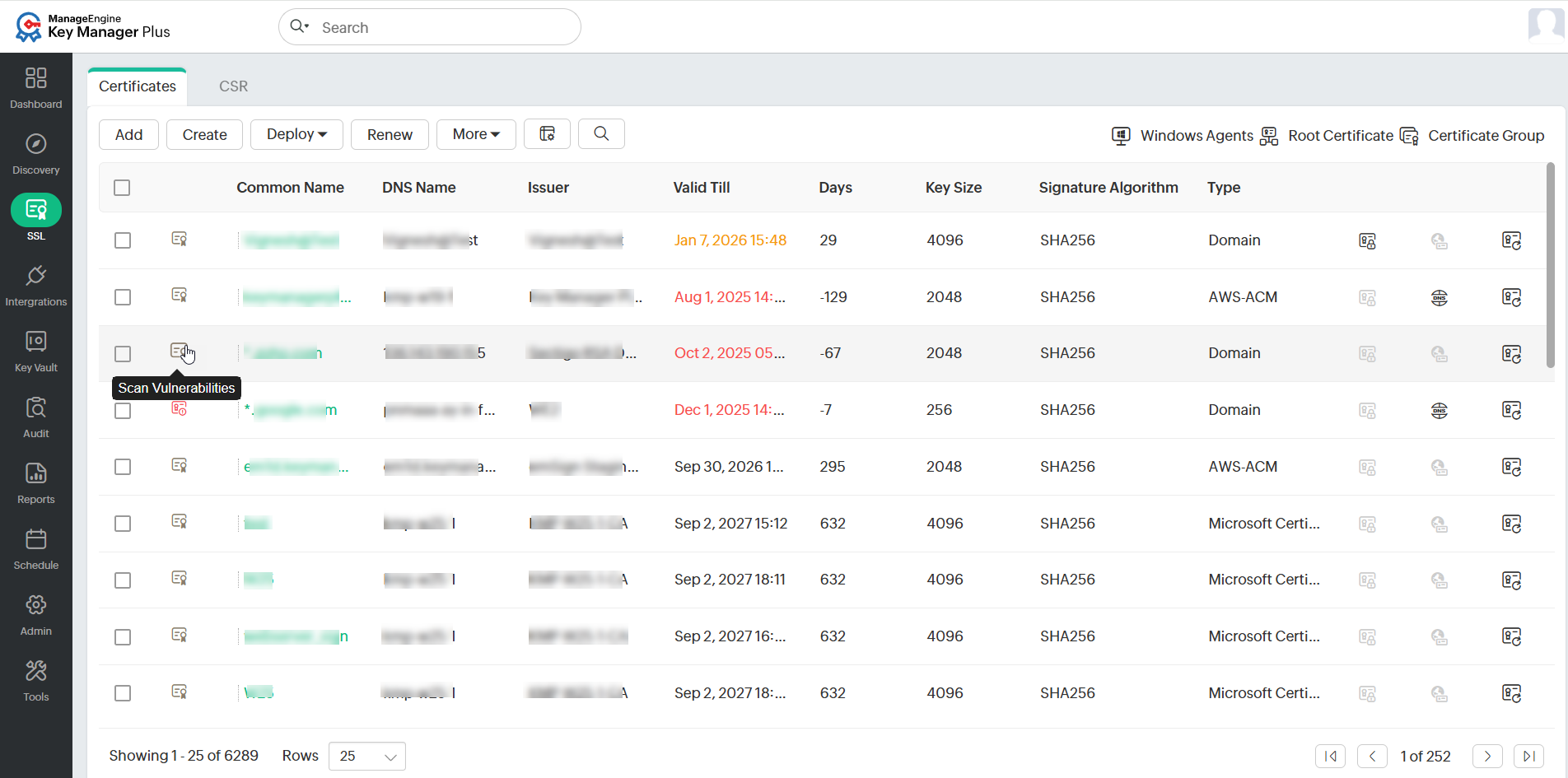
- Navigate to SSL >> Certificates and click the Scan Vulnerabilities icon present to the left of the required certificate. This will redirect you to a window that displays the certificates and the list of servers in which it is deployed.
- Click Scan from the top menu.
- In the Scan Options pop-up box that appears, select the Include SAN and Only deployed servers checkboxes as needed.
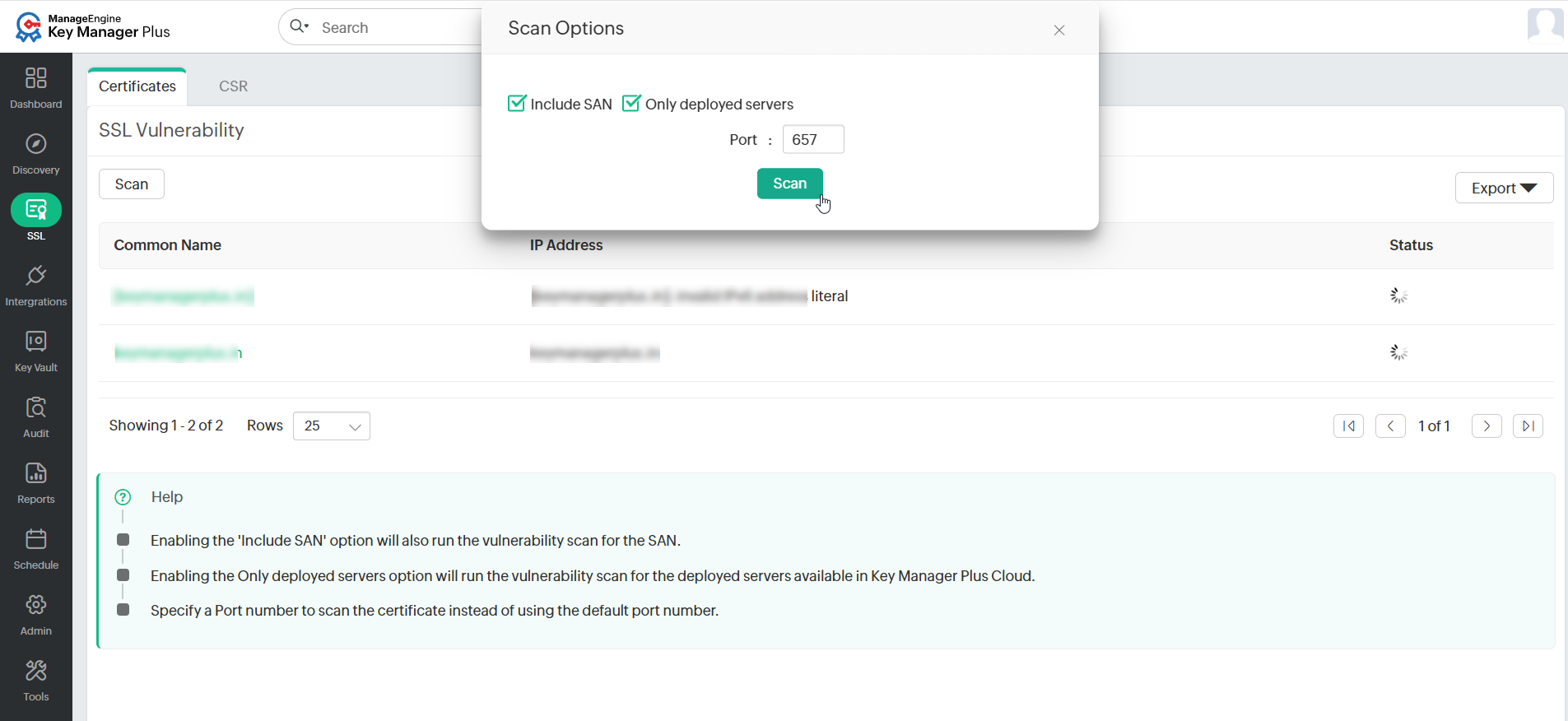
- Enter the Port number and click Scan.
- Key Manager Plus Cloud will now run the scan and display the results in a separate window. It comprises of the following details:
- IP address, Port corresponding to the domain server.
- CRL, OCSP revocation statuses.
- POODLE SSL, HEARTBLEED vulnerability status.
- Information on whether the current version of the certificate (version of the certificate being scanned) is deployed on domain servers.
- List of insecure ciphers in SSL 3.0 and TLS (1.0, 1.1, 1.2) protocols in the domain server.
- Click Export to download the report as a PDF or email it to specific email addresses.
Additional Detail
By default, SSL 3.0 protocol is disabled in Key Manager Plus Cloud for security purposes. To scan SSL 3.0 protocol on your domain servers, enable SSL 3.0 protocol on Key Manager Plus Cloud via Admin >> SSL Vulnerability. and then restart the agent installed server. Click here to view the list of ciphers flagged insecure by Key Manager Plus Cloud.
4.1 Scheduling Automatic SSL Vulnerability Scan
To schedule an automatic vulnerability scan, follow these steps:
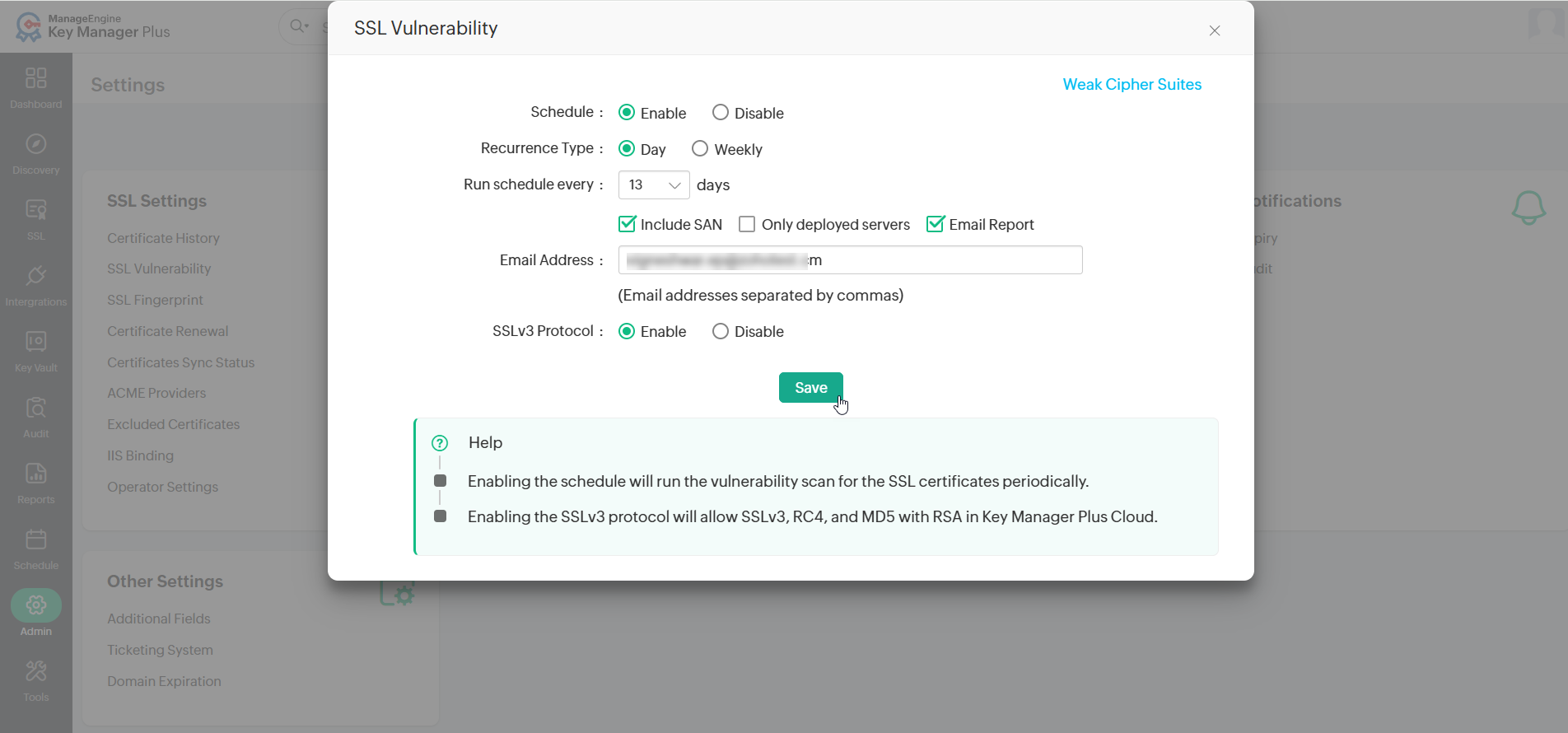
- Navigate to Admin >> SSL Settings >> SSL Vulnerability.
- In the window that appears, enable Scheduled Task by selecting the Enable radio button.
- Choose the Recurrence Type and specify the time interval.
- To receive email notifications for specific email IDs after every scan, enable the Email Report checkbox and enter the required email addresses in the Email Address field.
- To enable scanning SSLv3 protocol in domain servers using Key Manager Plus Cloud, enable the radio button beside the SSLv3 Protocol field.
- Click Save to save the scheduled task and automate the vulnerability scan as per the scheduled time interval.
Additional Details
- The above method performs a vulnerability scan for all certificates stored in the Key Manager Plus inventory. If you wish to scan only selected certificates, you can configure this from the Schedules tab. Refer to this document for more information.
- Key Manager Plus Cloud also generates instant, comprehensive SSL vulnerability reports to help with better analysis. These reports can be accessed from the Reports tab. For more information, refer to this document.
5. Weak Cipher Suites List
TLS_DH_anon_WITH_AES_256_GCM_SHA384
TLS_DH_anon_WITH_AES_128_GCM_SHA256
TLS_DH_anon_WITH_AES_256_CBC_SHA256
TLS_ECDH_anon_WITH_AES_256_CBC_SHA
TLS_DH_anon_WITH_AES_256_CBC_SHA
TLS_DH_anon_WITH_AES_128_CBC_SHA256
TLS_ECDH_anon_WITH_AES_128_CBC_SHA
TLS_DH_anon_WITH_AES_128_CBC_SHA
TLS_ECDH_anon_WITH_3DES_EDE_CBC_SHA
SSL_DH_anon_WITH_3DES_EDE_CBC_SHA
TLS_ECDHE_ECDSA_WITH_RC4_128_SHA
TLS_ECDHE_RSA_WITH_RC4_128_SHA
SSL_RSA_WITH_RC4_128_SHA
TLS_ECDH_ECDSA_WITH_RC4_128_SHA
TLS_ECDH_RSA_WITH_RC4_128_SHA
SSL_RSA_WITH_RC4_128_MD5
TLS_ECDH_anon_WITH_RC4_128_SHA
SSL_DH_anon_WITH_RC4_128_MD5
SSL_RSA_WITH_DES_CBC_SHA
SSL_DHE_RSA_WITH_DES_CBC_SHA
SSL_DHE_DSS_WITH_DES_CBC_SHA
SSL_DH_anon_WITH_DES_CBC_SHA
SSL_RSA_EXPORT_WITH_DES40_CBC_SHA
SSL_DHE_RSA_EXPORT_WITH_DES40_CBC_SHA
SSL_DHE_DSS_EXPORT_WITH_DES40_CBC_SHA
SSL_DH_anon_EXPORT_WITH_DES40_CBC_SHA
SSL_RSA_EXPORT_WITH_RC4_40_MD5
SSL_DH_anon_EXPORT_WITH_RC4_40_MD5
TLS_RSA_WITH_NULL_SHA256
TLS_ECDHE_ECDSA_WITH_NULL_SHA
TLS_ECDHE_RSA_WITH_NULL_SHA
SSL_RSA_WITH_NULL_SHA
TLS_ECDH_ECDSA_WITH_NULL_SHA
TLS_ECDH_RSA_WITH_NULL_SHA
TLS_ECDH_anon_WITH_NULL_SHA
SSL_RSA_WITH_NULL_MD5
TLS_KRB5_WITH_3DES_EDE_CBC_SHA
TLS_KRB5_WITH_3DES_EDE_CBC_MD5
TLS_KRB5_WITH_RC4_128_SHA
TLS_KRB5_WITH_RC4_128_MD5
TLS_KRB5_WITH_DES_CBC_SHA
TLS_KRB5_WITH_DES_CBC_MD5
TLS_KRB5_EXPORT_WITH_DES_CBC_40_SHA
TLS_KRB5_EXPORT_WITH_DES_CBC_40_MD5
TLS_KRB5_EXPORT_WITH_RC4_40_SHA
TLS_KRB5_EXPORT_WITH_RC4_40_MD5
TLS_ECDHE_ECDSA_WITH_3DES_EDE_CBC_SHA
TLS_ECDHE_RSA_WITH_3DES_EDE_CBC_SHA
SSL_RSA_WITH_3DES_EDE_CBC_SHA
TLS_ECDH_ECDSA_WITH_3DES_EDE_CBC_SHA
TLS_ECDH_RSA_WITH_3DES_EDE_CBC_SHA
SSL_DHE_RSA_WITH_3DES_EDE_CBC_SHA
SSL_DHE_DSS_WITH_3DES_EDE_CBC_SHA
TLS_DHE_RSA_WITH_AES_256_CBC_SHA256
TLS_DHE_DSS_WITH_AES_256_CBC_SHA256
TLS_DHE_RSA_WITH_AES_256_CBC_SHA
TLS_DHE_DSS_WITH_AES_256_CBC_SHA
TLS_DHE_RSA_WITH_AES_128_CBC_SHA256
TLS_DHE_DSS_WITH_AES_128_CBC_SHA256
TLS_DHE_RSA_WITH_AES_128_CBC_SHA
TLS_DHE_DSS_WITH_AES_128_CBC_SHA
TLS_DHE_RSA_WITH_AES_256_GCM_SHA384
TLS_DHE_DSS_WITH_AES_256_GCM_SHA384
TLS_DHE_RSA_WITH_AES_128_GCM_SHA256
TLS_DHE_DSS_WITH_AES_128_GCM_SHA256