

What is phishing and why is it still the top initial access vector?
Phishing is the art of weaponizing trust. An attacker sends an email that appears to come from a colleague, a vendor, or a trusted service. Inside that email is a payload designed to execute code on the recipient's machine. Despite decades of awareness training and billions spent on email security, T1566 remains the most common initial access technique because it targets the one vulnerability that cannot be patched: human judgment.
What has changed dramatically is how phishing works. The era of "Please open this .exe attachment" is over. Modern email gateways catch those in milliseconds. Current phishing campaigns use ISO files nested inside ZIP archives to bypass Mark of the Web protections, OneNote files with embedded VBScript to evade macro-blocking policies, HTML smuggling to assemble payloads in the browser past email scanning, and QR code phishing ("quishing") to redirect the attack entirely to the victim's mobile device where endpoint detection is minimal.
The Verizon 2025 DBIR reports that phishing accounts for over 40% of initial access incidents. More concerning, the median time from email delivery to first click is 21 seconds, and from first click to credential entry is under 60 seconds. Detection and automated response must happen within this window to prevent compromise.
Key facts about T1566
| MITRE ID | T1566 |
| Tactic | Initial Access (TA0001) |
| Sub-techniques | T1566.001 (Spearphishing Attachment), T1566.002 (Spearphishing Link), T1566.003 (Spearphishing via Service) |
| Severity | High; user interaction required but reliably obtained |
| Affected platforms | Windows, macOS, Linux, Mobile |
| Common payloads | ISO-in-ZIP, OneNote with embedded scripts, HTML smuggling, macro-enabled Office docs, LNK files |
| Detection difficulty | Moderate; endpoint process monitoring catches execution regardless of delivery method |
| Log360 coverage | 17 prebuilt rules |
| Key log sources | Windows Event Logs (4688), Microsoft 365 Unified Audit, SonicWall email gateway, Sysmon |
How the attack works
Stage 1: Crafting and delivery
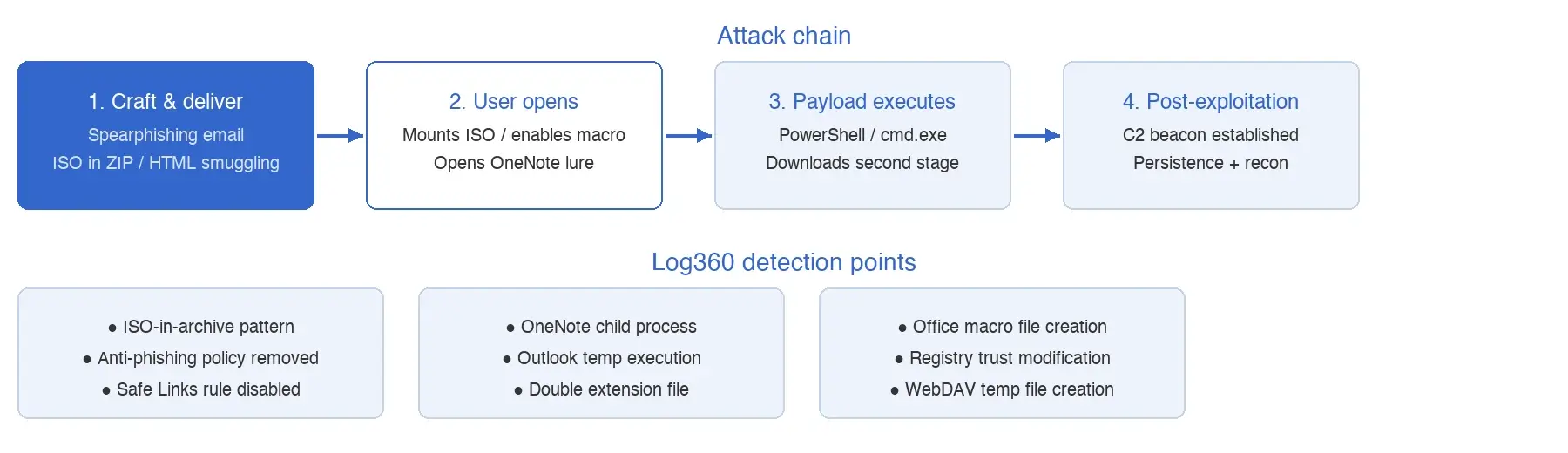
The attacker crafts a convincing email tailored to the target. For broad campaigns, the lure might be a fake invoice, shipping notification, or IT password reset. For targeted spearphishing, the attacker researches the victim's role, current projects, and recent communications to create a lure that the victim has no reason to question. The payload is attached or linked, using a delivery method chosen to bypass the target's email security stack.
What this looks like in logs:
Object: C:\Users\jsmith\AppData\Local\Temp\Outlook\invoice-march-2026.zip

Action: File Created | Process: OUTLOOK.EXE

--- Followed by ---

Object: C:\Users\jsmith\AppData\Local\Temp\invoice.iso

Action: File Created | Process: explorer.exe
The chain: Outlook saves the attachment to its temp folder, the user extracts the ZIP to find an ISO file, and Explorer mounts the ISO. The critical transition, from Outlook temp folder to ISO mount, is where Log360's detection fires.
Stage 2: User opens the payload
The user interacts with the delivered payload. For ISO-based attacks, mounting the ISO reveals a LNK file disguised as a document, which launches a hidden script. For OneNote-based attacks, the user opens a OneNote file and clicks an embedded "View Document" button that actually runs a VBScript payload. For macro-based attacks, the user enables content in a Word or Excel file, triggering VBA code execution.
Stage 3: Execution and post-exploitation
The payload executes: PowerShell downloads a second-stage implant, cmd.exe runs encoded commands, or mshta.exe loads a remote HTA file. Within seconds, a command-and-control beacon is established and the attacker has a foothold. From here, the attack progresses to Execution and Persistence.
Real-world attacks using T1566
| Year | Campaign / Group | Payload | Impact |
|---|---|---|---|
| 2025 | QakBot resurgence | OneNote with embedded VBScript | Enterprise banking credential theft and ransomware deployment |
| 2024 | APT29 diplomatic targeting | ISO-in-ZIP with DLL sideloading | Government agency compromise across multiple countries |
| 2024 | HTML smuggling campaigns | HTML attachment assembling .exe in browser | Mass credential theft via fake login pages assembled client-side |
| 2023 | Emotet revival | Macro-enabled Excel with obfuscated VBA | Initial access broker distributing to ransomware affiliates |
How to detect and investigate T1566 with Log360
Log360's phishing detection operates across three distinct stages of the attack chain, ensuring that even if the email gateway misses the delivery, the payload execution is caught on the endpoint.
Stage 1: Payload delivery and policy tampering
At the delivery stage, Log360 watches for payloads that should almost never appear in enterprise environments. The Phishing Pattern ISO in Archive rule (Trouble, Windows) fires when an ISO file is extracted from an archive file, a pattern with near-zero legitimate business use. Few employees send ISO disk images inside ZIP files, but phishing campaigns do this routinely to bypass Mark of the Web protections. The ISO File Created Within Temp Folders and ISO or Image Mount Indicator in Recent Files rules (Trouble, Windows) provide additional detection points for ISO-based delivery.
Log360 also monitors for email security controls being weakened. Often the attacker's first action after compromising an admin account is to disable protections before launching an internal phishing campaign. The Anti-Phishing Policy Removed rule (Trouble, Microsoft 365) fires when an anti-phishing policy is deleted from the tenant, the Anti-Phishing Rule Disabled rule catches individual rule deactivation, and the Safe Links Rule Disabled rule detects Safe Links being turned off, all indicators that someone is deliberately weakening the organization's phishing defenses. On the perimeter, the Forbidden Email Attachment Disabled and Forbidden Email Attachment Deleted rules (Trouble, SonicWall) catch SonicWall email attachment filtering being disabled.
Stage 2: Payload open and execution
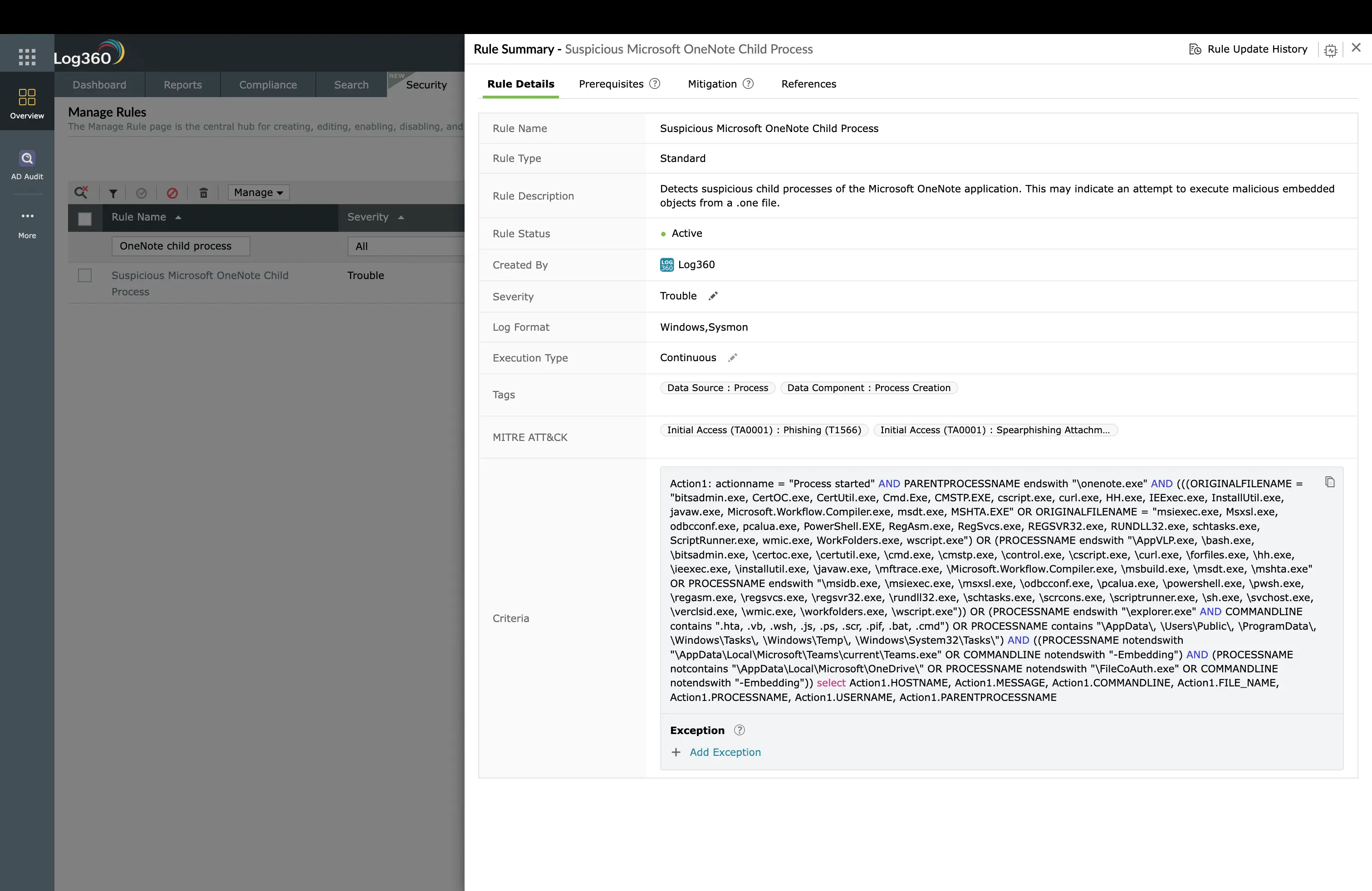
When the user opens a phishing payload, the execution chain leaves distinct traces that Log360 catches regardless of the specific payload type. The Suspicious Microsoft OneNote Child Process rule (Trouble, Windows) fires when OneNote (onenote.exe) spawns PowerShell, cmd.exe, mshta.exe, or wscript.exe, the execution chain for OneNote-based phishing lures that have surged since Microsoft's macro-blocking defaults made traditional Office macros less viable.
The Suspicious Execution From Outlook Temporary Folder rule (Trouble, Windows) catches a unique indicator: code executing directly from Outlook's temporary file cache. This means a user opened an email attachment that triggered execution without the user explicitly saving the file to disk. This is a hallmark of click-to-run phishing payloads. The Suspicious Double Extension File Execution rule (Trouble, Windows) catches files with misleading extensions like "invoice.pdf.exe," a social engineering trick that exploits Windows hiding known file extensions by default.
For HWP-based phishing (Hancom Office documents targeting Korean-language environments), the Suspicious HWP Sub Processes rule (Trouble, Windows) detects malicious child processes spawned by Hancom Word Processor documents, a vector frequently used by Lazarus Group targeting South Korean organizations.
Stage 3: Macro and persistence indicators
Log360 monitors for macro-related indicators that suggest active phishing compromise. The Office Macro File Creation From Suspicious Process rule (Trouble, Windows) detects macro-enabled Office files being created by unexpected parent processes, often indicating a second-stage dropper creating persistence documents. The Office Macro File Download rule (Trouble, Windows) catches macro-enabled documents being downloaded by browsers or download managers, and the Office Macro File Creation rule (Attention, Windows) provides broad visibility into macro file creation activity.
The Windows Registry Trust Record Modification rule (Trouble, Windows) detects changes to Office document trust records in the registry. Attackers modify these settings so that their macro-laden documents execute without security prompts on subsequent opens, a persistence technique that ensures the phishing payload can be re-triggered. The WebDAV Temporary Local File Creation rule (Trouble, Windows) catches temporary files created in WebDAV mount locations, which can indicate phishing payloads being staged through WebDAV-based delivery methods. For DLL-based phishing payloads, the Potential Initial Access via DLL Search Order Hijacking rule (Trouble, Windows) detects DLL sideloading triggered by phishing lures, a technique where the payload exploits the Windows DLL search order to load a malicious library alongside a legitimate executable.
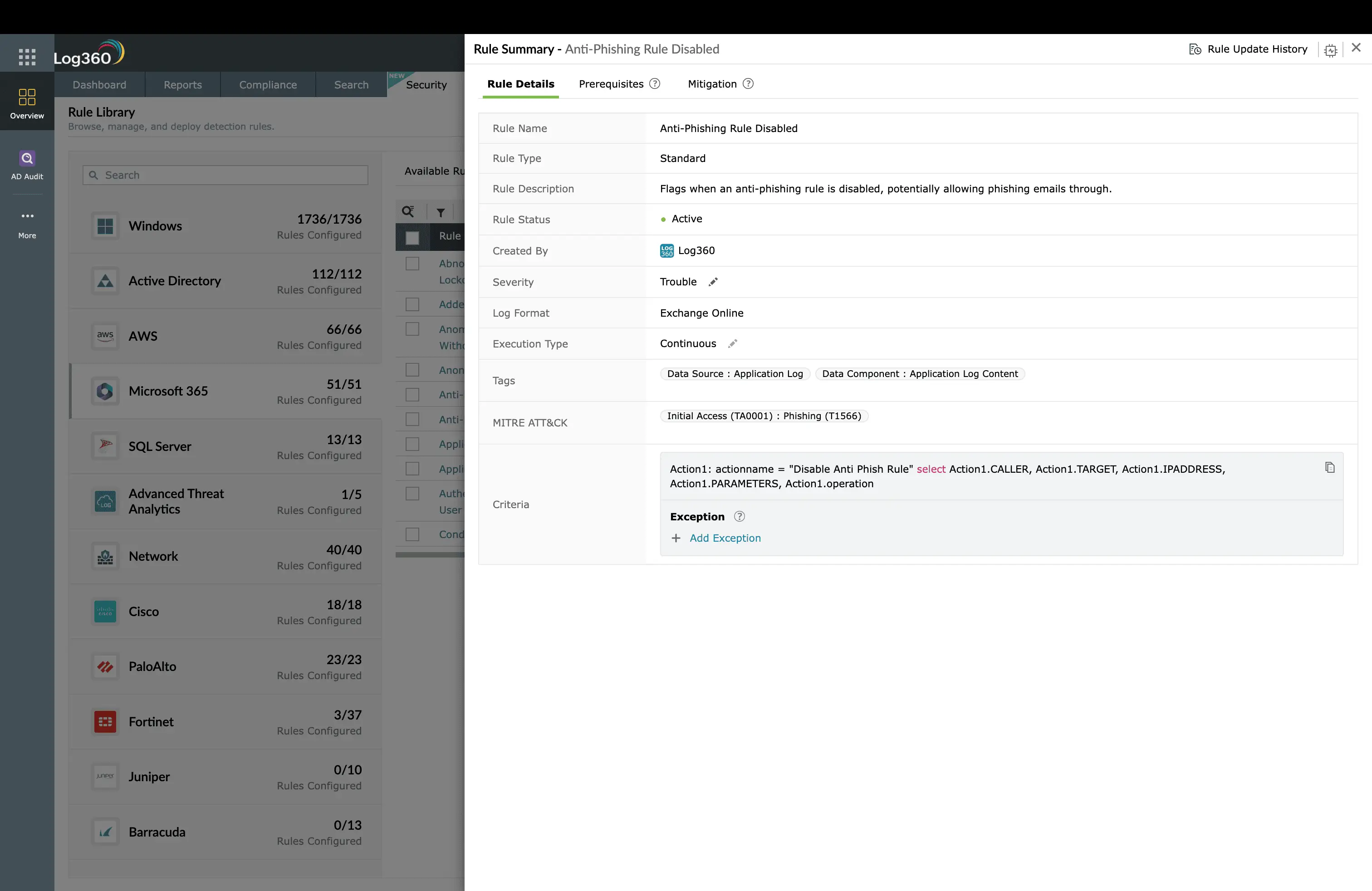
ManageEngine Log360 for phishing detection
17 prebuilt correlation rules detecting phishing across delivery, execution, and persistence stages. ISO payloads, OneNote exploitation, macro detection, and email security policy tampering, all monitored in real time across Windows, Microsoft 365, and SonicWall.
Investigation workflow
- Identify the email: When a phishing rule fires, correlate the endpoint process creation timestamp with email delivery logs to identify the exact message: sender address, subject line, attachment name, and all recipients.
- Scope the recipient list: Search Log360 for the same sender domain, attachment hash, or subject line across all email logs. How many other employees received the same phishing email?
- Check for clicks and opens: For each recipient, search for the same file creation or process execution patterns on their endpoints. Did anyone else open the attachment?
- Look for post-exploitation: On compromised endpoints, check for persistence mechanisms (scheduled tasks, registry run keys, new services), C2 beacons (unusual outbound connections), and Credential Access activity (LSASS access, browser credential extraction).
- Timeline reconstruction: Use Log360's correlated timeline to build the complete picture: email received at T+0, attachment opened at T+21s, PowerShell executed at T+22s, C2 established at T+25s. This timeline becomes the incident report.
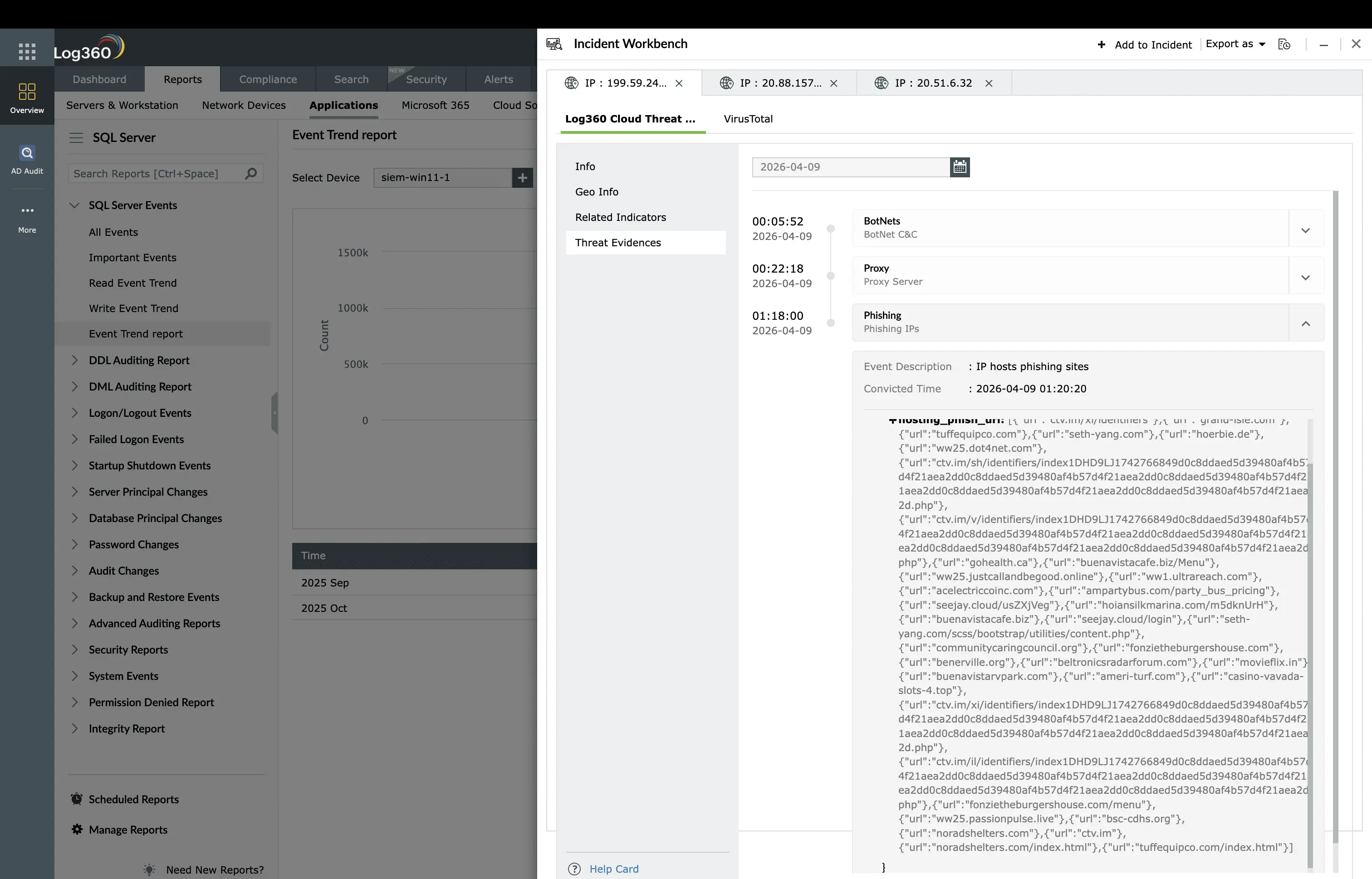
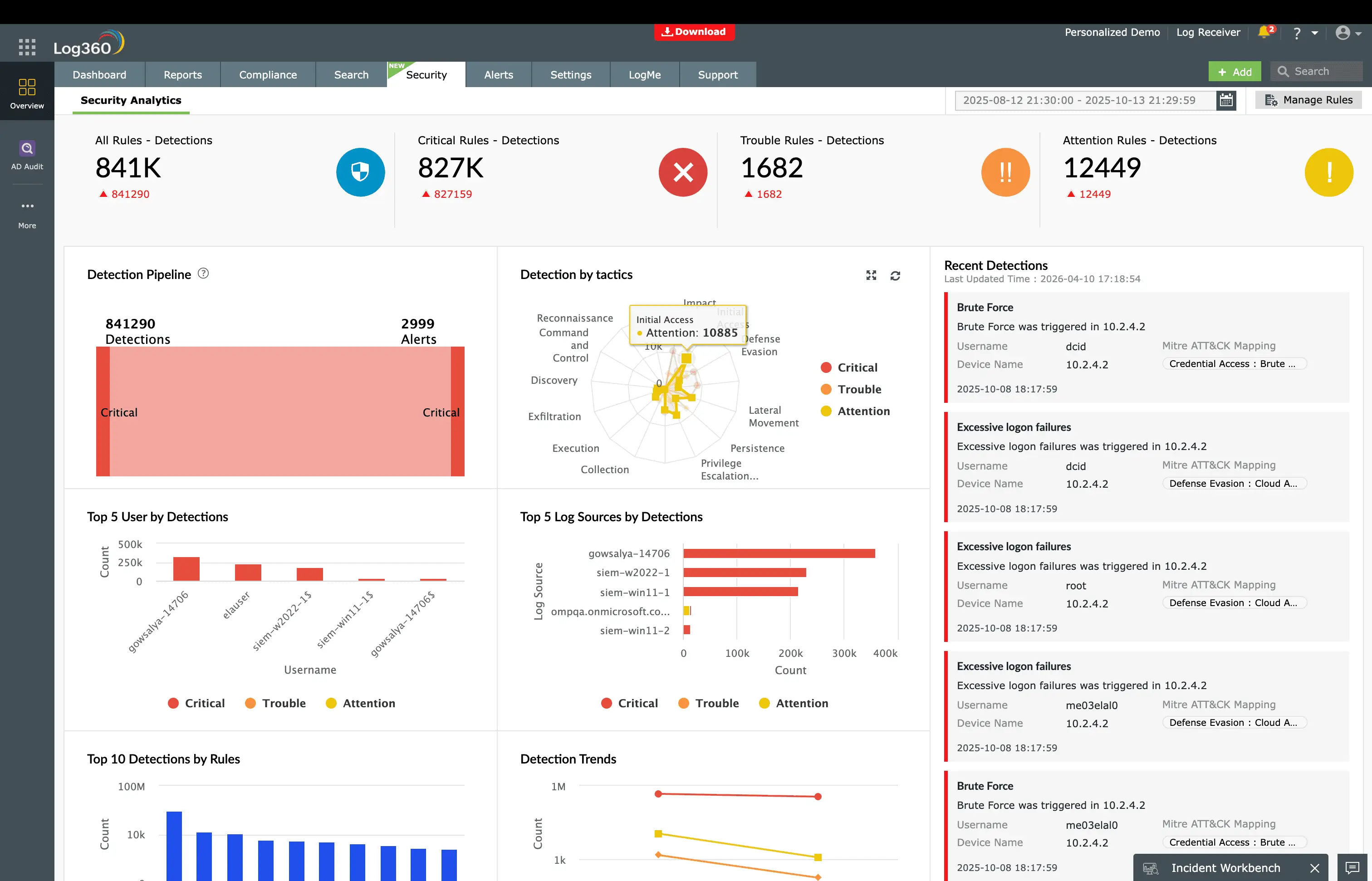
Log360 in action: Detecting T1566
How to remediate and prevent T1566 attacks
Immediate containment
- Quarantine the email: Remove the phishing email from all mailboxes across the organization, not just the reported recipient. Use Microsoft 365 content search or equivalent to find and purge all instances.
- Block indicators: Block the sender domain, embedded URLs, and attachment hash across email gateway, web proxy, and endpoint protection.
- Reset credentials: Force password reset and MFA re-enrollment for any user who opened the attachment or clicked the link, regardless of whether execution was confirmed.
Long-term hardening
- Attack Surface Reduction (ASR) rules: In Windows Defender, enable ASR rules that block Office applications from creating child processes, block execution from USB-mounted volumes, and block untrusted executables from Outlook temp folders.
- Disable ISO auto-mount: Remove the default Windows association for ISO files so they do not auto-mount when double-clicked. This breaks the ISO-in-ZIP phishing chain.
- Mark of the Web enforcement: Ensure Group Policy enforces MOTW checking even for files extracted from archives, preventing the Zone.Identifier bypass that makes ISO payloads effective.
- Phishing simulation: Run regular phishing simulations with current lure types (ISO, OneNote, QR code), not just traditional attachment simulations.
Need to explore ManageEngine Log360? Schedule a personalized demo
FAQ
What is Phishing (T1566) in MITRE ATT&CK?
Phishing attack describes adversaries sending crafted messages with malicious attachments or links to gain initial access. Sub-techniques include Spearphishing Attachment (T1566.001), Spearphishing Link (T1566.002), and Spearphishing via Service (T1566.003). It remains the most common initial accessvector globally, accounting for over 40% of breaches.
How does Log360 detect phishing attacks?
Log360 detects phishing across three stages: payload delivery (ISO-in-archive patterns, double-extension files), security control tampering (anti-phishing policy removal, Safe Links disabled), and payload execution (Outlook temp folder execution, OneNote child processes, macro-enabled document creation). 17 prebuilt rules cover Windows, Microsoft 365, and SonicWall.
What are the most common phishing payload types in 2025-2026?
ISO files inside ZIP archives (bypasses Mark of the Web), OneNote files with embedded scripts, HTML smuggling attachments, QR code phishing ("quishing") targeting mobile devices, and password-protected Office files with macros. Traditional .exe attachments are largely extinct because email gateways catch them immediately.
How do I respond to a phishing attack?
Quarantine the email across all mailboxes, reset credentials for users who opened the attachment, block the sender domain and embedded URLs, check for post-exploitation activity (scheduled tasks, registry modifications, C2 connections), and scan all recipient endpoints. Log360 can automate account disabling and ticket creation when phishing alerts fire.
- What is phishing?
- Key facts about T1566
- How the attack works
- Real-world attacks using T1566
- Detect with Log360
- Log360 in action
- Remediation and prevention
- FAQ