

How to audit Microsoft 365 license changes
Last updated on:In this page
- How to audit Microsoft 365 license changes using Microsoft Purviewr
- How to audit Microsoft 365 license changes using Exchange Online PowerShell
- How to audit Microsoft 365 license changes using M365 Manager Plus
- Streamline Microsoft Entra ID user governance and group management
- Important tips
- Frequently asked questions
Microsoft 365 license assignments change more often than most administrators realize. New employees are onboarded, roles shift, subscriptions are upgraded, and inactive accounts are left consuming costly licenses. Auditing Microsoft 365 license changes helps organizations track every license assignment, removal, and modification in Microsoft 365. With a reliable Microsoft 365 license audit trail, IT teams can detect unauthorized changes, reclaim unused licenses from inactive users, and maintain cost control while ensuring licensing compliance across the tenant.
This article demonstrates how to audit Microsoft 365 license changes using the Microsoft Purview portal; Exchange Online PowerShell; and more comprehensively and effortlessly with ManageEngine M365 Manager Plus, a dedicated Microsoft 365 administration tool.
- Microsoft Purview
- Graph PowerShell
- M365 Manager Plus
Method 1: How to audit Microsoft 365 license changes using Microsoft Purview
Prerequisites
- You must be assigned the Audit Logs or View-Only Audit Logs role in the Microsoft Purview portal.
- Unified auditing must be enabled for your organization (it is typically on by default).
Steps
- Log in to the Microsoft Purview portal and navigate to Solutions > Audit.
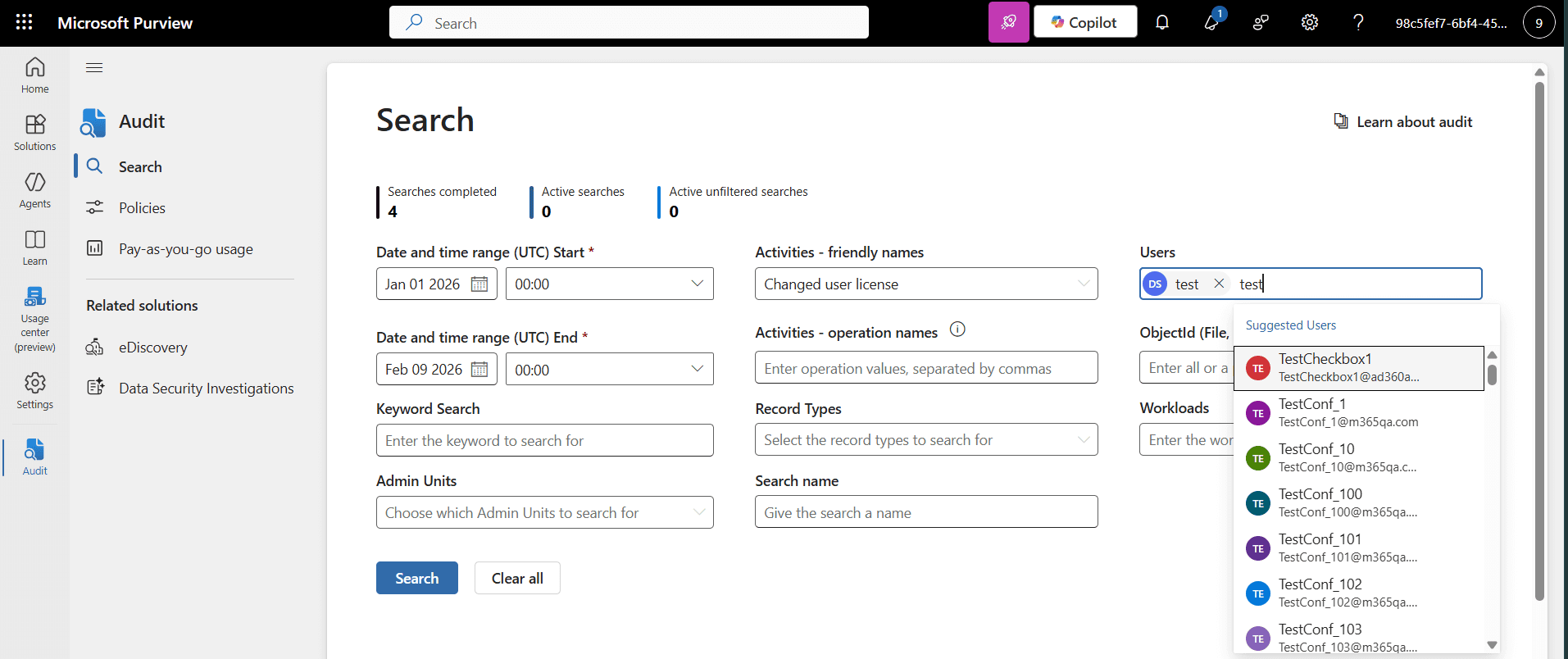
- In the Search tab, configure the following criteria:
- Date and time range: Select the period you wish to audit (up to 180 days).
- Activities - friendly names: Search for and select Changed user license.
- Users: (Optional) Enter specific users to narrow down the results.
- Click Search to retrieve the logs.
- Click an individual result to view details, such as who performed the change and the timestamp.

Limitations to consider
- You will either have to audit the entire tenant for all Microsoft 365 license changes or type in one user at a time. This can be frustrating when you wish to audit a specific group or a list of users but you have to add them individually.
- You cannot schedule the Microsoft 365 license change audit report to be generated at specific intervals, say, once per month.
- You cannot access Microsoft 365 license change audits older than 180 days using the Microsoft Purview portal.
To overcome the limitations of user input and report scheduling, you will have to resort to Exchange Online PowerShell scripting or use a reporting tool dedicated to present this data in just a few clicks, such as ManageEngine M365 Manager Plus.
Method 2: How to audit Microsoft 365 license changes using Exchange Online PowerShell (Search-UnifiedAuditLog)
Prerequisites
Before using Exchange Online PowerShell, please verify that:
- The Exchange Administrator role is applied to the account you use to sign in to Exchange Online PowerShell.
- Unified auditing is enabled for your organization (it is typically on by default).
- You are connected to the Exchange Online PowerShell module.
- To check if the Exchange Online PowerShell module is installed, use this script:
Get-Module -ListAvailable ExchangeOnlineManagement
- If it does not return a value, you will have to install the module. To install the Exchange Online PowerShell module, execute this script:
Install-Module ExchangeOnlineManagement -Scope CurrentUser
- To connect to Exchange Online PowerShell, run this script:
Connect-ExchangeOnline
- To check if the Exchange Online PowerShell module is installed, use this script:
Using Search-UnifiedAuditLog to audit Office 365 license changes
The Search-UnifiedAuditLog cmdlet is used to parse through the unified audit logs and find Microsoft 365 license changes across the tenant or the scope that you limit the script to.
Use the following cmdlet in Exchange Online PowerShell to retrieve a list of all Microsoft 365 license changes:
$StartDate = (Get-Date).AddDays(-30)
$EndDate = Get-Date
Search-UnifiedAuditLog -StartDate $StartDate -EndDate $EndDate -Operations "Change user license" -ResultSize 5000

Export-Csv-Path"C:\Reports\LicenseChanges.csv"-NoTypeInformation
Use case for the Search-UnifiedAuditLog cmdlet
Scenario: A compliance officer needs a report of all Microsoft 365 license changes made to users in the Sales department.
This is the cmdlet you will have to run to generate the Microsoft 365 license changes in a specific department:
Search-UnifiedAuditLog -StartDate (Get-Date).AddDays(-90) -EndDate (Get-Date) -Operations "Change user license" -UserIds (Get-User -Filter "Department -eq 'Sales'").UserPrincipalName | Export-Csv -Path "C:\Reports\SalesLicenseAudit.csv" -NoTypeInformation
Supported parameters for the Search-UnifiedAuditLog cmdlet to audit Microsoft 365 license changes
The following table contains some key parameters that can be used with the Search-UnifiedAuditLog cmdlet to audit Microsoft 365 license changes.
| Parameter | Description |
|---|---|
| -StartDate | Specifies the start of the date range for your audit search. |
| -EndDate | Specifies the end of the date range for your audit search. |
| -Operations | Limits the results to specific actions, such as Change user license. |
| -UserIds | Filters the log for actions performed by or against specific users. |
Limitation to consider
You cannot access Microsoft 365 license change audits older than 180 days using Microsoft Graph PowerShell. If you wish to store your audit logs beyond the native retention limit, M365 Manager Plus is the Microsoft 365 reporting tool for your needs.
Method 3: How to audit Microsoft 365 license changes using M365 Manager Plus
Steps
- Log in to the M365 Manager Plus console and navigate to the Reports tab > Azure Active Directory > Other Azure Reports and select the Recently License Changed Users report.
- Select the Microsoft 365 Tenant, the domains or groups you want to Filter By, and the Period in which the Microsoft 365 license change takes place, and click Generate Now. You can now view the Microsoft 365 license change events with details such as the time it took place (Activity Date and Time), who made the change (Actor), what action was carried out on the license (Activity Display Name), and more.
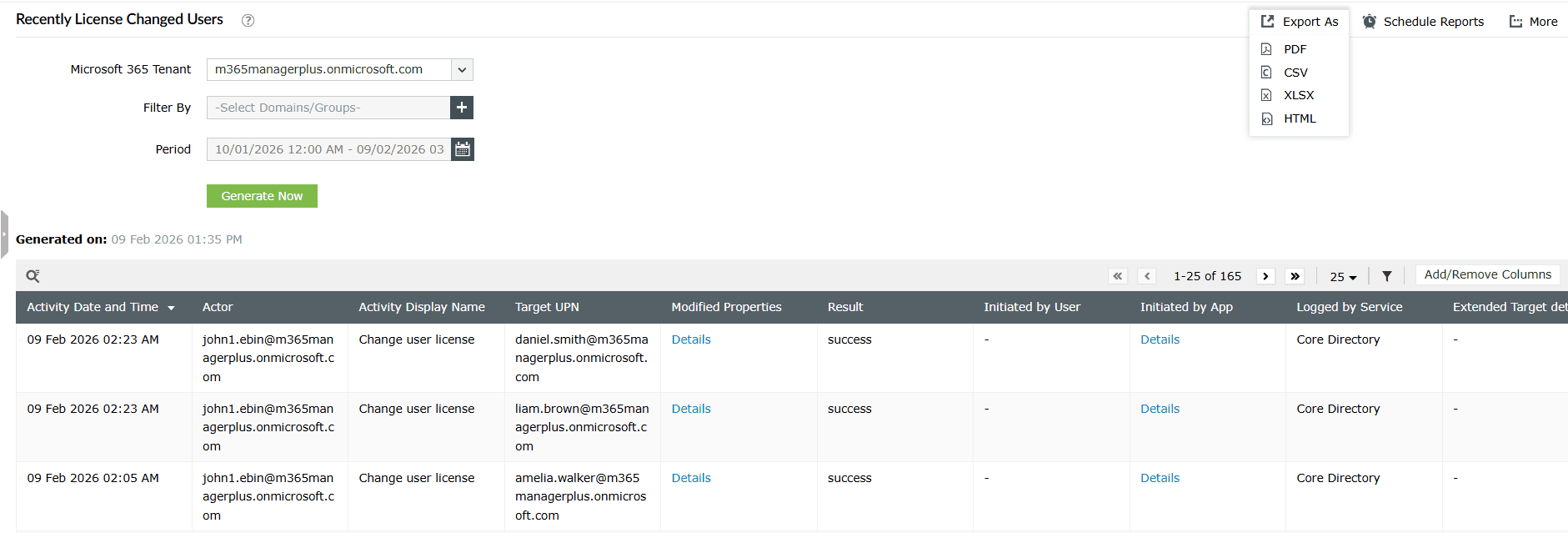
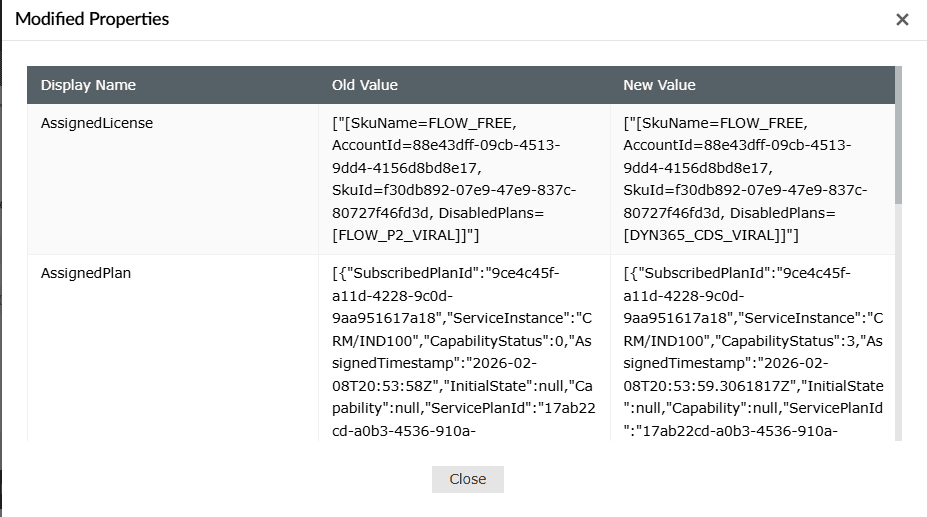
- Click Details in the Modified Properties column to view the Microsoft 365 license that has been changed for that specific user.
- You can export this Microsoft 365 license change audit report by clicking Export As and selecting your preferred file format.


- To audit Microsoft 365 license changes for groups, you can use the Recently License Changed Groups report to audit specific groups, making departmental license audits effortless.
- You can automate auditing Microsoft 365 license changes and sending them to your admins automatically with M365 Manager Plus' Schedule Reports feature.
Streamline Microsoft Entra ID user governance and group management
M365 Manager Plus provides a unified command center for managing the entire life cycle of your Microsoft Entra ID users and groups. Gain instant visibility into group memberships, ownership gaps, and orphaned objects across your tenant. View, manage, and track identity objects across your Microsoft 365 tenant from a single console—without switching between multiple admin portals.
Review and manage Microsoft Entra ID users and group ownership
Easily identify users without managers, groups without owners, inactive accounts, and stale memberships. Assign or update group owners, modify user properties, and clean up unused or risky identities directly from the same interface to maintain accountability and ownership across your directory.
Built-in reports for Microsoft Entra ID users and groups
Access ready-made reports covering user status, sign-in activity, license assignments, group memberships, orphaned groups, and privileged accounts. These reports help you quickly spot inactive users, over-licensed accounts, and groups that lack proper ownership, without manual data collection.
Audit Entra user and group changes
Track changes made to users and groups, including membership updates, role assignments, license changes, and account status modifications. Audit trails provide clear visibility into who changed what and when, helping you meet security and compliance requirements.
Real-time alerts for critical Microsoft Entra ID events
Configure instant alerts for events such as new admin role assignments, group owner changes, user creation or deletion, and license updates. Stay informed the moment high-impact identity changes occur instead of discovering them during audits.
Automate routine user and group management tasks
Automate common identity operations such as assigning licenses, updating group memberships, disabling inactive users, or enforcing ownership rules using policy-based automation. Reduce manual effort while keeping your Microsoft Entra ID environment clean and controlled.
Act without PowerShell dependency
Perform reporting, audits, bulk updates, and corrective actions through a GUI-driven interface—without relying on Microsoft Graph PowerShell scripts. This reduces operational complexity, minimizes errors, and speeds up Microsoft Entra ID administration in just a few clicks.
Important tips
Check group-based licensing events: If you use groups to assign licenses, the Changed user license event might not trigger Microsoft 365 license changes for your groups. You can audit group license changes with the GroupManagement activity, or use M365 Manager Plus' Recently License Changed Groups report to audit Microsoft 365 license changes for specific groups.
Back up your logs regularly: Microsoft 365 retains logs only for 180 days in standard plans. If you require a longer history for compliance, consider exporting logs to a storage solution or using a Microsoft 365 auditing tool with unlimited log retention like M365 Manager Plus.
Track invalid license changes: Use Microsoft 365 license change audit logs and reports to verify that only authorized admins are making these changes, as improper assignments can lead to the license not being properly used, or worse, users gaining access to applications their role should not allow them to.