

How to get a list of managers and direct reports in Microsoft 365
Last updated on:In this page
- How to get managers of direct reports using Microsoft Entra admin center
- How to export a list of managers and direct reports using Microsoft Graph PowerShell
- How to export a list of managers and direct reports in M365 Manager Plus
- Streamline Entra ID user governance and group management
- Important tips
- Frequently asked questions
Microsoft Entra ID stores manager and direct report information as part of each user’s profile, enabling admins to track hierarchical relationships across departments and teams.
This article explains how to get a list of managers and direct reports in Microsoft 365 using Microsoft Entra admin center and Microsoft Graph PowerShell (Get-MgUserManager), and how you can simplify this process using a unified admin console and PowerShell-driven automation through ManageEngine M365 Manager Plus, a dedicated Microsoft 365 administration tool.
- Entra admin center
- Graph PowerShell
- M365 Manager Plus
Method 1: How to get managers of direct reports using Microsoft Entra admin center
Prerequisite:
You must have at least the User Administrator role to view group memberships in the Entra admin center.
Steps
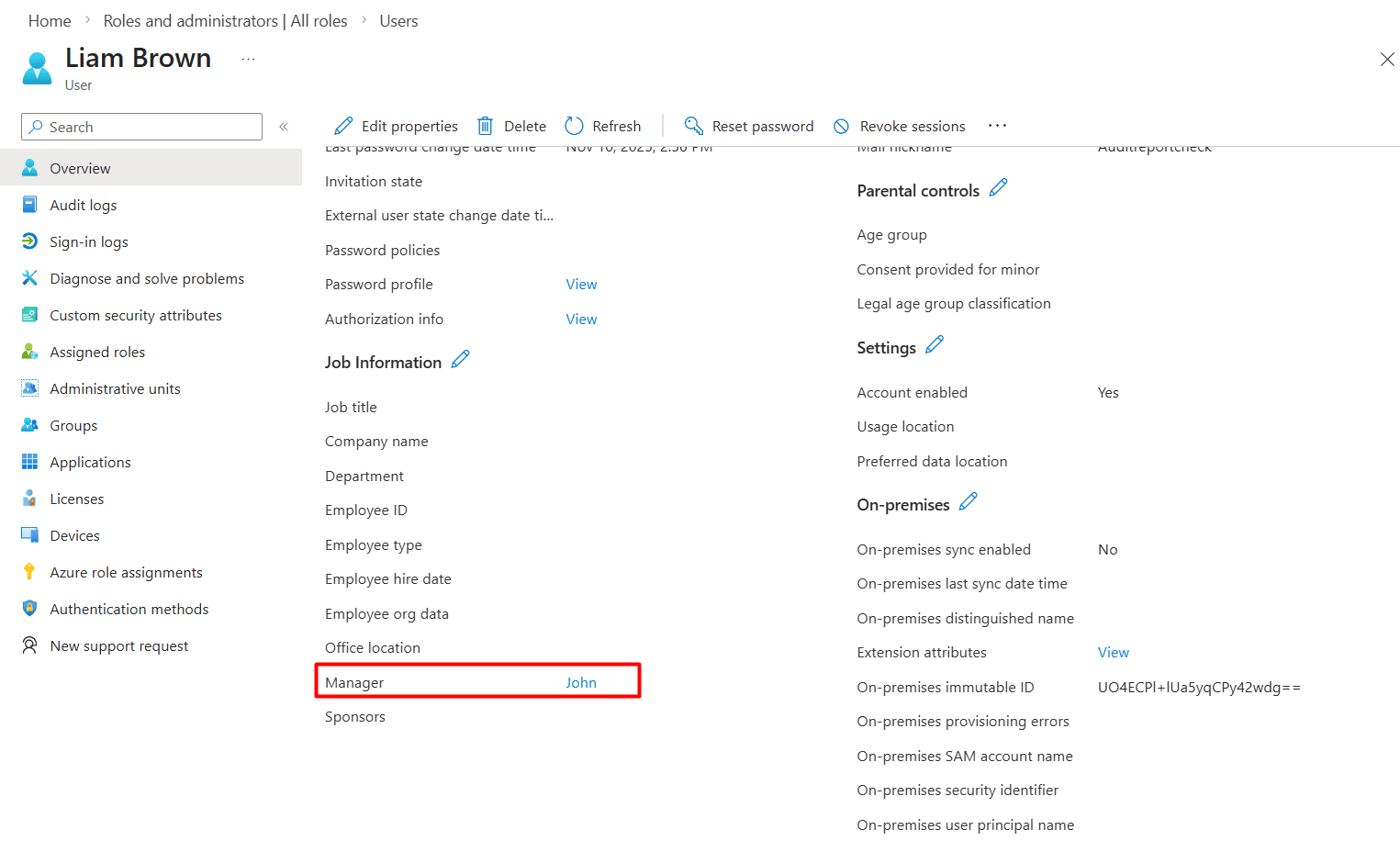
- Log in to the Microsoft Entra admin center and navigate to Users > All users.
- Select the target user from the list.
- Click the Properties tab.
- Search for the Manager attribute to view the user's manager in Microsoft 365.

Limitations to consider
- The Microsoft Entra admin center does not provide a way to export the list of all managers in Microsoft 365 in a single operation. Even the Download Users feature, which provides a CSV file of user objects and their details, does not let you download managers as attributes of the user.
- You will have to click through each user individually to get the list of all managers.
If you wish to get a single list of your Microsoft 365 managers and direct reports, you will have to either resort to Microsoft Graph PowerShell or use a reporting tool dedicated to present this data with just a few clicks, such as ManageEngine M365 Manager Plus.
Method 2: How to export a list of managers and direct reports using Microsoft Graph PowerShell (Get-MgUserManager)
Prerequisite:
Before using Microsoft Graph PowerShell, please verify that:
- The User Administrator role is applied to the account used to sign in to Microsoft Graph PowerShell.
- You are connected to the Microsoft Graph PowerShell module.
- To check if the Microsoft Graph PowerShell module is installed, use this script:
Get-Module Microsoft.Graph -ListAvailableIf it does not return a value, you will have to install the module.
- To install the Microsoft Graph PowerShell module, execute this script:
Install-Module Microsoft.Graph -Scope CurrentUser - To connect to Microsoft Graph, run this script:
Connect-MgGraph -Scopes "User.Read.All"
- To check if the Microsoft Graph PowerShell module is installed, use this script:
Using Get-MgUserDirectReport to find direct reports of a manager in Microsoft 365
The following Get-MgUserDirectReport cmdlet can be used to list every user reporting to a specific manager.
Get-MgUserDirectReport -UserId "manager@test.com"
Using Get-MgUserManager to find the manager of a Microsoft 365 user
The Get-MgUserManager cmdlet shown below can be used to retrieve the manager assigned to a Microsoft 365 user.
Get-MgUserManager -UserId "user@testorg.com"
Scenario: Find managers and direct reports of a specific department using Microsoft Graph PowerShell
You are an IT admin who needs to find the managers and direct reports of a department for an internal management audit. The goal is to find all the users and their managers in the department Sales .
The following script uses the Get-MgUserManager cmdlet to search for the managers of users in the Sales department.
Connect-MgGraph -Scopes "User.Read.All"
# Define the department
$DeptName = "Sales"
# Get users in the specific department
$DeptUsers = Get-MgUser -Filter "department eq '$DeptName'" -All -Property displayName, userPrincipalName, id

# Build the report
$Report = foreach ($User in $DeptUsers) {
    try {
        $Manager = Get-MgUserManager -UserId $User.Id -ErrorAction SilentlyContinue
        [PSCustomObject]@{
            EmployeeName  = $User.DisplayName
            EmployeeEmail = $User.UserPrincipalName
            ManagerName   = if ($Manager) { $Manager.AdditionalProperties.displayName } else { "Unassigned" }
        }
    } catch { continue }
}
# Export the report
$Report | Export-Csv "Department-Manager-Report.csv" -NoTypeInformation -Encoding UTF8

# display in console
$Report | Format-Table -AutoSize
Method 3: How to export a list of managers and direct reports in M365 Manager Plus
Steps
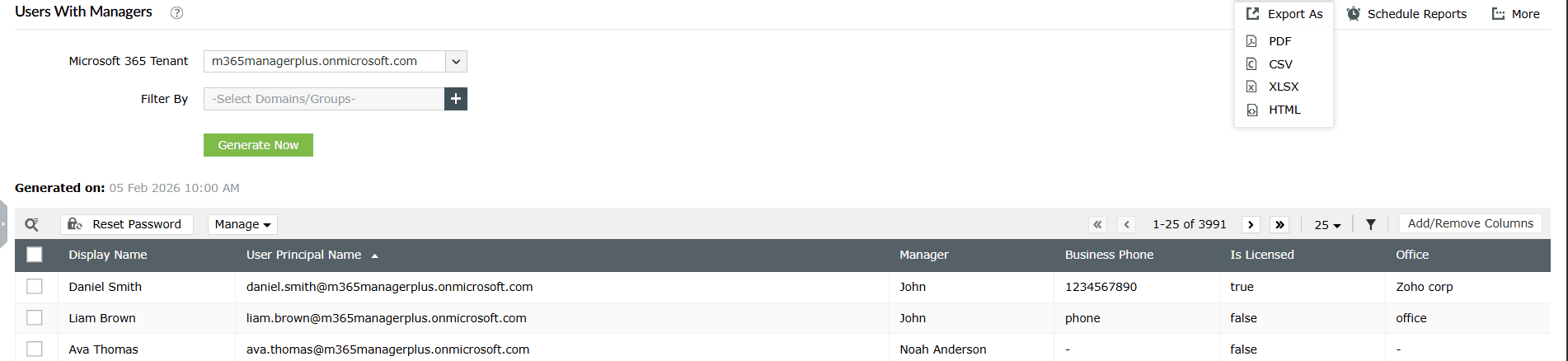
- Log in to M365 Manager Plus and navigate to the Reports tab > Azure Active Directory > User Reports, then select the Users with Managers report.
- Select the Microsoft 365 Tenant and the Domains/Groups you wish to generate the report for, and click Generate Now. You can now see the list of all users with their managers listed in the Users w ith Managers report .
- You can sort the Users with Managers report by using the Manager column. This allows you to view all managers of direct reports in an orderly manner.
- Export the list of Microsoft 365 managers and direct reports by clicking Export As in the upper-right corner and selecting your desired format.

Streamline Entra ID user governance and group management
M365 Manager Plus provides a unified command center for managing the entire life cycle of your Entra ID users and groups. Gain instant visibility into group memberships, ownership gaps, and orphaned objects across your tenant. Moreover, view, manage, and track identity objects across your Microsoft 365 tenant from a single console—without switching between multiple admin portals.
Review and manage Entra ID users and group ownership
Easily identify users without managers, groups without owners, inactive accounts, and stale memberships. Assign or update group owners, modify user properties, and clean up unused or risky identities directly from the same interface to maintain accountability and ownership across your directory.
Built-in reports for Entra ID users and groups
Access ready-made reports covering user status, sign-in activity, license assignments, group memberships, orphaned groups, and privileged accounts. These reports help you quickly spot inactive users, over-licensed accounts, and groups that lack proper ownership, without manual data collection.
Audit Entra user and group changes
Track changes made to users and groups, including membership updates, role assignments, license changes, and account status modifications. Audit trails provide clear visibility into who changed what and when, helping you meet security and compliance requirements.
Real-time alerts for critical Entra ID events
Configure instant alerts for events such as new admin role assignments, group owner changes, user creation or deletion, and license updates. Stay informed the moment high-impact identity changes occur instead of discovering them during audits.
Automate routine user and group management tasks
Automate common identity operations such as assigning licenses, updating group memberships, disabling inactive users, or enforcing ownership rules using policy-based automation. Reduce manual effort while keeping your Entra ID environment clean and controlled.
Act without PowerShell dependency
Perform reporting, audits, bulk updates, and corrective actions through a GUI-driven interface, all without relying on Microsoft Graph PowerShell scripts. This reduces operational complexity, minimizes errors, and speeds up Entra ID administration with just a few clicks.
Important tips
Schedule manager reports: If manager and direct report reports are regularly required for audits or compliance, you can schedule them to be generated and emailed to your admins at specific intervals with M365 Manager Plus' Schedule Reports.
Use custom attributes for multiple managers: Remember that Entra ID natively supports only one manager per user. If your organization uses matrix reporting, use Custom Attributes to track secondary supervisors.
Exclude service and system accounts from reports: When generating manager and direct report reports, filter out service accounts, shared mailboxes, and automation users. These accounts typically do not require managers and can skew audit results.
Frequently asked questions
You can run the Get-MgUserManager report and find users who do not have any values in their Manager attribute. Using M365 Manager Plus, you can run the Users without Managers report in a single click.
Get-MgUserManager retrieves the manager assigned to a specific Microsoft 365 user, while Get-MgUserDirectReport lists all users who directly report to a specified manager.
No. The Get-MgUserDirectReport cmdlet only returns direct reports of a manager. It does not include indirect or multi-level reports.
Microsoft Entra ID supports only one manager per user. If your organization follows a matrix reporting structure, additional managers must be tracked using custom attributes or external systems.