

Intune audit data is the built-in record of every administrative action that generates a change in the Microsoft Intune admin center. Each entry captures who performed the action, what operation was performed, which object was affected, whether it succeeded, and when it occurred. Audit data covers create, update, delete, assign, and remote actions across all Intune workloads. It is enabled by default for all tenants, cannot be disabled, and is retained for two years.
- What is Intune audit data
- Log types
- Log categories
- Limitations
- Auditing with ADAudit Plus
- FAQ
Microsoft Intune is the endpoint management layer for millions of corporate devices. Every policy change, app assignment, device wipe, and enrollment event leaves a trace in the Intune audit log. Those logs tell you who made a change, when they made it, which object they changed, and whether it succeeded.
Without audit data, incident response turns into guesswork and compliance audits become difficult to satisfy. This guide covers what Intune records, how to access and export logs natively, where the built-in tools fall short, and how ManageEngine ADAudit Plus fills those gaps.
What is Intune audit data?
Intune audit data is the record of every administrative action that generates a change inside the Microsoft Intune admin center. Create, update, delete, assign, and remote actions all produce audit entries. That record answers the four questions every compliance audit and security investigation depends on: who performed the action, what the action was, which resource it affected, and when it occurred.
Auditing is on by default for all tenants and cannot be disabled. Any administrator with the Audit data - Read permission can view the logs. Intune retains audit data for two years before automatic deletion. Admins cannot manually delete audit log entries.
Types of Intune logs
Intune produces four categories of logs. Each serves a different purpose, and each can be routed to Azure Monitor for extended retention and analysis.
| Log type | What it records |
|---|---|
| Audit logs | Every administrative change in the admin center: create, update, delete, assign, and remote actions. The primary record for security and compliance investigations. |
| Operational logs | Success and failure events for device and user enrollment. Most useful for troubleshooting devices that fail to enroll or users that cannot complete setup. |
| Device compliance organizational logs | An organizational snapshot of device compliance status across your tenant, including which devices meet your policies and which do not. |
| Device inventory logs (IntuneDevices) | Inventory and status data for all enrolled and managed devices. Updated roughly every 24 hours. |
What gets recorded in Intune audit logs
Each entry in the Intune audit log captures the following fields.
| Field | What it contains |
|---|---|
| Date | Timestamp of the event in UTC. |
| Initiated by (actor) | The display name, user principal name, and application ID of the account or service that performed the action. |
| Application | The application used. For actions taken directly in the admin center, this always shows as Microsoft Intune portal extension. |
| Activity | A plain-language description of what occurred, such as Create DeviceCompliancePolicy, Delete MobileApp, or Wipe ManagedDevice. |
| Category | The Intune workload the action belongs to: Compliance, DeviceConfiguration, Application, Enrollment, Role, DeviceManagement, and so on. |
| Activity status | Whether the action succeeded or failed. |
| Target(s) | The object affected: its name, object ID, and any property values that changed, including old and new values. |
| Correlation ID | A unique identifier that links related log entries across multiple systems. |
Action types that generate audit events
The Intune audit log captures six operation types. Create records a new policy, app, profile, or user. Update (Patch) records changes to an existing object's settings or assignments. Delete records when an object is removed. Assign records when a policy or app is assigned to a group or device. Remote actions (wipe, retire, lock, rename, sync, and restart) are logged when triggered from the portal. SetReference and RemoveReference record when a relationship between objects is added or removed, such as a group being added to or removed from a policy assignment.
Intune audit log categories
You can filter the audit log by category to scope an investigation. The categories map directly to Intune's workload areas.
| Category | Events it covers |
|---|---|
| Compliance | Compliance policy creation, modification, deletion, and assignment changes. |
| DeviceConfiguration | Configuration profile creation, modification, deletion, and assignment changes. |
| Application | App additions, updates, deletions, and assignment changes for managed apps and app protection policies. |
| Enrollment | Enrollment profile changes, Apple enrollment tokens, and Windows Autopilot profile updates. |
| Role | Changes to Intune role definitions and role assignments. |
| DeviceManagement | Remote device actions including wipe, retire, lock, and rename. |
| SoftwareUpdate | Update ring creation, modification, and assignment changes. |
| Security | Endpoint security policy and security baseline changes. |
How to access Intune audit logs
Method 1: Intune admin center
The quickest way to view audit logs is directly in the admin center.
intune.microsoft.com.
Tenant administration > Audit logs.
- The default view shows all entries for all categories. Select any entry to see its full details including before-and-after values for changed properties.
Add filters to narrow results by date range, category, activity type, or initiated-by user.
You can also access category-specific audit logs from within each workload. Going to Devices > Monitor > Audit logs, for example, shows only device-related events.
Method 2: Microsoft Graph API
The Graph API provides programmatic access and supports retrieval of up to two years of history. Use the following endpoint:
GET https://graph.microsoft.com/v1.0/deviceManagement/auditEvents
You can filter by category, activity type, actor, and date range using OData query parameters. The calling account requires the DeviceManagementApps.Read.All or DeviceManagementRBAC.Read.All permission scope.
How to export Intune audit logs
Option 1: CSV export from the admin center
For one-off exports, the admin center provides a direct CSV download. Navigate to Tenant administration > Audit logs, apply any filters you need, then select Export from the toolbar. A CSV file saves to your default download folder.
This works well for ad-hoc investigations and short date ranges. It is not suitable for ongoing compliance archiving or large log volumes.
Option 2: Azure Monitor (recommended for compliance and long-term retention)
Routing Intune logs to Azure Monitor lets you store them in Azure Storage, stream to an Event Hub for SIEM integration, or query them in a Log Analytics workspace.
Reports > Diagnostic settings.
+ Add diagnostic setting.
- Name the setting and select the log types to include: AuditLogs, OperationalLogs, DeviceComplianceOrg, Devices, and Windows365AuditLogs.
Send to Log Analytics workspace, Archive to a storage account, or Stream to an event hub.
Save.
Audit logs and operational logs reach Azure Monitor within minutes. Device compliance and inventory data can take up to 48 hours.
Storage cost reference
Microsoft estimates approximately 2 KB per audit log event. A tenant with 100,000 users generates roughly 1.5 million events per day (about 3 GB of daily storage). Use the Azure Storage pricing calculator to estimate your retention costs before configuring long-term archiving.
Option 3: KQL queries in Log Analytics
Once logs are in a Log Analytics workspace, you can query them using Kusto Query Language (KQL). Two practical starting points:
All audit events summarized by operation:
IntuneAuditLogs | summarize count() by OperationName | order by count_ desc
Any device wipe or retire action:
IntuneAuditLogs | where OperationName has_any ("Wipe", "Retire", "Delete ManagedDevice")
You can attach either query to an Azure Monitor alert rule to receive an email or trigger an automated response when the condition is met.
Security incidents that Intune audit logs help detect
Intune audit logs are useful far beyond routine compliance checks. These are the incident types where they become key investigation evidence.
Unauthorized policy changes
A configuration profile change that disables Windows Defender or removes a firewall rule can go unnoticed unless someone reviews the audit log. The Category field narrows the search to DeviceConfiguration; the Target(s) field shows old and new values; the actor field shows which account made the change and when.
Rogue device wipes
A wipe or retire action triggered by a compromised admin account leaves a full trace: actor, device name, timestamp, and operation type. Without that record, distinguishing a legitimate device refresh from an unauthorized wipe is difficult after the fact.
Privilege escalation through role changes
If an attacker gains access to an account and modifies Intune role assignments (elevating permissions for themselves or another account), the Role category records exactly what changed, who initiated it, and when.
App protection policy tampering
App protection policies govern how corporate data moves between managed apps. Unexpected changes to data transfer rules, clipboard restrictions, or app assignments are logged under the Application category and can indicate either misconfiguration or a deliberate attempt to weaken data loss prevention controls.
Enrollment profile manipulation
Unauthorized changes to Apple enrollment tokens, Windows Autopilot profiles, or enrollment restrictions could allow unmanaged devices to appear managed. The Enrollment category captures these changes with full actor and timestamp detail.
Detecting these patterns quickly requires either regular manual log review or a tool that alerts in real time when specific event types occur. ManageEngine ADAudit Plus monitors Intune audit events and generates immediate alerts for high-risk actions (device wipes, role assignment changes, and compliance policy deletions) without requiring administrators to write KQL queries or build Azure Monitor alert rules manually.
Limitations of native Intune audit logging
The Intune admin center covers the basics, but several practical gaps affect teams working under compliance mandates or investigating incidents across hybrid environments.
Two-year retention cap
Intune retains audit logs for two years before automatic deletion. SOX requires seven years, HIPAA requires six, and PCI DSS 4.0 requires 12 months with three months immediately available. Without routing logs to Azure Storage or a third-party tool, you cannot satisfy most regulatory retention requirements from the admin center alone.
No real-time alerts
The admin center does not generate real-time email or SMS alerts when specific events occur. Receiving immediate notification when a device is wiped, a compliance policy is deleted, or an admin role is modified requires Azure Monitor alert rules with custom KQL queries, or a dedicated auditing tool.
No cross-platform correlation
Intune logs cover the Intune portal only. They do not include sign-in events from Microsoft Entra ID, file access from Windows servers, or Group Policy changes from on-premises Active Directory. Investigating an incident that spans those systems requires manually correlating logs from multiple separate consoles.
KQL required for useful analysis
Meaningful filtering and custom reporting in Log Analytics requires KQL knowledge. Admins unfamiliar with the language must either learn it or rely on Microsoft Sentinel workbooks, which add cost and configuration overhead.
Compliance and inventory log latency
While audit and operational logs reach Azure Monitor in near real time, device compliance organizational logs and device inventory data can take up to 48 hours to appear in Log Analytics. That lag affects daily compliance dashboards and investigations that depend on current device state.
No pre-built compliance reports
Intune has no report templates mapped to SOX, HIPAA, PCI DSS, GDPR, or ISO 27001. Building those reports from Log Analytics queries takes significant effort and ongoing maintenance as requirements change.
An easier way to audit Microsoft Intune
ManageEngine ADAudit Plus provides Intune auditing with pre-built reports, real-time alerts, and long-term log archiving that address the gaps in the native admin center tools. You get the full detail Intune already records, retention beyond the two-year limit, and consolidated visibility across Intune, on-premises Active Directory, Microsoft Entra ID, Windows file servers, and workstations, in a single console.
What ADAudit Plus tracks in Intune
With ADAudit Plus' intune admin center auditing, you can monitor and report on:
- App protection policy creation, modification, and deletion, including configured data transfer rules and app assignment groups
- Configuration profile changes: who created or modified a profile, which settings changed, and when
- Compliance policy lifecycle events: creation, deletion, and assignment updates with before-and-after values
- Device remote actions: every wipe, retire, lock, rename, restart, and sync triggered from the portal, with actor and timestamp
- Device enrollment events: who enrolled a device, when, from which platform, and whether enrollment succeeded
- Manual sync requests: which admin triggered a sync and when
- Role and permission changes: modifications to Intune role definitions and role assignments
How ADAudit Plus extends native Intune
| Capability | Native Intune admin center | ADAudit Plus |
|---|---|---|
| Log retention | 2 years; exportable to Azure Storage with added cost | Configurable long-term archive beyond the 2-year limit |
| Real-time alerts | Requires Azure Monitor alert rules and KQL setup | Pre-built alert profiles; email and SMS notifications |
| Compliance reports | No pre-built reports; custom KQL required | Out-of-the-box reports for SOX, HIPAA, PCI DSS, GDPR, FISMA, and GLBA |
| Cross-platform visibility | Intune portal changes only | Unified view of Intune, Entra ID, on-premises AD, file servers, and workstations |
| Before-and-after values | Target(s) section shows modified properties | Old and new values displayed side by side in report view |
| Automated response | Manual investigation required | Configurable scripts that run automatically when alert conditions trigger |
- Audit device enrollments
- Log sync requests
- Track app and policy activity
- Create custom alerts
1
Identify the user and timestamp associated with the enrollment.
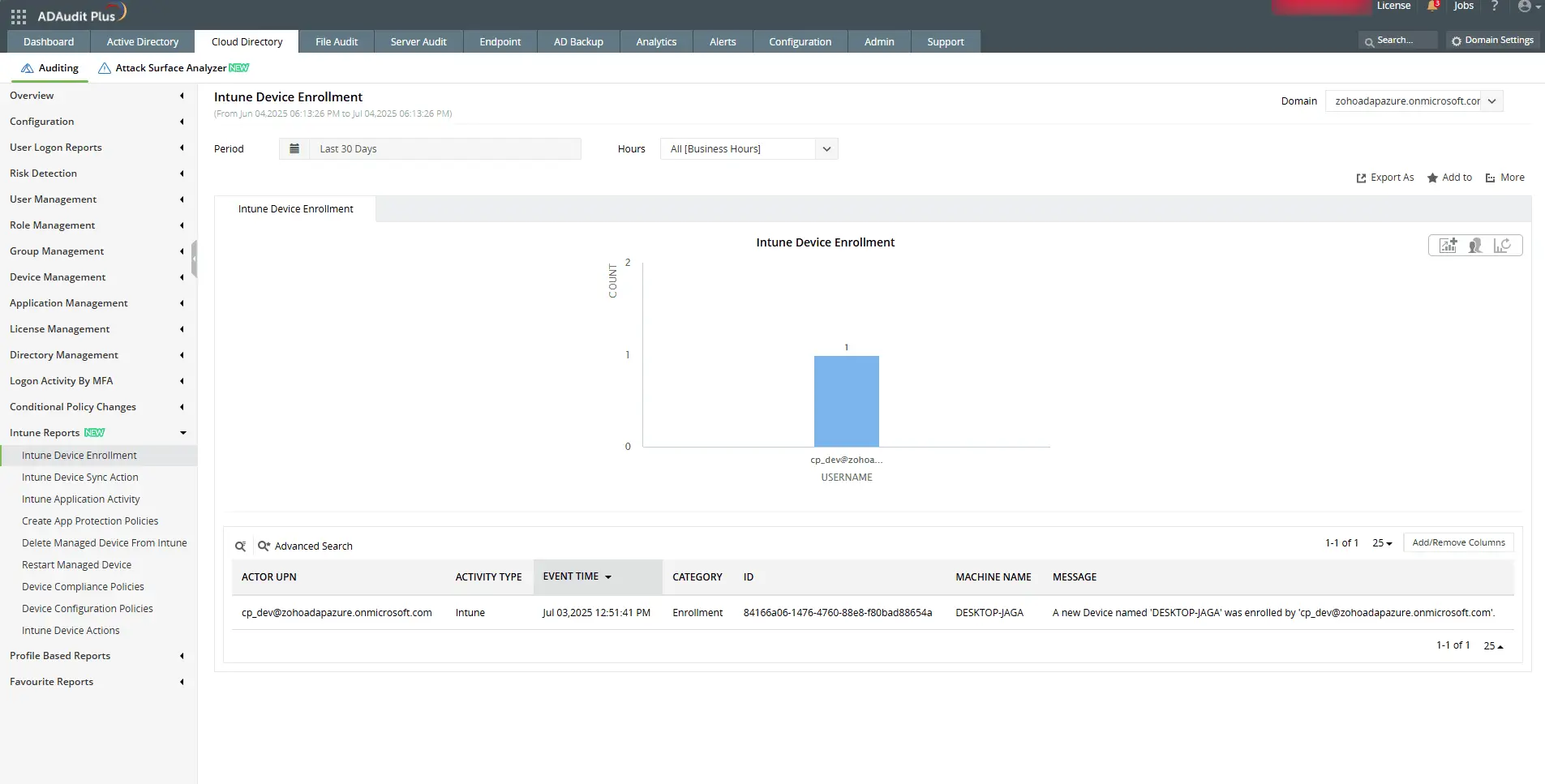
Identify the user and timestamp associated with the enrollment.
1
Check who initiated a sync and when it was triggered in the Intune portal.
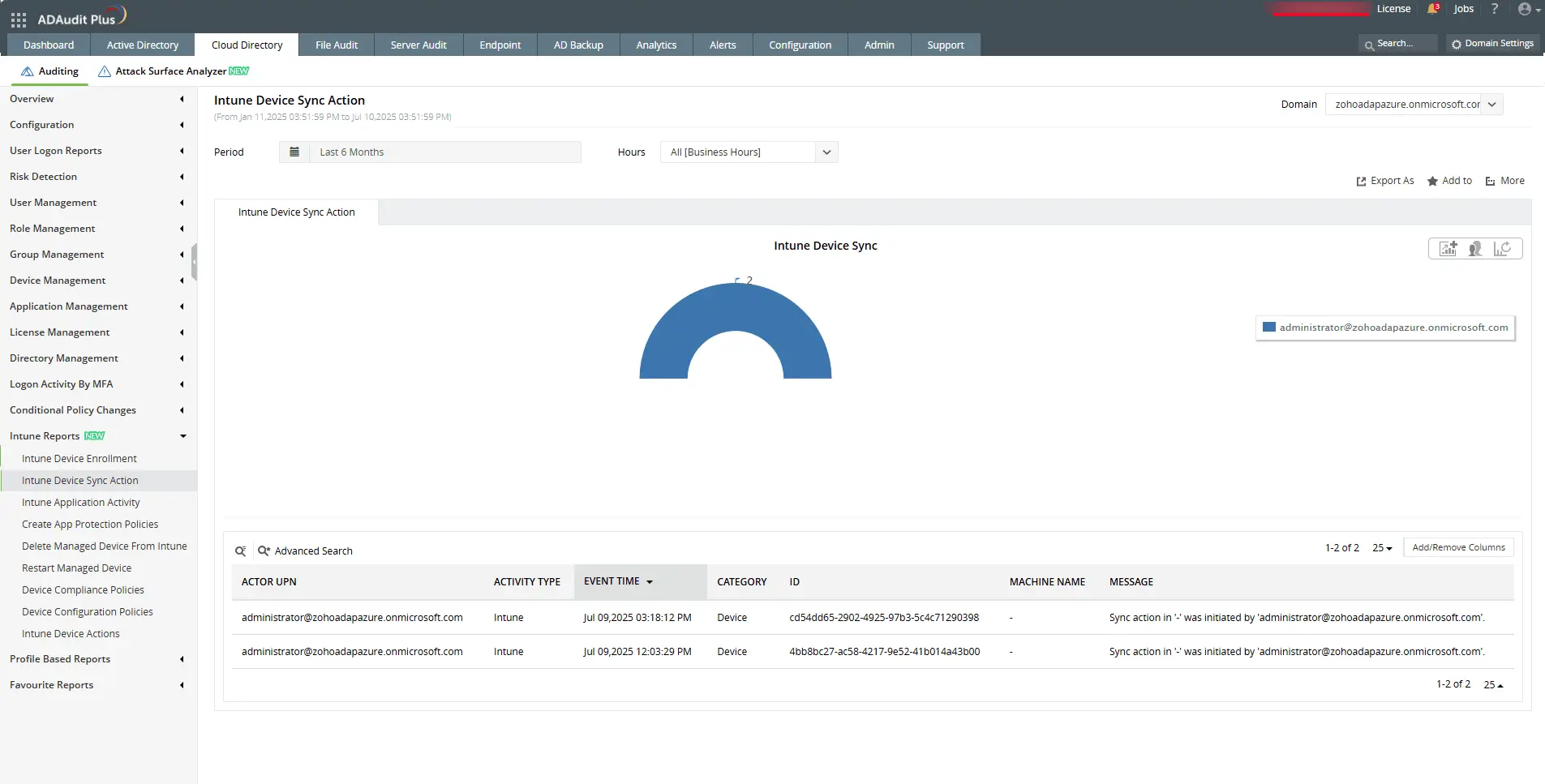
Check who initiated a sync and when it was triggered in the Intune portal.
1
View detailed changes made to device configuration policy settings.
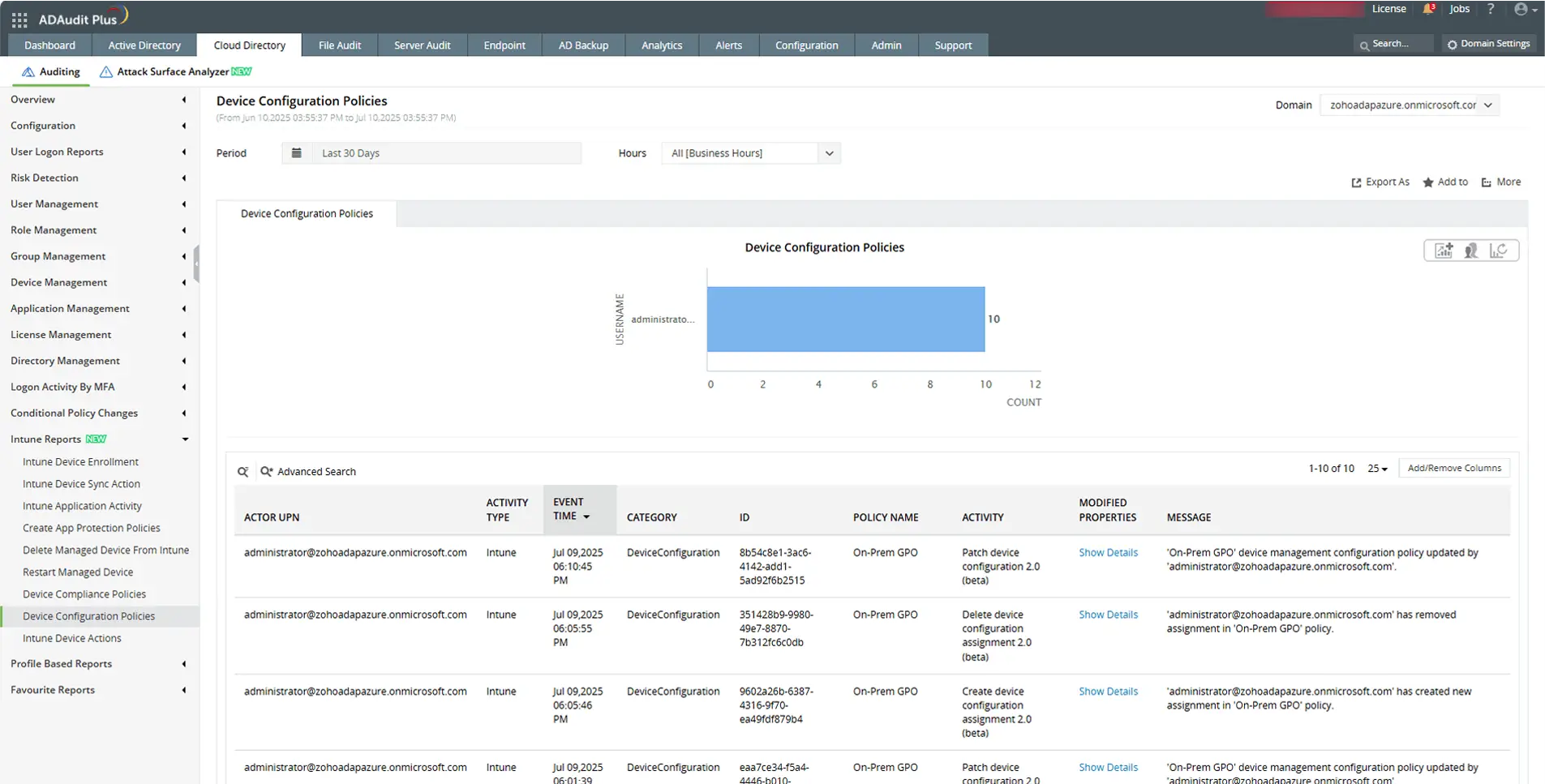
View detailed changes made to device configuration policy settings.
1
Send email and SMS alerts, and execute scripts automatically for faster response.
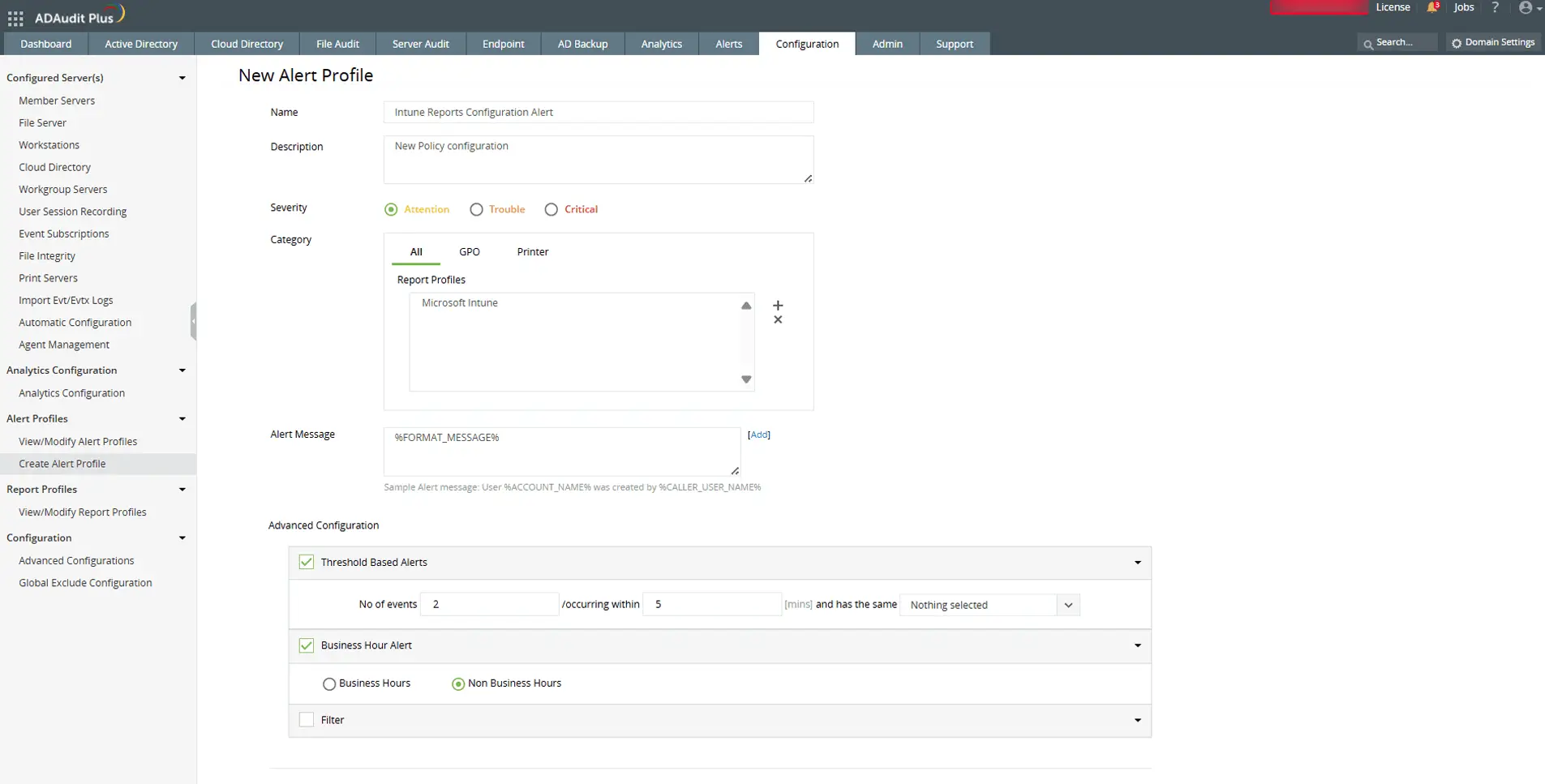
Send email and SMS alerts, and execute scripts automatically for faster response.
A one-stop solution for IT auditing, compliance, and threat response
Try ADAudit Plus free for 30 days. No credit card required.
Frequently asked questions
You can access Intune audit logs in two places. The first is the centralized view: in the Intune admin center, go to Tenant administration > Audit logs. This shows all log entries across every workload, and you can filter by date range, category, activity type, or actor.
The second is workload-specific: within any Intune workload (Devices, Apps, Compliance, and so on), go to Monitor > Audit logs to see only events for that area. If you have routed logs to Azure Monitor, you can also query them in Log Analytics under the IntuneAuditLogs table.
Intune audit logs are stored in Microsoft's cloud infrastructure and are accessible through the Intune admin center for two years. They are not stored on your local network or domain controllers. If you route logs to Azure Monitor using Diagnostic settings, copies are sent to your chosen destination (a Log Analytics workspace, an Azure Storage account, or an Event Hub) where you control the retention period.
Intune retains audit logs for two years in the admin center. After two years, logs are automatically deleted and cannot be recovered. This built-in retention period is shorter than most compliance mandates require: HIPAA requires six years, SOX requires seven, and PCI DSS 4.0 requires 12 months with three months immediately available for analysis.
To retain logs beyond two years, route them to Azure Storage via Diagnostic settings before they reach the deletion threshold. You can also use a third-party auditing tool that archives logs independently of the admin center's two-year limit.
Yes. Intune automatically records every administrative action taken in the admin center. Any change you make, whether creating a policy, modifying a configuration profile, assigning an app, or triggering a device wipe, is logged with your account name, the timestamp, the object affected, and whether the action succeeded. These logs are available to any administrator with the Audit data – Read permission in your tenant.
For end users, Intune's device management capabilities allow IT administrators to see device compliance status, installed apps, device health, and enrollment information. What an administrator can see depends on whether a device is personally owned or corporate-owned and what management profile has been applied. Personal devices enrolled under a bring-your-own-device policy have more restricted visibility than fully managed corporate devices.
What an organization can see through Intune depends on how the device is enrolled and managed. For corporate-owned, fully managed devices, administrators can see device compliance status, installed applications, device hardware details, location (if configured), and all management actions taken on the device.
For personally owned devices enrolled under a bring-your-own-device policy, Intune enforces restrictions on what IT can access. Administrators can see compliance status and managed app data, but typically cannot view personal apps, personal files, call history, or browsing activity. Microsoft publishes specific documentation on what is and is not visible depending on the enrollment type and platform (iOS, Android, Windows). Your organization's IT policy should describe what monitoring is in place for devices enrolled in Intune.
Experience
ADAudit Plus for free
With ADAudit Plus, you can:
- Get full visibility into logons
- Monitor employee attendance
- Detect attacks like Kerberoasting
- Generate logon audit trails
- And much more









