How to delete a document library in SharePoint
Last updated on:On this page
A SharePoint document library serves as a secure place where users can store files, manage them, and collaborate with other site users. More often than not, you may need to delete document libraries when they're not needed for reasons like:
- Organizing the site structure.
- Cleaning up obsolete content.
- Removing duplicate libraries.
- Freeing up storage space.
Document libraries can be deleted either through the SharePoint Online browser interface for single deletions or through PowerShell for bulk operations.
- SharePoint Online
- Windows PowerShell
Method 1: Delete a document library through the SharePoint Online browser interface
Prerequisite
Ensure you have the Site owner or Full Control permissions on the SharePoint site.
Steps
- Sign in to SharePoint Online and navigate to the site that contains the document library.
- Open the document library you want to delete.
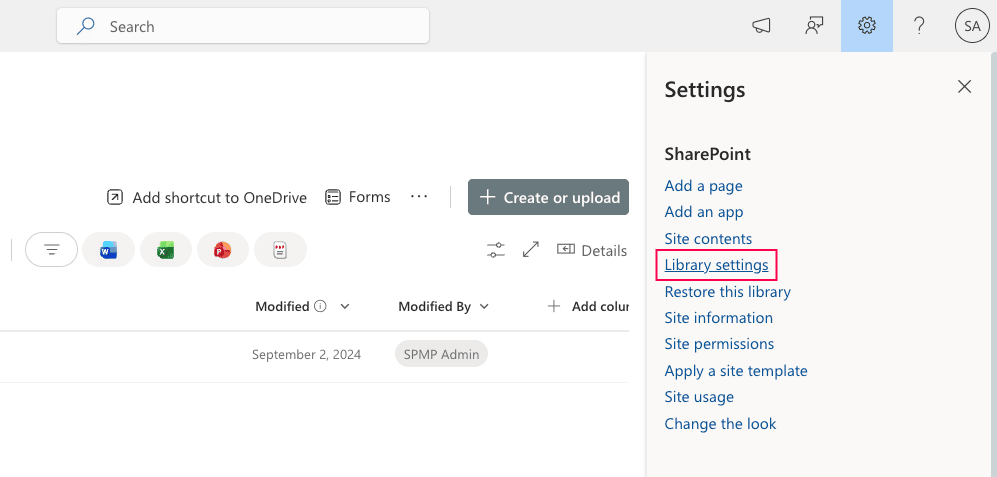
- Click the Settings icon in the top-right corner and select Library settings.
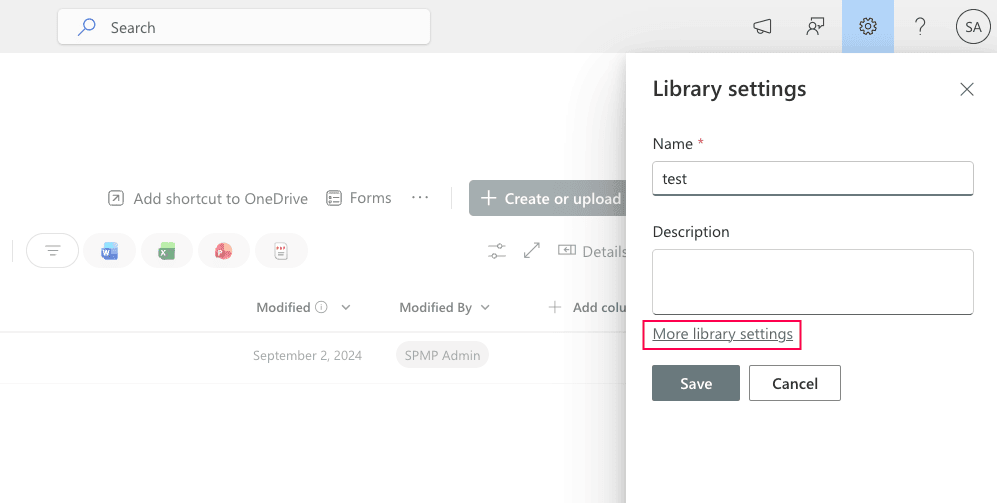
- Select More library settings.
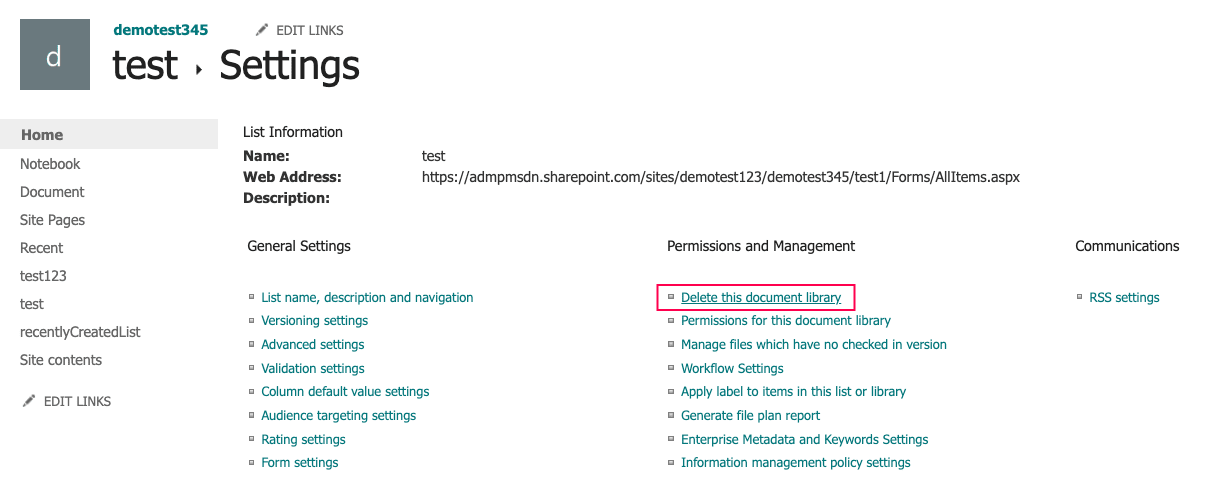
- On the library settings page, click Delete this document library under Permissions and Management.
- Confirm the deletion when prompted.


The deleted library will be moved to the site recycle bin, where it can be restored within the retention period (up to 93 days, including both recycle bin stages) if needed.
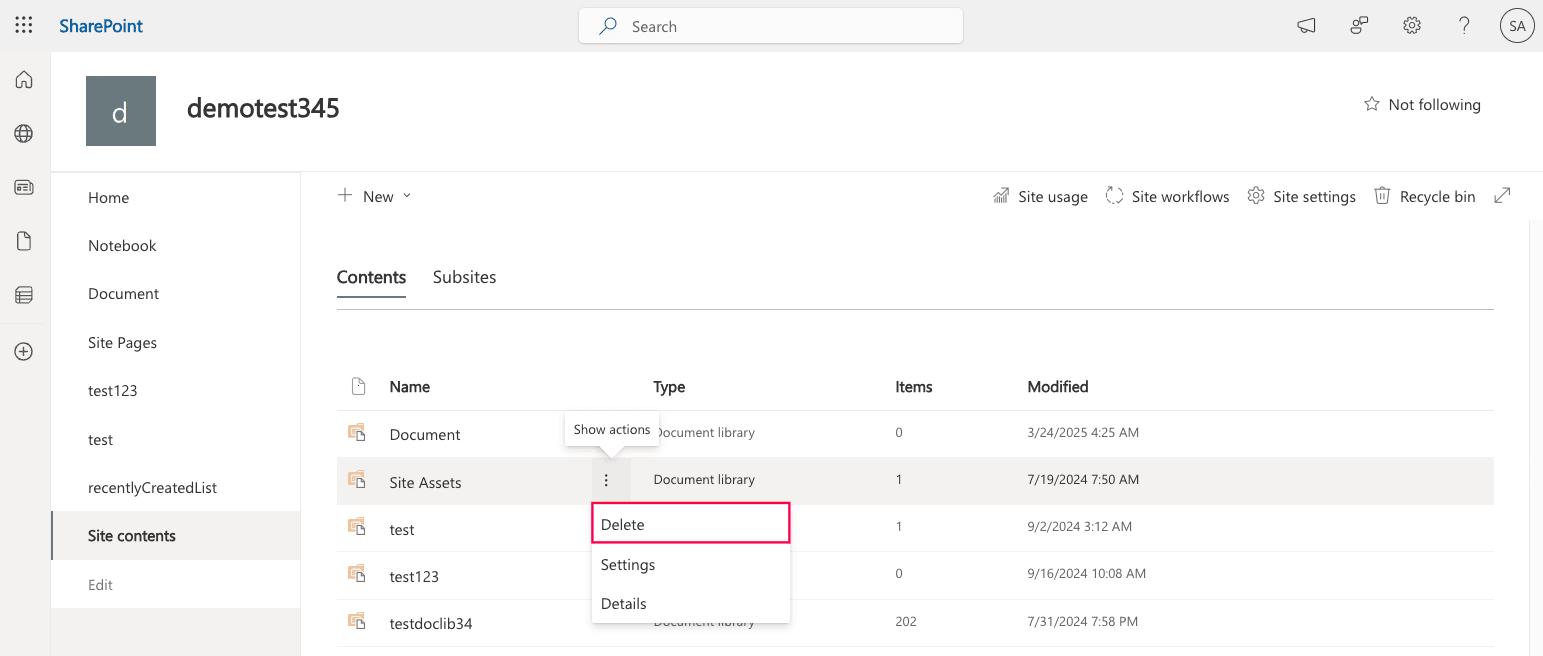
Note: You can also delete document libraries from the Site contents tab.
- Navigate to Site contents on the left pane.
- Hover over the document library and click Delete from the Show actions menu.

Limitations to consider
- Library deletion must be done individually.
- There is limited visibility into dependencies or linked content before deletion.
For bulk or automated deletion, PowerShell can be used.
Method 2: Delete a document library using PowerShell
PowerShell is useful when you need to delete document libraries in bulk or automate SharePoint cleanups.
Prerequisites
- Before using PowerShell, ensure that:
- You have SharePoint Administrator or Global Administrator rights.
- The PnP.PowerShell module is installed.
- Install and connect to SharePoint Online using the script below:
Install-Module PnP.PowerShell -Scope CurrentUser
Connect-PnPOnline -Url https://tenant.sharepoint.com/sites/ProjectSite -Interactive
Delete a single document library
Use the following command to delete a document library by specifying its name:
Remove-PnPList -Identity "Project Documents" -Force
Delete multiple document libraries
Use this script to delete multiple document libraries at once:
$libraries = @("HR Documents", "Finance Documents", "Legal Documents")

foreach ($lib in $libraries) {
    Remove-PnPList -Identity $lib -Force
}
Supported parameters
The following parameters can be used while deleting document libraries in SharePoint:
| Parameter | Description |
|---|---|
| -Identity | Specifies the name or URL of the document library |
| -Force | Suppresses the confirmation prompt |
| -Connection | Specifies an existing connection |
| -Confirm | Prompts for confirmation before executing the command |
| -WhatIf | Shows what would happen if the command runs, without making changes |
Streamline document library reporting and management with SharePoint Manager Plus
Before deleting a document library, it is important to review its permissions, activity, and dependencies to avoid accidental data loss. SharePoint Manager Plus provides centralized visibility and reporting to help administrators make informed decisions before deleting a library.
Get reports on document library permissions
Generate detailed reports to review who has access to a document library before deletion and export reports in CSV, PDF, XLSX, or HTML format.
Audit document library activities
Track recent activity such as uploads, downloads, edits, and permission changes to determine whether a library is still actively used.
Manage SharePoint document access
Review and clean up permissions before deleting libraries to ensure proper governance and avoid unintended access issues.
Migrate document libraries and files
Before deletion, export or migrate important files to another document library or SharePoint environment to prevent permanent data loss.
Best practices for SharePoint document library management
Follow these guidelines to ensure safe deletion, prevent data loss, and maintain consistency across your SharePoint environment:
Determine the impact on users and shared access
Deleting a document library removes access for all users, including external collaborators and users with shared links. Inform stakeholders in advance to avoid disruptions and broken dependencies.
Back up SharePoint libraries before deletion
Before deleting a document library, ensure that all critical files and folders are backed up. This prevents permanent data loss if the library is later needed.
Confirm permissions and access
Examine the permissions setup, including unique permissions or broken inheritance. Ensure that no critical users, teams, or automated processes depend on access to the library before deletion.
Avoid deleting default libraries
Many SharePoint sites rely on the default Documents library for standard file storage, integrations, and navigation links, so removing it can disrupt normal site functionality.
Check the storage usage and capacity
Review the document library storage metrics to determine the storage size. This helps you understand how much space will be reclaimed and ensures you are not deleting large volumes of data that might be difficult to restore later.
FAQ
This can happen for several reasons:
- You may be trying to delete the library page instead of the actual document library. In SharePoint, deleting a page does not delete the underlying library.
- The Delete option may be disabled if you’re attempting to remove the library from the page view rather than through Library settings.
- The library may be under a retention policy or legal hold, which prevents deletion until the policy is removed, is modified, or expires.
Yes. Deleted document libraries are stored in the site recycle bin for a limited retention period and can be restored if needed. View detailed steps
All the files, folders, metadata, and version history are moved to the recycle bin along with the library.
Yes, but it is not recommended unless you are certain it is not being used because many sites rely on it as the primary document storage location.
After deleting a document, navigate to the site Recycle bin, select the document, and click Delete. Site Collection Administrator access may be required for second-stage recycle bin deletion.

