How to export a SharePoint list
On this page
- SharePoint Online
- Windows PowerShell
Exporting a SharePoint list enables organizations to move structured data out of SharePoint for reporting, backups, archiving, analytics, or offline use. Organizations also export lists for governance, compliance, migration, Power BI reporting, or long-term storage.
In SharePoint Online, lists can be exported to formats such as an Excel workbook (XLSX) or CSV for further processing. However, exports may not include attachments, complex fields, or all items unless they're configured properly. Understanding export limitations such as row limits, view filters, permissions, and data sensitivity ensures a complete, secure data extraction process.
Note: SharePoint Server (for on-premises or hybrid environments) supports similar exports, but the steps and capabilities involved may vary slightly from those for SharePoint Online.
Method 1: Export a SharePoint list using the browser UI
SharePoint Online enables users to export list data directly from the browser using built-in commands, making it the quickest method for one-time exports without scripts or automation.
Prerequisites
- You must have Read permission or higher to view the list.
- The list must not be restricted by governance policies.
- You should organize data in the desired view before exporting it.
- The Excel desktop app is recommended for full functionality.
Export a SharePoint list to Excel
This method downloads an Excel web query (IQY) file that opens the list data in Excel with a live connection to SharePoint:
- Open the SharePoint list from the SharePoint site or Microsoft Lists home.
- Apply filters or select the view you want exported (the current view only).
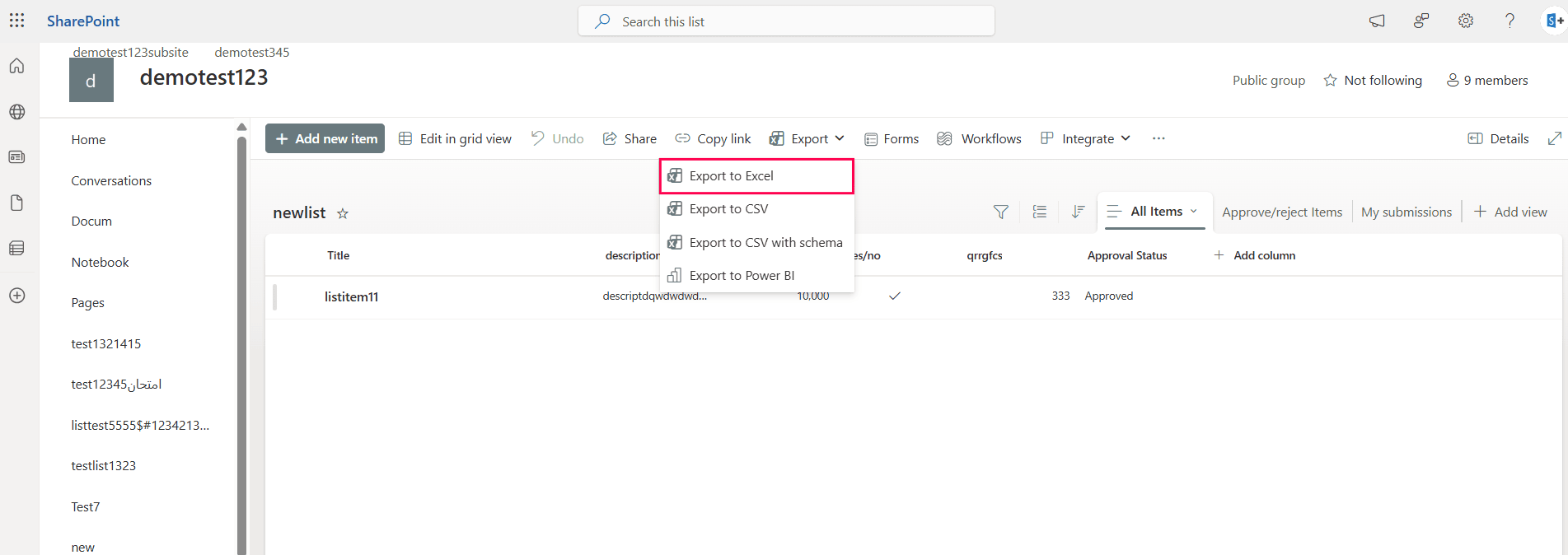
- On the command bar, click Export > Export to Excel.
- Download and open the generated file.
Note: The IQY file may download automatically or prompt you to open it in Excel. Save the final workbook as an XLSX file to preserve the live data connection on your drive.
- Click Enable on any security warnings to enable Excel to establish a secure link to the SharePoint API.

Export a SharePoint list to a CSV
This method exports the list to a CSV for simpler data processing:
- Open the list.
- Apply filters if needed.
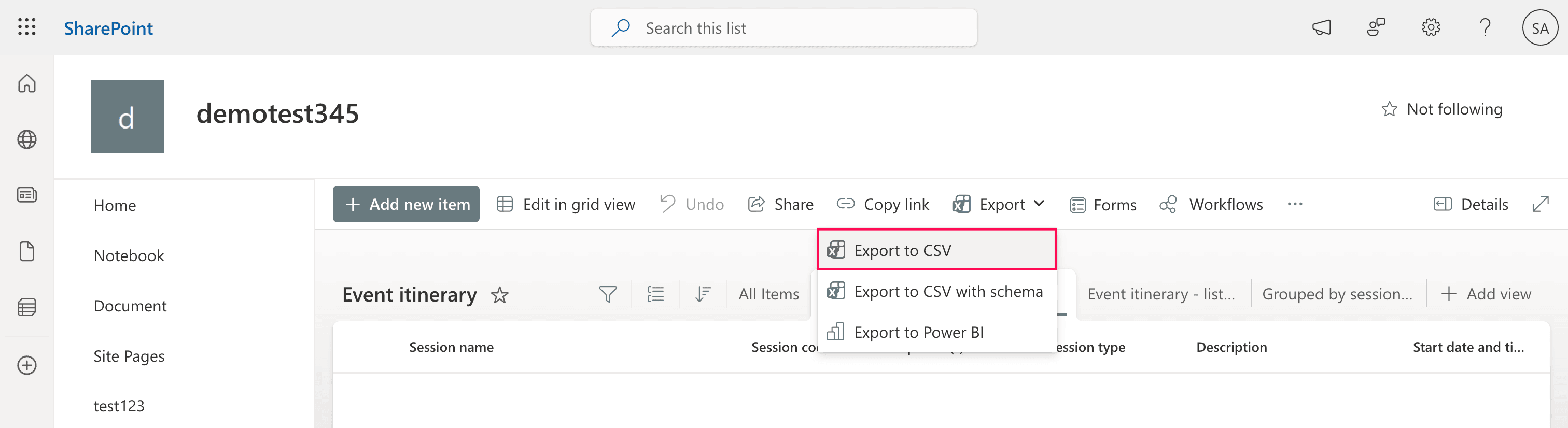
- Click Export > Export to CSV.
- Save the CSV file locally.

Note: CSV exports performed through the SharePoint UI are typically limited to around 30,000 rows, depending on environment and performance constraints. For larger lists, use filtered views or scripting methods.
Export a SharePoint list to a PDF
SharePoint does not provide a direct export to PDFs option for lists. To create a PDF, you must first export the list data to Excel or a CSV, then convert the file to a PDF using a spreadsheet application or automation tool.
If you only need a snapshot of your current view, follow these steps:
- Navigate to your SharePoint list and select the View (columns and filters) you want to export.
- Press Ctrl + P (for Windows) or Cmd + P (for macOS).
- Change the Printer or Destination to Microsoft Print to PDF or Save to PDF.
- Set the Layout or Orientation to Landscape to ensure all columns fit on the page.
- Click Print or Save and choose your local folder destination.
Platform considerations
- Excel Online and macOS versions handle connections differently.
- The Excel desktop app provides the most reliable experience.
- The export reflects only the visible columns and filtered items.
Limitations to consider
- This may require elevated privileges, depending on organizational policies.
- Attachments are not included in UI exports.
- Complex fields (like metadata, multi-lookup, and URLs fields) may flatten.
- Sensitive data may require approval before exports.
- Large lists may need filtering due to performance limits.
- Exported data is no longer governed by SharePoint security.
Method 2: Export SharePoint lists using PowerShell
PowerShell enables administrators to export list data in bulk, include attachments, handle large datasets, and automate recurring exports.
Prerequisites
- You need SharePoint Administrator or Site Collection Administrator permissions.
- The PnP.PowerShell module must be installed in your system.
- The ImportExcel module must be installed.
- You need an active connection to the target SharePoint site.
- You need adequate local storage available to save the exported data.
Install the modules and connect to the SharePoint site by running this script:
Install-Module PnP.PowerShell, ImportExcel -Scope CurrentUser
Connect-PnPOnline -Url https://tenant.sharepoint.com/sites/ProjectSite -Interactive
Export list items to Excel (an XLSX)
Unlike a CSV, this script creates a formatted Excel workbook with a table and auto-sized columns:
$items = Get-PnPListItem -List "Project Tasks" -PageSize 2000
$data = $items | Select-Object -ExpandProperty FieldValues
$data | Export-Excel -Path "C:\Exports\ProjectTasks.xlsx" -TableStyle Medium2 -AutoSize
Export list items to a CSV
This script exports list data to a CSV file for reporting or backups:
$items = Get-PnPListItem -List "Project Tasks" -PageSize 2000
$items | Select-Object -ExpandProperty FieldValues |
Export-Csv "C:\Exports\ProjectTasks.csv" -NoTypeInformation
Export large lists with pagination
Using the -PageSize parameter retrieves items in batches, helping avoid errors caused by the SharePoint list view threshold (typically 5,000 items).
Get-PnPListItem -List "Project Tasks" -PageSize 5000
Export list items including attachments
This script retrieves the attachment metadata for every item in the specified list. Additional scripting is typically required to download the attachment files to a local directory.
$items = Get-PnPListItem -List "Project Tasks"
foreach ($item in $items) {
    Get-PnPProperty -ClientObject $item -Property AttachmentFiles
}
A client-side object model example using a CAML query (a folder-specific export)
This script initializes a CAML query object that can be configured to filter items by the folder path, metadata, or other conditions:
$query = New-Object Microsoft.SharePoint.Client.CamlQuery
Supported parameters
The following parameters and cmdlets are commonly used when exporting SharePoint lists via PnP PowerShell:
| Element | Description |
|---|---|
| Select-Object | A cmdlet used to specify which fields to export |
| Export-Csv | A native PowerShell command that outputs data to a CSV file |
| -List | The name, ID, or URL of the SharePoint list |
| -PageSize | A parameter that configures the batch size to bypass the 5,000-item threshold |
| -Connection | A parameter that specifies a connection if you're working with multiple sites |
| -Path | The local file system destination for the saved file |
| -TableStyle | A parameter that applies visual formatting to the Excel table (ImportExcel only) |
Limitations to consider
- This requires advanced scripting knowledge.
- Complex fields may require transformation.
- Large exports consume time and bandwidth.
- Security controls still apply to retrieved data.
How to ensure safe SharePoint list exports
Exporting data from SharePoint lists often requires oversight to prevent data leaks, incomplete exports, or compliance violations. ManageEngine SharePoint Manager Plus provides visibility and control to ensure exports are accurate and secure.
Comprehensive list visibility
View list statistics, including the size, item count, and inheritance, and verify who can access and export list data. Schedule detailed reports and have them delivered to email recipients.
List activity auditing
Track SharePoint list activities and external shares to identify access patterns for investigations. Enable alerts to receive notifications about critical list activities.
Access governance
Ensure only the right people can export lists by managing user and group permissions at scale. Prevent unauthorized data extraction by enforcing strict access controls.
Seamless list migrations
Export or migrate list data safely to other SharePoint environments while preserving the structure, permissions, and metadata.
Role-based access
Delegate control to non-admin users to let them report on, audit, and manage lists without elevating their SharePoint Online permissions.
Important tips
Export the correct view
Ensure that the filters, sorting, and visible columns reflect the exact data you need before starting the export.
Handle large lists carefully
Use pagination, filtered views, or scripting methods when exporting lists that exceed threshold limits.
Plan attachment exports separately
Use PowerShell or automation tools to export files associated with list items, since UI exports exclude them.
Protect exported data
Store exported files in secure locations because SharePoint permissions and auditing no longer apply.
Frequently asked questions
Exports performed through the SharePoint browser interface do not include item attachments. Only list field data is exported. To retrieve attachments along with the list items, you must use scripting or automation tools such as PowerShell or Power Automate.
You can use Power Automate to automatically export SharePoint list data to a CSV file that can be opened in Excel. This approach is useful for scheduled reports, backups, or recurring data extractions without manual intervention. The flow retrieves items from the list, converts them into a tabular format, and saves the file to a storage location such as SharePoint, OneDrive, or a network folder.
Steps
- In Power Automate, create a new flow (scheduled, manual, or automated).
- Add the Get items action to retrieve data from the target SharePoint list.
- Specify the site address and list name.
- Enable pagination if the list contains many items.
- Add the Create CSV table action to convert the retrieved items into a structured table format.
- Select the output from the Get items step.
- Choose automatic or custom column mapping.
- Add the Create file action to save the generated data as a CSV file.
- Specify the destination folder and file name.
- Run the flow or enable it to execute on the configured schedule.
- Download the generated file and open it in Excel. Excel will display the CSV data as a spreadsheet.
Yes. You can export a SharePoint list to Excel or a CSV and then import the file into Power BI for analysis and visualization. For more dynamic reporting, Power BI can also connect directly to SharePoint lists using built-in connectors, enabling you to refresh data on a schedule without manual exports.
Exports include only the items visible in the current list view. If filters, groupings, or column restrictions are applied, some items may be excluded from the export.
SharePoint enforces a list view threshold (commonly 5,000 items) to maintain performance. To retrieve more than this limit, use methods that support pagination or bulk retrieval:
- Use PowerShell (PnP) with the -PageSize parameter to fetch items in batches.
- Modify the Item Limit in the view settings to display items in smaller batches.
- Export data in segments using filtered views.
- Use automation tools that handle pagination automatically.
- Query specific folders or subsets of data.
These approaches enable you to retrieve the entire dataset without hitting threshold restrictions.
The export capability depends on user permissions and organizational policies. Users typically need at least View Only access to the list. Administrative controls or governance rules may block exports for sensitive lists.

