

How to move a folder in SharePoint
On this page
Moving folders in SharePoint helps maintain an organized file structure as projects evolve, teams change, or content needs to be regrouped. Within a SharePoint Online document library, administrators and users can move folders between locations using the Move to command, which transfers the folder and its contents to another location within the same library or to another library. This method preserves metadata and version history, helping maintain a consistent SharePoint folder structure.
An important distinction: Move to vs. Copy to
- Move to transfers the folder and removes it from the original location.
- Copy to duplicates the folder while keeping the original in place.
The following methods explain how to move folders in SharePoint using the browser interface, PowerShell, and SharePoint Manager Plus.
- SharePoint Online
- Windows PowerShell
Method 1: Move SharePoint folders using the browser UI
SharePoint Online allows users to move folders directly within the browser interface using the Move to command, making it easy to reorganize content without scripts.
Prerequisites
Before moving a folder in SharePoint:
- You must have Edit or Contribute permissions on the SharePoint Online document library.
- The destination library or folder must allow file and folder creation.
- The folder must not be locked or currently checked out.
Steps
- Sign in to your SharePoint Online site.
- Navigate to the document library containing the folder you want to move.
- Hover over the folder, select the ellipsis (...), then select Move to.
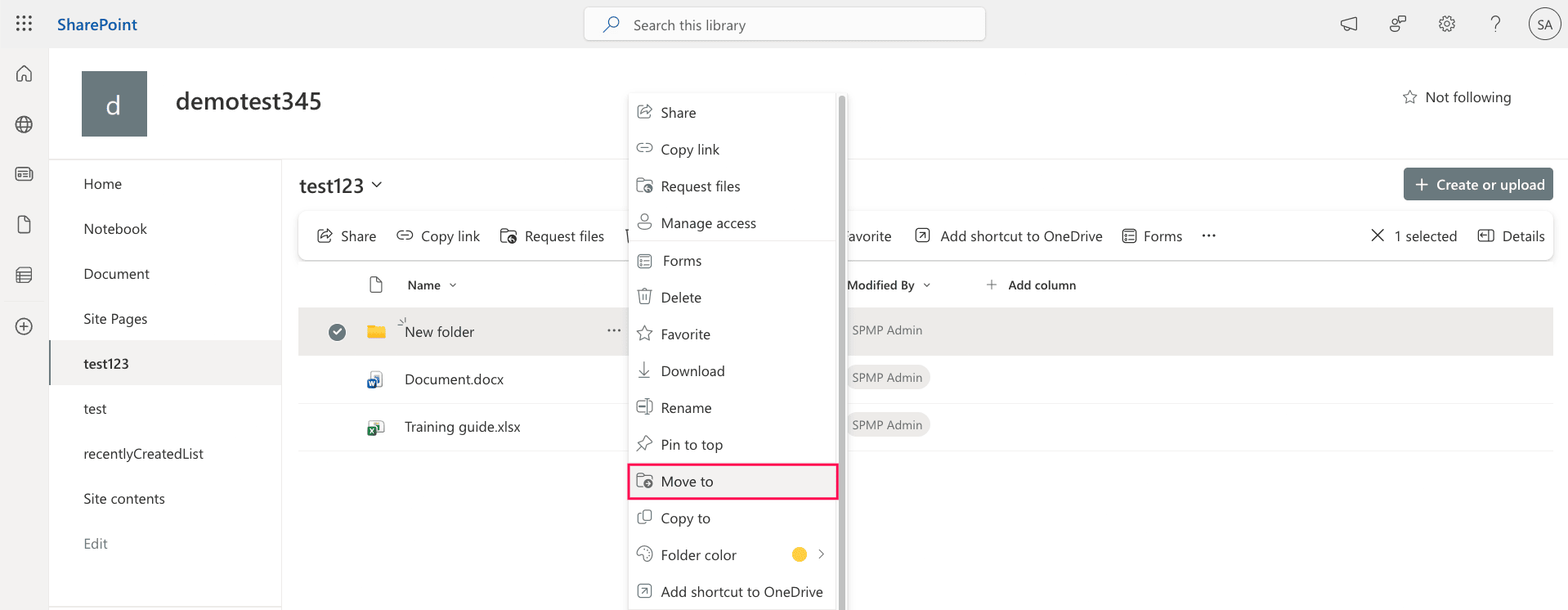
- Choose the destination location, such as another folder within the same library or a different library within the same site.
- Select Move here to complete the process.
You can also use this method to move one folder into another in SharePoint, or reorganize the structure of a library.
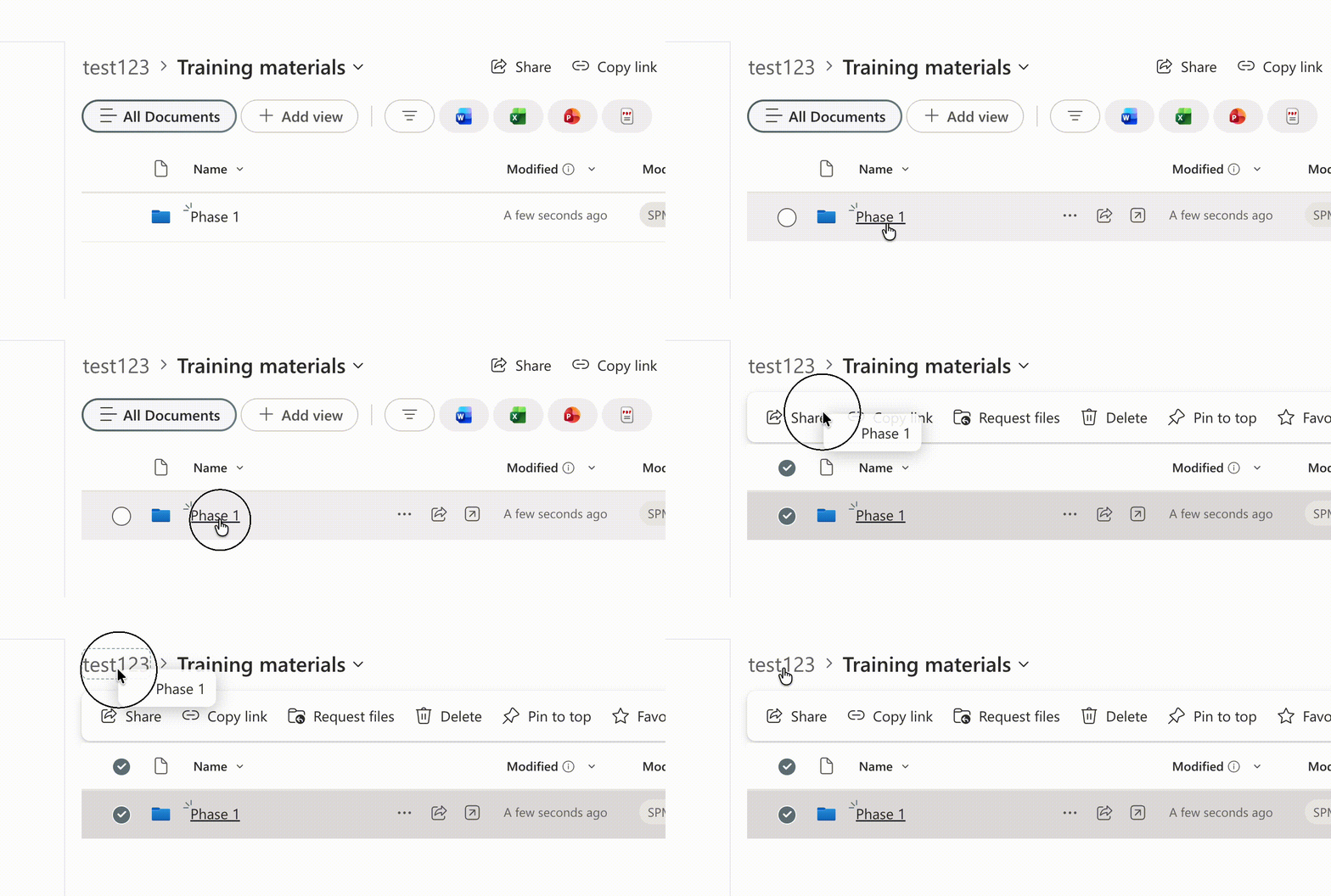
Pro-tip:Drag and drop folders within the library interface or use the breadcrumbs to quickly move a SharePoint folder up a level.


Limitations to consider
- Large folders may take longer to move depending on file count and size.
- Some cross-site moves may require additional permissions.
- Metadata or custom columns may not transfer properly if the destination library does not contain the same columns.
- Moving folders with broken permissions may result in permission inheritance changes.
Method 2: Move SharePoint folders using PowerShell
PowerShell allows administrators to move folders programmatically within or across SharePoint libraries, which is useful for automation or bulk operations.
Prerequisites
Before running the script, ensure the following:
- You have SharePoint Administrator or Global Administrator privileges.
- The PnP.PowerShell module is installed. If not, run:
Install-Module PnP.PowerShell -Scope CurrentUser
- You are connected to the SharePoint site. Run:
Connect-PnPOnline -Url https://tenant.sharepoint.com/sites/ProjectSite -Interactive
Move a folder within the same document library
Use the following command to move a folder to another location within the same library. Replace the quoted paths with your actual library and folder names.
Move-PnPFolder -FolderSiteRelativeUrl "Shared Documents/Reports" -TargetFolderSiteRelativeUrl "Shared Documents/Archive"
This command moves the Reports folder into the Archive folder.
Move a folder to another library
You can also move a folder to a different document library using the following command. Update the source and target paths based on your environment:
Move-PnPFolder -FolderSiteRelativeUrl "Shared Documents/HR" -TargetFolderSiteRelativeUrl "Policies Library"
Move multiple folders using a script
For bulk operations, you can automate folder moves. This script iterates through each folder and moves it to the target location. Modify the folder names and paths to match your environment:
$folders = @("Reports","Invoices","Contracts")

foreach ($folder in $folders) {
    Move-PnPFolder -FolderSiteRelativeUrl "Shared Documents/$folder" -TargetFolderSiteRelativeUrl "Shared Documents/Archive"
}
Supported parameters
The following parameters can be used while moving folders in SharePoint:
| Parameter | Description |
|---|---|
| -FolderSiteRelativeUrl | Path of the source folder relative to the site |
| -TargetFolderSiteRelativeUrl | Destination folder path |
| -Connection | Specifies the active SharePoint connection |
| -Overwrite | Replaces files in the destination if they already exist |
Limitations to consider
- You need PowerShell expertise and administrative permissions.
- Scripts must be carefully tested to avoid moving folders incorrectly.
- Moving folders across multiple sites may require additional scripting or authentication handling.
Maintain control over SharePoint folders during transitions
Folder relocations across SharePoint environments can introduce security gaps, permission issues, and data loss risks if not properly governed. ManageEngine SharePoint Manager Plus enables administrators to audit, manage, and securely copy folders across sites or tenants while preserving structure and oversight.
Audit folder and document activity
Track activities such as folders being moved or files being uploaded, downloaded, edited, and deleted across SharePoint document libraries to maintain a complete audit trail.
Govern folder access
Ensure least-privilege for SharePoint folders by managing user and group permissions at scale. Get visibility into which folders have unique permissions or broken inheritance.
Migrate folders incrementally
With incremental copying, only newly added or modified files are transferred after the initial migration, reducing duplication and improving migration speed. Tasks can also be scheduled to automate recurring migrations.
Preserve folder hierarchy
Copy files and folders between SharePoint sites, document libraries, or environments while preserving the folder hierarchy and important metadata.
Important tips
Plan folder structures before moving content
Frequent restructuring can cause confusion and broken links, so define a clear SharePoint folder structure before moving large sets of files.
Understand Move vs Copy behavior
Use Move to when you want to relocate SharePoint content and remove it from the original location, and Copy to when you want to retain the original folder.
Be mindful of metadata differences
If the destination library has different columns or metadata fields, some values may not transfer correctly. Setting column metadata beforehand helps prevent data mismatches during migrations.
Frequently asked questions
You may not have the required Edit or Contribute permissions, so the folder may be locked or checked out, or the destination location may not allow file creation. SharePoint Manager Plus allows administrators to delegate tasks to non-admin users without elevating native permissions.
Yes. You can drag and drop individual folders or entire folder structures directly from your computer into a SharePoint document library using a web browser such as Google Chrome, Microsoft Edge, or Firefox.
The most reliable way to maintain link integrity is to use the built-in Move to command in the SharePoint web interface. SharePoint uses durable links that rely on the file’s unique ID rather than its location. When a folder or file is moved using Move to, SharePoint automatically redirects existing sharing links to the new location.
Avoid copying a folder to a new location and then deleting the original folder. This will break the existing links because the copied folder receives a new identifier.
Also, if users share folders using the browser’s direct URL (the address bar), those links may break after a move because they depend on the folder path. Always use the Share button to generate durable sharing links.

