Last updated: August 13, 2026
What is Geo-Tracking & How to track geo location of your devices?
MDM's Geo-Tracking feature allows IT administrators to monitor the real-time location of managed iOS, Android, Windows, and Mac devices using GPS, Wi-Fi, and GSM. Location Services must be enabled on each device for tracking to function. MDM also supports Location History for recording device movement over time, and integrates with Lost Mode for remotely locating, locking, or wiping missing devices.
Geo-Tracking is a security feature in mobile device management (MDM) solutions, that enables IT admins to track the real-time physical location of roaming users' devices (iOS, Android, Windows, Macs). To track and obtain the geographical location of a managed mobile device through Geo-Tracking, you need to have the ManageEngine MDM Self Service app (previously ManageEngine MDM app) installed on it. How exactly does Geo-Tracking work? Mobile Device Manager Plus uses a combination of GPS, Wi-Fi, and GSM to obtain the most accurate location of the device through the ME MDM geotracker app. Mobile Device Manager Plus does not maintain any history of records about the physical location of the devices, unless Location History is enabled. You can use the Geo-Tracking feature only to locate the recent location of the managed mobile device.
In the later sections, we will explore how to track location history and locate lost devices as a part of geo tracking functionalities.
- Click here to know how to permanently enable Location Services for location tracking and ensure users cannot disable it, on Android and iOS devices.
- Location History and Lost Mode are available in Professional, Free, and Trial editions of MDM.
Configuring privacy settings is essential to ensure accurate and continuous location tracking, enhancing device security, efficient asset management, and recovery of lost or stolen devices.
Set Up Geo Tracking On Mobile Device Manager Plus Console
Follow the steps mentioned below to Set up Geo tracking on MDM console:
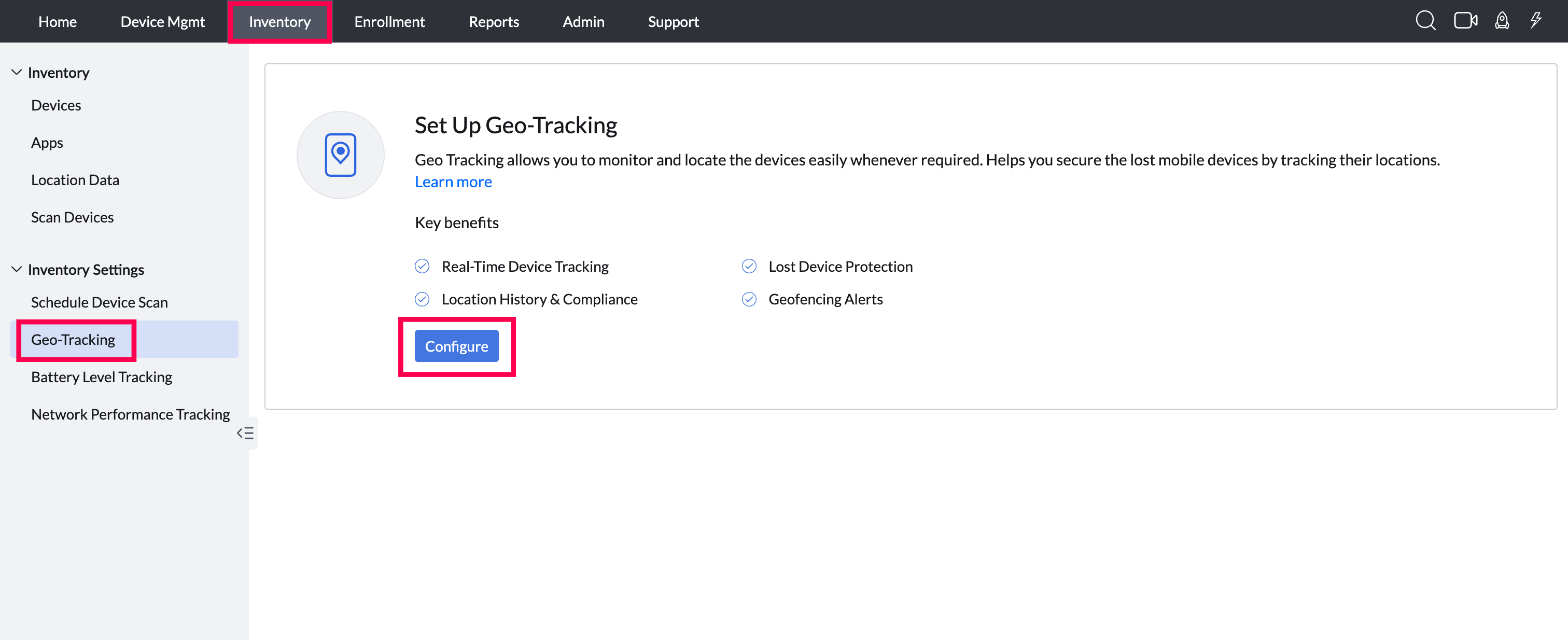
On the MDM console, navigate to Inventory. Under Inventory Settings->select Geo-Tracking. Click on Configure.
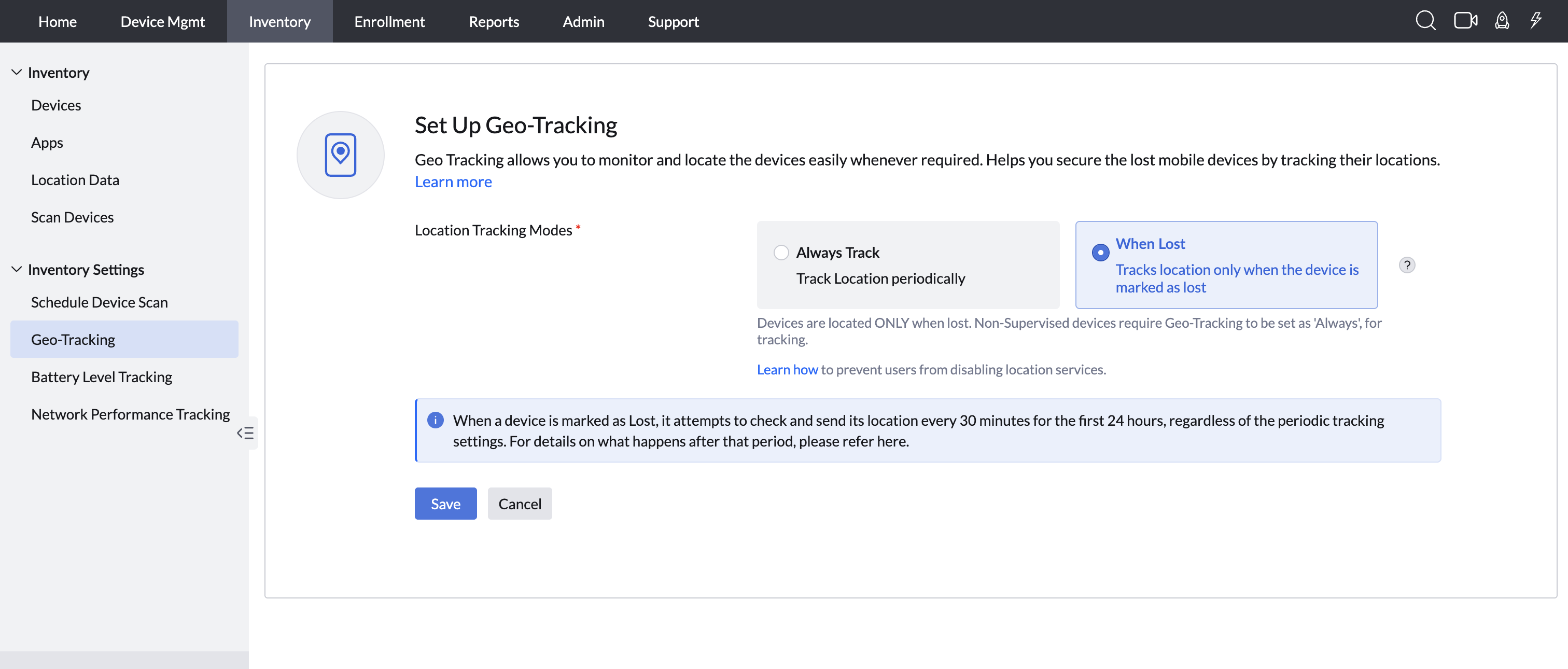
- Choose the Track devices option as desired:
When Lost: Select "When lost" if the devices need to be located ONLY when lost. click on save changes to complete the geo-tracking configuration. Unsupervised devices require Geo-Tracking to be set as 'Always', for tracking. Click on Save Changes to complete the geo-tracking configuration.
Always: It is recommended to choose Always On for location tracking to receive constant and precise location data of devices. When Track devices is chosen as Always, then the admin needs to configure the "Apply Geo-Tracking for" and "Location history" options.
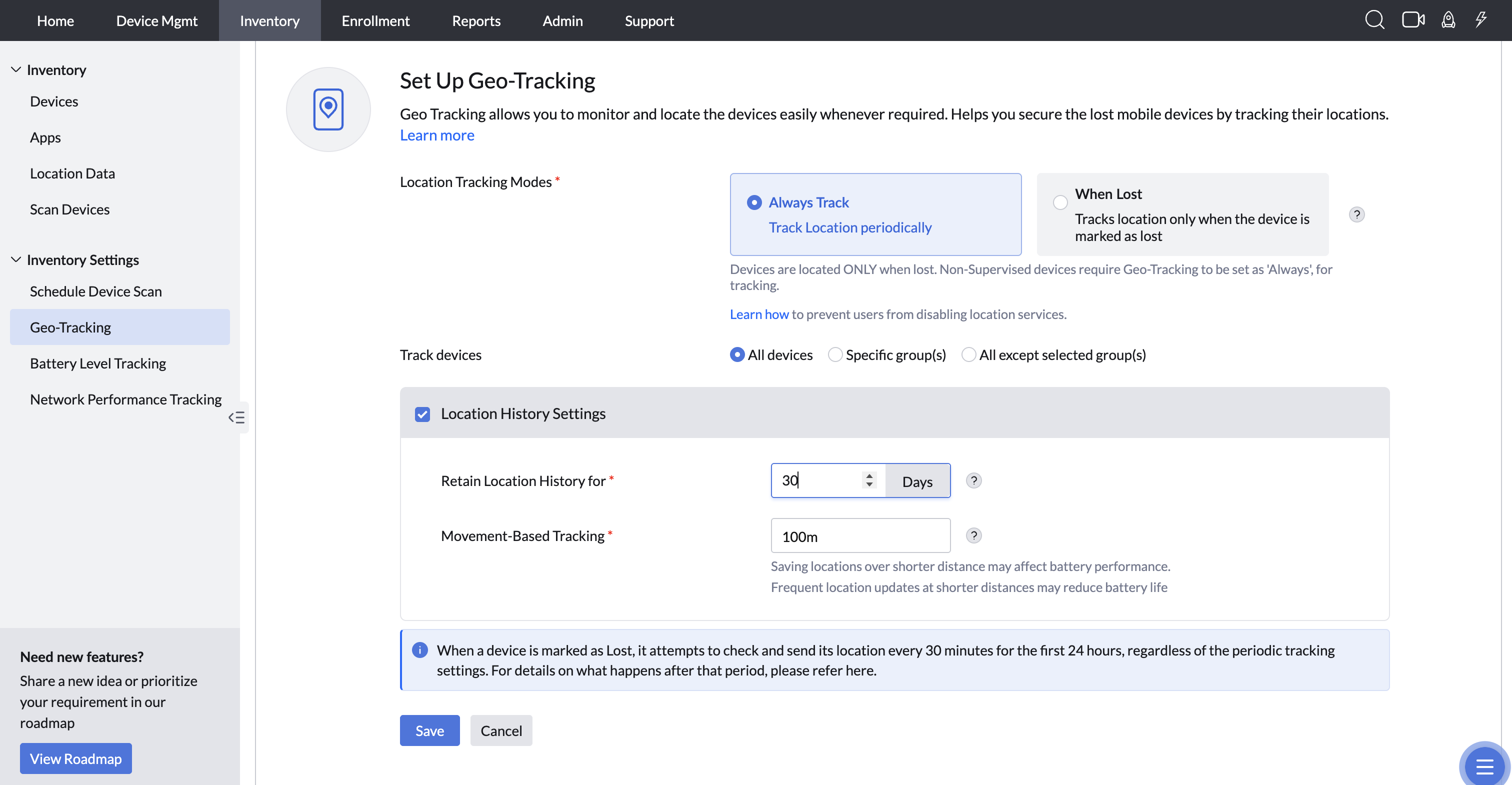
3. Apply Geo-Tracking for: You can choose any of these three options based on your scenario.
All Devices: To track the location details on all the managed devices. Choose Always option for Track Devices.
Selected Groups: To track the location details on the managed devices present in the group(s) selected. You can include selective devices into specific Groups, browse and select those group(s) to which you wish to apply Geo-Tracking settings. When a newly enrolled device is added to a Group which is already selected for Geo-Tracking, then the settings are automatically applied to the device and the location of the device can be tracked.
All except Selected Groups: To track the location details on all the managed devices except for the devices present in the group(s) selected. You can include selective devices into specific Groups, browse and select those group(s) to which you do not want to apply Geo-Tracking settings.
4. Location history: Location History as the name suggests, tabulates the list of locations traversed by the device. Location History stores data up to 30 days (by default), which is ideal if the locations are to be viewed at a later time. The biggest advantage with Location History, is that the tracking can be customized to suit the needs of the organization. MDM has 3 different options for storing the list of location(s) based on distance traversed. For storing locations when device movement is miniscule, choosing the option of tracking the device on moving 100m is ideal. In such a case, the location update frequency is more, ensuring even the smallest of movements are covered. The other two options cater to relatively larger distances, with one option tracking devices on moving 500m and the other for tracking devices on moving 1km. The first option of tracking devices on moving 100m, consumes more battery and cellular data due to frequent location updates, while the other two options consume relatively lesser cellular data and battery. Another advantage is that the Location History data can be exported as a CSV file. This is ideal if the Location History data is to be shared. To view the location history of the tracked devices at any time, choose Enable. Upon enabling Location History option, you need to configure the Save Location History for the last and Save location history on moving.
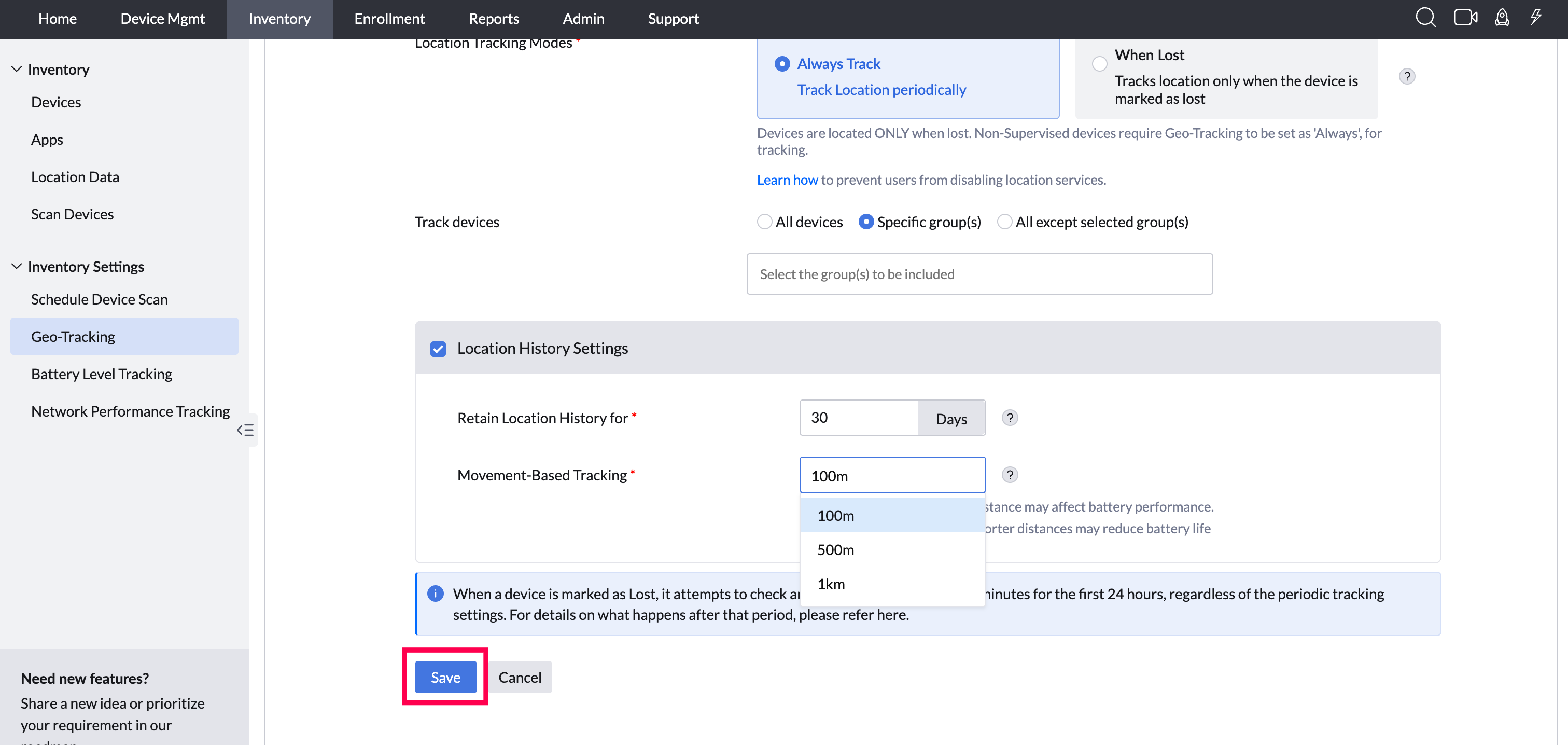
- Save Location History for the last: Provide the number of days (example: 30) for which you want to save the location history of the devices. Locations fetched before the existing setting (30 days) will not be displayed.
- Save location history on moving: Choose the distance (100m, 500m or 1km) for which you want to save the location history of the devices. When the device moves beyond the specified distance, the location will be updated and saved in the location history.
- Location History can be fetched only in managed Android, iOS and macOS devices.
- Location History cannot be obtained in the following cases:
- If the device is not connected to the Internet.
- If the device has been powered off.
- If Location Services is not enabled on the devices. Click here to know more about enabling Location Services in devices.
Disable Location History: To disable Location-History for All devices, Selected Groups and Specific groups, navigate to Inventory > Select Geo-Tracking. Choose Location History as Disable and save the changes.
Disable Geo Tracking On Mobile Device Manager Plus Console
To disable Geo-Tracking for all the managed devices:
- Navigate to Inventory > Select Geo-Tracking. Choose Disable.
- Choose Yes, Proceed.
How to enable Location Services for MDM Geotracking?
To locate the device using MDM Geotracking, Location Services must be enabled in the device and the Location Services must be set to 'Always On' for Self Service app (previously ME MDM app). Follow the steps mentioned below, to enable Location Services:
- Enabling Location Services in iOS devices
- Enabling Location Services in Android devices
- Enabling Location Services in Windows devices
- Enabling Location Services in Mac devices
This configuration is a part of device's privacy settings.
Managing Location Permission for BYOD Devices on Android 12 and Above
In Android 12 and later versions, the Mobile Device Manager Plus cannot automatically grant location permission by default for BYOD (Bring Your Own Device) devices. This limitation is specific to Android 12 or above, whereas in Android 11 and below, location permissions can be automatically enabled upon device enrollment.
Impact on Enrollment Process:
When Geo-Tracking is enabled in the MDM console and a BYOD device is enrolled on Android 12 or later, the device will receive a "Device Non-Compliant" notification. This occurs because the Self Service app (previously ME MDM app) does not have the necessary location permissions.
Steps to Enable the device Location Permission:
To resolve this and ensure the device complies with company policies, the device must manually grant location permission by following these steps:
- Click on the Device Non-Compliant message which will redirect to the App Info page of the ME MDM app.
- Select Permissions and Choose Location.
- Set the location permission to "Allow all the time".
Once location permissions are granted, the device will automatically become compliant.
Track devices instantly
Administrators can locate the enrolled devices instantly. Follow the steps mentioned below to track the geographic location of the devices on demand:
- On the web console, under Inventory, click Devices
- Select the Device which needs to be located
- Under Actions, click Locate Device, you can view the location of the device.
Note: For iOS devices, if the Locate Device command is initiated without notifying the user while the Self Service app (previously ME MDM app) is not running in the background or when the device is locked, the device location cannot be fetched.
When a device is located, the following extended location metadata is displayed in addition to latitude and longitude:
- Altitude: The altitude of the device, measured in meters above sea level.
- Speed: The speed at which the device is moving, measured in meters per second (m/s).
- Course: The direction of travel of the device, measured in degrees relative to true north.
- Horizontal Accuracy: The accuracy of the device’s horizontal position (latitude and longitude), expressed in meters.
- Vertical Accuracy: The accuracy of the device’s vertical position (altitude), expressed in meters.
Lost Mode Device Tracking
When a device is marked as Lost, MDM attempts to check and send its location every 30 minutes for the first 24 hours, regardless of the periodic tracking settings. After the initial 24-hour period, the device location will be tracked during the next device scan (after 24 hours).
Email Notification for Lost Mode
When a device is marked as lost, you can receive notifications via email. To configure email notifications, follow these steps:
- While enabling the Lost Mode command from Inventory Actions, in Step 2 you will be prompted to enter an email address to receive the device location.
- Select “Notify end-user via email.”
- Click Save.
Back to Online Device Detection
MDM identifies lost devices that come back online after being unreachable for more than 24 hours.
How it works:
- A banner on the Geo-Tracking settings page displays the count of devices that have come back online.
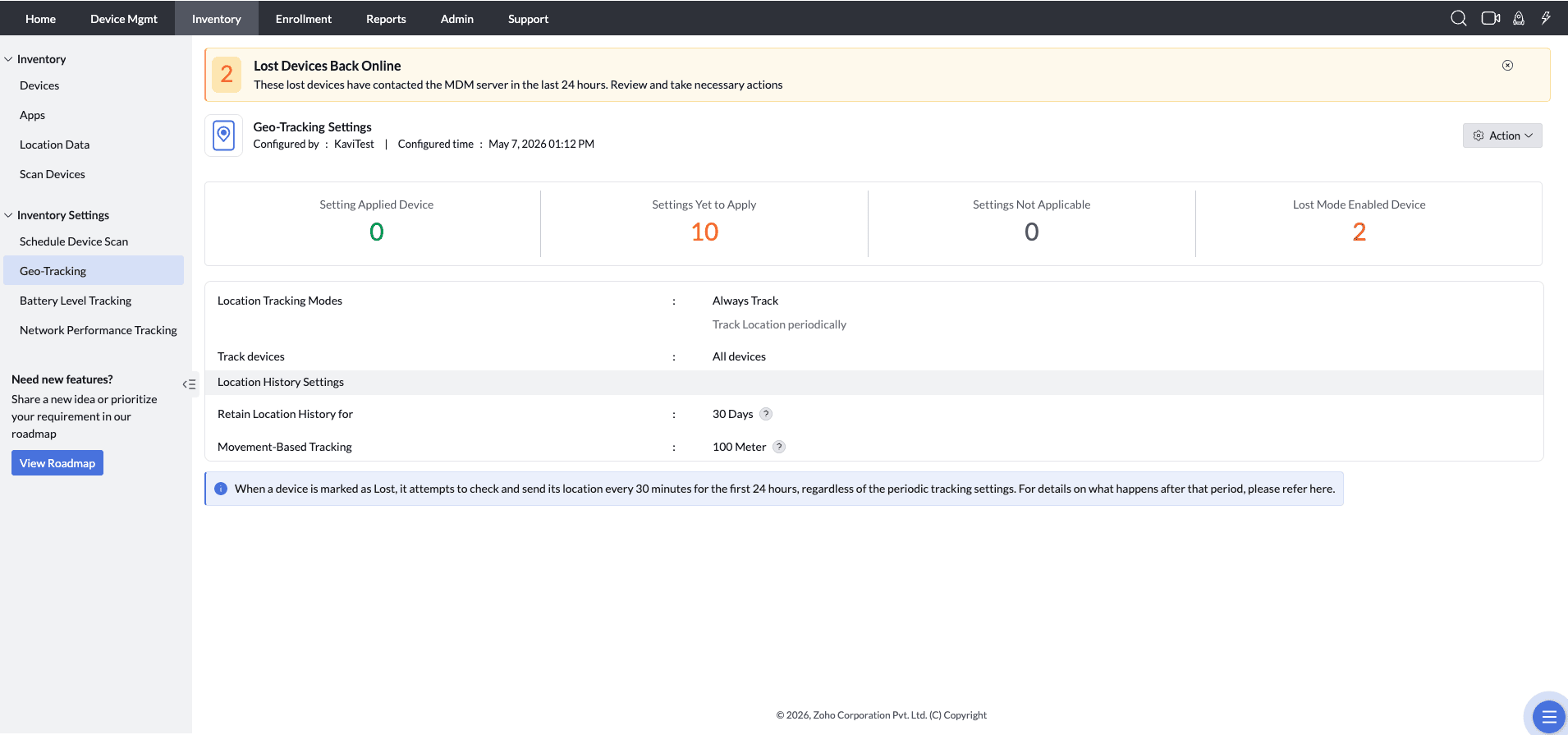
- Clicking the banner links to a filtered device list showing only those devices.
Location History
Location History provides a tabulated record of all locations traversed by a device. The data is stored for up to 30 days, making it suitable for reviewing past movements when required.
MDM offers three distance-based tracking options:
- 100 meters — Ideal for capturing minimal movements with higher accuracy
- 500 meters — Suitable for moderate movement tracking
- 1 kilometer — Best for broader, less frequent tracking
Choosing the 100-meter tracking option results in more frequent location updates, ensuring even the smallest movements are recorded. However, this comes with increased battery and cellular data consumption. In contrast, the 500-meter and 1-kilometer options are more optimized for reduced data usage and battery consumption.
Additionally, Location History data can be exported as a CSV file, making it convenient for sharing and external analysis.
Platform-Specific Behavior
Location updates are evaluated at defined intervals and are triggered based on both device movement and platform-specific behavior.
1. Apple devices:
Location updates occur only when the device has moved beyond the configured distance and the corresponding time interval has elapsed:
- 100 m — 5 minutes
- 500 m — 10 minutes
- 1 km — 10 minutes
2. Android devices:
Location updates are evaluated at set intervals and triggered when the device has moved from the last recorded location:
- 100 m — evaluated every 5 minutes
- 500 m — evaluated every 30 minutes
- 1 km — evaluated every 60 minutes
Location History entries now include extended metadata: altitude, speed, course, horizontal accuracy, and vertical accuracy, in addition to latitude and longitude. These fields are available across all location views, reports, CSV exports, and email notifications.
Generating reports based on Location History and details
Maintaining the accurate location history of devices can be challenging for admins, especially with devices traversing multiple locations over a period of time. Hence, in addition to the other Reports that can be configured for Groups and Devices, MDM supports location based reports.
Location details and History
The Location details and History report can be generated for iOS, macOS, iPadOS and Android devices. To generate a report,
- Click on Reports and select Predefined Reports and Location details and History.
- Specify the Platform of the devices and click on Browse to select the required Group(s).
- To receive the history of all the locations that the devices in the selected Group(s) have traversed, set the option to Yes for Include Location History.
Note: If this option is disabled, then only the recent location of the devices will be shown on the report. - You can choose to have the Location History of devices displayed on the report for a specific time interval. Under Display Location History, specify a time interval in hour(s) or minute(s). The time interval entered here should be either between 15-60 minutes or 1-6 hour(s). The settings configured under the Inventory tab for Geo-tracking will be used to obtain the Location History of devices for the report.
- The Location details and history can be displayed in the report based on a specific date and time range. This range can be customized based on the options given under the Collect Location History from field. Once selected, click on Apply.
- Click on Generate Report to save the settings and display the Location History details report.
Location Report with Device Address
The Location Report with Device Address can be generated for iOS, macOS, iPadOS, Android, and Windows devices. To generate a report
- Click on Reports and navigate to Predefined Reports.
- Specify the Platform of the devices and select the required Group(s).
- Set the option to Yes for Include Location Address.
- To receive the report, click on Send Report, and it will be delivered to your email.
The report sent to the email(s) will include the following details for each device and will be sent in .csv format
| Field | Description |
|---|---|
| Device Name | The name assigned to the device |
| User Name | The name of the user associated with the device. |
| Platform Type | The type of platform the device is using (e.g., iOS, Android). |
| Last Contact Time | The last time the device made contact with the server. |
| Serial Number | The serial number of the device. |
| Location Address | The most recent known address of the device. |
| Last Located Time | The last time the device's location was updated. |
| Maps URL | A link to view the device's location on a map. |
| IMEI | The device's International Mobile Equipment Identity number. |
| IP Address | The IP address assigned to the device. |
| UDID | The Unique Device Identifier for the device. |
| Latitude | The latitude coordinate of the device's location. |
| Longitude | The longitude coordinate of the device's location. |
Note: The report may take some time to arrive, depending on the number of devices being processed.
Geo-tracking status
Admins can generate a report of the location status of devices based on the platform, the accurate Geo-tracking status (ex: Active, Failed, etc), and time.
Platform based:
Navigate to Reports > Predefined Reports > Platform(s) to display the report based on the OS that the device runs on.
- Geo-tracking status:
You can view the accurate Geo-tracking status of devices by navigating to Reports > Predefined Reports > Geo-tracking status. The following are the different Geo-tracking statuses that MDM displays:
| Status | Description |
|---|---|
| Active | MDM is actively tracking the live location of the device. |
| Inactive | The device is not online or has no Internet connectivity. MDM will be able to fetch the Geo-tracking status of the device only when it is able to contact the MDM |
| Self Service app (previously ME MDM app) not activated | To fetch the location of the device, the Self Service app (previously ME MDM app) setup must be complete. Upon activation, the Geo-tracking status will be displayed. |
| Self Service app (previously ME MDM app) not found | To fetch the location of the device, Self Service app (previously ME MDM app) must be installed and setup on the device. Once the app is installed and activated, MDM |
| Location services disabled | Location services need to be enabled on the device. Set location settings to On and re-try fetching the location of the device. |
| Failed | Geo-tracking could not be enabled on the device. Verify the requirements and re-try the process. If the issue persists, contact support. |
| Not applicable | Geo-tracking is not supported for this device. |
Note: Location tracking for Wi-Fi only devices will be less accurate because it depends on factors like Wi-Fi connectivity and Bluetooth.
3. Last updated device location(s):
You can choose to generate a report based on when the location(s) of devices have been last updated to theReports > Predefined Reports > Geo-tracking status > Location last updated before, and select the required time (based on hours, minutes or days).
Choosing a Map for enabling Geo tracker on Google Maps
- Click on View in Google Maps to view the devices on Google Maps.
- Follow the steps that are displayed on the window, to download the CSV file of device locations.
- Open Google My Maps and click on Create a new map.
- Provide a name and description to help identify the map for later use.
- Click on Import to upload the CSV file downloaded from the MDM
- Check if Latitude and Longitude have been selected, then click on Continue.
- Choose the appropriate option to be displayed as the title of the markers, preferably the device name.
- Click on Finish to display the device locations.
Frequently Asked Questions
Can location permissions for specific apps be provided through MDM or Endpoint Central (EC)?
No, location permissions for specific apps cannot be provided through Mobile Device Manager Plus or Endpoint Central. Since location services impact user privacy, they remain under the user's control and cannot be forcibly enabled through Mobile Device Manager Plus.
How do I view device location history in MDM Plus?
To view device location history, navigate to Inventory > Geo-Tracking, enable Location History, and save the settings.
After enabling it, open Inventory > Devices > [Device] > Location to view historical location entries. You can also generate location history reports from the reports section.
How do I enable geolocation tracking on Android devices in MDM Plus?
For Android devices, configure location tracking from the MDM console and then ensure device-side location requirements are met.
- Corporate-owned Android devices: You can enforce location settings as Always On using Device Mgmt > Profiles > Android > Restrictions > Location Settings.
- Personally-owned Android devices: The end user must enable location services manually on the device and allow location permission for the Self Service app (previously ME MDM app).
To view the device location after setup, go to Inventory > Devices, select the device, and open the Location tab.
How do I enable location tracking for iPhones in Mobile Device Manager Plus?
For iPhones, supervision is not required for location tracking.
- Ensure the Self Service app (previously ME MDM app) is installed on the iPhone.
- On the device, enable Location Services and set location access for ME MDM to Always.
- In the MDM console, configure Geo-Tracking under Inventory > Geo-Tracking and save the settings.
- To view location, go to Inventory > Devices, select the iPhone, and open the Location tab.
Why does the location report in MDM display outdated data even after the device has recently contacted the server?
The location report reflects the timestamp of the last located time and the last contact time, which are tracked independently. If the device has not moved from its previous position, the last located time will remain unchanged, because the location is updated only when the device moves. This is expected behavior; location updates are triggered only on a significant change in the device's position. So a static last located time does not indicate a sync issue; it simply means the device has stayed in the same place, while the last contact time may still continue to update as the agent contacts the server.
To collect the recent location, you can do any of the following:
- Manually trigger a fresh inventory scan from the MDM module to force the device to report its current location.
- Navigate to Inventory > Devices > [Device] > Actions > Locate Device in the console to perform a location search and fetch real-time location data.
Troubleshooting_tips
- GPS is turned off on this device
Corporate-Owned Android devices: Create an Android profile > Restrictions > Location Settings > Location Services > Always On. Now distribute this profile to the managed devices.
Personally-Owned Android devices: Enable Location settings via Device Settings app > Location > Turn On.
iOS/iPadOS: Go to Settings > Privacy > Location Services > Toggle On. - Location permission is disabled for the MDM agent
Android: Go to Settings > Self Service app (previously ME MDM app) > Location > Select "Allow all the time".
iOS/iPadOS: Go to Settings > Self Service app (previously ME MDM app) > Location > Select "Always". - Location services are set to 'While Using App' only
iOS/iPadOS: Go to Settings > Self Service app (previously ME MDM app) > Location > Select "Always". - Location services are allowed only once
iOS/iPadOS: Go to Settings > Self Service app (previously ME MDM app) > Location > Select "Always". - Location services disabled in device privacy settings
On the MDM console > Device Privacy Settings > Geo Location > Collect and display. - Location services disabled on the MDM server
On the MDM console > Inventory > Geo tracking > Configure location tracking settings. Location services not available as Self Service app (previously ME MDM app) is not installed
Install the Self Service app (previously ME MDM app) from the App Store.