Support
 
Phone Get Quote
 
Support
 
US: +1 888 720 9500
US: +1 888 791 1189
Intl: +1 925 924 9500
Aus: +1 800 631 268
UK: 0800 028 6590
CN: +86 400 660 8680

Direct Inward Dialing: +1 408 916 9892


How to get the last modified file in a directory

Beyond ensuring compliance, monitoring file activity helps IT administrators detect unauthorized changes, investigate suspicious activity, and respond to potential insider or external threats.

For Windows Security to record the events of file or folder activities, file auditing policies and object-level auditing must be enabled.

 
  • Native Auditing
  • PowerShell
  • ADAudit Plus
  • Real-world use cases
  • FAQ and Troubleshooting
 

1. Track the last modified file in a directory using Native Auditing

To get the last modified file in a directory, file auditing policies must be enabled at the GPO level and at file/folder level. Once enabled, such file modifications are recorded as an event, which can be viewed using EventViewer.

1.1 Enable file auditing policies in GPMC

Follow the steps below to enable file auditing policies in the Group Policy Management Console (GPMC):
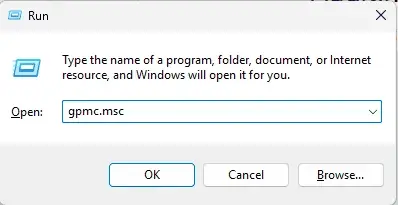
  1. Execute gpmc.msc to launch the GPMC using the Run command.
    Executing gpmc.msc in the Run command
    Figure 1: Executing gpmc.msc in the Run command
  2. Navigate to your desired domain.
  3. Right-click Default Domain Policy or any group policy created within the Domain Controllers drop-down.
    Note:

    Creating a separate GPO makes it easier to troubleshoot, manage, and modify auditing configurations without affecting other domain-wide policies.
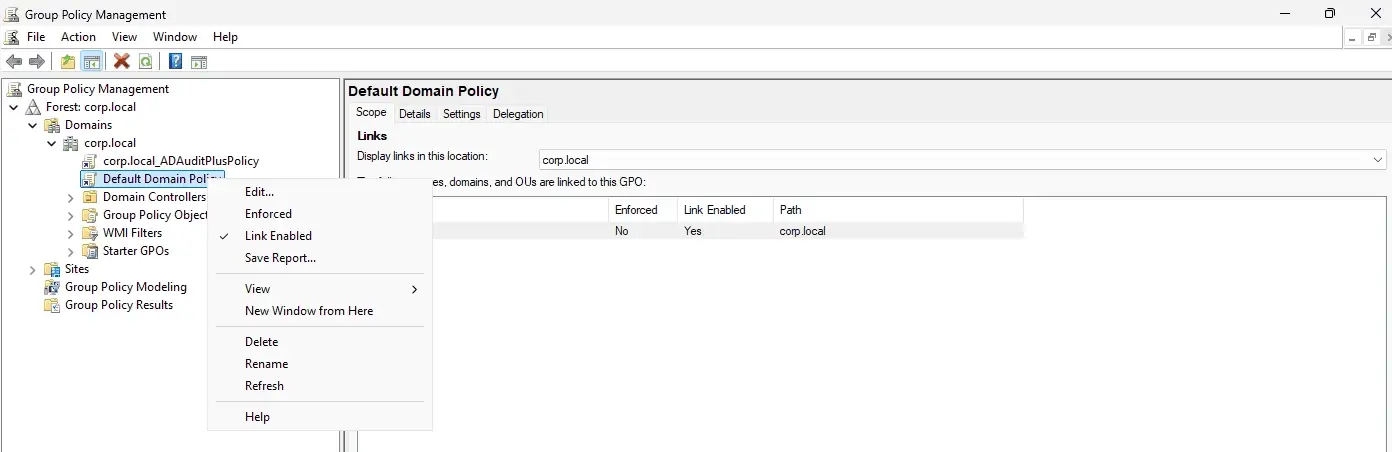
    Editing a GPO
    Figure 2: Editing a GPO
  4. Select Edit, then navigate to Computer Configuration > Windows Settings > Security Settings > Local Policies > Audit Policy.
  5. Under Audit Policy, double-click Audit object access to open its properties.
    Note:

    Audit object access is a specific audit subcategory. When enabled, it triggers Windows to start generating security log events, which are further collected by Event Viewer.
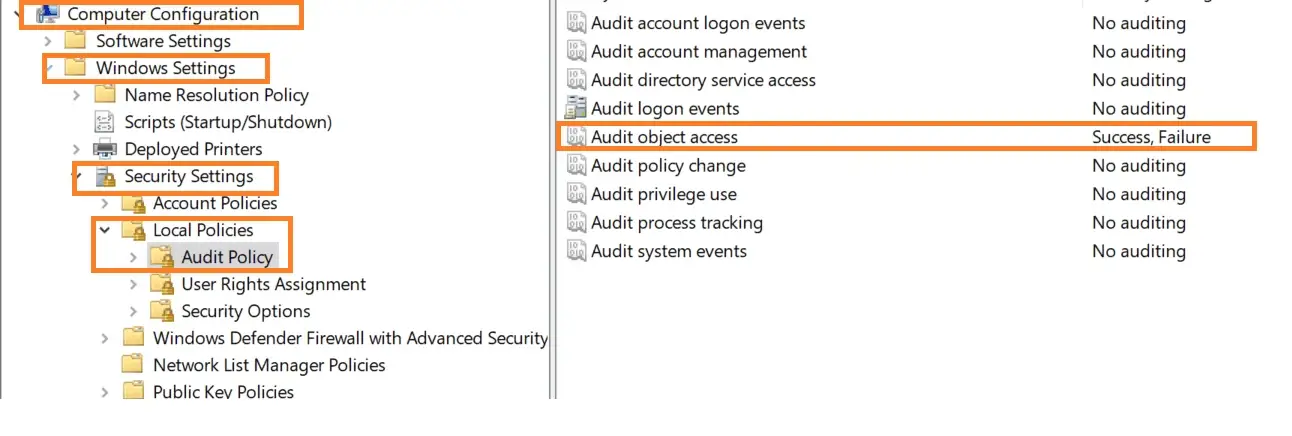
    Enabling the audit object access policy
    Figure 3: Enabling the audit object access policy
  6. Select Apply and click OK to save the configuration.

1.2 Enable object-level auditing (SACLs) at the file or folder level

  1. Open Windows Explorer and navigate to a file or folder from the preferred file share you want to audit.
  2. Right-click the file or folder and select Properties.
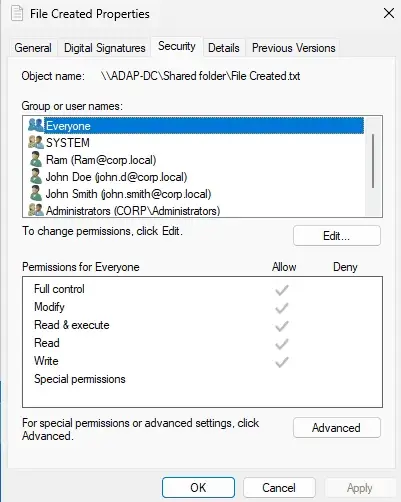
  3. Navigate to the Security tab and click Advanced to open the Advanced Security Settings window.
    Accessing the File Created Properties menu
    Figure 4: Accessing the File Created Properties menu
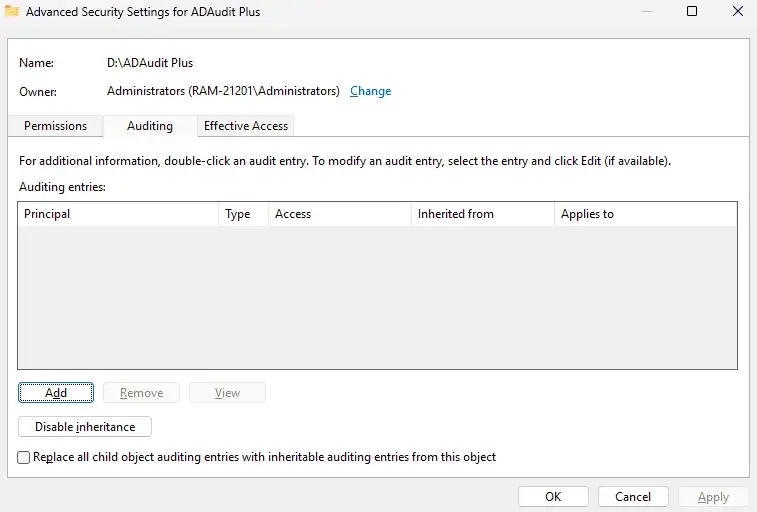
  4. In the Advanced Security Settings window, select the Auditing tab which displays existing auditing entries.
  5. Click Add to create a new auditing entry.
    Adding a new entry using the Advanced Security Settings menu
    Figure 5: Adding a new entry using the Advanced Security Settings menu
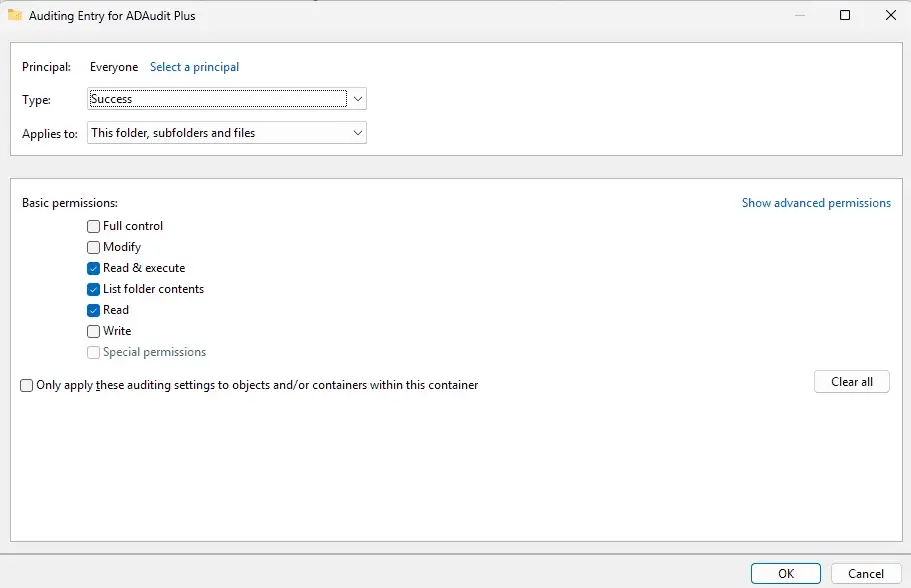
  6. In the Auditing Entry dialog box, in the Principal field, select Everyone or specify the group or user by clicking Select a principal.
  7. In the Type field, select All to audit both successful and failed events.
  8. In the Applies to field, select This folder, subfolders and files.
  9. Click Show advanced permissions, then select Write, Delete, or Create/write data.
    Adding a SACL entry
    Figure 6: Adding a SACL entry

1.3 How to track the last modified file in a directory with Event Viewer

Once auditing is configured, Windows records relevant file system activity through Event ID 4663. Event ID 4663- An attempt was made to access an object is generated when a particular operation is performed on an AD object such as file/folder. Tracking this eventID helps in identifying activities such as Read, Write, Delete or Moved. This eventID shall be tracked using the EventViewer.
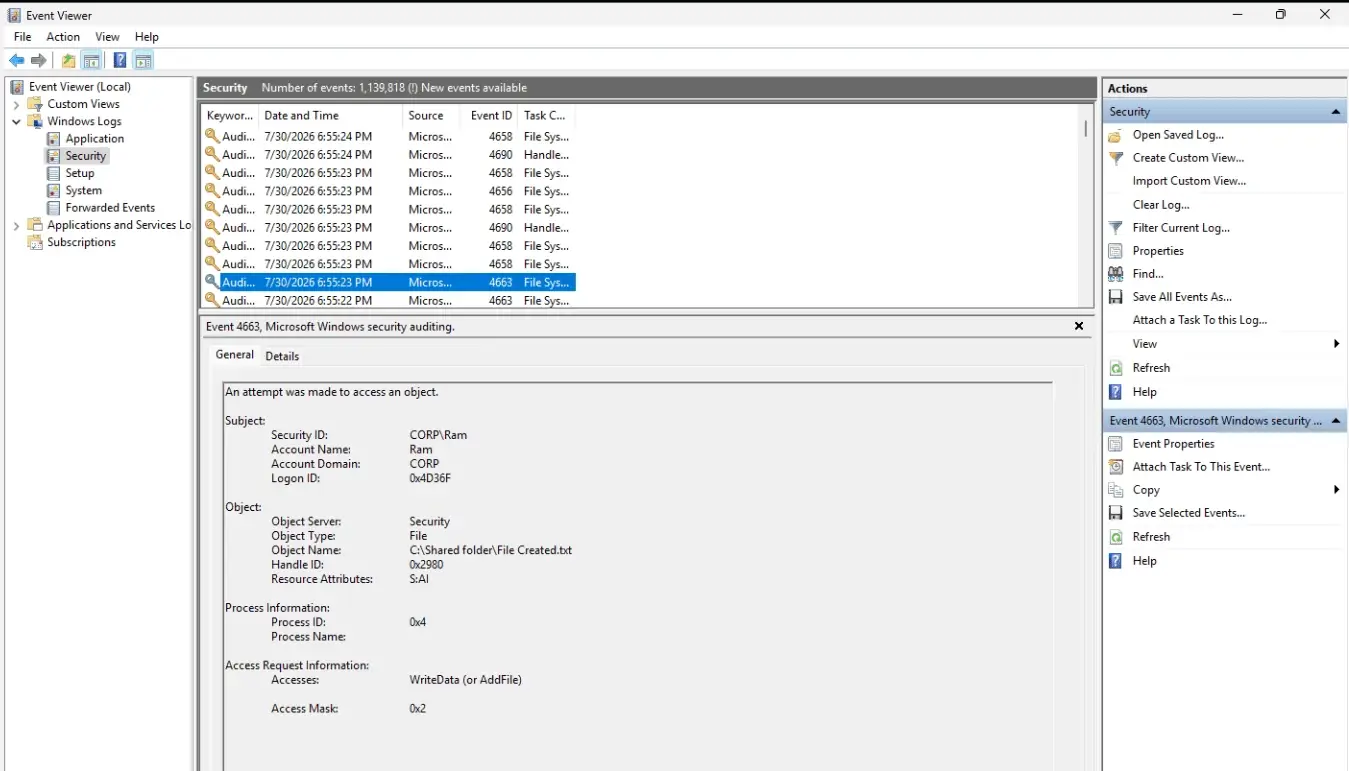
  1. Open Event Viewer.
  2. Navigate to Windows Logs > Security.
  3. Click Filter Current Log in the right pane under Actions. In the Filter Current Log dialog box that appears, enter 4663 under Includes/Excludes Event IDs.
  4. Select the Find tab in the Actions menu, then enter the desired directory path and click Next.
  5. Open the first event highlighted to view the details of the most recently modified file.
    Navigating to Event ID 4663 in Event Viewer
    Figure 7: Navigating to Event ID 4663 in Event Viewer

2. How to track the last modified file in a directory with PowerShell

The below PowerShell command sample returns the file name, last modification time, and file size of the most recently modified file.

Note:

The configuration of audit policies in GPMC and object-level auditing is not required when executing PowerShell commands.

Get-ChildItem -Path "C:\YourFolder" -File |
    Sort-Object LastWriteTime -Descending |
    Select-Object -First 1 |
 Select-Object Name, LastWriteTime, Length

Accessing the last modified file under a shared folder
Figure 8: Accessing the last modified file under a shared folder

Limitations of native auditing and PowerShell commands

Below are some limitations faced when tracking who last modified a file using native auditing and PowerShell commands:

  • Increased alert fatigue since Event ID 4663 is generated for every access or modification attempt (e.g., Read, Write, Delete), especially in frequently used directories.
  • Object-level auditing must be enabled at every directory level.
  • Logs collected are overwritten once the maximum security log size is used (set to 20MB by default).
  • PowerShell commands do not provide a historical trail of changes or crucial information such as who modified the file or the type of modifications performed.
  • The execution time of the commands may extend when involving large directories.
  • Execution is required at every file server to track each file modification.

3. How to track last modified file in a directory with ADAudit Plus

With the help of a centralized auditing solution like ADAudit Plus, administrators can monitor, investigate, and respond to file modifications more efficiently than native auditing and PowerShell methods.

To track the last modified a file in a directory with ADAudit Plus:

  1. Open ADAudit Plus.
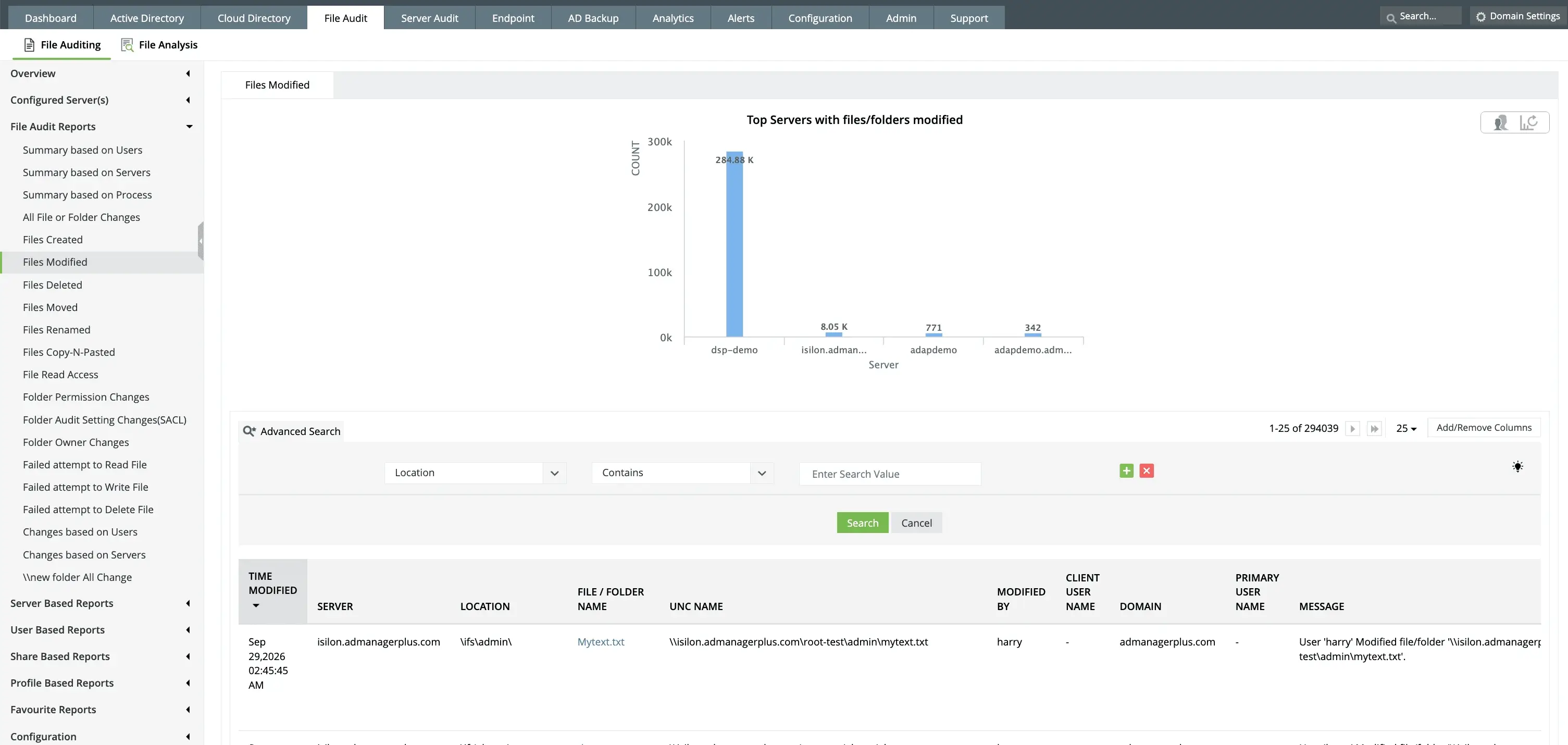
  2. Navigate to File Audit > File Audit Reports. Each report under this category offers curated information, such as:
    • The user who performed the modification
    • The file and folder name along with the directory path
    • The time of the modification
    • The type of activity performed
  3. Click Advanced Search, then enter the following:
    • Category: Location
    • Condition: Is
    • Value: Path of the directory/share (For example, \admin\adauditplus)
  4. Select Apply to initiate the filtered search result and check the first entry to identify the last modified the specified file.

With Advanced Search in each report, a filtered search of all file activities across the environment can be performed at once. Through this feature, you can view a complete audit trail of files from a specific directory or by a specific date and time range.

Additionally, ADAudit Plus offers customized reports, scheduled reporting, and real-time notifications to alert when changes are performed on critical files.
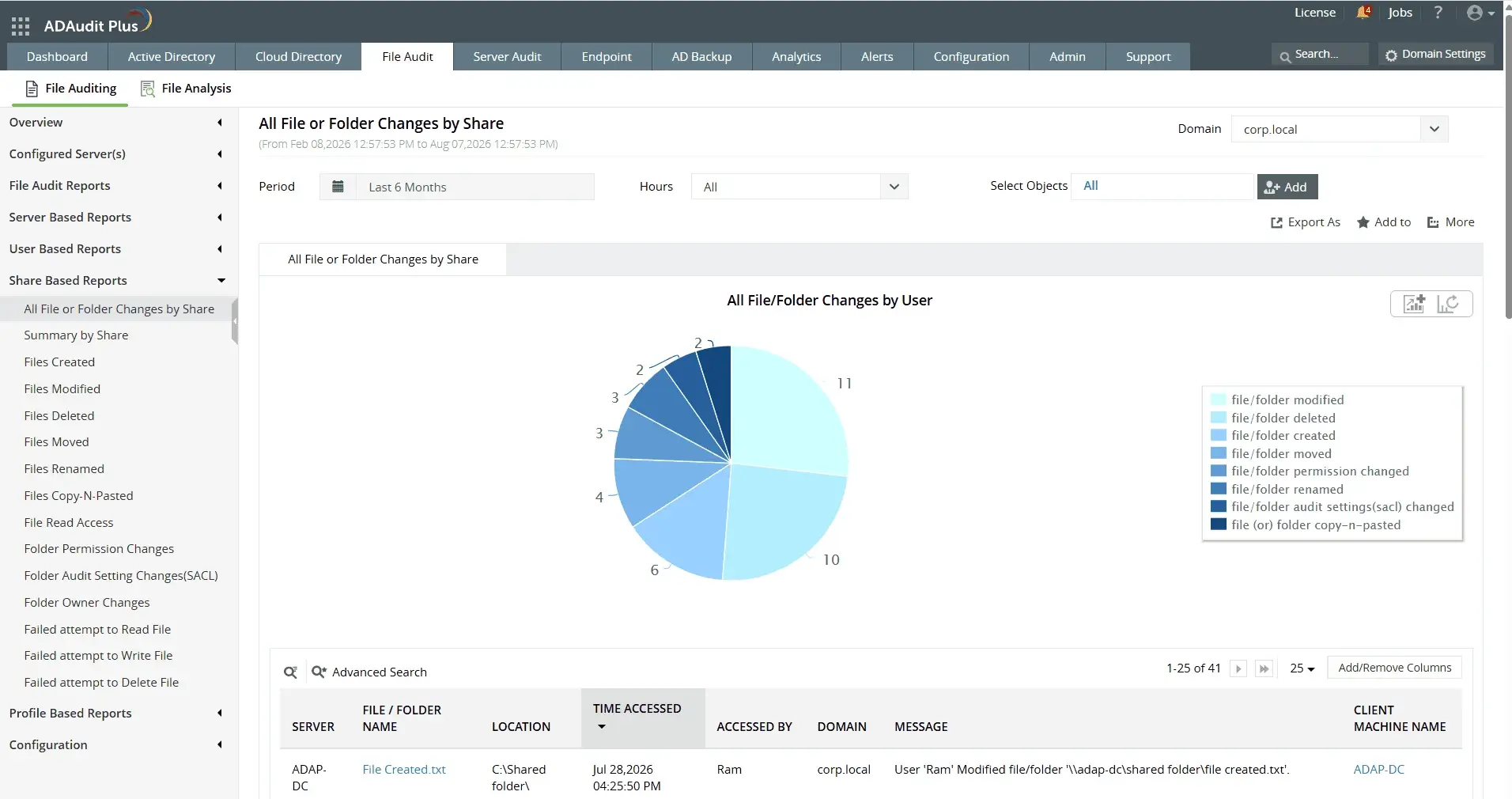
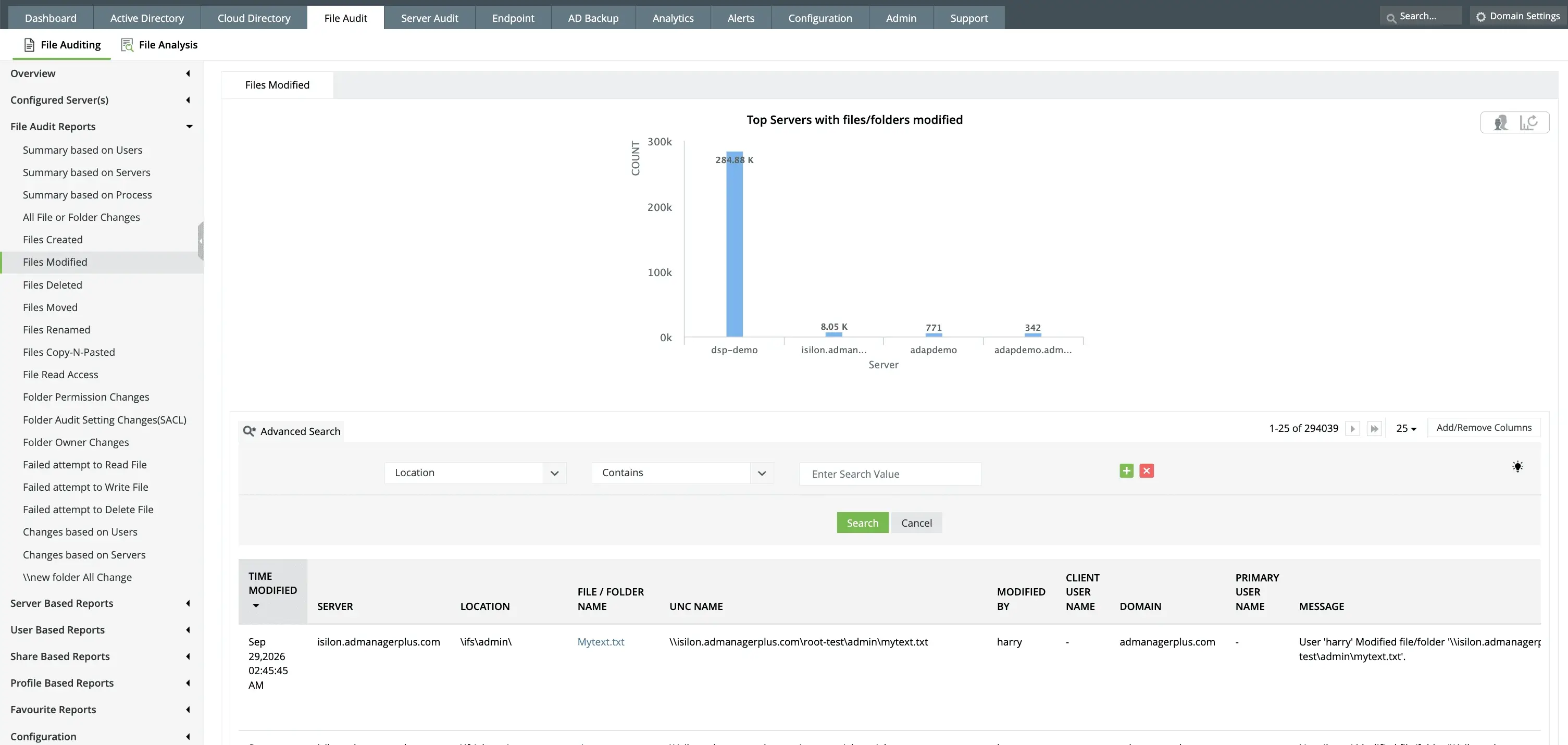
Accessing file auditing reports in ADAudit Plus
Figure 9: Accessing file auditing reports in ADAudit Plus

4. Real-world use cases

Use case 1- Get the most recently modified file in a directory including subfolders.

The below PowerShell command retrieves the last modified file in a directory that has multiple subfolders. It returns the name of the file modified, last modified timestamp, length of the file after modification, and its relative path.

PowerShell command to get recently modified file in a directory with subfolders
Get-ChildItem -Path "C:\YourFolder" -File -Recurse |
    Sort-Object LastWriteTime -Descending |
    Select-Object -First 1 |
 Select-Object Name, LastWriteTime, Length, DirectoryName

Accessing the last modified file of subfolders
Figure 10: Accessing the last modified file of subfolders

With ADAudit Plus

  1. Open ADAudit Plus
  2. Navigate to File Audit and open any of its reports.
  3. Click Advanced Search, then enter the following:
    1. Category: Location
    2. Condition: Is
    3. Value: Path of the directory/share
  4. Select Apply to initiate the filtered search result and check the first entry to identify the last modified the specified file.
Last modified file in a directory with ADAudit Plus
Fig 11: Last modified file in a directory with ADAudit Plus

2. To get the recently modified file of every subfolder in a directory.

PowerShell command to get recently modified file from every subfolder.
$path = "C:\YourFolder"
Get-ChildItem -Path $path -Directory | ForEach-Object {
    Get-ChildItem -Path $_.FullName -File -Recurse |
        Sort-Object LastWriteTime -Descending |
        Select-Object -First 1 |
        Select-Object @{l='Folder';e={$_.DirectoryName}}, Name, LastWriteTime, Length
}
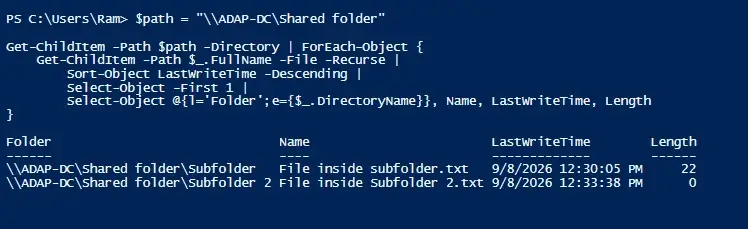
Accessing the last modified file of every subfolder
Figure 12: Accessing the last modified file of every subfolder

With ADAudit Plus

  1. Open ADAudit Plus
  2. Navigate to File Audit and open any of its reports.
  3. Click Advanced Search, then enter the following:
    1. Category: Location
    2. Condition: Is
    3. Value: Path of the directory/share (For example, \admin\adauditplus)
  4. Select Apply to initiate the filtered search result and check the first entry to identify the last modified the specified file.
Last modified file of every subfolder with ADAudit Plus
Fig 13: Last modified file of every subfolder with ADAudit Plus

3. To get the most recently modified file within a specific time range in a directory.

PowerShell command to get recently modified file in a directory in the last 24 hours.
$path = "C:\YourFolder"
Get-ChildItem -Path $path -File -Recurse |
    Where-Object { $_.LastWriteTime -gt (Get-Date).AddDays(-1) } |
    Sort-Object LastWriteTime -Descending |
 Select-Object Name, LastWriteTime, Length, DirectoryName
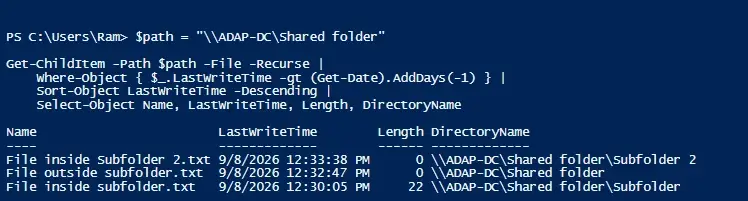
Accessing recently modified files from the last 24 hours
Figure 14: Accessing recently modified files from the last 24 hours
Note:

Change AddDays(-1) to your required number of days. For example: Use AddDays(-7) to receive the most recently modified files from the last seven days or AddDays(-30) for the last 30 days.

With ADAudit Plus
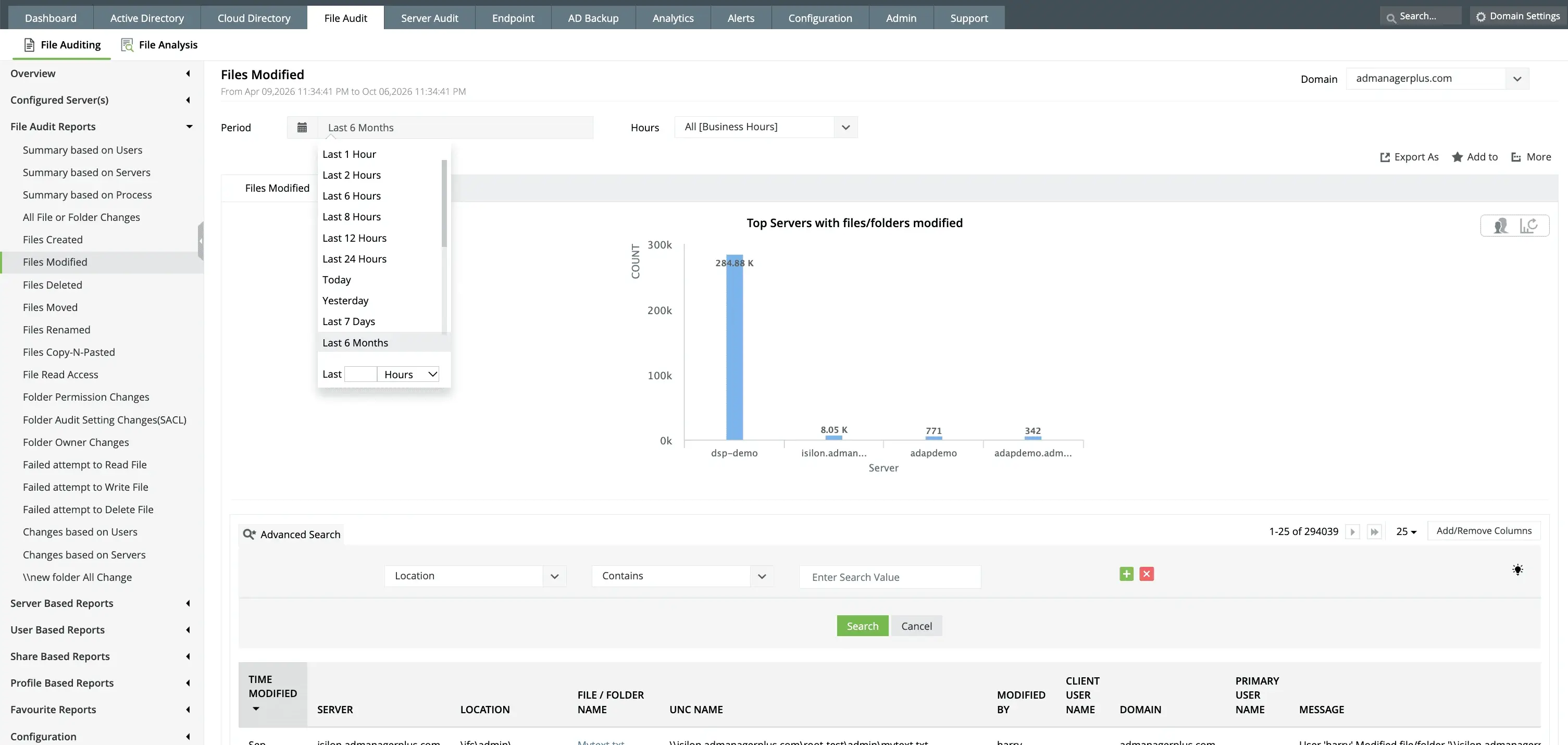
  1. Open ADAudit Plus
  2. Navigate to File Audit and open any of its reports.
  3. Select Period
  4. From the dropdown options, select last 24 hours.
  5. Click Advanced Search, then enter the following:
    1. Category: Location
    2. Condition: Is
    3. Value: Path of the directory/share (For example, \admin\adauditplus)
  6. Select Apply to initiate the filtered search result and check the first entry to identify the last modified the specified file.
Last modified file of a directory in the past 24 hours with ADAudit Plus
Fig 15: Last modified file of a directory in the past 24 hours with ADAudit Plus

FAQs

Get-ChildItem is a built-in PowerShell cmdlet that retrieves the list of items, such as files or folders, within one or more specified locations.

For example, Get-ChildItem -Path "C:\ADAudit Plus" lists all the files and sub directories within the ADAudit Plus folder.

Not necessarily. PowerShell commands are used to get the last modified file in a directory without enabling group policies or auditing entries. See the section on tracking the last modified file using PowerShell for sample commands.

Event ID 4663 is used to track file modifications. However, this Event ID is also generated whenever an action is performed on an object, such as a kernel or a file system object via a removable storage device.


 

ADAudit Plus Trusted By