Article


Support
 
Phone Get Quote
 
Support
 
US: +1 888 720 9500
US: +1 888 791 1189
Intl: +1 925 924 9500
Aus: +1 800 631 268
UK: 0800 028 6590
CN: +86 400 660 8680

Direct Inward Dialing: +1 408 916 9892

Metadata cleanup for Active Directory: Removing a domain controller that no longer exists

When a domain controller is permanently offline but its Active Directory objects remain, it can continue to appear in the directory and replication topology. This stale information can cause replication errors, stale FSMO role holders, and DNS inconsistencies until Active Directory cleanup is complete.

Metadata cleanup removes the Active Directory data that identifies the failed domain controller to the replication system. It can be performed using graphical tools or ntdsutil.

 
  • Prerequisites
  • Check FSMO roles
  • Method 1: ADUC
  • Method 2: Ntdsutil
  • Clean Sites and Services
  • Clean DNS records
  • FAQ and troubleshooting
 

1. What causes an orphaned domain controller?

A domain controller typically ends up “existing” in Active Directory metadata without being functional when:

  • It was forcibly powered off, rebuilt, or decommissioned outside of a proper demotion.
  • Hardware failure prevented a clean demotion.
  • It was forcibly demoted using Uninstall-ADDSDomainController -ForceRemoval, which does not clean up the domain controller’s metadata in Active Directory.
  • You can confirm this is the issue if repadmin /replsummary or Event Viewer shows replication errors referencing a server name that no longer resolves.

2. Prerequisites before removing domain controller metadata

Before removing the domain controller metadata:

  • Confirm that the domain controller is permanently offline or otherwise cannot be demoted normally.
  • Perform the cleanup from a healthy domain controller in the same domain, preferably a replication partner of the failed domain controller.
  • Use an account with Enterprise Admin permissions.
  • Identify the domain controller’s computer object and NTDS Settings object so that you do not remove the wrong server.
Note:

Metadata cleanup is a destructive operation. Make sure the domain controller will not be brought back online before removing its metadata, and never remove the metadata of a domain controller that still exists.

3. Check for FSMO roles

A failed domain controller may still be recorded as the owner of one or more FSMO roles. Run:

netdom query fsmo
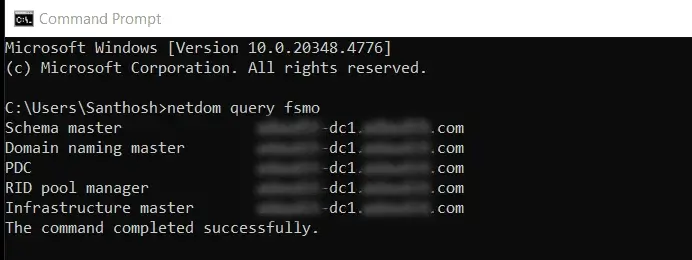
Command Prompt output of netdom query fsmo, listing the current FSMO role holders
Fig 1: Command Prompt output of netdom query fsmo, listing the current FSMO role holders.

If the failed domain controller still owns a role:

Metadata cleanup can attempt to transfer or seize FSMO roles associated with the retired domain controller, but verify the final role ownership after cleanup by running netdom query fsmo again.

4. Remove the domain controller

4.1 Method 1: Metadata cleanup using Active Directory Users and Computers

When you delete a domain controller’s computer object using the Active Directory Users and Computers (ADUC) or Active Directory Administrative Center version in Remote Server Administration Tools (RSAT), metadata cleanup is performed automatically. The server object and the computer object are deleted too, so you don’t need ntdsutil for most day-to-day cases.

Use this method when you can’t demote the domain controller through the normal removal wizard because it’s already offline or unreachable.
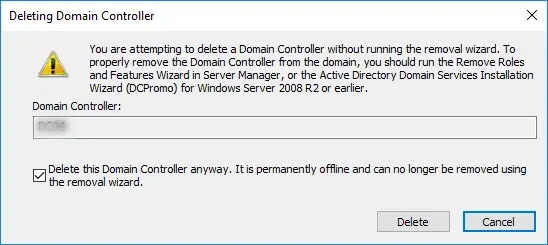
  1. Open Active Directory Users and Computers, and expand the Domain Controllers organizational unit.
  2. Right-click the retired domain controller’s computer object and select Delete.
  3. Select Yes to confirm the deletion.
  4. In the Deleting Domain Controller dialog, select Delete this Domain Controller anyway. It is permanently offline and can no longer be removed using the removal wizard, then click Delete.
    The Deleting Domain Controller dialog, with Delete this Domain Controller anyway selected
    Fig 2: The Deleting Domain Controller dialog, with "Delete this Domain Controller anyway" selected.
  5. If the domain controller was a global catalog server, confirm that you want to continue.

4.2 Method 2: Metadata cleanup using ntdsutil

Ntdsutil is a command-line tool that is installed on domain controllers and is also available on computers that have RSAT installed. Use it if you prefer to work from the command line.

  1. Open Command Prompt as administrator and start ntdsutil:
    ntdsutil
  2. At the ntdsutil: prompt, enter:
    metadata cleanup
  3. At the metadata cleanup: prompt, connect to a working domain controller:
                connections 
                connect to server <ServerName> 
                quit
            
  4. Select the target to remove:
    select operation target 
            list domains 
            select domain <number> 
            list sites 
            select site <number> 
            list servers in site 
            select server <number> 
            quit
  5. Remove the selected server and its metadata:
    remove selected server

    In the Server Remove Configuration dialog, review the warning carefully, then click Yes to remove the server object and its metadata. Ntdsutil confirms that the domain controller was removed successfully.

  6. Type quit at each prompt until you return to the command prompt.

If ntdsutil reports that the object cannot be found, the domain controller might already have been removed.

5. Clean up Active Directory Sites and Services

After metadata cleanup, confirm that no objects for the removed domain controller remain:

  1. In Active Directory Users and Computers, open Domain Controllers. The removed domain controller should no longer be listed.
  2. In Active Directory Sites and Services, expand the site, and open the Servers container.
  3. Check that the removed domain controller’s server object has no NTDS Settings object under it. If no child objects appear below the server object, delete the server object.

5.1 Alternative: Perform the cleanup in Active Directory Sites and Services

You can also remove the domain controller directly in Sites and Services. Delete the objects in this order: NTDS Settings first, then the server object, then the computer object.
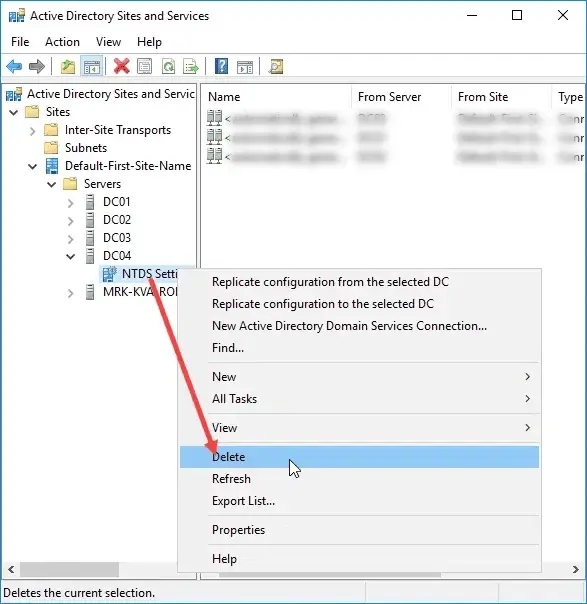
  1. Expand the domain controller’s site, expand Servers, and expand the name of the failed domain controller.
  2. Right-click NTDS Settings and select Delete.
    Active Directory Sites and Services, with Delete selected for the NTDS Settings object
    Fig 3: Active Directory Sites and Services, with Delete selected for the NTDS Settings object.
  3. Confirm the NTDS Settings deletion.
  4. Select the check box stating that the domain controller is permanently offline and can no longer be demoted, then click Delete.
  5. If the domain controller was a global catalog server, confirm that you want to continue. If it held operations master (FSMO) roles, follow the prompt to move them to the domain controller shown.
  6. Delete the failed domain controller’s server object.
  7. In Active Directory Users and Computers, delete the domain controller’s computer object from the Domain Controllers organizational unit if it is still present.

If you receive an Access is denied message, see the troubleshooting section below.

6. Clean up DNS records after removing the domain controller

Metadata cleanup doesn’t remove DNS records automatically. In the DNS Manager snap-in, remove every record that references the retired domain controller:

  1. Expand the zone for the domain the domain controller belonged to, and delete the domain controller’s Host (A) record.
  2. Delete the domain controller’s SRV records under the _msdcs, _tcp, _udp, and _sites subdomains, including the _gc SRV records if the domain controller was a global catalog server.
  3. Delete the domain controller’s CNAME record under the _msdcs.<forest root domain> zone.
  4. Right-click the zone, select Properties, open the Name Servers tab, and remove the entry for the retired domain controller. Delete any NS delegation records that reference it.
  5. Remove the domain controller’s PTR record from any reverse lookup zones.

7. Verify the domain controller metadata cleanup

After removing the failed domain controller, verify that no remaining domain controllers reference it.

  • Run repadmin /replsummary to confirm no replication partners still reference the removed DC.
  • Run repadmin /showrepl on remaining domain controllers to check for stale connection objects.
  • Run Get-ADDomainController -Filter * (PowerShell) to confirm the domain controller no longer appears.
  • Run DCDiag /Test:DNS /e /v to check DNS forwarders, delegation, and record registration, and review the results for stale records or DNS configuration problems involving the removed domain controller.

Failures at this stage point to incomplete cleanup or a topology issue that needs attention.

8. FAQ and troubleshooting

If metadata cleanup returns an Access is denied message, check whether the domain controller’s computer object or NTDS Settings object is protected against accidental deletion. In Active Directory Users and Computers:

  1. Select View > Advanced Features.
  2. Open the properties of the relevant object.
  3. Select the Object tab.
  4. Check whether Protect object from accidental deletion is enabled.
  5. If appropriate, clear the option and retry the cleanup.

Microsoft documents this as a possible cause of access-denied errors during metadata cleanup.

You can use PowerShell or ntdsutil. Seize the role onto a healthy domain controller.

  • PowerShell: add -Force to Move-ADDirectoryServerOperationMasterRole to seize instead of transfer. The -Identity value is the domain controller that receives the role. For example:
            Move-ADDirectoryServerOperationMasterRole -Identity <HealthyDC> `     
                -OperationMasterRole PDCEmulator -Force
            
  • ntdsutil: use the roles menu, connect to the healthy domain controller, and run the seize command for the role (for example, seize rid master).

The GUI cannot seize a role. Seize the RID Master only when you’re sure the old holder can’t return. The cmdlet advances the next RID pool by 30,000 and ntdsutil by 10,000.

Yes, as a last resort. In ADSI Edit, go to Configuration NC > CN=Sites > your site > CN=Servers, and delete the orphaned NTDS Settings. Also check LostAndFoundConfig for an orphaned NTDS Settings object, and make sure the change replicates to all domain controllers.

ADSI Edit changes are permanent, so take a system state backup first. You can also use ADSI Edit to remove stale SYSVOL replication references.

Errors usually mean leftover metadata or DNS records. Run DCDiag /Test:DNS /e /v to check DNS forwarders, delegation, and record registration. Then run repadmin /replsummary, and re-check the Sites and Services server list and the DNS Name Servers tab.

A graceful demotion contacts replication partners, replicates outstanding changes, and cleanly removes the domain controller from the directory. A forced demotion skips replication and does not clean up the domain controller’s metadata. Metadata cleanup is normally part of demotion.

When a domain controller is no longer reachable, it becomes a separate step that you run from another domain controller. Metadata cleanup only removes the domain controller’s records from AD. It doesn’t touch the failed server.


 

ADAudit Plus Trusted By