

- Free Edition
- Quick Links
- Microsoft 365
- Exchange Online
- Azure Active Directory
- Microsoft Teams
- OneDrive for Business
- SharePoint Online
- Skype for Business
- Related Products
- ADManager Plus Active Directory Management & Reporting
- ADAudit Plus Hybrid AD, cloud, and file auditing and security
- ADSelfService Plus Identity security with MFA, SSO, and SSPR
- Exchange Reporter Plus Exchange Server Auditing & Reporting
- EventLog Analyzer Real-time Log Analysis & Reporting
- M365 Manager Plus Microsoft 365 Management & Reporting Tool
- SharePoint Manager Plus SharePoint Online Management
- DataSecurity Plus File server auditing & data discovery
- RecoveryManager Plus Enterprise backup and recovery tool
- AD360 Integrated Identity & Access Management
- AD Free Tools Active Directory FREE Tools
What are virtual tenants?
M365 Security Plus' concept of virtual tenants is segmenting users based on domain, group membership, job location, and other user attributes for administrative requirements. Administrators can create virtual tenants pertaining to a specific department, team, project, and every possible user group, and delegate operations to technicians.
Important points to consider
Before you begin, you need to remember that, once enabled, virtual tenant delegation cannot be disabled, and the option to delegate domains to technicians will no longer be available. In which case, admins have to create new virtual tenants with domains added to them, and delegate those virtual tenants instead of directly delegating the domains.
Steps to create virtual tenants
- Go to the Settings tab.
- Navigate to Configuration → Other Configuration → Virtual Tenants
- Click on Create Virtual Tenant.
- Provide a name for the virtual tenant to be created, and choose the Microsoft 365 tenant in which it must be created.
- In the Filter by section, set the below condition, based on which the users should be filtered. Use the + option to set multiple conditions.
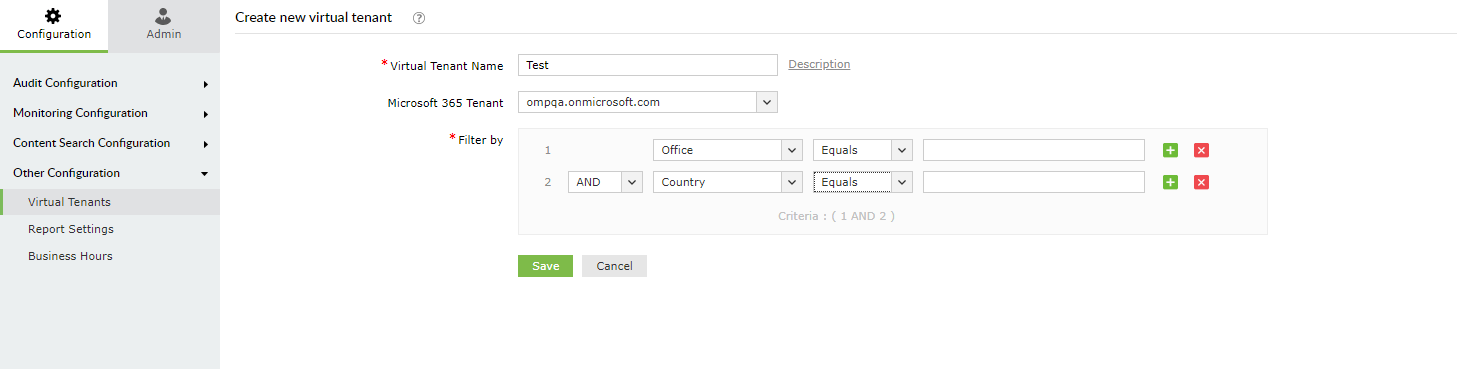
Note: Use the below condition to create virtual tenants with domains,

- In the third text box add domains using the + option.
- Click Save


Steps to delegate virtual tenants to technicians
- Go to the Delegation tab.
- Select Help Desk Delegation → Help Desk Technician in the left pane.
- Select Edit Technician in the Actions column corresponding to the technician you want to edit.
- In the Delegates To section, select the virtual tenant to be delegated from the drop-down.
- Click Save Changes.