

Preventing unwanted file copy actions is vital to safeguard business-critical data from theft and limit unwanted duplication of files and folders within your data repositories. ManageEngine DataSecurity Plus provides in-depth visibility into all file accesses and restricts file copy actions across local and shared folders.
Steps to protect files from being copied using DataSecurity Plus
- Open the DataSecurity Plus web console. Select Endpoint DLP from the top navigation bar.
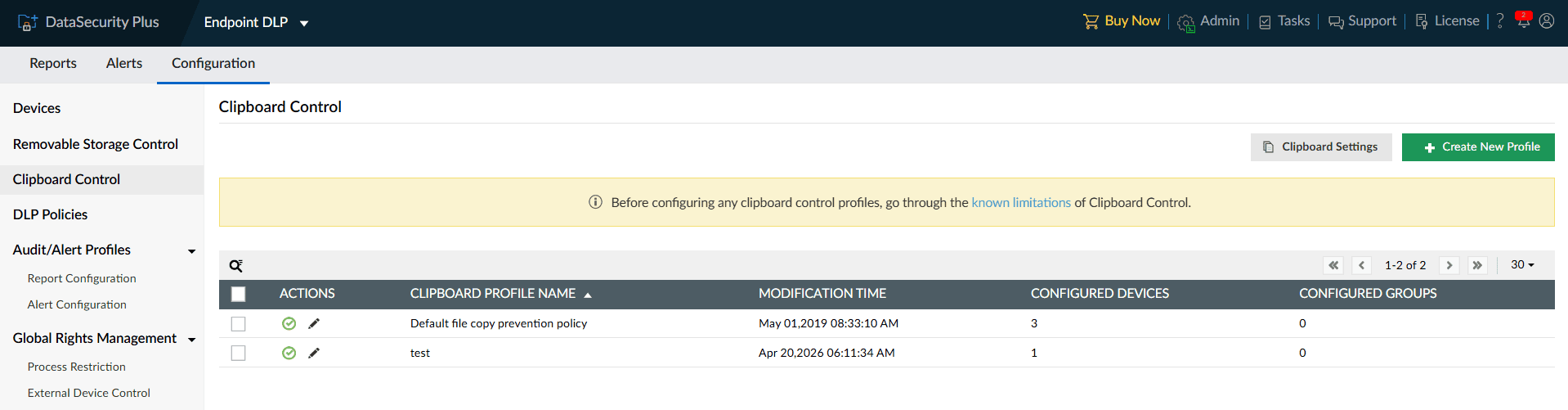
- Navigate to Configuration > Clipboard Control. Click + Create New Profile.
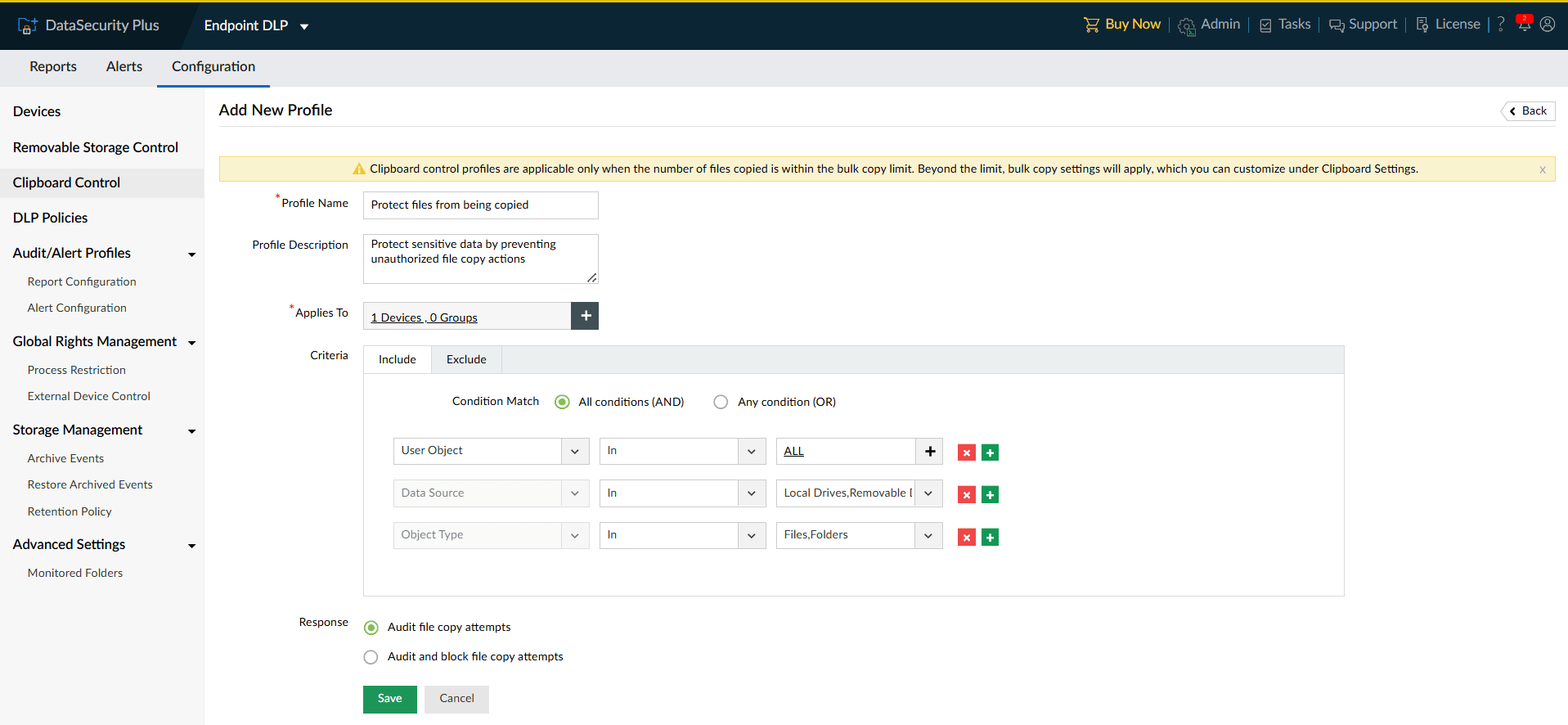
- In the Add New Profile page, enter a suitable Profile Name and Profile Description.
- In the Applies To tab, click the plus icon (+) and select the devices and device groups to which the clipboard control policy should be applied.
- Under Criteria, choose to include and exclude configurations based on your organization's requirements.


Sample configurations
Audit large file copy attempts by critical users
Use case: To audit large medical record file copy attempts across critical share paths in a healthcare environment.
- In the Include tab, choose All conditions (AND).
- In the first row of drop-downs, select File Size > Greater than > 100 MB.
- In the second row of drop-downs, choose Location > Contains > C:\Patient records\, D:\ClinicalData\Radiology\, \\FileServer01\Shared\PHI\.
Block copying of critical reports to external drives
Use case: To prevent users from copying confidential financial reports to USBs or external storage locations.
- In the Include tab, choose All conditions (AND).
- In the first row of drop-downs, select User Object > In > ALL.
- In the second row of drop-downs, select Data Source > In > Network Drives, Removable Drives.
- In the third row of drop-downs, select Object Type > In > Files, Folders.
- In the fourth row of drop-downs, select File Name > Contains > Financial_Reports, Forecast, Revenue, Payroll, and Compensation.
- In the Exclude tab, Select Location > Contains > \\Finance-Archive\Approved\.
- In the Response section, choose Audit and block file copy attempts. Customize the message within the Prompt Message tab and click Save.
You can also configure the system to automatically block copy actions, such as when the number of copied files exceeds a predefined limit, without evaluating the event against clipboard control profile conditions.
This is useful for preventing large-scale data theft attempts during which checking each file individually may be unnecessary and resource intensive. Refer to the Clipboard Control help documentation to know more or get in touch with our product experts.
Frequently asked questions
-
1. How can I prevent users from copying sensitive files?
Without a dedicated DLP (Data Loss Prevention) or copy-protection solution, it is difficult to reliably block users from copying sensitive files. Once a user has legitimate access to a file, they may still duplicate it through downloads, screenshots, transfers to external devices, or modified applications. However, you can reduce the risk by implementing controls such as role-based access, file encryption, watermarking, restricted download permissions, endpoint management, audit logging, and secure web-based viewers that avoid exposing the raw file directly to the user.
-
2. Why is blocking risky file copy actions important for organizations?
Without proper file copy restriction strategies in place, the organization can risk losing sensitive data to bad actors. Additionally, blocking file copy helps prevent data leaks, insider threats, and unauthorized data transfers, ensuring that sensitive information remains secure and compliant with regulations. In DataSecurity Plus, this can be achieved using policies that can be applied to protect locally stored files, files shared across the network, and files accessed on removable drives, giving you complete data security coverage.
-
3. Can I control file copying for specific users or devices in DataSecurity Plus?
Yes, DataSecurity Plus allows you to define granular policies based on users or devices, allowing you to control who can copy files and under what conditions. Using inclusion and exclusion criteria, you can permit file copying for trusted users while restricting it for others, all within the same policy framework.
-
4. How is clipboard control different from clipboard alert profile in DataSecurity Plus?
Clipboard control is a preventive measure designed to reduce potential data leak risks by auditing and blocking copy actions depending on administrator-defined profiles. In contrast, the clipboard alert profile is a response mechanism that enables administrators to trigger actions—such as email notifications to technicians, automated script executions, or file moves or deletions—when clipboard activity matches defined criteria.
-
5. Does DataSecurity Plus initiate blocking when employees copy large volumes of files?
Yes, DataSecurity Plus supports blocking file copy actions when it surpasses predefined limits. Setting the bulk copy limits in the clipboard control profiles as per your organizational requirements allows you to monitor or restrict high-volume copy operations. If the bulk copy limit threshold is lower than the number of files copied, the events will be validated against the clipboard control profile and the bulk copy action will be allowed/ blocked and audited as a single event.