DHCP Fingerprinting in Windows: Applying Smarter DHCP Policies for Device Profiling with DDI Central
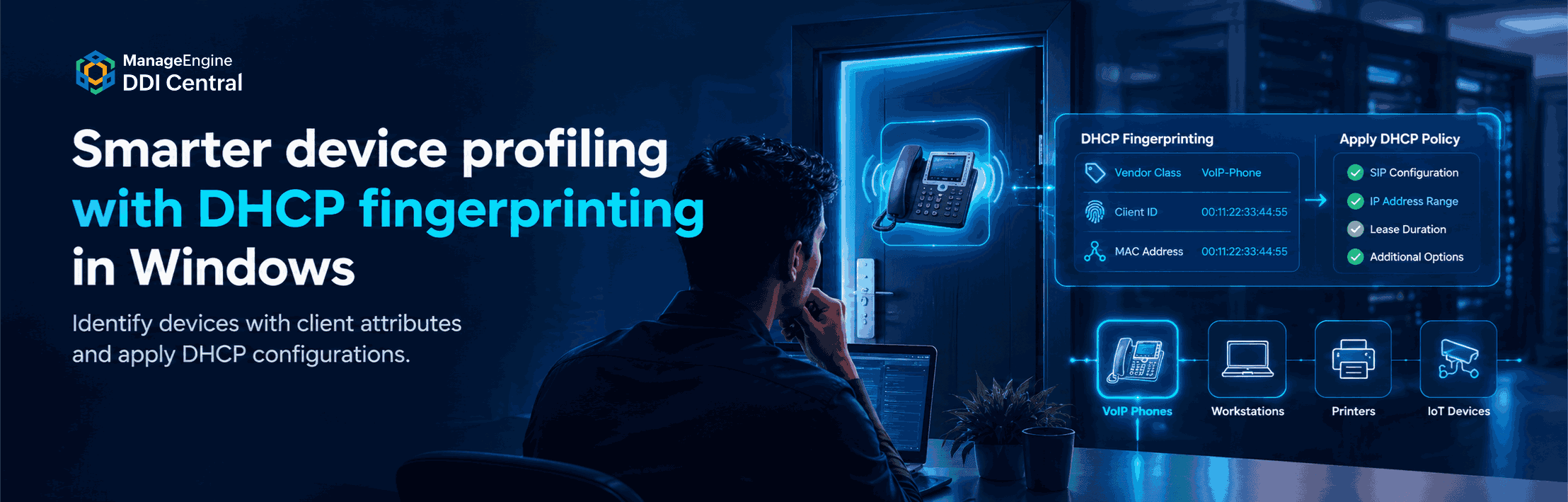
Enterprise networks host a variety of devices, from workstations and VoIP phones to printers and IoT devices. Each group may have different network configuration requirements, making it increasingly difficult to maintain consistent settings as the network grows.
Microsoft DHCP policies help address this challenge by evaluating attributes in DHCP requests and applying configurations based on defined conditions. When used for device profiling, DHCP fingerprinting techniques can help administrators distinguish client groups using available identifying attributes and configure their network settings accordingly.
ManageEngine DDI Central simplifies this process by providing a centralized interface to create and manage Microsoft DHCP policies. This helps administrators reduce repetitive configuration tasks, maintain consistent settings, and manage device-specific requirements more efficiently across their Windows DHCP environments.
Applying DHCP fingerprinting to device-specific policies
How can a DHCP server distinguish a VoIP phone from a workstation when both connect to the same network?
DHCP requests can contain attributes that help differentiate clients. These include vendor class, user class, client identifier, media access control (MAC) address, and other available criteria.
Administrators can use these attributes to define conditions in Microsoft DHCP policies. When an incoming request matches the configured conditions, the DHCP server can apply the corresponding settings, such as an IP address range, DHCP options, and lease duration.
DDI Central brings policy creation and management into a centralized interface, allowing administrators to define matching criteria and associate them with the required configurations. Instead of maintaining individual settings for every client, administrators can establish reusable policies for different device groups.
The result is a more manageable approach to DHCP configuration, particularly in environments where devices and their requirements continue to change.
A practical scenario: 1,000 VoIP phones, one policy
Meet John, a network administrator responsible for maintaining the Windows DHCP environment at a large enterprise. His organization uses 1,000 Grandstream VoIP phones, and the network team needs to ensure that these phones receive the appropriate DHCP configuration for their deployment, including any required provisioning settings.
But John has a problem. If he configures every phone individually, he will have to repeat essentially the same task 1,000 times. That means even more work if another batch of phones joins the network next month.
John may be an experienced administrator, but he cannot clone himself into a thousand copies just to keep up with DHCP configurations!
What if he could define the configuration once and let the DHCP server handle matching phones as they connect?
That's where DHCP fingerprinting and Microsoft DHCP policies in DDI Central come in.
Rather than relying on manual device-by-device configuration, John can use a verified identifying attribute in the Grandstream phones' DHCP requests to define a policy for the intended devices. Then, he can associate that policy with the DHCP settings required by the phone deployment, including supported provisioning-related options where applicable.
When a phone sends a DHCP request that satisfies the policy conditions, the Windows DHCP server can apply the corresponding configuration.
But what happens when another compatible phone joins the network? John doesn't need to recreate the same policy for that device. As long as the policy remains enabled, the new phone provides the expected identifying attribute, and the DHCP server is configured appropriately, the existing policy can handle the matching request.
One policy, a repeatable process, and less repetitive work for John.
The same approach can be used for other device groups, including workstations, printers, and IoT devices. Administrators can make DHCP configuration more consistent and easier to maintain as the network grows by defining suitable matching conditions and the appropriate setting for each group.
Configuring device-specific DHCP policies with DDI Central
The effectiveness of a DHCP policy depends on three things: identifying the intended clients, defining where the policy applies, and specifying the configuration those clients should receive.
DDI Central provides capabilities to manage each of these aspects, helping administrators build policies around their network requirements.
Define the policy scope
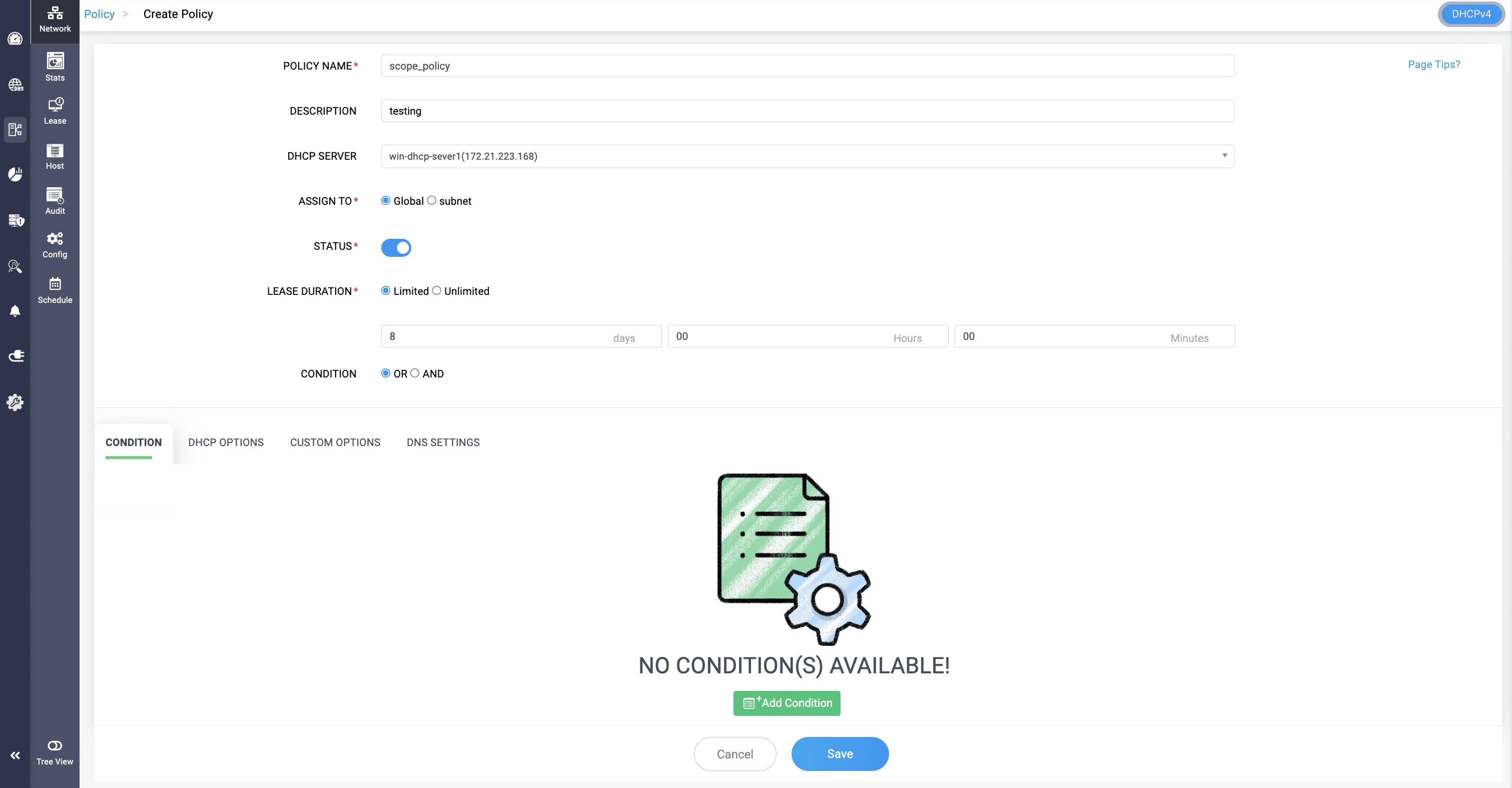
Not every DHCP policy needs to apply across an entire network. A configuration intended for VoIP phones in one subnet, for example, may not be appropriate for workstations in another.
Microsoft DHCP supports policies at the server level and within individual subnet scopes. DDI Central allows administrators to select the appropriate scope and, where applicable, specify the IP address range associated with the policy.
This provides flexibility when applying configurations across different network segments. A policy can target a particular subnet when the requirement is localized, helping administrators avoid applying device-specific settings more broadly than intended.
Identify clients using policy conditions
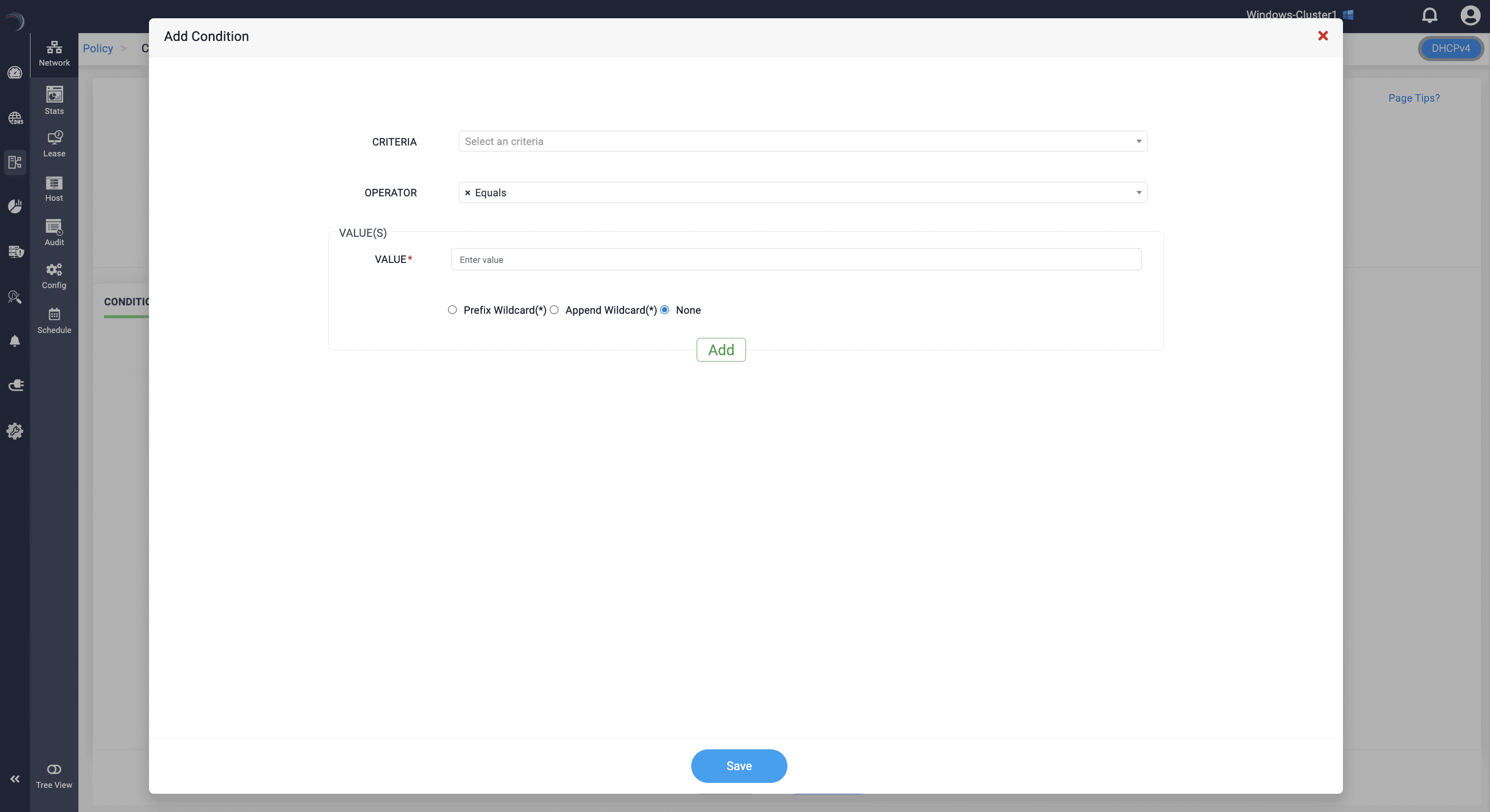
Once the policy scope is established, the next consideration is how to identify the clients that should match it.
DDI Central supports conditions based on DHCP client attributes, including:
Vendor class: Match clients based on the vendor class information they provide.
User class: Use client-provided user class information to distinguish groups.
MAC address: Match clients using their hardware address.
Client identifier: Evaluate the identifier supplied by the DHCP client.
FQDN: Use the client's fully qualified domain name as a matching criterion.
Relay Agent Information: Evaluate supported relay agent information.
Circuit ID, Remote ID, and Subscriber ID: Use these attributes where they are available and relevant to the network environment.
For John's Grandstream VoIP deployment, a verified vendor class value could serve as the identifying condition if the phones consistently provide that value in their DHCP requests. The appropriate criterion depends on the phone model, its configuration, and the attributes available to the DHCP server.
DDI Central also supports prefix and append wildcards, allowing administrators to match values using known patterns rather than requiring an exact match in every case.
Prefix wildcard (*): Placed at the beginning of a value to match values ending with the specified pattern.
Append wildcard (*): Placed at the end of a value to match values beginning with the specified pattern.
When a single attribute isn't sufficient to distinguish the intended clients, administrators can combine multiple conditions using logical operators:
AND: All configured conditions must be satisfied.
OR: At least one configured condition must be satisfied.
These options help administrators refine policy matching according to their requirements. Carefully defined conditions reduce the likelihood of applying configurations to unintended clients, while suitable combinations of attributes can help target specific device groups more precisely.
Apply the appropriate DHCP options
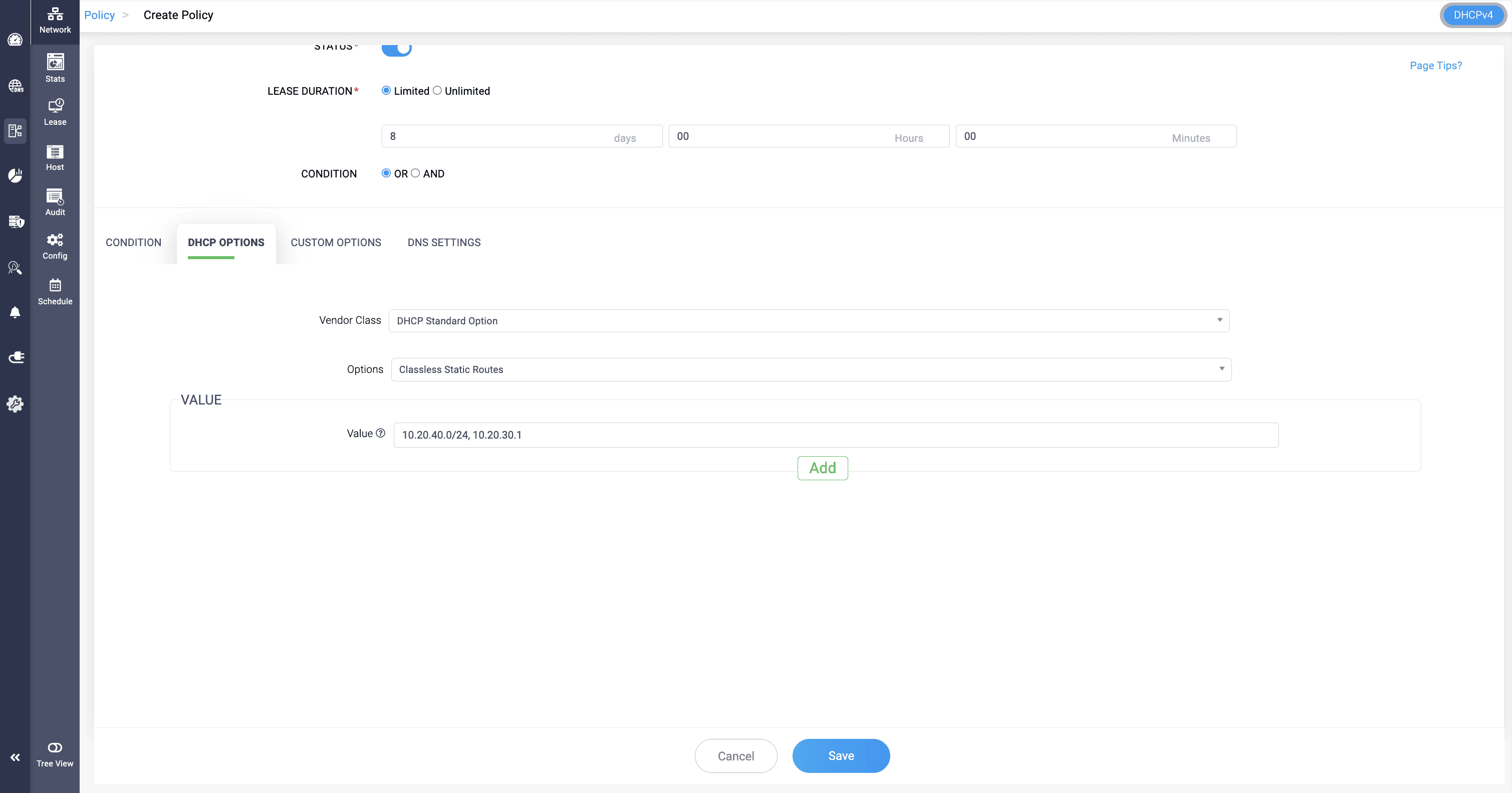
Using ManageEngine DDI Central, John can create a Microsoft DHCP policy that matches the phones using their vendor class identifier. Then, he can configure the relevant DHCP options for his deployment:
Provisioning server (Option 66): Direct compatible phones to the server that hosts their configuration files.
SIP server (Option 120): Provide the SIP server's IP address or FQDN when the phones and deployment support this option.
Network settings: Apply the appropriate IP address range and other required options, such as the default gateway, DNS servers, and NTP server.
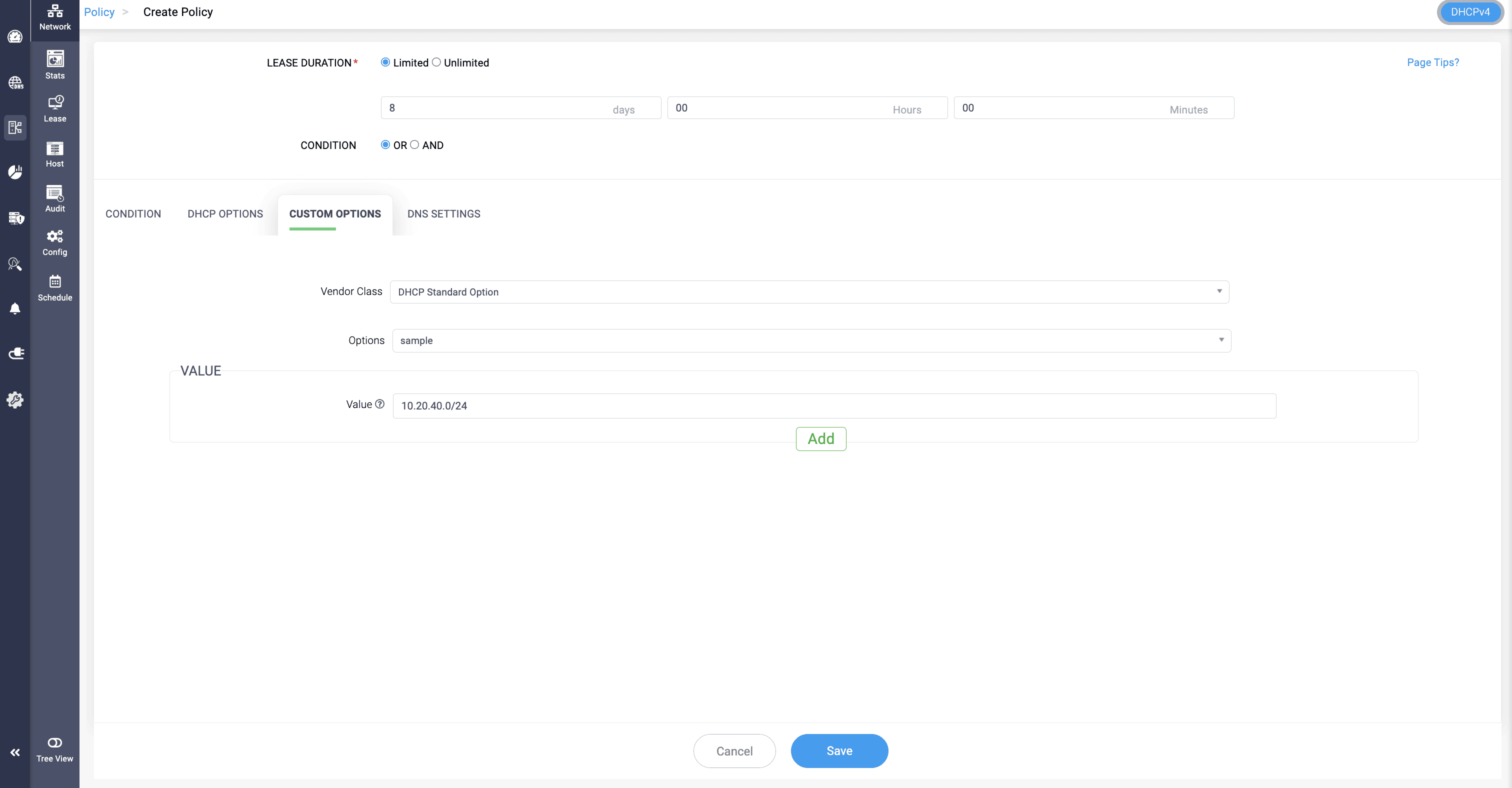
With the policy configured and enabled, the Windows DHCP server can apply the corresponding settings to requests that meet its conditions. When additional compatible phones join the network, they can receive the same policy-based configuration without John having to configure each phone individually.
The result? Less repetitive configuration, more consistent settings across the phone fleet, and a simpler way to accommodate future additions.
Manage DNS settings alongside DHCP policies
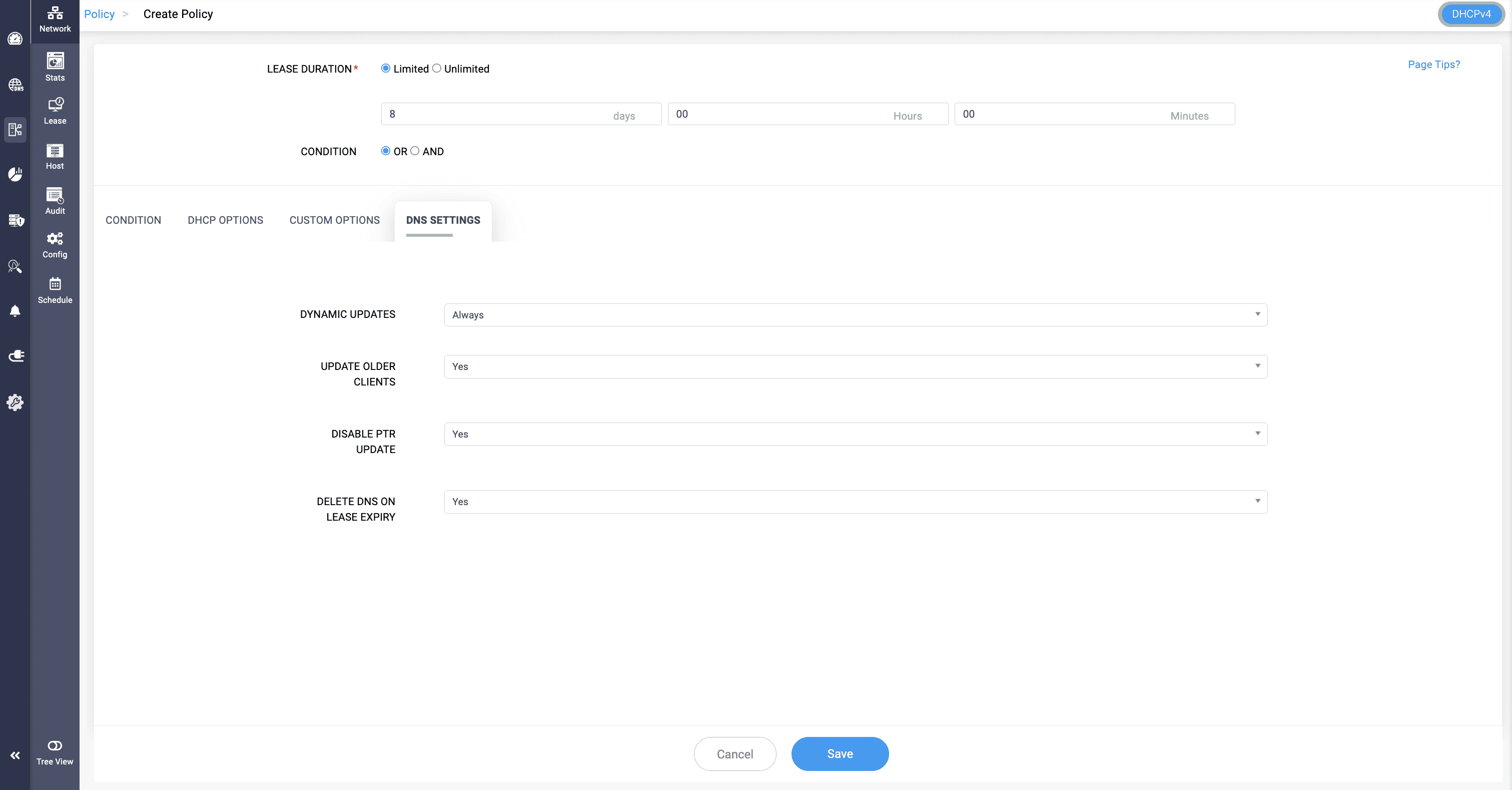
DHCP policies can also influence how DNS records associated with clients are maintained. Appropriate DNS settings help administrators manage name registration and record updates according to the requirements of their Windows DHCP and DNS environments.
DDI Central provides policy-level DNS settings that include:
Dynamic updates: Configure how DNS records are dynamically updated.
Update older clients: Configure whether DNS records can be updated for clients that do not support dynamic updates themselves.
Disable PTR update: Control whether updates to reverse DNS records, also known as pointer (PTR) records, should be disabled.
Delete DNS on lease expiry: Configure whether DNS records should be deleted when a client's DHCP lease expires.
For an administrator managing multiple device groups, these settings provide additional control over DNS record maintenance alongside DHCP configuration. Choosing the appropriate values can help reduce inconsistencies and support more predictable name resolution.
The settings should be aligned with the organization's DNS architecture and the intended behaviour of its DHCP clients.
Maintain consistent policy behaviour as the network grows
A policy is most useful when it can be reused as the environment changes. Once the matching conditions and associated settings have been configured, administrators can save the policy and ensure that it is enabled.
The selected Microsoft DHCP server evaluates incoming requests against the configured conditions and applies the relevant policy settings to matching clients, subject to the server's configuration and policy behaviour.
This means John doesn't have to recreate the same configuration every time another phone requests DHCP services. The existing policy provides a repeatable way to handle matching requests, provided the new clients meet the configured conditions.
For network teams, this reduces repetitive administration and makes device-specific configuration easier to maintain. Instead of managing every client as a separate task, administrators can manage groups of clients through appropriately defined policies.
Simplifying Windows DHCP policy management with DDI Central
As enterprise networks expand, manually identifying devices and maintaining their individual DHCP configurations can place an increasing burden on network administrators.
DHCP fingerprinting techniques and policy-based configuration help address this challenge by using available client attributes to determine which settings should apply to different device groups.
ManageEngine DDI Central centralizes Microsoft DHCP policy management, providing an interface for defining policy conditions, configuring DHCP options, and managing associated DNS settings. This helps administrators reduce repetitive tasks, maintain consistent configurations, and accommodate changing device requirements more efficiently.
So, does John need a thousand copies of himself to manage a thousand VoIP phones? Not when an appropriately configured DHCP policy can handle matching requests for him.
Ready to simplify Windows DHCP management? Start your 30-day free trial or book a personalized demo to explore DDI Central.