How DNS Record Monitoring in DDI Central helps manage DNS record performance
Consistent monitoring of DNS services and their data is essential for organizations to ensure smooth DNS operations across the network. It helps to identify network disruptions and issues for quick troubleshooting. This is where the Record Monitoring feature is especially vital.
Record Monitoring in DDI Central helps monitor the status and health of DNS records within a specific domain, verifying whether they are active and in service, or down and require troubleshooting.
The insights from this monitoring alerts network administrators to resolve issues quickly, which ensures continuous DNS service and prevents major network downtime and client delays.
Configuring record monitoring in DDI Central
Here's how record monitoring can be configured and implemented seamlessly:
1. Visual insights and overview of the DNS records
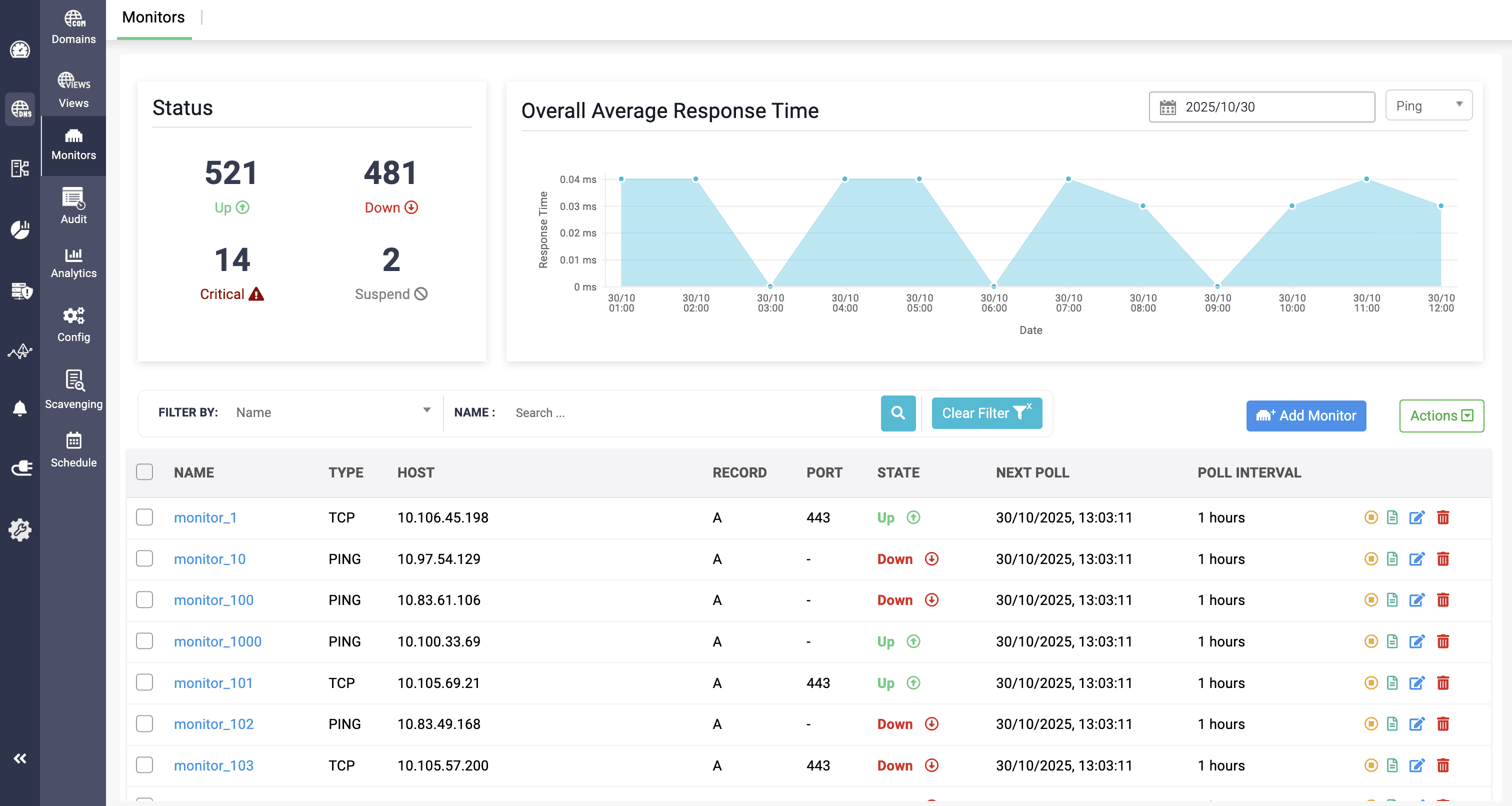
DDI Central’s monitor dashboard provides clear visibility into the current status of DNS records (up, down, critical, suspended), overall average response time, and a tabular view of monitor details such as name, type, host, associated record, port, next poll, and poll interval.
By clicking on a specific monitor in the table, you are redirected to a detailed stats view of that monitor, presented through visual charts showing information like average response time, overall availability, polling summary, availability summary, and outages across different time periods.
2. Seamless DNS monitor creation
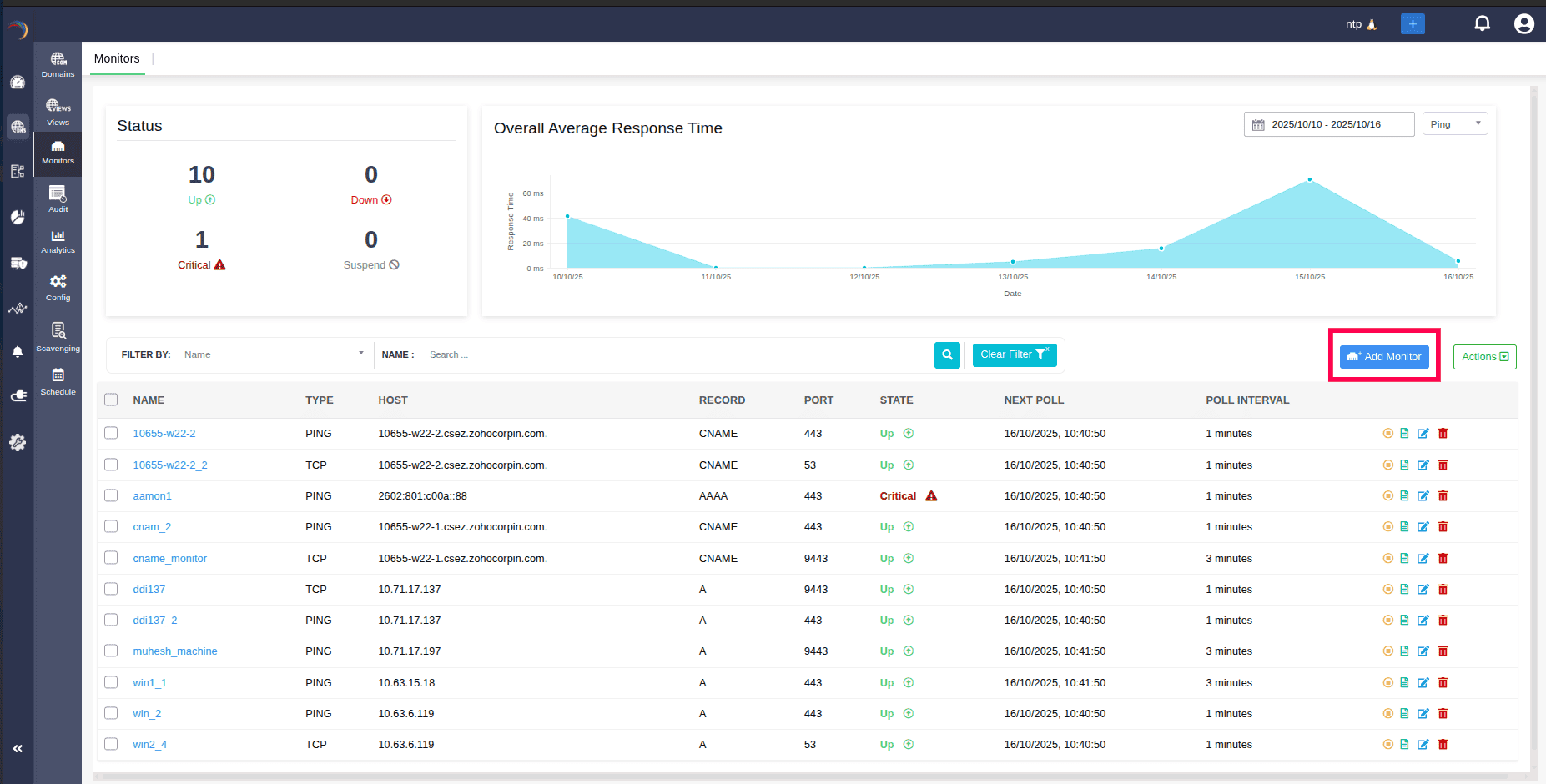
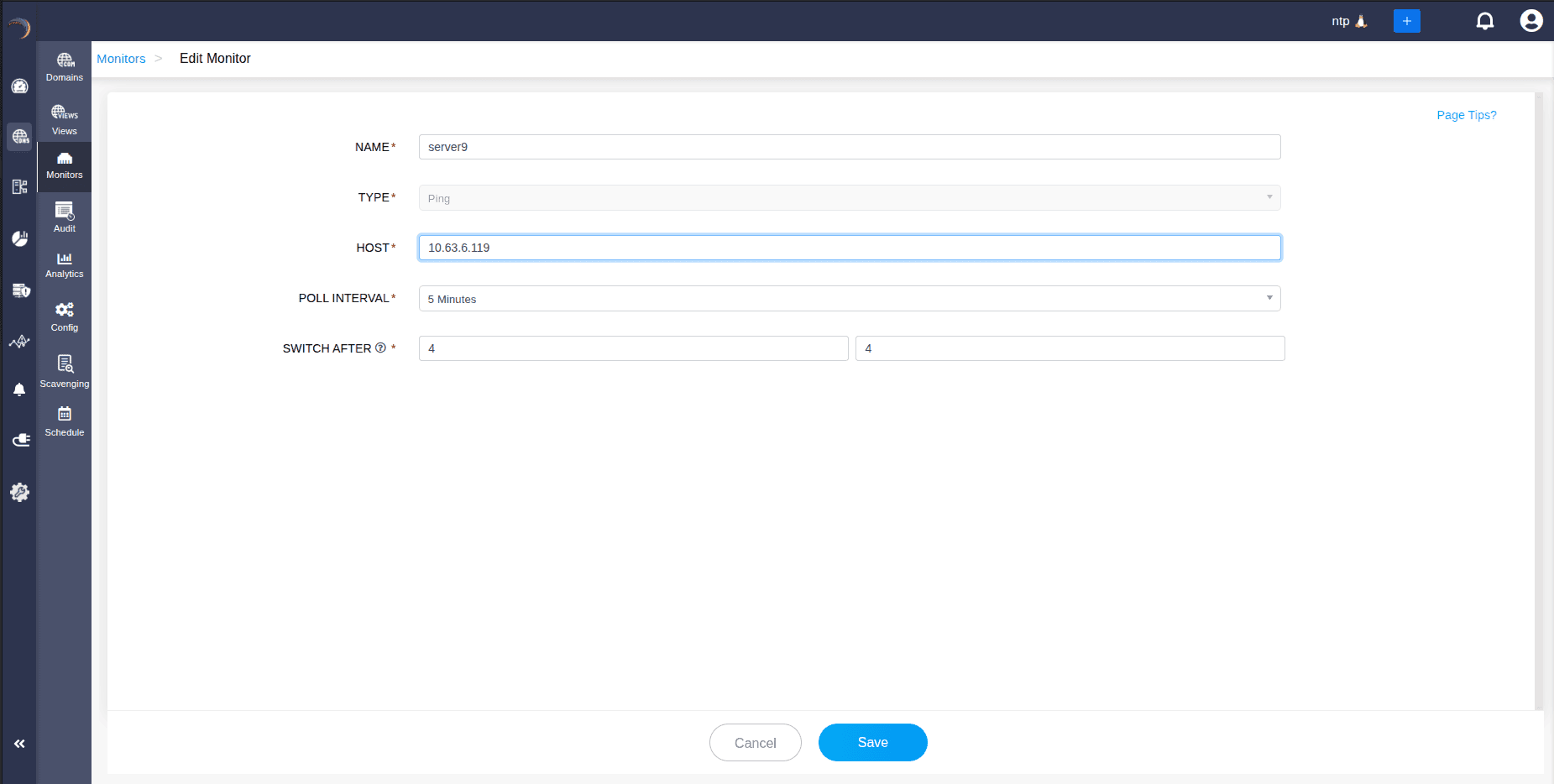
A new monitor can be created by clicking the Add Monitor icon, which redirects to the Create Monitor page. This page includes fields to enter details such as name, type (PING or TCP), host, poll interval, and the SWITCH AFTER value, which defines the number of poll intervals after which the record will be switched.
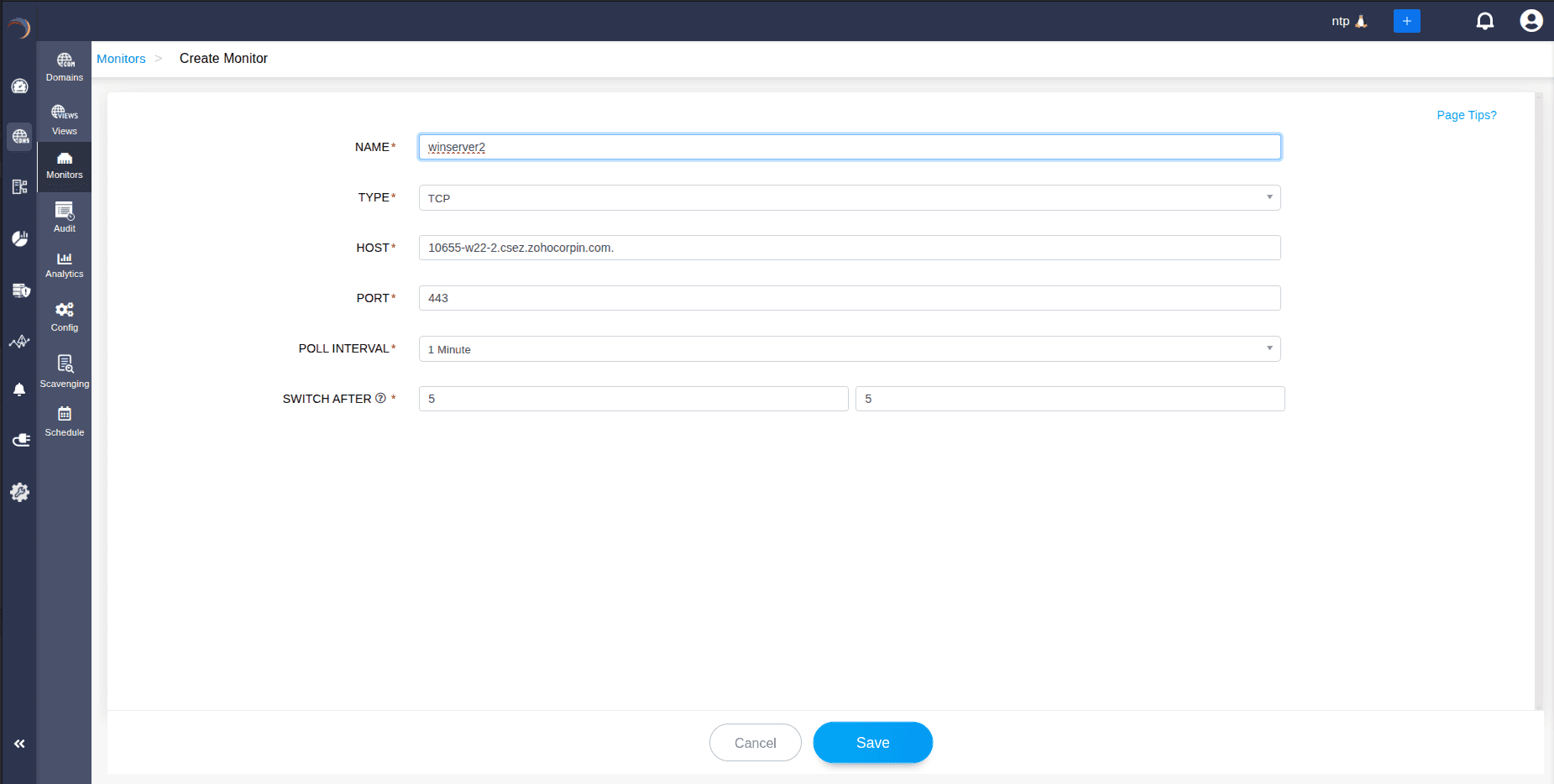
For the TCP monitor type, network administrators also need to provide the port number along with the host of the record.
3. Suspending and Resuming of monitors
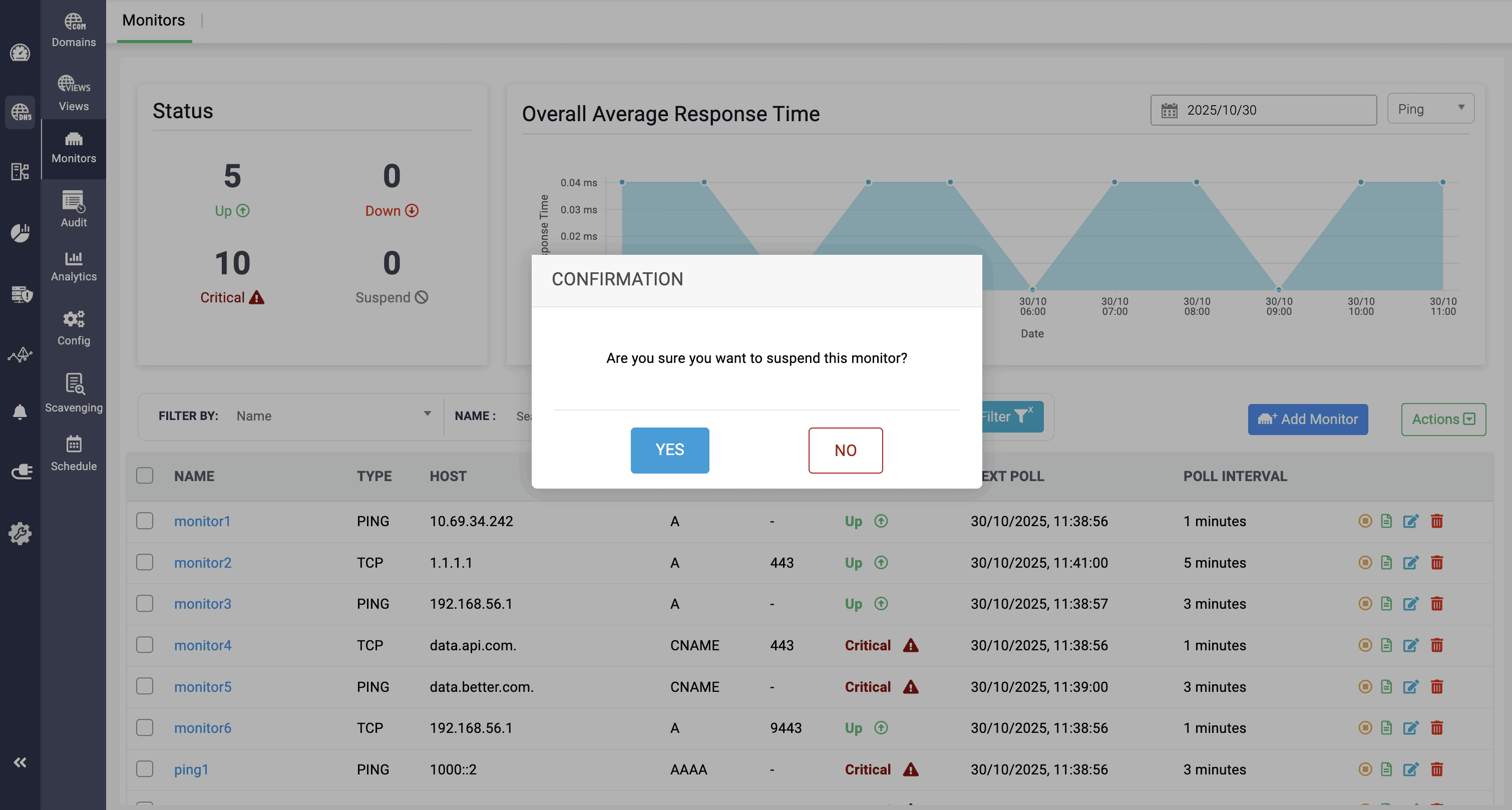
Record monitors can be suspended from providing their service by clicking the yellow Pause icon and confirming the action. When suspended, the monitor will stop monitoring the associated record, and no insights about the record’s status will be displayed on the page.
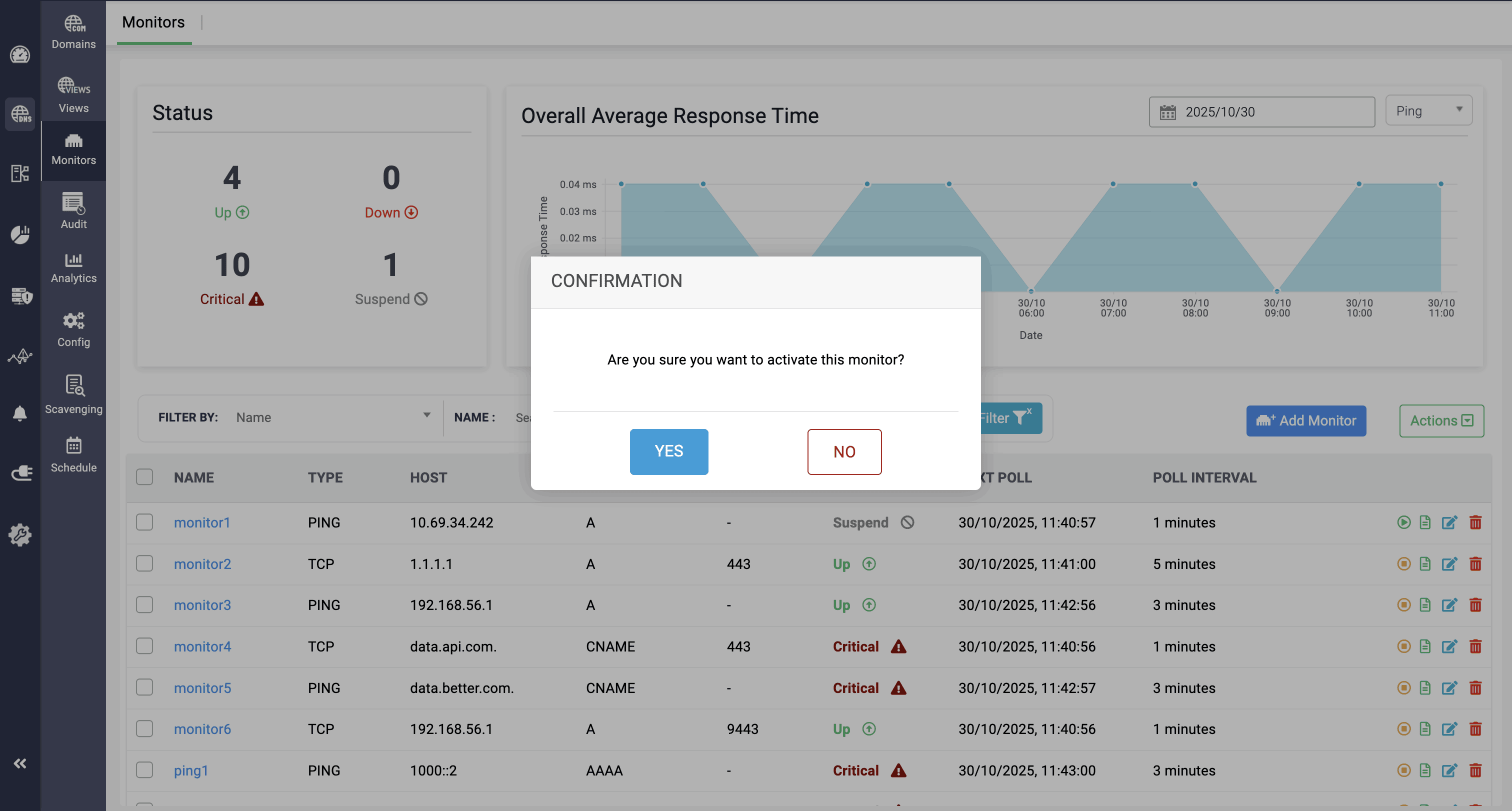
The same suspended monitor can be resumed to continue monitoring the associated record by clicking the green Activate icon and confirming the activation.
4. Associating monitors with DNS records
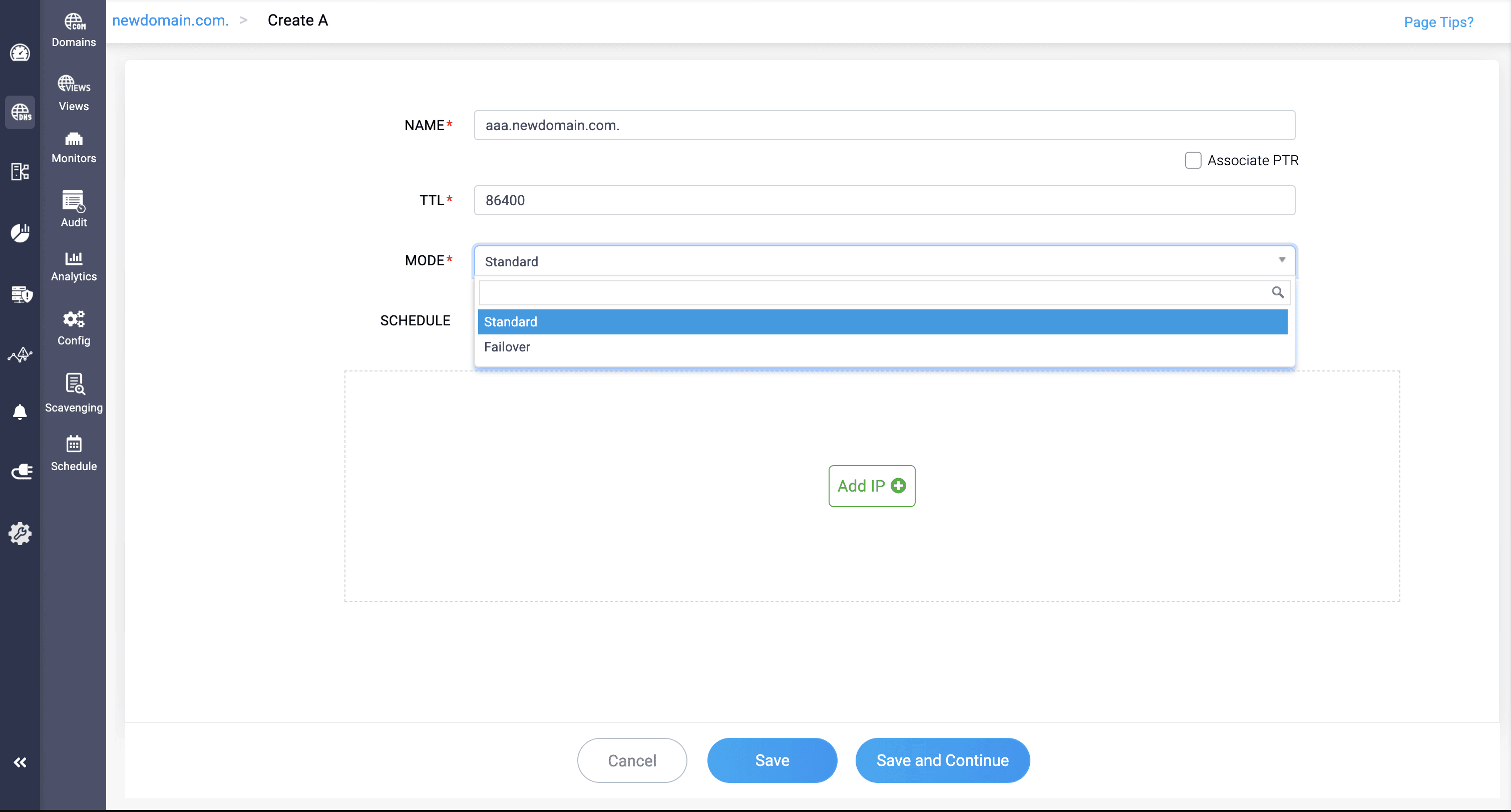
While creating a DNS record, admins need to select the record mode in the MODE field. There are two modes:
Standard: This mode has no special configurations and simply serves the IPs configured for the record.
Failover: This mode requires providing an alternative IP for the domain, which is used as a backup during failover when the active IP goes down.
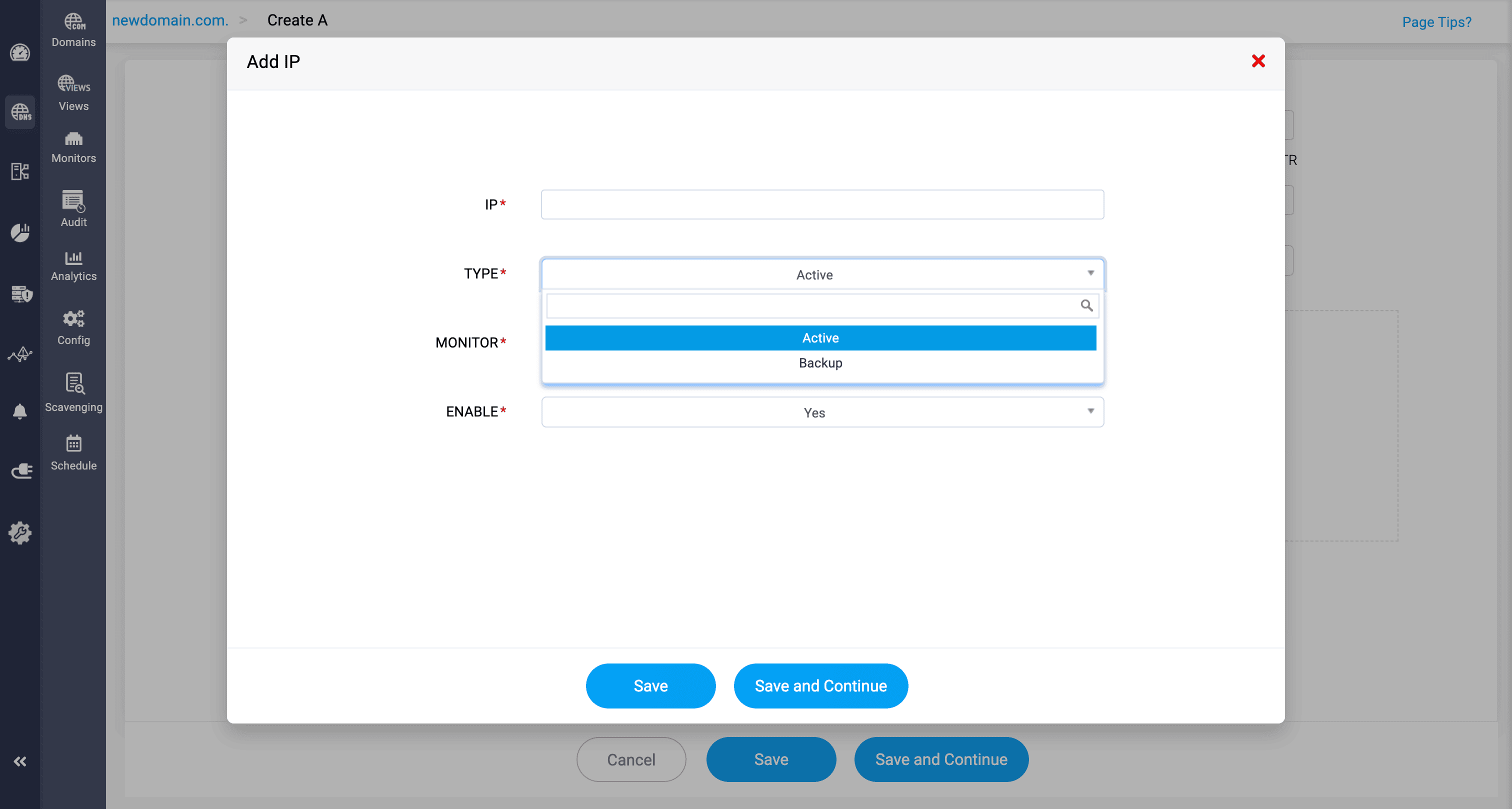
Next, click Add IP to provide the IP address for the domain and select the type. The available options are:
Active: This option allows the IP to act as the primary one during DNS query resolution.
Backup: This option allows the IP to act as the backup to serve during a failover situation.
You can then select the monitor to associate with this record using the Monitor option.
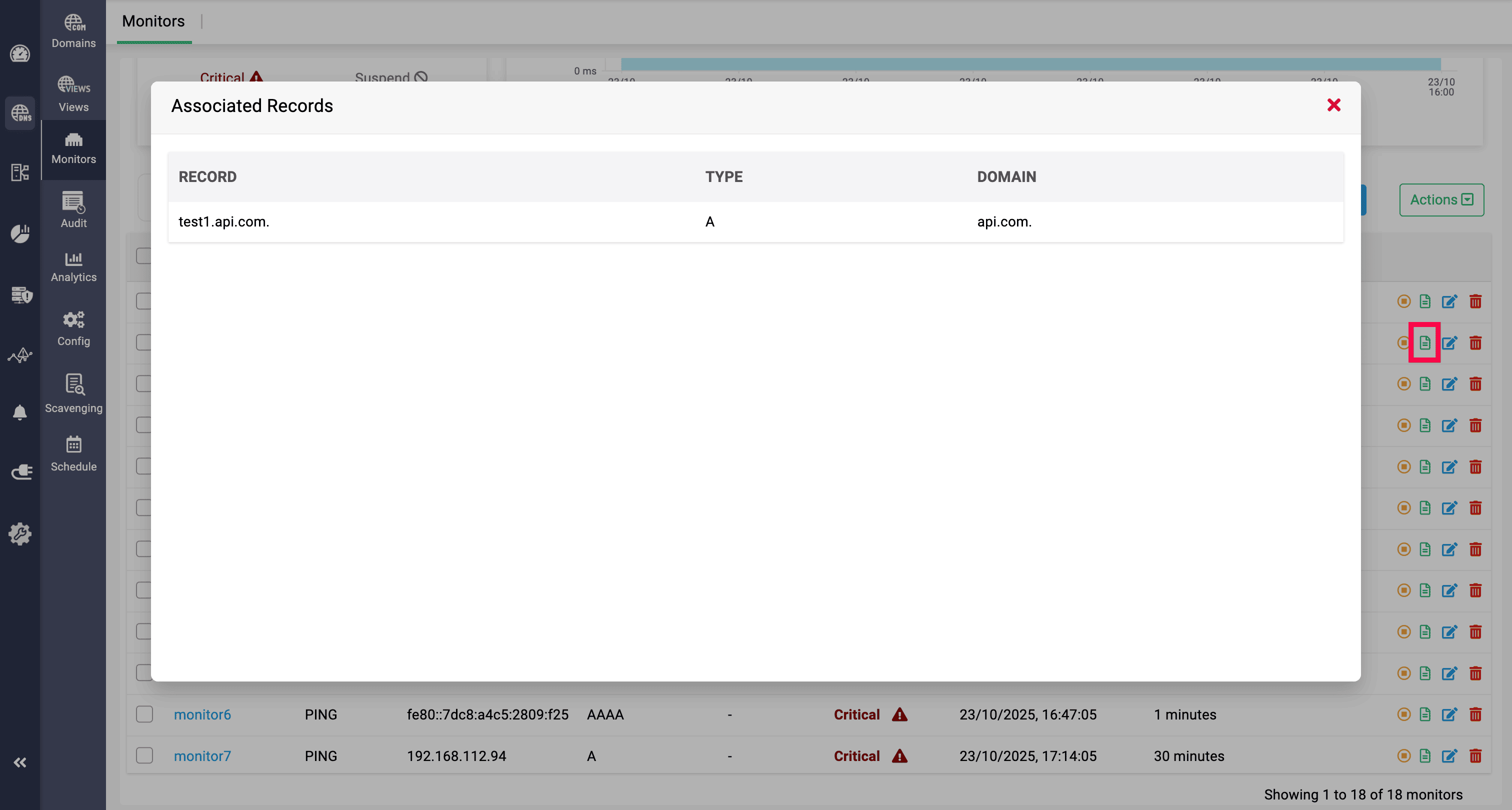
When clicking the green Associated DNS Records icon on a specific monitor, it displays the records linked to that monitor, along with the record type and the domain they belong to.
5. Auditing record monitoring activities
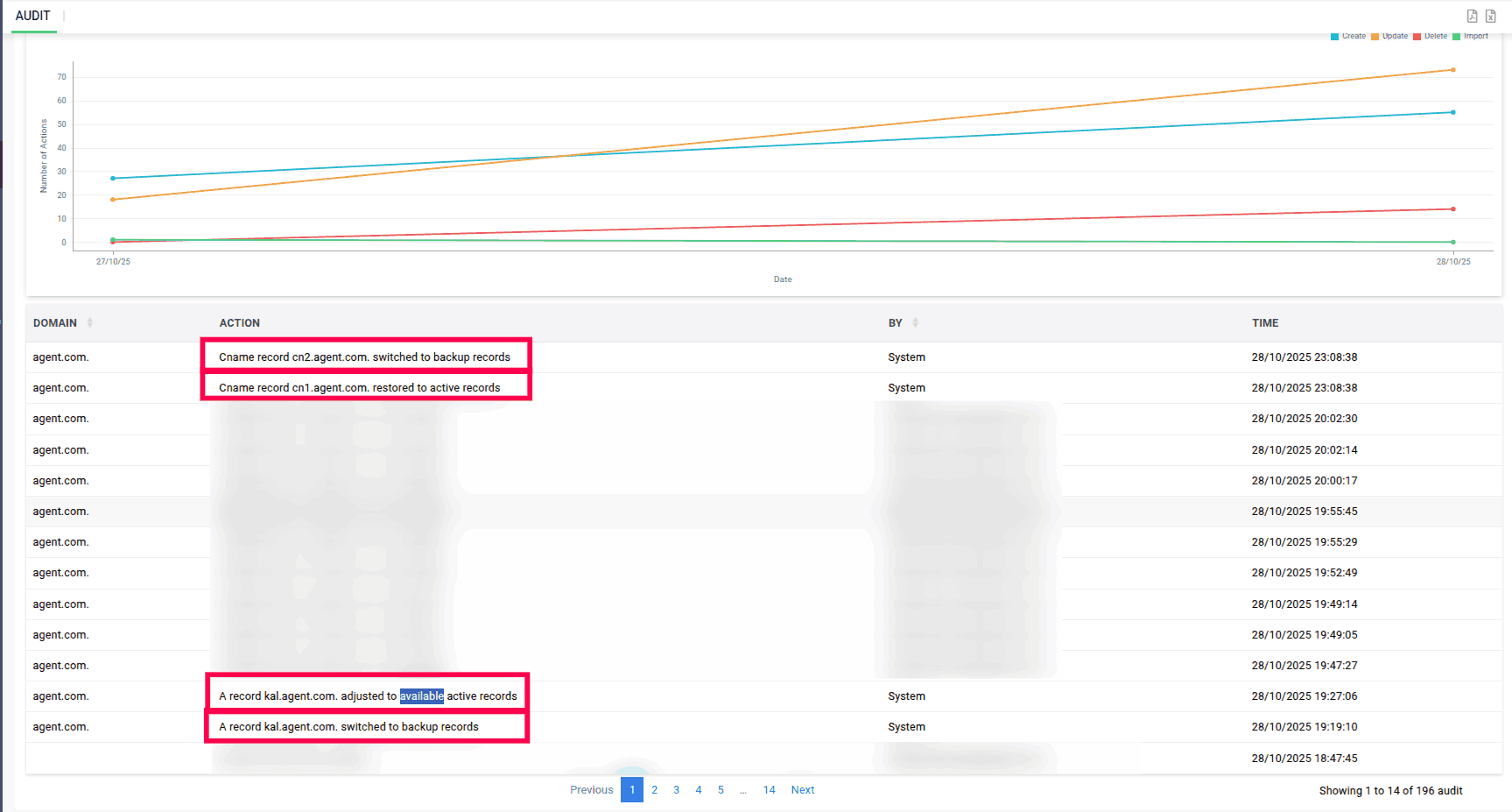
DDI Central also audits record switching activities that occur in the background, providing details such as the domain, the record that was switched or adjusted, the individual involved in the switch (admin or system), and the date and time.
Records being adjusted to available active records, switched to backup records, or restored to active records are all notified here, giving admins clear visibility and awareness of these changes.
Keep track of your DNS records’ performance and health, and prevent service downtime with Record Monitoring
DNS record monitoring in DDI Central gives network admins full visibility and awareness of the DNS records across their network domains, enabling immediate troubleshooting and quick switching to backup records, either manually or automatically through the system.
Start your free 30-day trial of DDI Central to explore DNS record monitoring and see how it works!