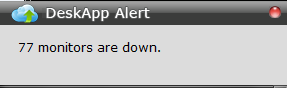
DeskApp
OpManager Nexus DeskApp is a notification tool that lets you receive downtime alerts directly on your desktop. Follow the steps below to configure the OpManager Nexus DeskApp on your desktop.
- Login to your OpManager Nexus account.
- Click Admin>Downloads>OpManager Nexus DeskApp icon. Download the OpManager Nexus_DeskApp.msi file on to your desktop.
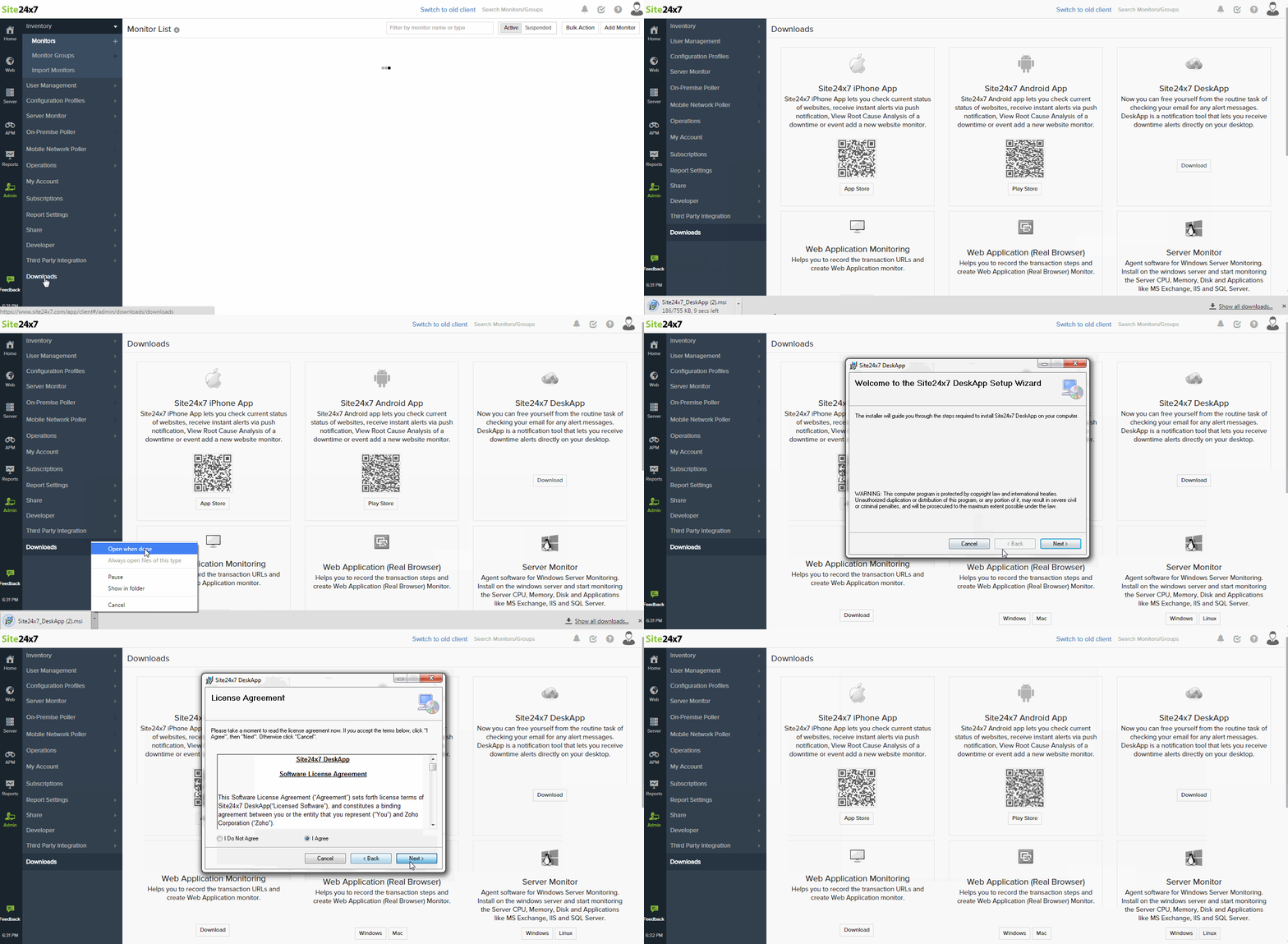
- Install the OpManager Nexus_DeskApp.msi file on your desktop.
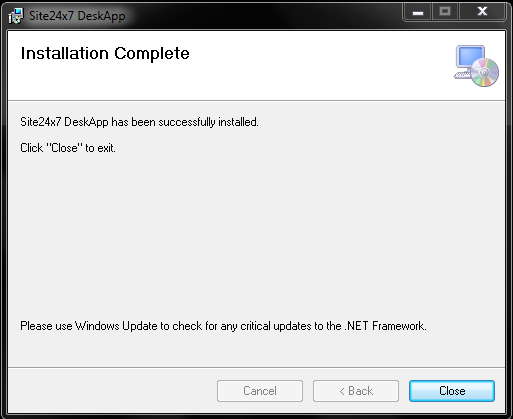
- Once the installation process is completed, close the installation wizard.
- Double click the DeskApp
 icon on your desktop.
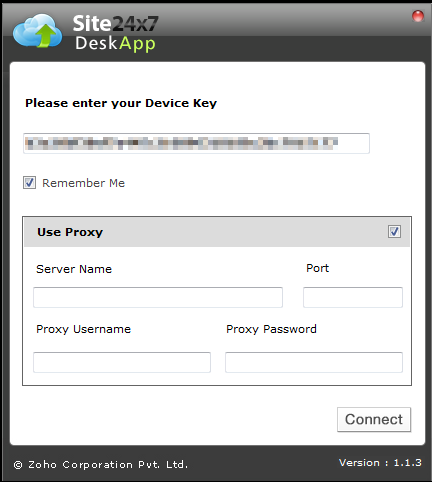
 - Enter your Device Key and click Connect. You can also enter proxy server settings.
NoteClick here to learn how to generate a Device Key.
- Find detailed availability status of your configured monitors including their response time and downtime status.
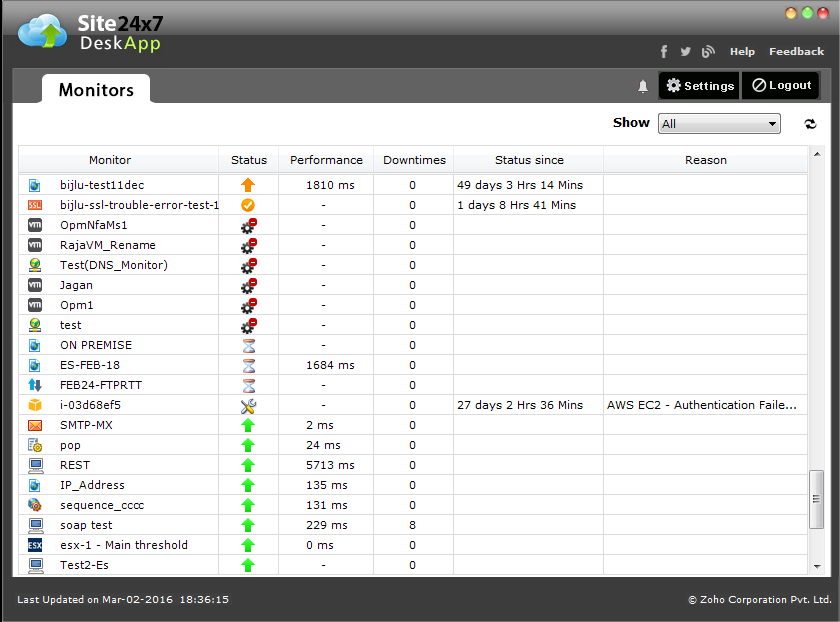
- You will also receive DeskApp alert notifications on your desktop.