Install the Java agent on Azure WebApp
Prerequisites
Ensure you have the following:
- An active OpManager Nexus account.
- Your device key:
Navigate to OpManager Nexus > Admin > Developer > Device Key to copy it.
Installation steps
Follow the steps below to install and configure the OpManager Nexus Java Agent in your Azure App Service Environment:
- Install the OpManager Nexus Java Agent extension
- In the Azure Portal, go to your App Service.
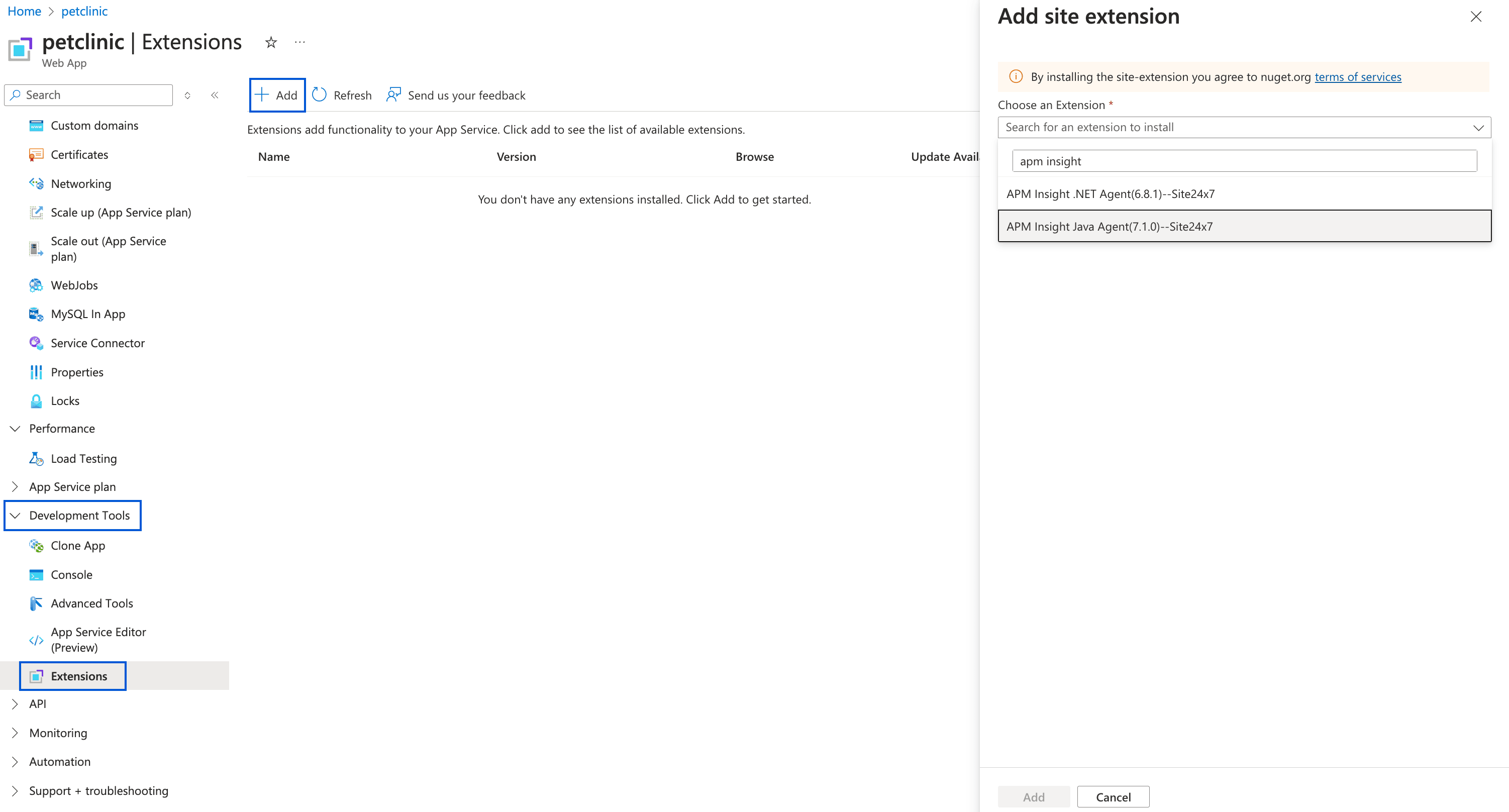
- From the left pane, expand Development Tools > Extensions and click + Add.
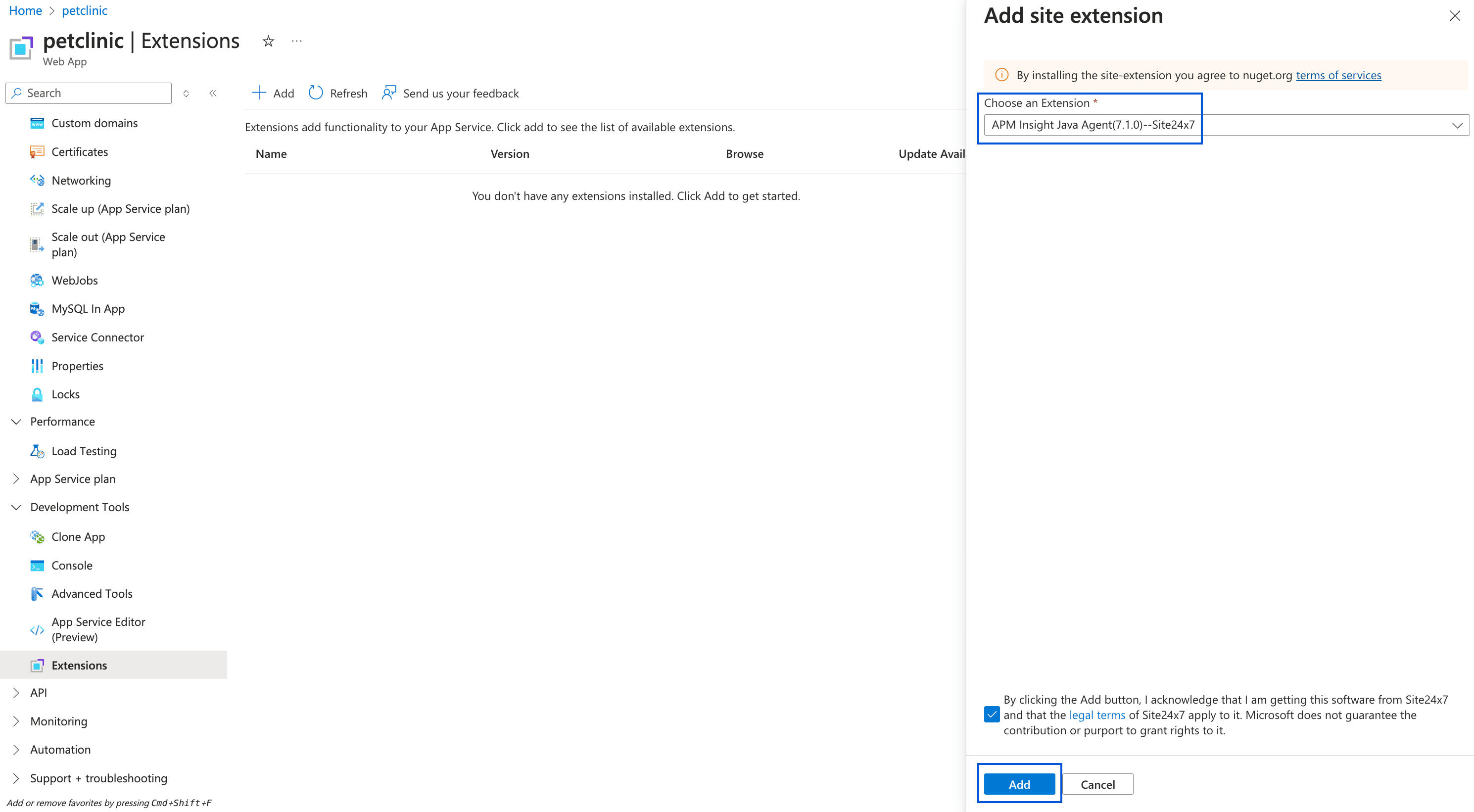
- In the pop-up, search for the extension and click + Add. Agree to the terms to install the extension.
- Configure environment variables
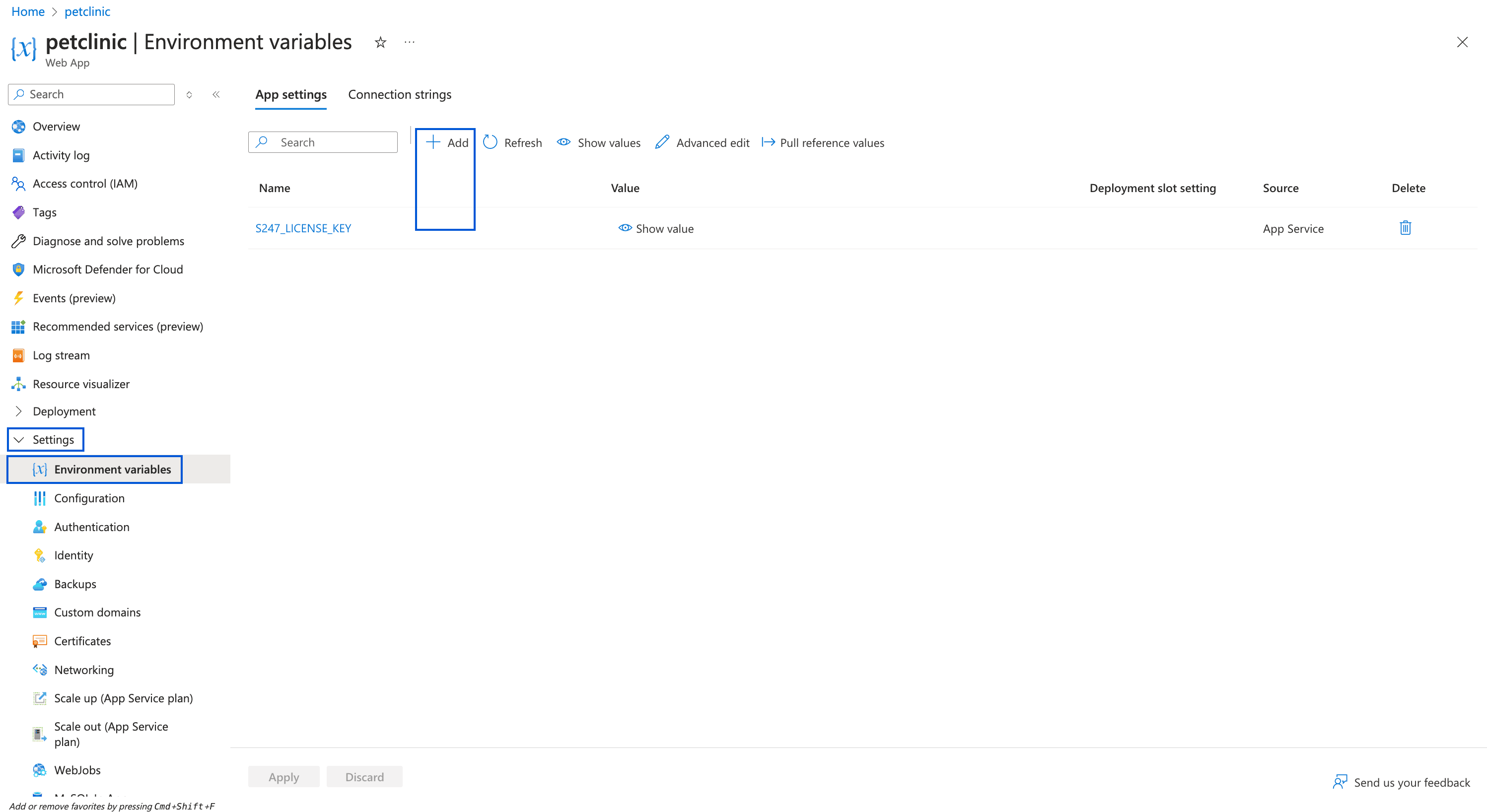
- Go to your App Service > Settings > Environment variables.
- Under the App Settings tab, click + Add.
- Add the following key-value pair:
- Name: S247_LICENSE_KEY
- Value: Your OpManager Nexus Device Key
- Click Apply, then restart your App Service.
Note
Your Azure App Service will be created as a monitor in the OpManager Nexus APM console.
-
On this page
- Prerequisites
- Installation steps