

There's no doubt that legitimate utilities on systems are an effective way for attackers to force their way into the network. Legitimate utilities like PsExec, PowerShell and Color Management (colorcpl.exe) are commonly abused utilities that need to be monitored closely so that attackers don't evade your systems' defenses.
Many of these utilities are trusted by users and the system itself, which reduces suspicion when they are used or modified. Anti-virus programs and firewalls are less likely to flag them unless these utilities are behaving unusually. Security software often has allowlists of known good system files and processes. When a malicious file or process uses the same name as a legitimate tool (like colorcpl.exe), malicious processes launched by attackers can avoid detection.
What is colorcpl and how is it abused
colorcpl.exe is a legitimate system file in Windows associated with Color Management, a utility used for managing and adjusting color profiles for displays on a Windows system.
Purpose of colorcpl.exe
- The tool allows you to assign specific color profiles to your monitors, ensuring the colors displayed on the screen match the intended ones as accurately as possible. This is critical in professional fields where precise color is essential (e.g., photography, video editing, or printing).
- It allows users to adjust settings related to color profiles and display calibration, especially useful for graphic designers, photographers, or anyone requiring precise color representation on their monitors.
- Color profiles can be important for ensuring that colors display consistently across different devices (e.g., printers, monitors, or cameras).
- Color Management can help adjust monitor settings, particularly for users working with high-definition displays or devices requiring detailed color work.
- The legitimate colorcpl.exe file is typically located in the System32 directory of Windows. The usual path is: C:\Windows\System32\colorcpl.exe.
- If the file is found elsewhere—such as in non-system directories like Temp or Downloads—it might be a sign of suspicious activity, potentially related to malware trying to impersonate colorcpl.exe.
Abusing colorcpl.exe
Attackers can misuse colorcpl.exe in several ways. They can copy malicious files to critical system directories (e.g., C:\Windows\System32\Spool\Drivers\Color\) using colorcpl.exe, bypassing standard security monitoring tools. By placing and executing malicious files in critical directories with colorcpl.exe, attackers can run their malware while evading detection by security controls that monitor common executables. Attackers can place malicious files in high-privilege directories, allowing them to execute these files and gain elevated privileges, leading to further unauthorized activities.
Here's how it happens
- colorcpl.exe, the Windows Color Management utility, enjoys inherent trust within the system. This inherent trust makes its activities less likely to trigger security alarms, providing a potential avenue for attackers to exploit.
- Attackers strategically select critical system directories like C:\Windows\System32, C:\Windows\SysWow64, and C:\Windows\System32\Spool\Drivers\Color\. These locations offer strategic advantages for persistence, privilege escalation, and evading detection.
- Attackers employ colorcpl.exe to surreptitiously copy malicious files into these target directories. For instance, this can be achieved with a command sequence like this:
- colorcpl.exe
- C:\Path\To\malicious_file.exe
- C:\Windows\System32\Spool\Drivers\Color\malicious_file.exe
- By utilizing colorcpl.exe for file operations, attackers can bypass security controls that primarily focus on detecting activities associated with common file manipulation tools like copy, xcopy, and robocopy.
- Once the malicious file is successfully placed in a critical system directory, it can be configured to execute automatically during system startup. This ensures continuous access and control for the attacker.
- Placing malicious files in privileged system directories, such as C:\Windows\System32, can grant them elevated execution privileges. This escalation of privileges significantly enhances the attacker's control over the compromised system.
- The relatively low scrutiny associated with colorcpl.exe activities makes it an effective tool for evading detection by security monitoring systems. This covert approach allows attackers to operate undetected within the compromised environment.
How Log360 detects colorcpl.exe abuse
Log360 has built-in correlation rules that detect common abuse techniques.
Criteria
- Process name check: The rule first examines the process name. It specifically looks for instances where the process name ends with:
- "Windows\System32\colorcpl.exe"
- "Windows\SysWow64\colorcpl.exe"
- "WINNT\System32\colorcpl.exe"
- Expected location: The rule expects the colorcpl.exe executable to reside within the following standard Windows directories:
- "System32"
- "SysWow64"
- Legitimacy check: If the colorcpl.exe process is found within either of these expected directories, it is considered legitimate.
- Suspicion trigger: Any discrepancy in the process name or its location from the expected patterns will raise suspicion and trigger an alert. This could indicate potential malicious activity.
Enabling this security information and event mangement (SIEM) rule significantly enhances an organization's security posture by proactively detecting and alerting on suspicious activity related to the colorcpl.exe process. This proactive approach empowers security teams to promptly investigate and respond to potential threats, minimizing potential damage and ensuring timely mitigation. Furthermore, enabling this rule demonstrates a commitment to robust security practices and helps organizations comply with relevant security standards such as NIST CSF 2.0, ultimately strengthening their overall security posture.
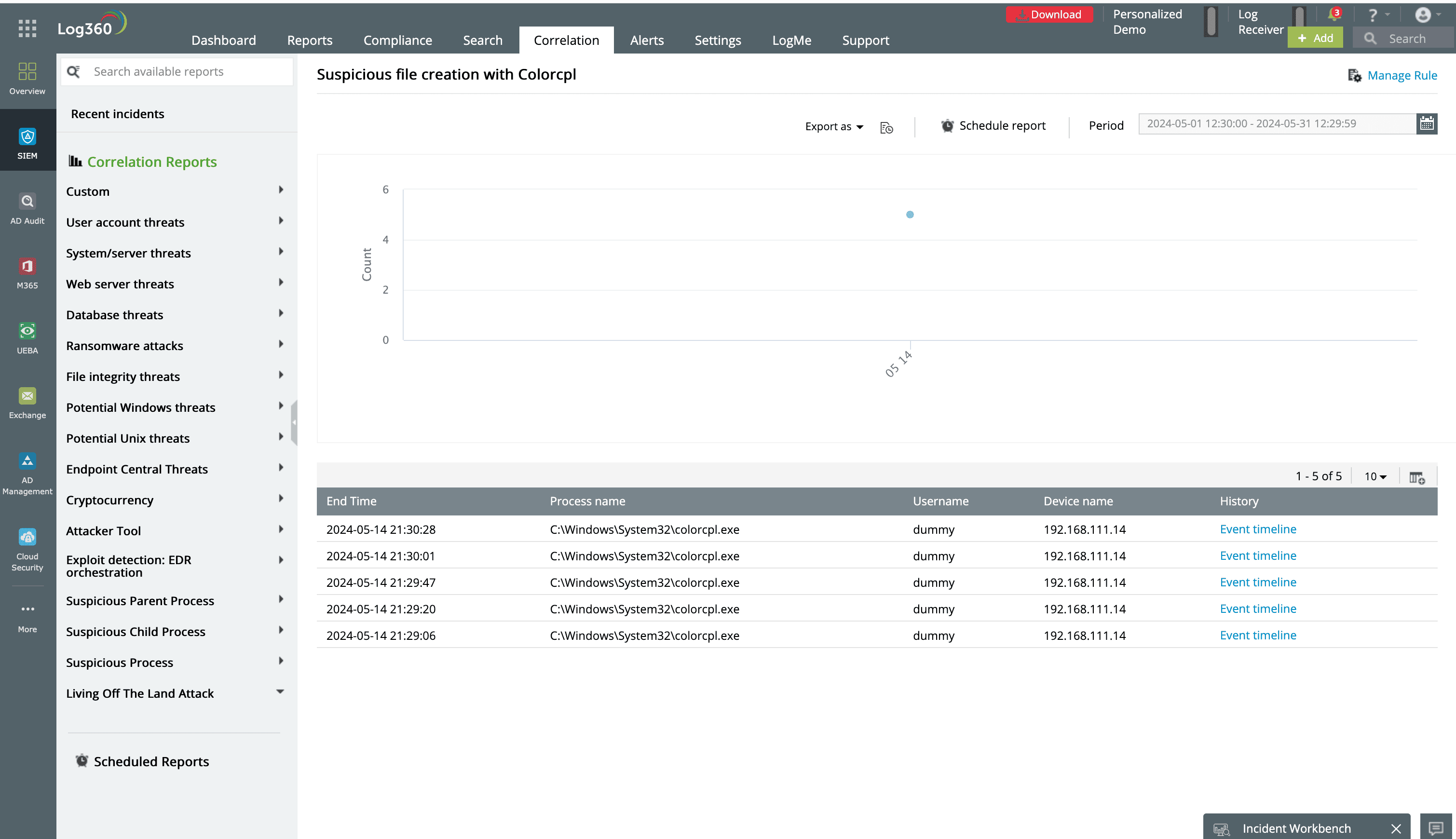
Figure 1: Predefined report in Log360 showing suspicious file creations with colorcpl