Threat hunting is the process of proactively spotting red flags or malicious activities that are undetected by security solutions. Security analysts hunt for threats using tools that give insights into user activity data, processes, and more.
PowerShell, a scripting tool used in Windows environments to manage system configurations, access, and permissions, is often used by threat hunters to spot malicious activities lurking in the network. This article briefs how PowerShell's Get-Process command can be used to hunt security threats that are at the persistence or execution stages of a cyberattack.
The Get-Process command in PowerShell fetches a list of the processes that are active in a system. This list can then be analyzed to spot processes that have unusual names, are using an unusual amount of memory, or are running for an unusual amount of time.
To retrieve information about all the running processes in the system, execute the Get-Process command as shown below: PS C:\> Get-Process
The Get-Process command can also provide the details of a specific process that you want to inspect. Simply mention its name. Below is the command to get the details of a specific process: PS C:\> Get-Process "process name"
To access other properties, like the working set, handle, timestamp, and modules used by a process, you can add a new command to the pipeline with the wildcard character Select-Object *. So the final command will be: Get-Process - "process name/process ID" | Select-Object *
You can use the Get-Process command to perform actions like stopping, starting, or suspending a process. You can also use it to gain information about the performance of a process over time.
Threat hunters can use the information fetched by the Get-Process command to identify and track malicious processes and assess their behavior and characteristics.
Here are a few ways the Get-Process command is helpful in threat hunting:
Using the Get-Process command, you can get the list of all running processes in a network or system. Correlate this list with a list of known malicious processes to spot any malware running in your network.
Manually correlating a list of processes with a list of malicious ones to detect malware is a tedious process. Check out how a SIEM solution like Log360 simplifies it for you.
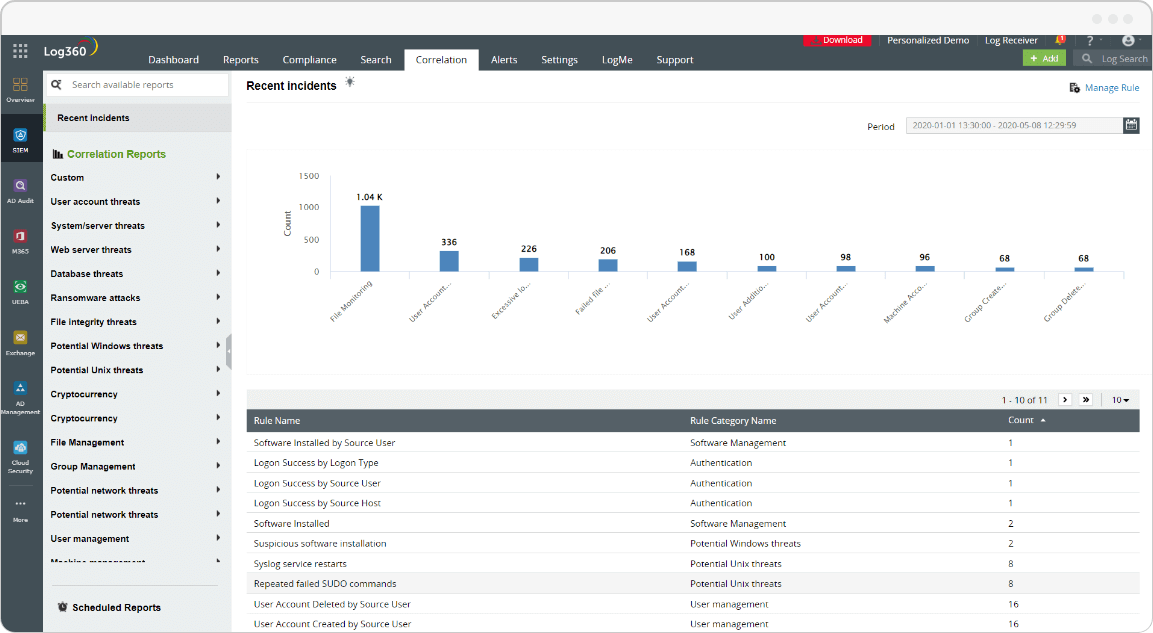
Log360 does not stop with malware detection; it also helps with effective investigation and mitigation. Its elaborate incident timeline, security analytics reports, and log information serve as evidence for security incidents.
The log monitoring tool has over 40 prebuilt correlation rules that detect and alert about real-time security attacks, like ransomware, SQL injection, DoS, and brute-force attacks. Threat hunters can also build custom rules to detect more complex patterns.
Cyberthreat hunters can list out all the processes running in the system and find any processes that are unknown or named to look like a legitimate process (e.g., conh0st.exe instead of conhost.exe).
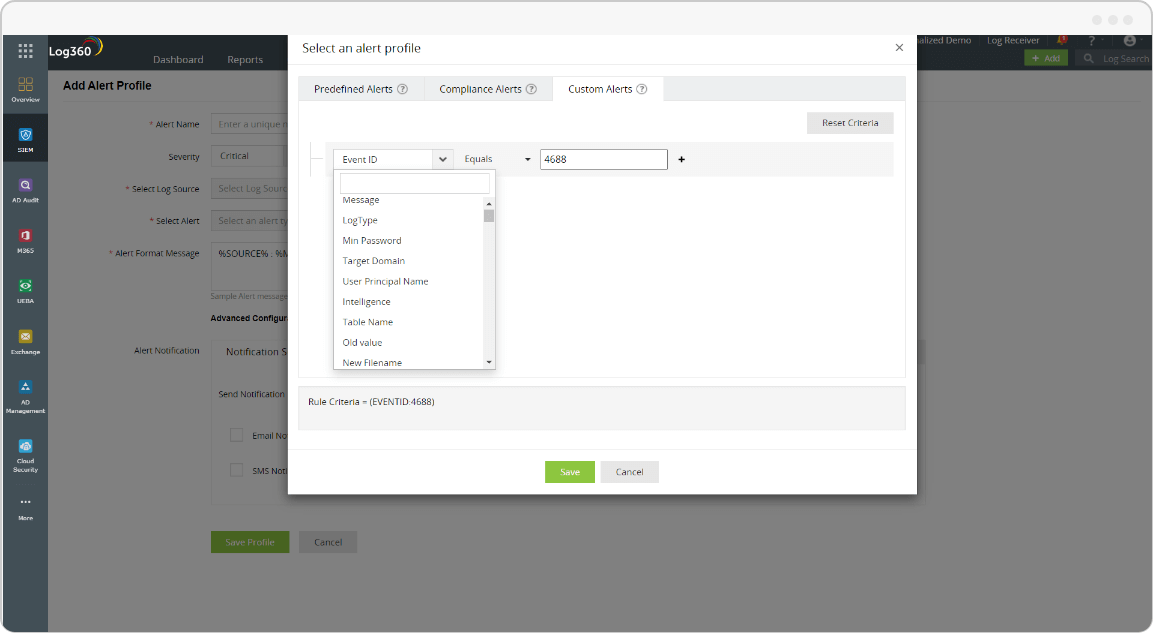
Log360's alerting and incident management modules help security teams detect security threats at an early stage and expedite the troubleshooting process. Threat hunters can configure Log360 to send real-time alerts so they can manage incidents based on logs generated with a specific event ID, log message, or severity.
With the help of the Get-Process command, cyberthreat hunters can track the execution of a process over time, including the start and end times. This lets them identify any process that is running for an unusual length of time or being executed at unexpected times. The command below can be used to access more details about a specific process: Get-Process - "process name/process ID" | Select-Object *
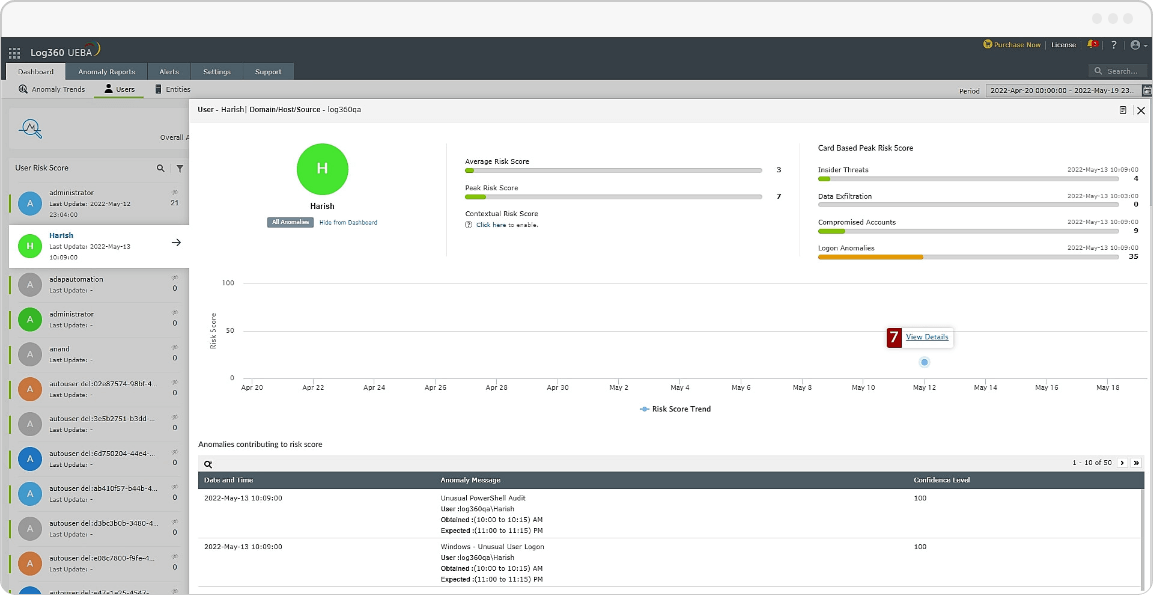
With Log360's UEBA feature, you can examine your environment's users, servers, firewalls, network devices, and more in real time. It also provides customizable risk scores for each anomaly, helping you prioritize threats based on severity.
By using the Get-Process command, threat hunters can examine the properties of the processes running in the system, like the CPU, memory usage, file path, or network activity. Any suspicious behavior concerning these properties may indicate a security threat. Threat hunters can also add the -IncludeUserName parameter along with the Get-Process command to discover which user account is running a process. This is helpful for spotting processes that are running under a privileged user account, which may suggest an attack.
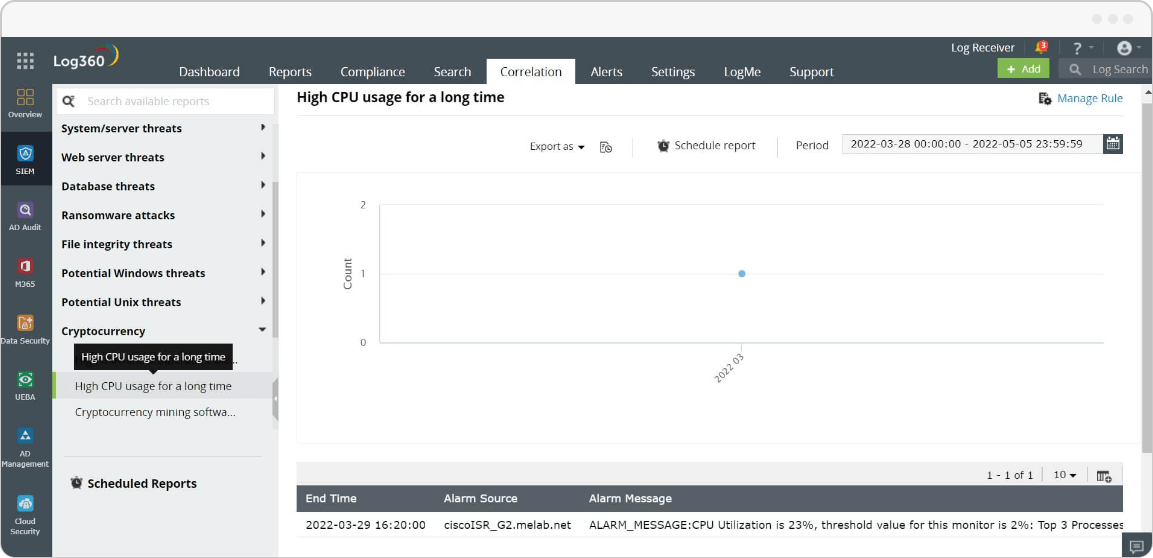
By using Log360's powerful, built-in correlation rules that offer insights and alerts, it is easy for threat hunters to narrow down suspicious processes. For instance, a suspicious software installation along with prolonged high CPU consumption and alerts for high machine temperatures may indicate a cryptojacking attack.
With PowerShell, threat hunters are able to investigate any malicious code running in a system, but this can be time-consuming, error-prone, and stressful. Log360, a unified SIEM solution with integrated DLP and CASB capabilities, goes beyond the capabilities of PowerShell. Discover more about Log360's threat hunting features.
Zoho Corporation Pvt. Ltd. All rights reserved.