Direct Inward Dialing: +1 408 916 9892
Once ADAudit Plus is installed, it automatically configures the audit policies required for Active Directory auditing.
To enable automatic configuration: Log in to the ADAudit Plus web console → Domain Settings → Audit Policy: Configure.
Permission changes in DNS records can be identified by following the steps below:
Login to ADAudit Plus.
Select the required Domain from the dropdown list.
Go to the Reports tab.
Navigate to Permission Changes.
Select DNS Permission Changes.
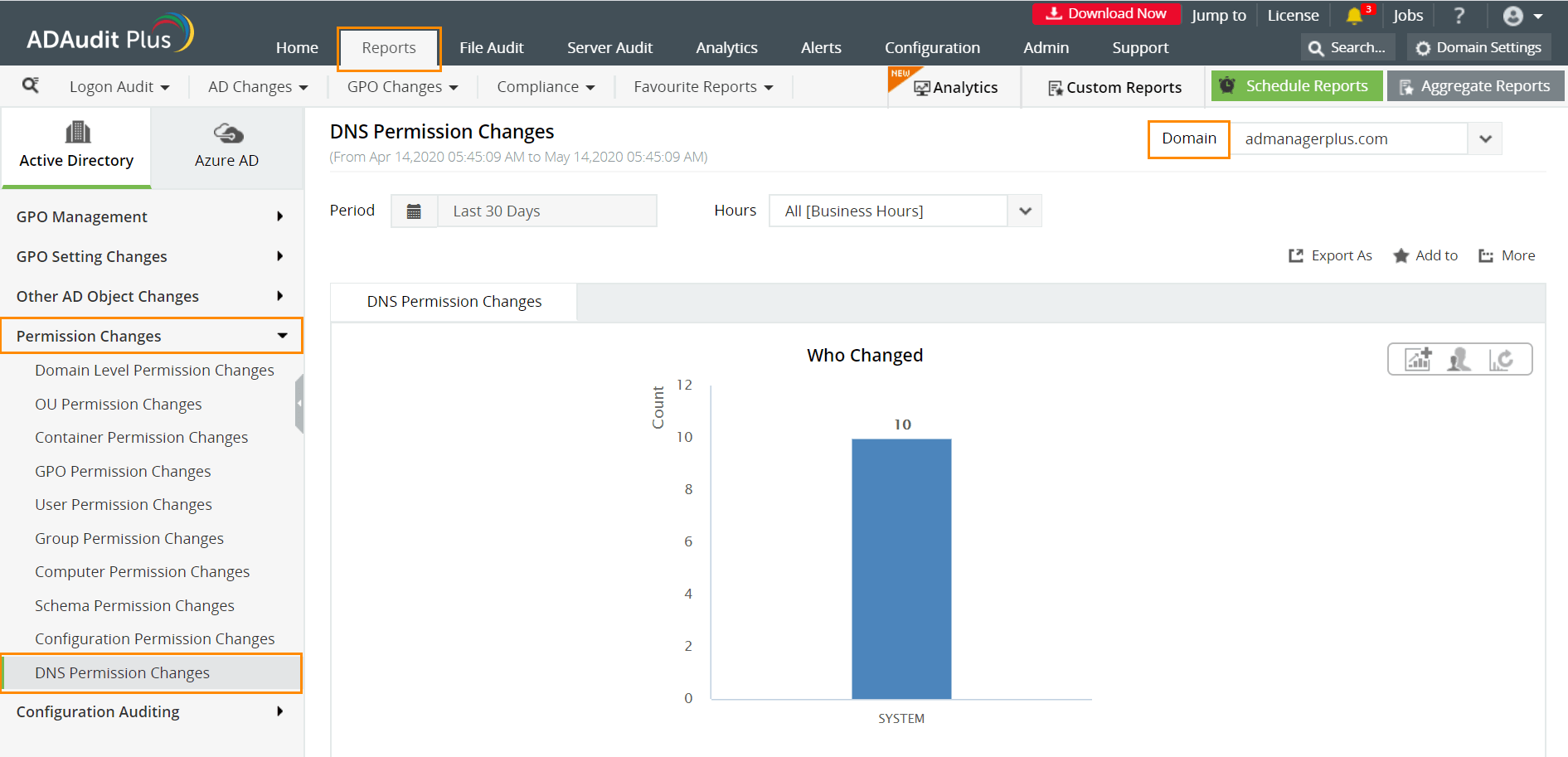
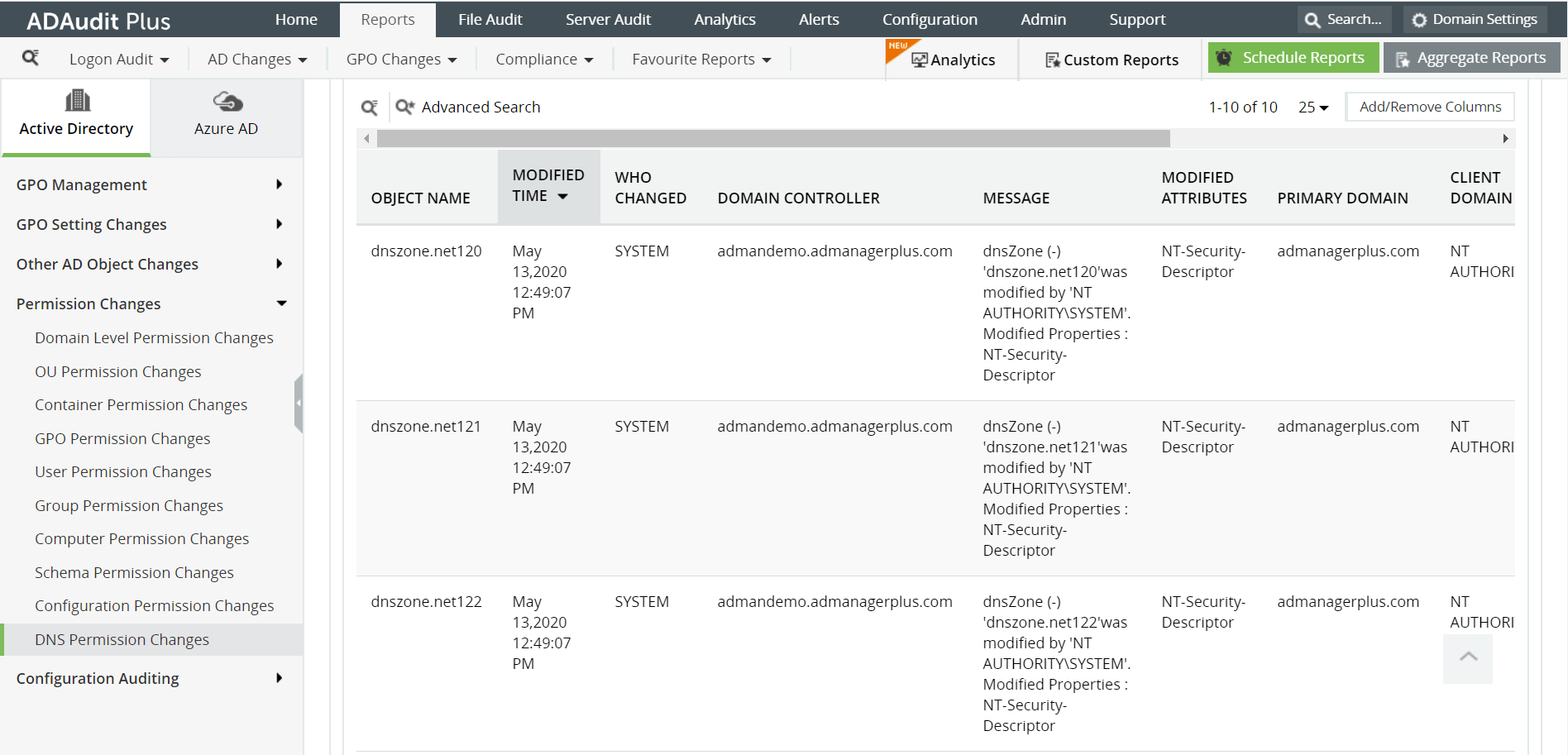
ADAudit Plus enables IT administrators to have a comprehensive picture of all the activities that happen within their organization's network. The real-time monitoring capabilities and out-of-the-box reports offered by ADAudit Plus make it easier to track critical changes in DNS permissions, and detect and prevent mishaps.
With native AD auditing, here is how you can monitor DNS permission changes:
Launch Server Manager in your Windows Server instance.
Under Manage, select Group Policy Management and launch the Group Policy Management console.
Navigate to Forest ➔ Domain ➔ Your domain ➔ Domain Controllers.
Create a new GPO and link it to the domain to be monitored, or edit any existing GPO that is linked to the domain to open the Group Policy Management Editor.
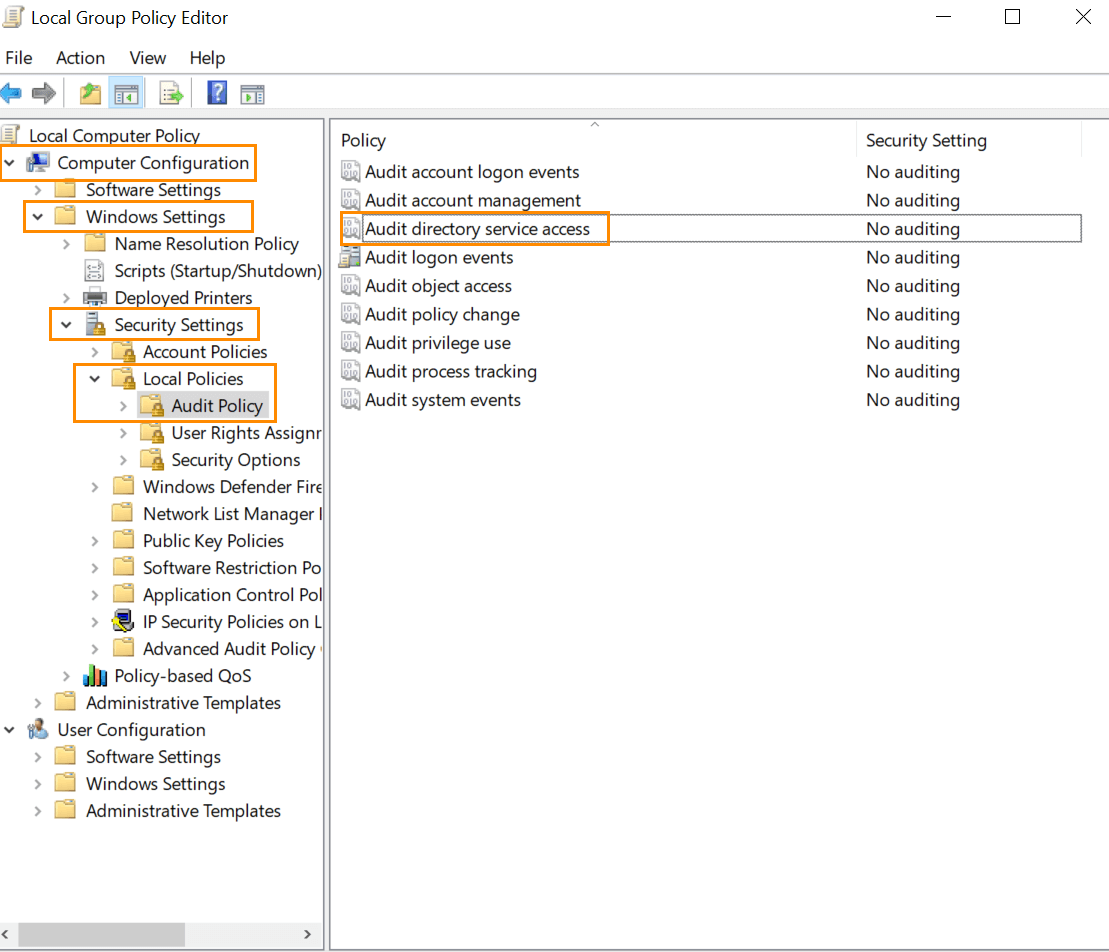
Navigate to Computer Configuration ➔ Windows Settings ➔ Security Settings ➔ Local Policies ➔ Audit Policy.
Under Audit Policy turn auditing on for Success of Audit Directory Service Access policy.
From your Server Manager go to Tools and select ADSI Edit.
Right click ADSI Edit node from the left pane and select Connect to option. This pulls up the Connection Settings window.
Select the Default Naming Context option from the Select a well-known Naming Context drop down list.
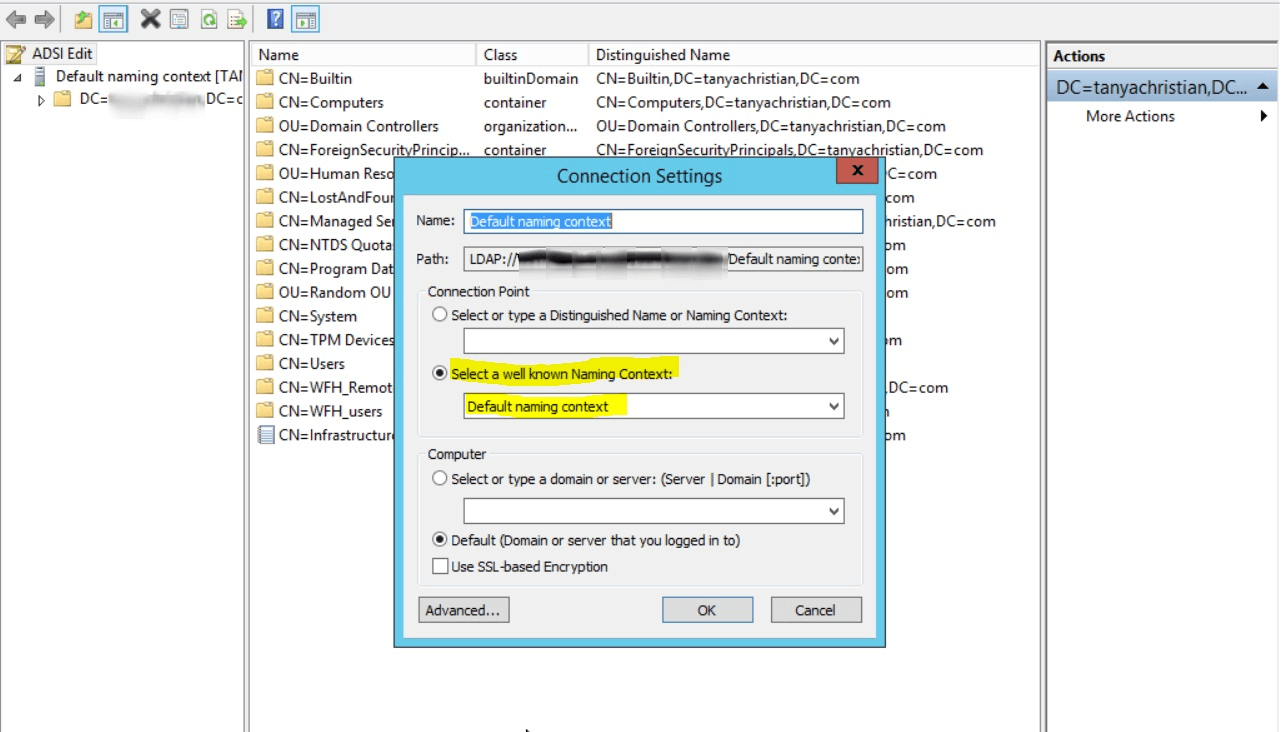
Click OK and return to the ADSI Edit window. Expand Default Naming Context and select the associated DC subnode. Right-click this subnode, and click Properties.
In the Properties window, go to the Security tab and select Advanced. After that select Auditing tab and click Add.
Apply the following settings
Principal: Everyone
Type: Success
Applies to: This object and all descendant objects
Permissions: Select Write all properties, Delete, Delete subtree check boxes.
Click Apply, then OK, and close the console.
From your Server Manager go to Tools and select DNS.
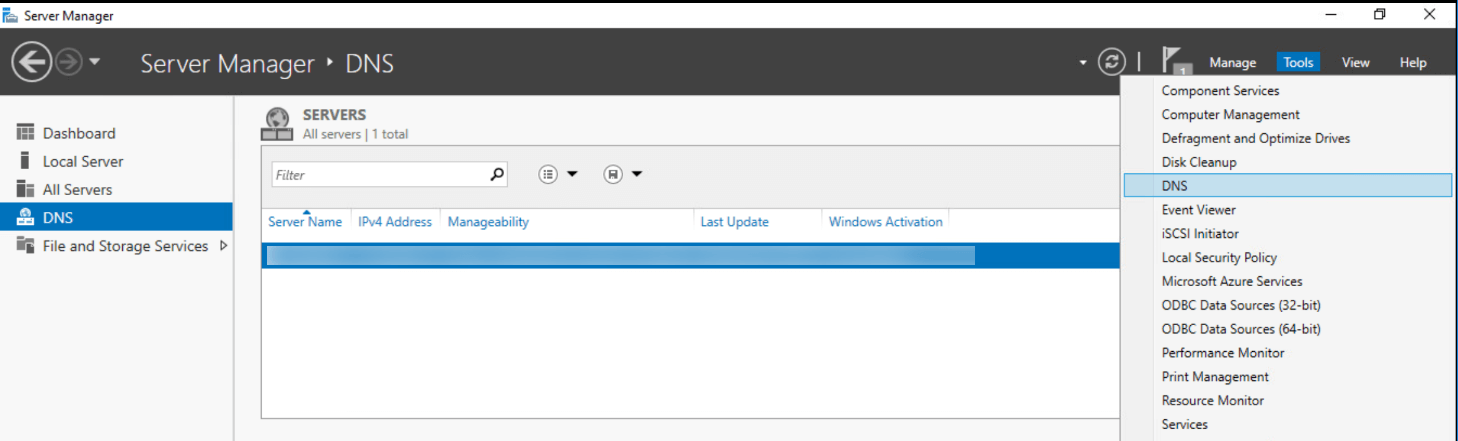
Expand your servername and select Forward Lookup Zone.
Right click the zone you want to audit, and click on Properties.
In the Properties window, go to the Security tab and select Advanced. After that select Auditing tab, and click Add.
Apply the following settings
Principal: Everyone
Type: Success
Applies to: This object and all descendant objects
Permissions: Select Write all properties, Delete, Delete subtree check boxes.
Click Apply, then OK, and close the console.
In Event Viewer window, go to Windows Logs ➔ Security logs.
Click on Filter current log under Action in the right panel.
Search for Event ID 5136, which identifies DNS permission changes.
You can double-click on the event to view Event Properties.
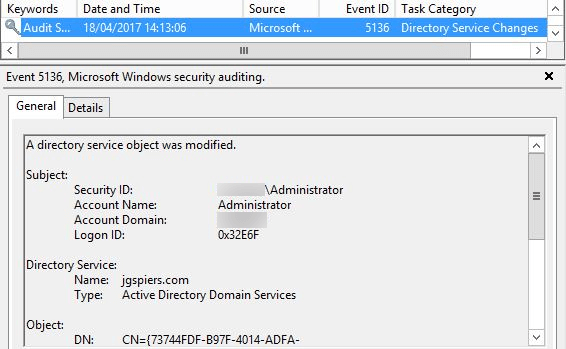
These steps need to be repeated for all the zones to audit changes in DNS permissions. Manually checking every event is time-consuming, inefficient, and practically impossible for large organizations.
Native auditing becoming a little too much?
Simplify DNS permission changes auditing and reporting with ADAudit Plus.
Get Your Free Trial Fully functional 30-day trialADAudit Plus simplifies monitoring of DNS permission changes by offering predefined DNS Permissions Changes reports along with intuitive graphical representation of the same for the ease of comprehension. ADAudit Plus also provides you the option to generate custom reports and export them in your preferred format (PDF, XLS, HTML, and CSV). .











