Direct Inward Dialing: +1 408 916 9892
Follow steps 1 and 2 given in the native auditing section to turn on Audit Policy and to enable logon-logoff auditing.
Login to ADAudit Plus web console.
Click on the Reports tab. From the Local logon-logoff section in the left pane, select the Logon Activity report.
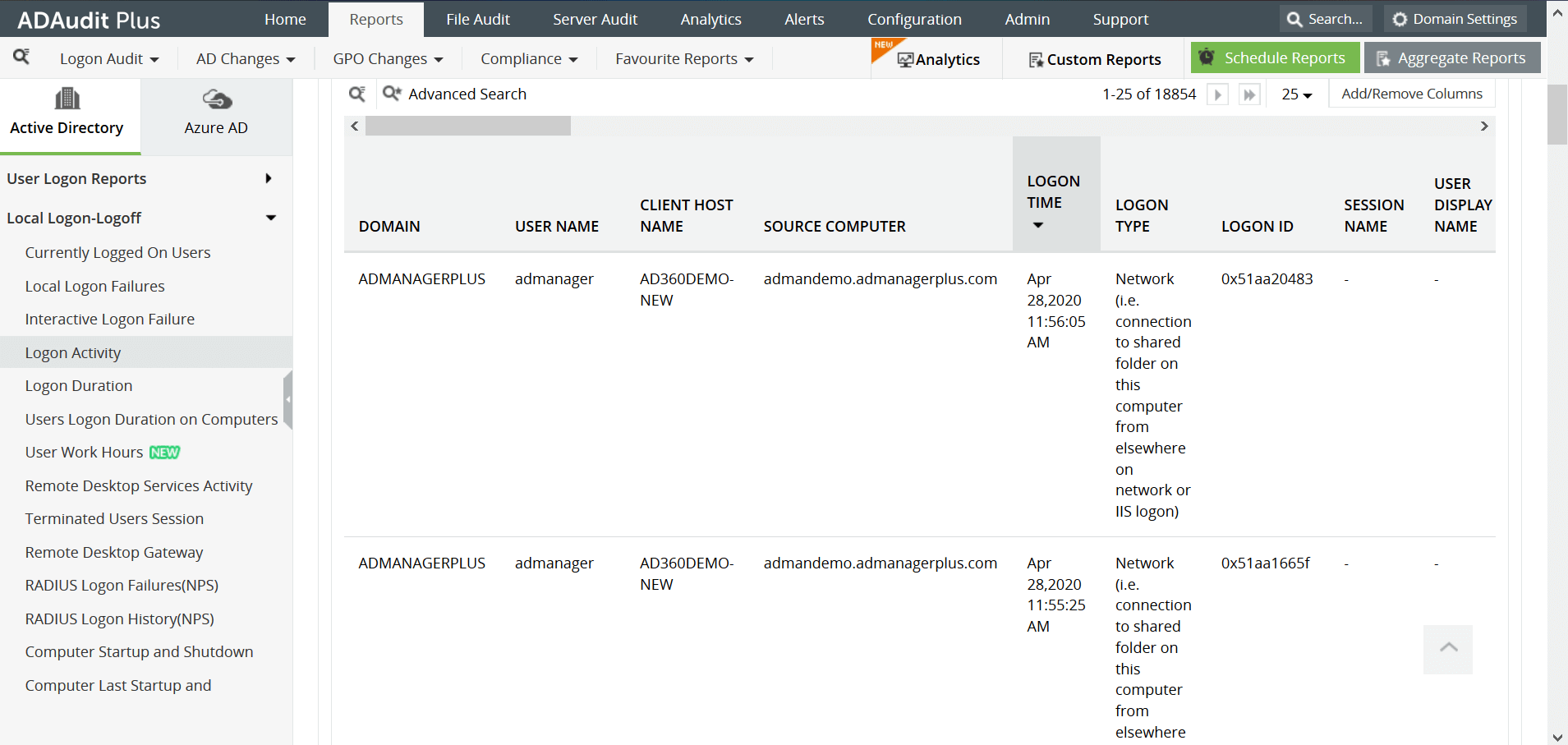
The Logon Activity report in ADAudit Plus shows the logon attempts, along with the username, logon time, name of the workstation, type of logon among other examples. Real-time alerting when there is a specific user logon activity when the same employee has called in sick, logon activity during non-business hours, or any other suspicious activity pre-configured by the organization's IT team is possible using ADAudit Plus.
Follow steps 1 and 2 given in the native auditing section to enable audit policies.
Login to ADAudit Plus web console as an administrator.
Click on the Reports tab. From the Account Management section in the left pane, select the Administrative User Actions report.
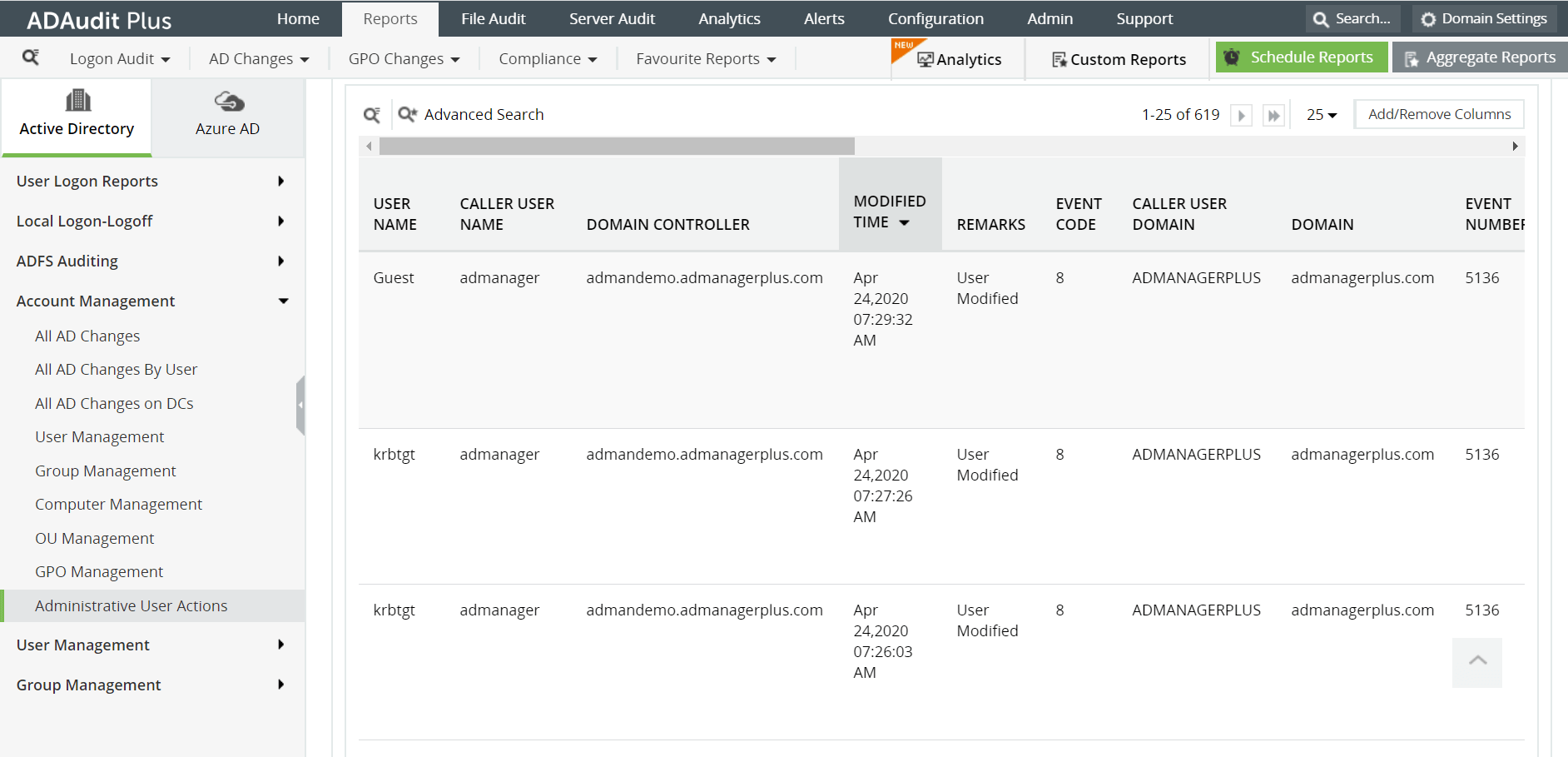
Username of the privileged account using which the changes were made
The time when the changes were made
The computer or server in which the changes were made from
The description of the changes made
It is a complex process to obtain the required data amidst the noise.
It is difficult to generate the report for different time zones and date formats.
Open Server Manager on Windows server.
Under the Manage tab, open the Group Policy Management console.
Go to Forest -> Domain -> Your Domain -> Domain Controllers.
You can either edit an existing group policy object or create a new one.
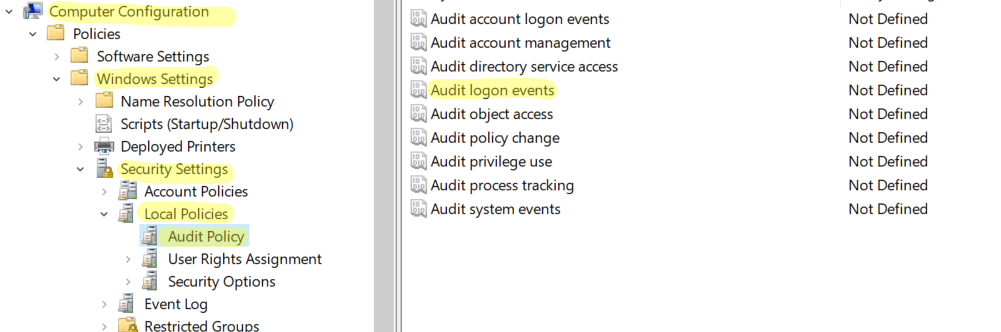
In the Group Policy Editor, navigate to Computer Configuration -> Policies -> Windows Settings -> Security Settings -> Local Policies -> Audit Policy.
In Audit Policy, select 'Audit logon events' and enable 'Success' and 'Failure' auditing.
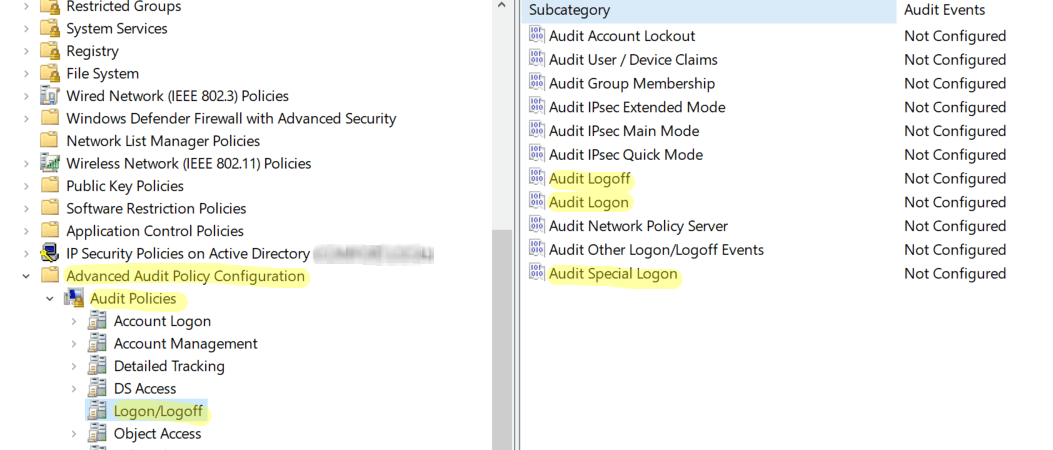
Go back to Computer Configuration. Navigate to Windows Settings -> Security Settings -> Advanced Audit Policy Configuration -> Audit Policy -> Logon/Logoff.
Under that, enable Success and Failure auditing for Audit Logon, Audit Logoff, and Audit Special Logon.
Open the Group Policy Management console and select the GPO that you have edited or created. Under Security Filtering, add the users whose logons need to be tracked. You can also choose to audit every domain user's logon by selecting All users. To audit a group of domain users, the specific group(s) can be added.
Open Event Viewer and navigate to Windows logs -> Security.
Look for the event IDs 4624 (Account was logged on), 4634 (Account was logged off), 4647 (user initiated logoff), 4672 (special logon), 4800 (workstation was locked), and 4801 (workstation was unlocked).
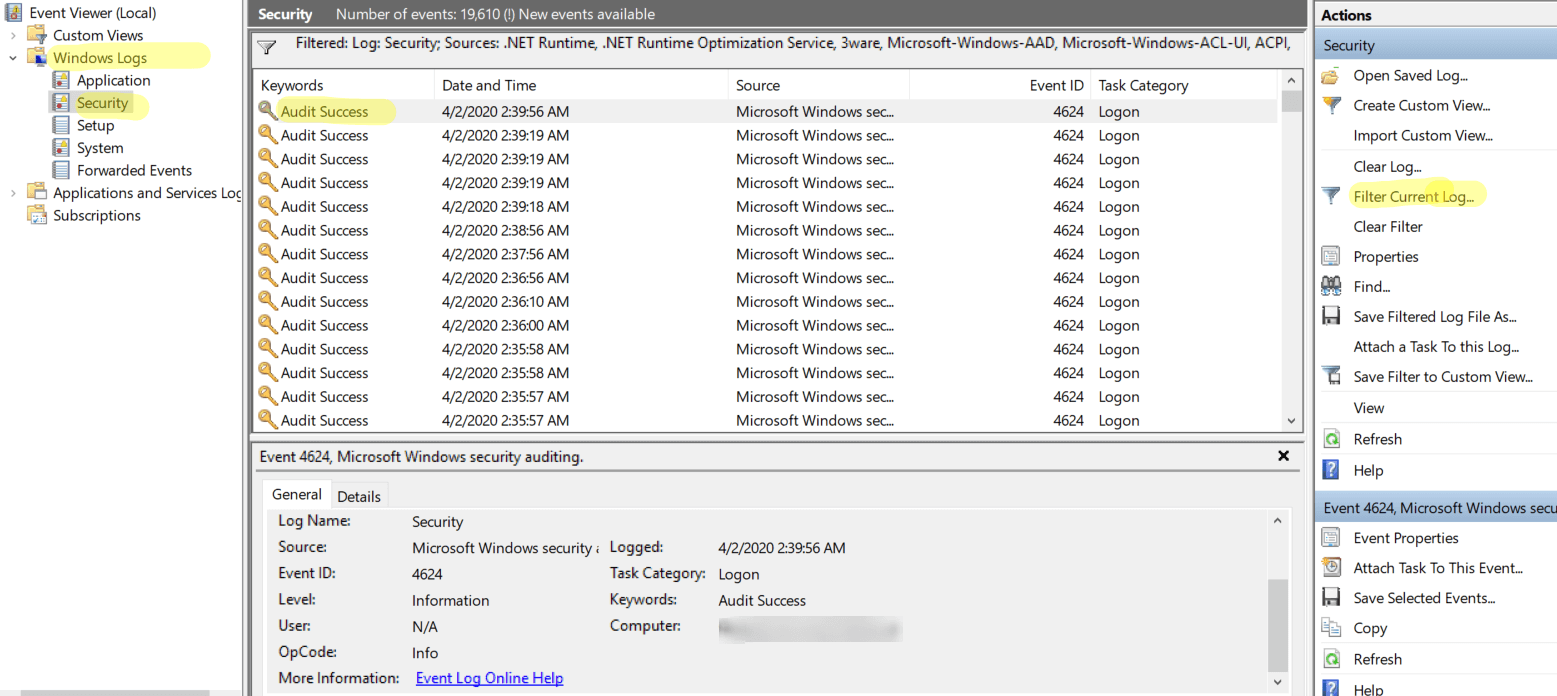
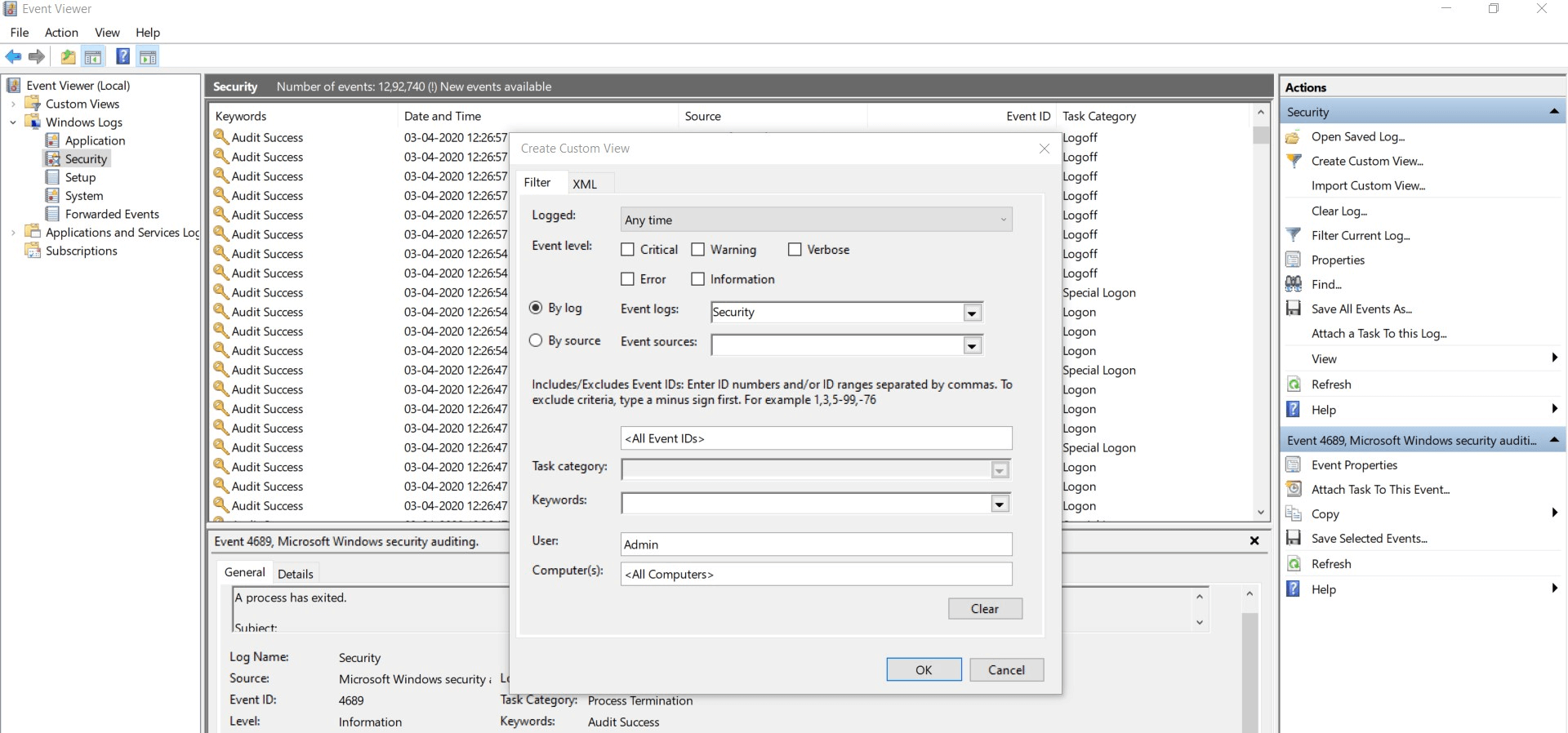
Click Filter Current Log on the right side to filter the logs based on event IDs or the time range for which the information is required.
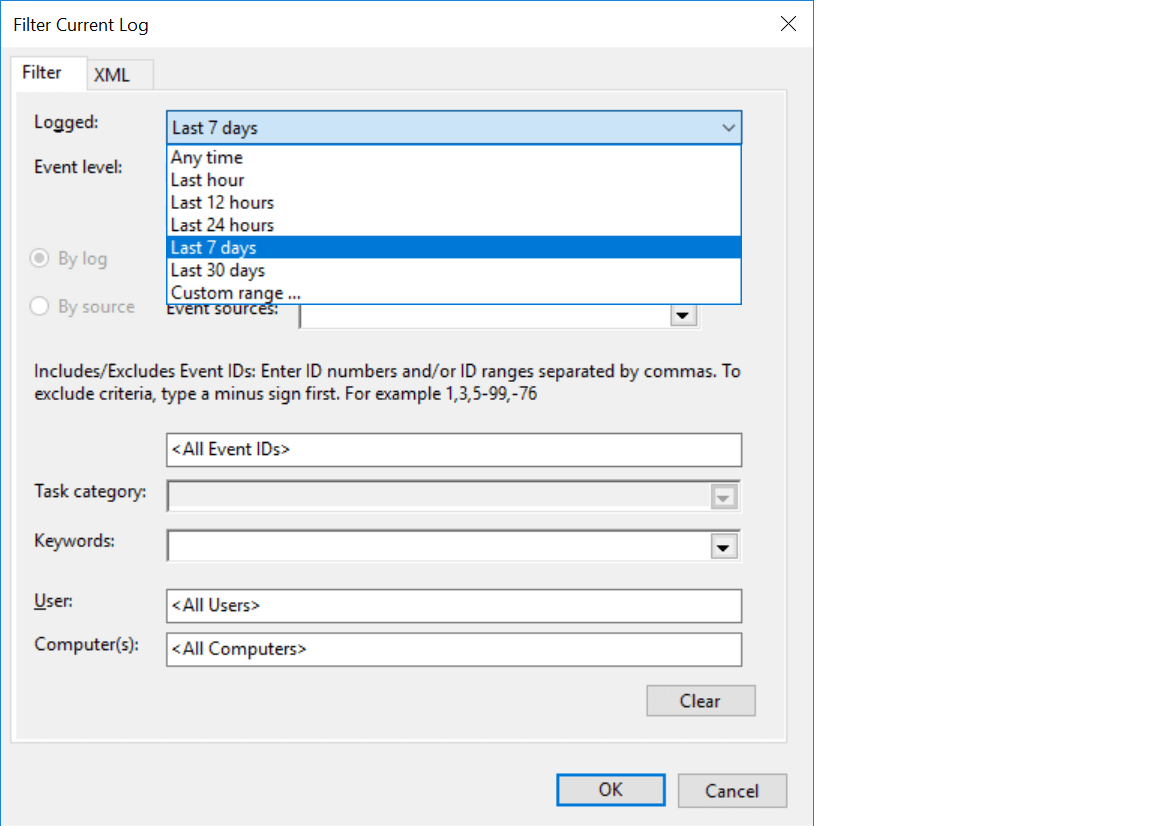
System admins have to go through the list of logon times and identify suspicious patterns, if any. This is a mundane and error-prone process as there are high chances that some logs may be overlooked.
If a domain user satisfies one or more of the below mentioned criteria, they can be identified as privileged users.
Users/groups who are members of any of the administrative groups.
Users/groups who inherit administrative privileges through their Organizational Unit.
Local user accounts and service accounts that may have received administrative privileges locally on domain controllers.
Users who have the privileges to reset passwords and unlock the accounts of domain users.
Users who have administrative privileges through which they can access Service Accounts.
Users who have 'write' access to Group Policy Objects related to domain controllers.
Users who have access to any application that manages Active Directory.
Users who are administrators of the Virtual System Environment.
You can list all the privileged users by using Active Directory Users and Computers and Group Policy Management Console.Open Server Manager on Windows server.
Under the Manage tab, open the Group Policy Management console.
Go to Forest -> Domain -> Your Domain -> Domain Controllers.
You can either edit an existing group policy object or create a new one.
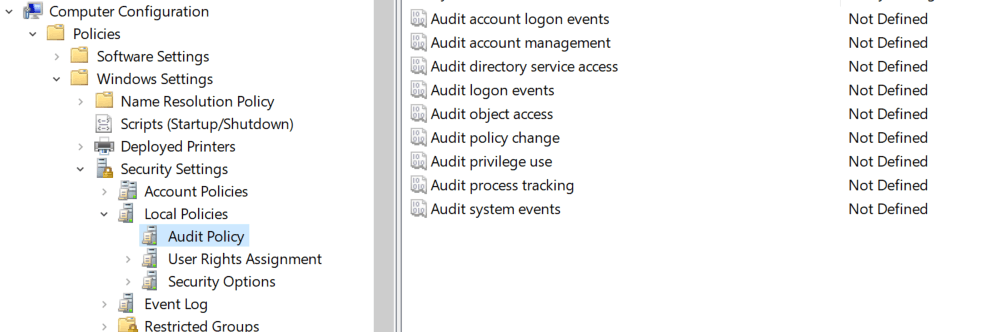
In the Group Policy Editor, navigate to Computer Configuration -> Policies -> Windows Settings -> Security Settings -> Local Policies -> Audit Policy.
The Audit Policy lists all of its sub-policies in the right panel, as shown in the Figure below.
Select the policies you want to enable for both its successful and failure events. In the event of multiple failures, the organization can initiate security protocol, if necessary.
Click Apply and OK to close Properties window.
Launch Server Manager in your Windows Server instance.
Under Manage, select Group Policy Management to launch the Group Policy Management console.
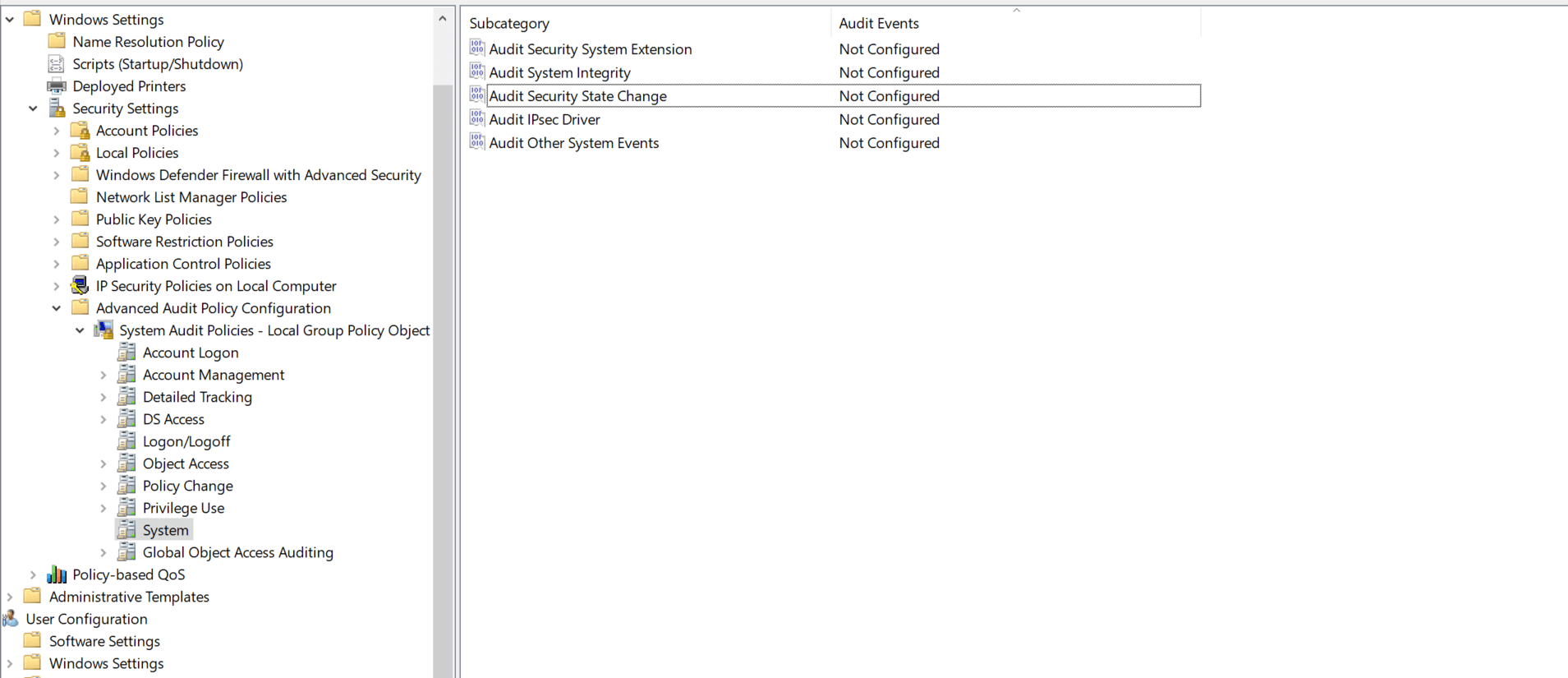
Navigate to Computer Configuration -> Windows Settings -> Security Settings -> Advanced Audit Policy Configuration -> System Audit Policies.
Select the required Audit Policies you want to enable and select both Success and Failure events.
Force audit policy subcategory settings to override audit policy category settings in Group Policy to make sure that basic auditing is disabled.
Open Event Viewer and navigate to Windows logs -> Security. You will see all the events logged in security logs.
Search using Find option or create a custom view to display the events generated by a specific privileged account.
Does native auditing become a little too much?
Simplify distribution group auditing and reporting with ADAudit Plus.
Get Your Free Trial Fully functional 30-day trial










