Direct Inward Dialing: +1 408 916 9892
Note: To enable the required auditing, please refer to Step 1 on the Native AD Auditing tab. After this you can follow the steps below to view the relevant events.
To track removable storage devices, you will have to enable auditing of your Active Directory.(See Step 1 of the Native AD Audit Tab).
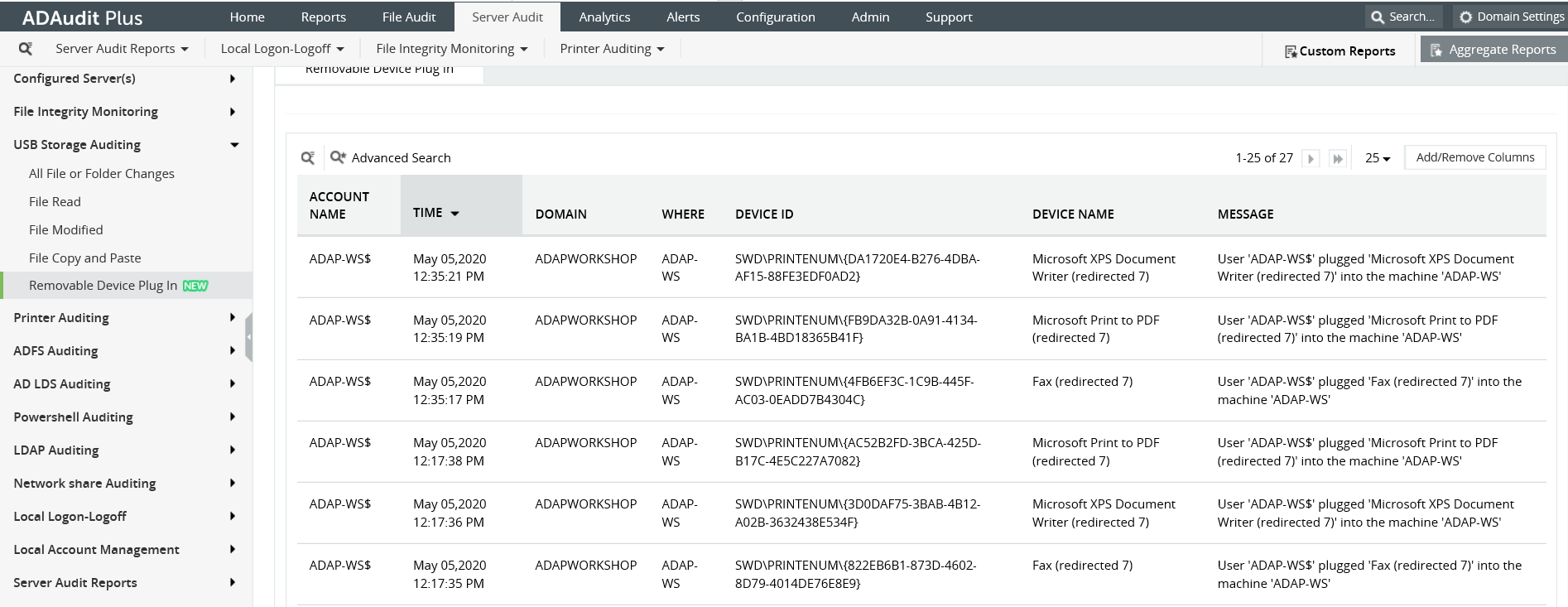
In the ADAudit Plus console, go to 'Server Audit' tab and navigate to 'USB Storage Auditing' on the left pane. This provides you a list of pre-configured reports on storage devices
You can select the 'Removable Device Plug-in' report to see any removable storage devices that are connected.
You can also create custom reports and export reports in (CSV, PDF, XSL, HTML).
Launch the Server Manager and open the Group Policy Management Console (GPMC).
In the left pane, expand the ForestandDomains nodes to reveal the specified domain you want to track the changes for.
Expand the domain and right-click Default Domain Policy'. You can also choose a domain policy that is universal throughout the domain, or create a new GPO and link it to the Default Domain Policy.
Click on 'Edit' of the desired group policy, to open up the Group Policy Management Editor.
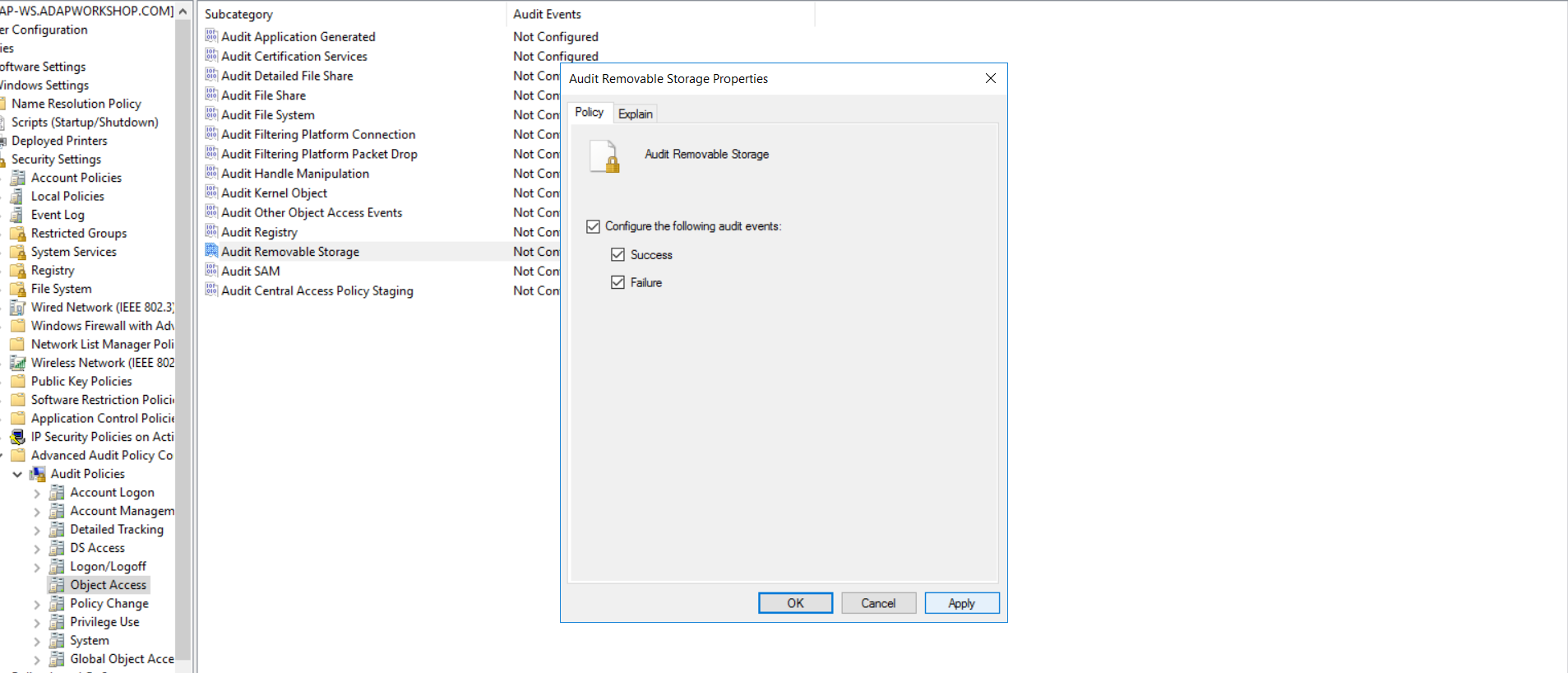
Expand Computer Configuration'-->Policies-->Windows Settings-->Security Settings-->Advanced Policy Configurations-->Audit Policy-->Object Accesses-->Audit Removable Storage.
Configure the properties for both 'success' and 'failure'. Exit Group Policy Management Editor.
In the GPMC, choose the modified GPO, and click 'Add' in the 'Security' section on the right pane. Type 'everyone' in the text box and click 'Check Names' to include the value. Exit the GPMC.
To enforce these changes throughout the domain, run the command 'gpupdate /force', in the "Run" console.
From your 'Server Manager' go to 'Tools' and select 'ADSI Edit'.
Right click 'ADSI Edit' node from the left pane and select 'Connect to' option. This pulls up the 'Connection Settings' window.
Select the 'Default Naming Context' option from the 'Select a well-known Naming Context' drop down list.
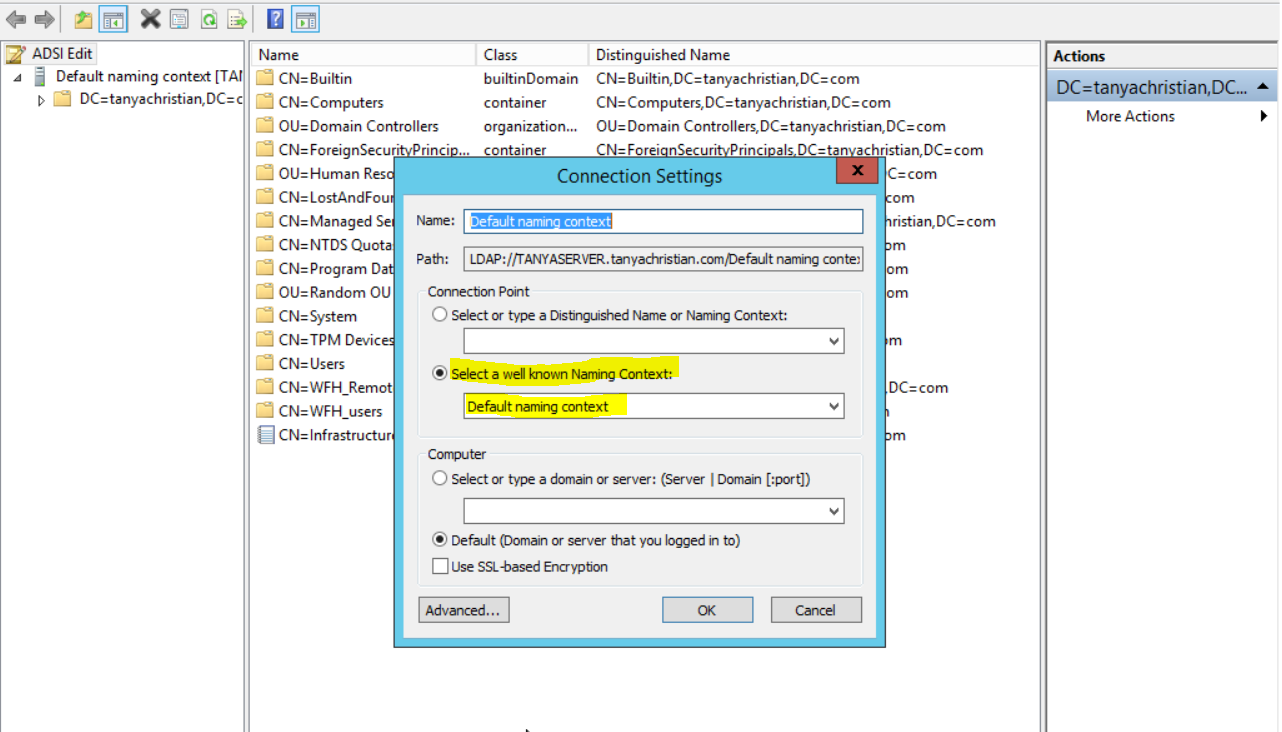
Click 'Okay' and return to the ADSI Edit window. Expand 'Default Naming Context' and select the associated 'DC' subnode. Right-click this subnode and click 'Properties'.
In the 'Properties' window, go to the'Security' tab and select 'Advanced'. After that select'Auditing' tab and click'Add'.
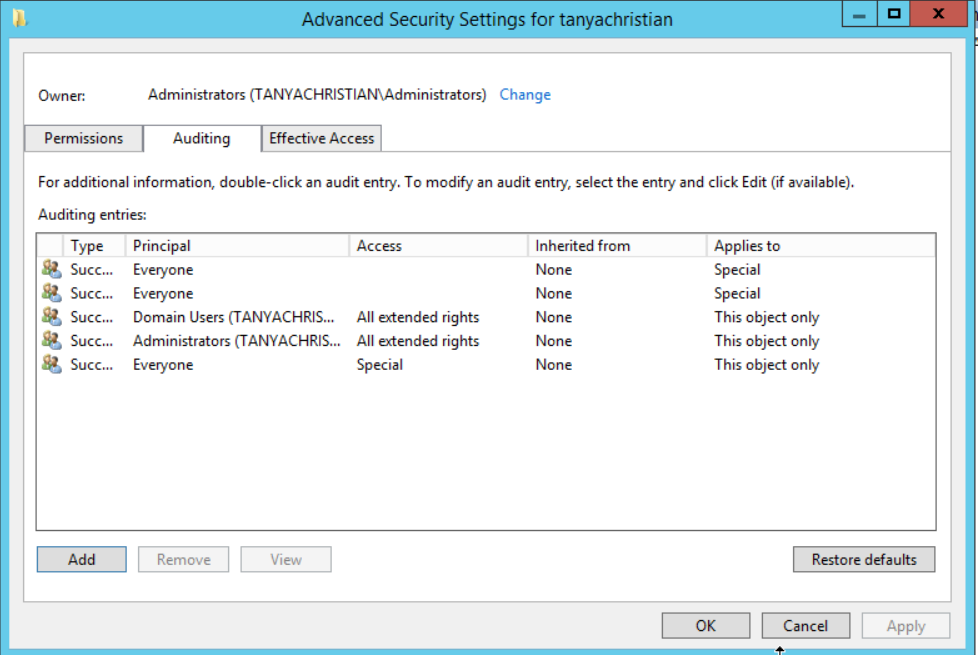
Click on 'Select a principle'. This will bring up a 'Select User, Computer or Group' Window. Type 'Everyone' in the textbox and verify it with 'Check Names'.
The 'Principle' in the 'Auditing Entry' window now shows 'Everyone'. In the 'Type' drop-down select'All' to audit for both 'success'and failure'events.
In the 'Select' drop-down choose This object and all descendant object's.Select'Full Control' in the 'Permissions' section.
This selects all the checkboxes available. Unselect the following check boxes:
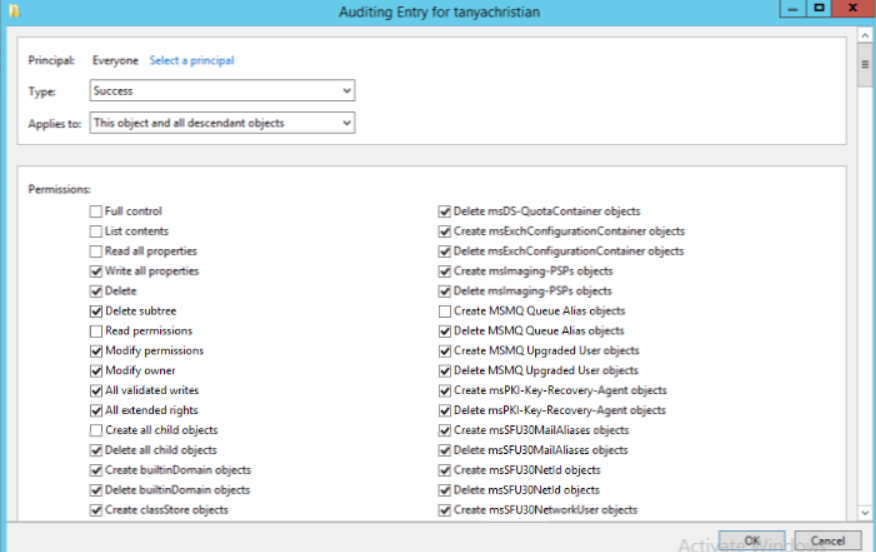
You can view changes to your groups by accessing 'Security Logs' in the 'Event Viewer'.
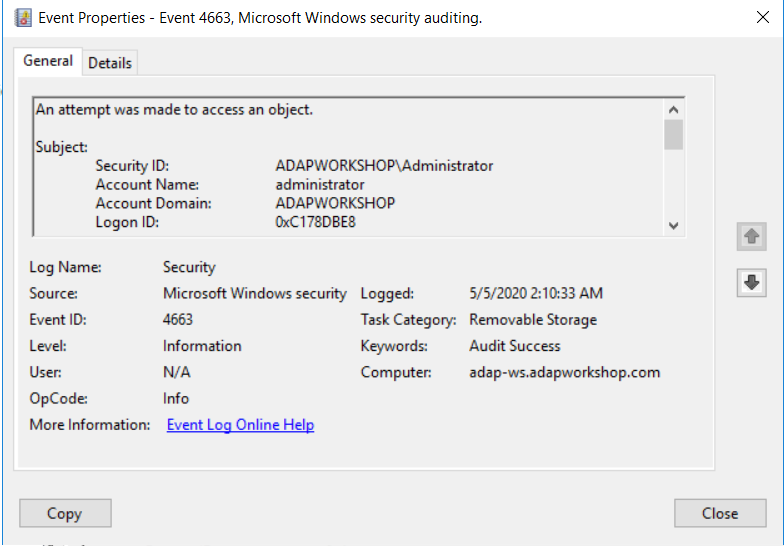
You can filter your log to look for the following event.
Event ID: 4663 describes details of any removable storage connected to the network.
Does native auditing become a little too much?
Simplify removable storage auditing and reporting with ADAudit Plus.
Get Your Free Trial Fully functional 30-day trial










