Web Client Overview
How to access Applications Manager web client?
Before accessing the Applications Manager web client, you will first need to start the Applications Manager service. Once Applications Manager server is started, you can access the web client using the following URL in browser: https://[APM-host]:[APM-port] . You can view the monitors from an internet site or from any remote machine using this URL.
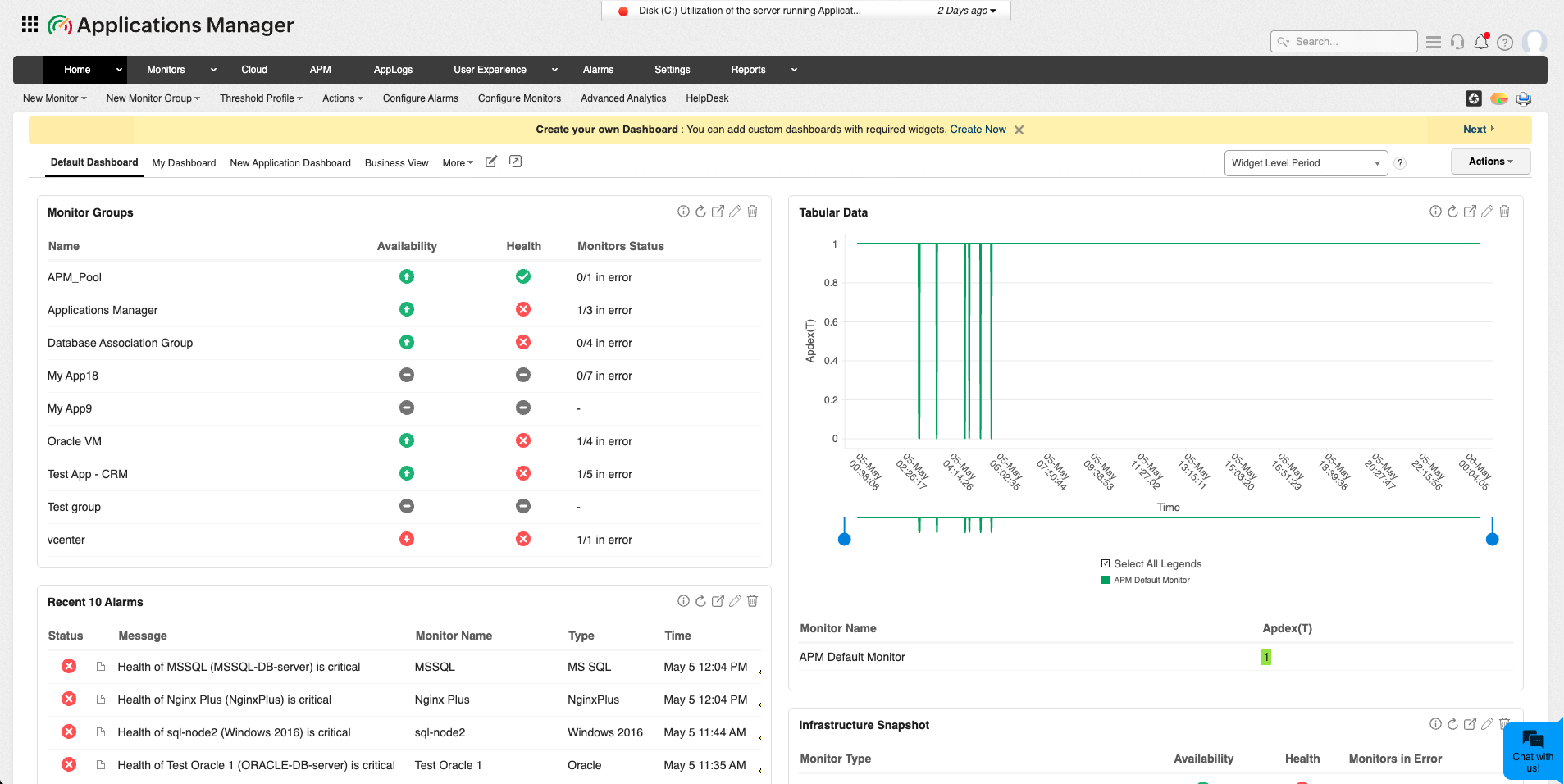
The following are the options that are common throughout all the screens in the Applications Manager web client:
- Profile: Provides you with the user profile details such as the name of the user along with the display picture, the role of the user (Super Administrator, Administrator, Manager, Operator, or User) and the number of active user sessions. In addition, you can find the following list of options displayed in the Profile popup window:
- Personalize: Provides an option to view the Applications Manager with a different look and feel, as you prefer. For more details, refer to the Personalize Web Client section, located under Settings -> Product Settings.
- Talk Back: Allows you to share technical feedback about Applications Manager by filling out a form to submit your suggestions, issues, or product-related feedback. This helps improve the product and ensures your inputs are addressed by the support team.
- Edit Tabs: Allows you to customize the tab names as well as the order with which it should be displayed in Applications Manager web client. Learn more
- About: Displays the licensing details of Applications Manager like build version, Service Pack version, type of license purchased, etc. for the product. Learn more
- Licensing: Allows you to apply the registered License file that you have purchased using this option.
- Logout: To log out of the user profile and return to login page of Applications Manager.
- Help: Provides detailed information about working with the product. Note that the help is context sensitive and you can click on the index to view the main page of Applications Manager help document.
- Notifications: Displays in-app updates and notifications that are grouped under sections such as General, Security, Integration, Monitors, Discovery, and Reports, helping you stay informed about feature updates, alerts, events, and other important activities within the product.
- Support: Serves as a centralized hub for accessing all product-related assistance in Applications Manager. It provides links to support resources such as product documentation, self-help guides, installation details, licensing information, and contact options, enabling you to quickly find answers or reach out for support.
- Jump to: Allows you to quickly log into ManageEngine ServiceDesk Plus / ManageEngine OpManager directly from Applications Manager console itself. In Enterprise Edition setup, you can use this option to navigate to Probe Servers directly from Central Server.
- Search: Provides a search bar for exploring and retrieving relevant links related to the specified keywords within the product. The keyword-specific links are categorized as Monitors, Help Documents, Bookmarks (pre-defined), and Reports that list the links under their respective category based on the keyword. For example, searching for keywords such as Monitors provide the relevant links under Help Documents and Bookmarks and for WebLogic, the links are categorized under Help Documents, Bookmarks, and Reports.
- Get Quote: You can send a sales quote to Applications Manager sales team based on your monitoring requirement.
- Chat with us: Offers instant support assistance directly from within the product. Users can choose to interact with an AI-powered assistant for quick guidance or connect with a technical support representative for more detailed assistance, ensuring timely resolution of queries.
- Navigation bar: This is the primary interface used to access different modules in Applications Manager. It is displayed as tabs and allows you to navigate between monitoring, alerts, reports, administration, and other features. Learn more
- Alarm Summary
 : Lists the recent critical alarms of Applications Manager. You can also click on the shades (representing the different severity) in the graph that will display the alarms based on the severity.
 - Printer Friendly
 : This option is available in all the pages of the web client. Clicking this link provides you a printer friendly view of the current page. This comes handy for printing Alarms and Reports.
 - Screenshot
 : Allows you to capture screenshots of your Applications Manager display. You can take screenshots either by capturing the full screen (Visible Area) or by capturing a part of the screen (Partial Area). After capturing the necessary screenshots, you can share them with Applications Manager support by filling the necessary Subject and its Description in detail. Clicking on Submit will trigger an email to Applications Manager support.
Note:
- A maximum of 5 screenshots can be stored locally. (Older screenshot will be removed if exceeded)
- In order to trigger an email, you need to configure your mail server through SMTP server. Click here to learn how to configure your mail server.

