How to enable Azure AD password writeback for self-service password reset
Password writeback is a hybrid identity capability that synchronizes password changes made in the cloud back to
your on-premises Active Directory Domain Services (AD DS) environment in real time. In Microsoft Entra ID (formerly
Azure AD), it works alongside self-service password reset: When a user resets or changes their password through the
cloud portal, that change is immediately applied to their on-premises AD account, keeping hybrid identity
credentials in sync without administrator intervention. This guide covers every prerequisite and configuration step
required to enable password writeback using Microsoft Entra Connect (formerly Azure AD Connect). It explains how the
security model works, what the feature's limitations are, and how ManageEngine ADSelfService Plus delivers
self-service password reset, password policy enforcement, and password synchronization for Entra ID and on-premises
AD natively—without depending on Microsoft's writeback pipeline.
What is Entra ID password writeback and how does it work?
Password writeback relies on a secure, outbound connection between Microsoft Entra ID and your on-premises AD DS
environment. When a user resets their password through self-service password reset, the new credential is encrypted
and transmitted through a tenant-specific Azure Service Bus Relay, a dedicated outbound HTTPS channel on port 443,
to the hybrid identity synchronization tool running on-premises, which then applies the change to AD DS. No inbound
firewall ports are required, and encryption keys rotate automatically every six months.
Password writeback is supported across the following hybrid authentication methods:
- Password hash synchronization: Users authenticate to Microsoft Entra ID using password hash
data synchronized from on-premises AD DS. When an eligible user resets or changes their password through Microsoft
Entra SSPR, password writeback sends the new password to the user's on-premises AD DS account.
- Pass-through authentication: Microsoft Entra ID passes authentication requests to an
on-premises agent for validation against AD DS. Password changes made through Microsoft Entra SSPR can still be
written back to the user's on-premises AD DS account.
- Active Directory Federation Services: Authentication is handled by the federated AD FS
environment. Federated users can still use Microsoft Entra SSPR, with eligible password changes written back to
their on-premises AD DS accounts.
Password writeback is offered by Entra ID for the following operations:
- End-user self-service password resets and changes.
- Administrator-initiated resets from the Microsoft Entra admin center and Microsoft Graph API.
- Account unlock without password reset when enabled.
Step 1: Configure AD DS account permissions for password writeback
The Microsoft Entra Connect service account needs specific permissions on your on-premises Active Directory Domain
Services before writeback will function. These are not granted by default.
- Open Active Directory Users and Computers with a Domain Administrator account.
- From the View menu, make sure Advanced Features are turned on.
- In the left panel, right-click the object representing the root of the domain and select
Properties > Security > Advanced.
- From the Permissions tab, select Add.
- For Principal, select the account Microsoft Entra Connect uses.
- In the Applies to drop-down menu, select Descendant User objects.
- Under Permissions, check Reset password and Change password.
- Under Properties, check Write lockoutTime and Write
pwdLastSet.
- Select Apply / OK.
- From the Permissions tab, select Add again.
- For Principal, select the same Microsoft Entra Connect account.
- In the Applies to drop-down menu, select This object and all descendant
objects.
- Under Permissions, check Unexpire Password.
- Select Apply / OK and close any open dialog boxes.
Note: After setting permissions, allow up to one hour for replication across all AD DS objects.
Step 2: Verify and configure on-premises password policy
On-premises AD DS password policies, including minimum password age, password history, complexity requirements, and
any third-party password filters, are all evaluated and enforced during writeback operations. A mismatch between the
cloud reset and a policy requirement on-premises will cause writeback to fail or return an error to the user. A
common cause of writeback failure is a user's password not satisfying the on-premises minimum password age policy,
triggering a rejection by AD. If this is the cause, the user can wait until the minimum age period elapses.
Alternatively, if your organization does not require a minimum password age, you can set it to 0 days:
- Open the Group Policy Management Console (gpmc.msc).
- Navigate to Computer Configuration > Policies > Windows Settings > Security Settings >
Account Policies > Password Policy.
- Set Minimum password age to 0 days.
- Apply the policy and either wait for replication or run gpupdate /force on affected domain controllers.
If your organization uses fine-grained password policies or third-party password filter DLLs, those will also be
evaluated during writeback. Ensure they do not block legitimate reset operations.
Step 3: Enable password writeback in Microsoft Entra Connect
- Sign in to your Microsoft Entra Connect server and start the Microsoft Entra Connect
configuration wizard.
- On the Welcome page, select Configure.
- On the Additional tasks page, select Customize synchronization options, then
select Next.
- On the Connect to Microsoft Entra ID page, enter a Hybrid Identity Administrator credential for
your tenant, then select Next.
- On the Connect directories and Domain/OU filtering pages, select
Next.
- On the Optional features page, check Password writeback and select
Next.
- On the Directory extensions page, select Next.
- On the Ready to configure page, select Configure and wait for the process to
finish.
- When configuration is complete, select Exit.
Step 4: Enable writeback in the Microsoft Entra admin center
- Sign in to the Microsoft Entra admin center as at least a Hybrid Identity Administrator.
- Browse to Entra ID > Password reset, then choose On-premises
integration.
- Check the option for Write back passwords to your on-premises directory.
- Optionally, if Microsoft Entra Connect provisioning agents are detected, also check Write back passwords
with Microsoft Entra Connect cloud sync.
- Set Allow users to unlock accounts without resetting their password to Yes. (Optional)
- Select Save.
Troubleshooting password writeback
If writeback is not working after configuration, work through these diagnostic steps:
Verify TLS 1.2 is enabled: The Entra Connect server must support TLS 1.2. Older OS configurations
may have it disabled. Confirm it is enabled in the Windows registry and that no group policy overrides it.
Restart the ADSync service: On the Entra Connect server, restart the Microsoft Entra Connect Sync
service and re-test a writeback operation.
Check the event log: On the Entra Connect server, open Event Viewer and review:
- Password Reset Service event log codes: Indicate the status of individual writeback requests, including
authentication errors, policy violations, and connectivity failures.
- ADSync event log codes: Indicate synchronization-level errors between the agent and on-premises AD DS.
Verify account permissions: Return to step one and confirm the Entra Connect service account has
Reset password, Write lockoutTime, Write pwdLastSet, and (where applicable) Unexpire Password on Descendant User
objects. Permission replication can take up to an hour.
Check for protected group membership: If writeback fails for specific users only, check whether
those users are members of protected AD groups (Domain Admins, Enterprise Admins, or any group that sets the
AdminCount attribute). Password writeback cannot reset passwords for members of these protected groups by design.
Limitations of native Entra ID password writeback
- One-directional only: Password writeback itself operates from Microsoft Entra ID to on-premises
AD DS. Synchronization in the opposite direction is handled separately, such as through Password Hash
Synchronization when configured.
- No enterprise application sync: Writeback updates only the on-premises AD DS account, not
connected platforms like Google Workspace, Salesforce, or ServiceNow.
- Protected groups are excluded: Accounts belonging to protected AD groups cannot have passwords
written back by design.
- Requires specific licensing: The feature is unavailable without at minimum a Microsoft Entra ID
P1/P2 or Microsoft 365 Business Premium license, or trial entitlement.
- No advanced password policy at reset time: Native self-service password reset enforces only
basic on-premises AD DS password policies with no ability to block breached passwords, dictionary words, or
keyboard patterns at the point of reset.
- Policy conflicts cause failures: If the on-premises AD DS password policy rejects the new
credential, writeback fails and the user receives a generic error.
A complete alternative: ManageEngine ADSelfService Plus
Native Entra ID password writeback is a useful feature, but it is one link in a longer chain, dependent on Entra
ID's self-service password reset, the Entra Connect sync pipeline, and P1 licensing, with meaningful gaps in policy
enforcement and cross-platform synchronization.
ManageEngine ADSelfService Plus handles the entire hybrid password lifecycle natively for both on-premises Active
Directory and Microsoft Entra ID, without relying on Microsoft's writeback pipeline.
Self-service password reset for on-premises AD and Entra ID, natively
ADSelfService Plus provides Entra ID self-service
password reset as well as AD self-service
password reset. Users reset passwords and unlock accounts through a single interface, with changes applied to
synchronized environments automatically, accessible from the web, the Windows/macOS/Linux logon screen, or the
mobile app.
Password policy enforcement at the point of reset
Every reset processed by ADSelfService Plus is evaluated by the built-in Password Policy Enforcer before being
committed to Entra ID and password synchronized applications. This includes blocking breached passwords, dictionary
words, keyboard patterns, and contextual strings like the user's name, with real-time strength feedback shown to the
user as they type.
Password synchronization across Entra ID and enterprise applications
ADSelfService Plus writes back Entra ID password changes to Active Directory and syncs them with applications like
Google Workspace, Salesforce, and ServiceNow, automatically and in real time. Sync scope can be restricted to
specific domains, OUs, or groups. Account unlocks propagate across connected platforms simultaneously.
Step 1: Enable self-service password reset and password change
- Navigate to Entra ID > Configuration > Self-Service
> Policy Configuration.
- Click the Add New Policy button.
Note: ADSelfService Plus creates a default policy for each discovered tenant. You can edit this
existing policy or create new policies to fit your requirements.
- Enter a descriptive policy name.
- Select Reset Password and Change Password.
- Click Select Domains/Groups to define the policy’s scope. You can apply it to all users
in a domain or target specific domains and groups.
- Click OK to confirm the selection.
- Click Save Policy.
Step 2: Configure password synchronization for Active Directory
- Log into ADSelfService Plus with administrative credentials.
- Navigate to Configuration > Self-Service > Password Sync/Single
Sign On.
- Select the Active Directory application.Note: You can also find Active
Directory application that you need from the search bar located in the left pane or the alphabetical navigation
option in the right pane.
- Enter the Application Name and Description.
- Select the Domain to which passwords should be synced.
- Select the policies from the Policies drop-down list. Password synchronization will be possible
for only those users who fall under the selected self-service policies.
- Click Add Application.
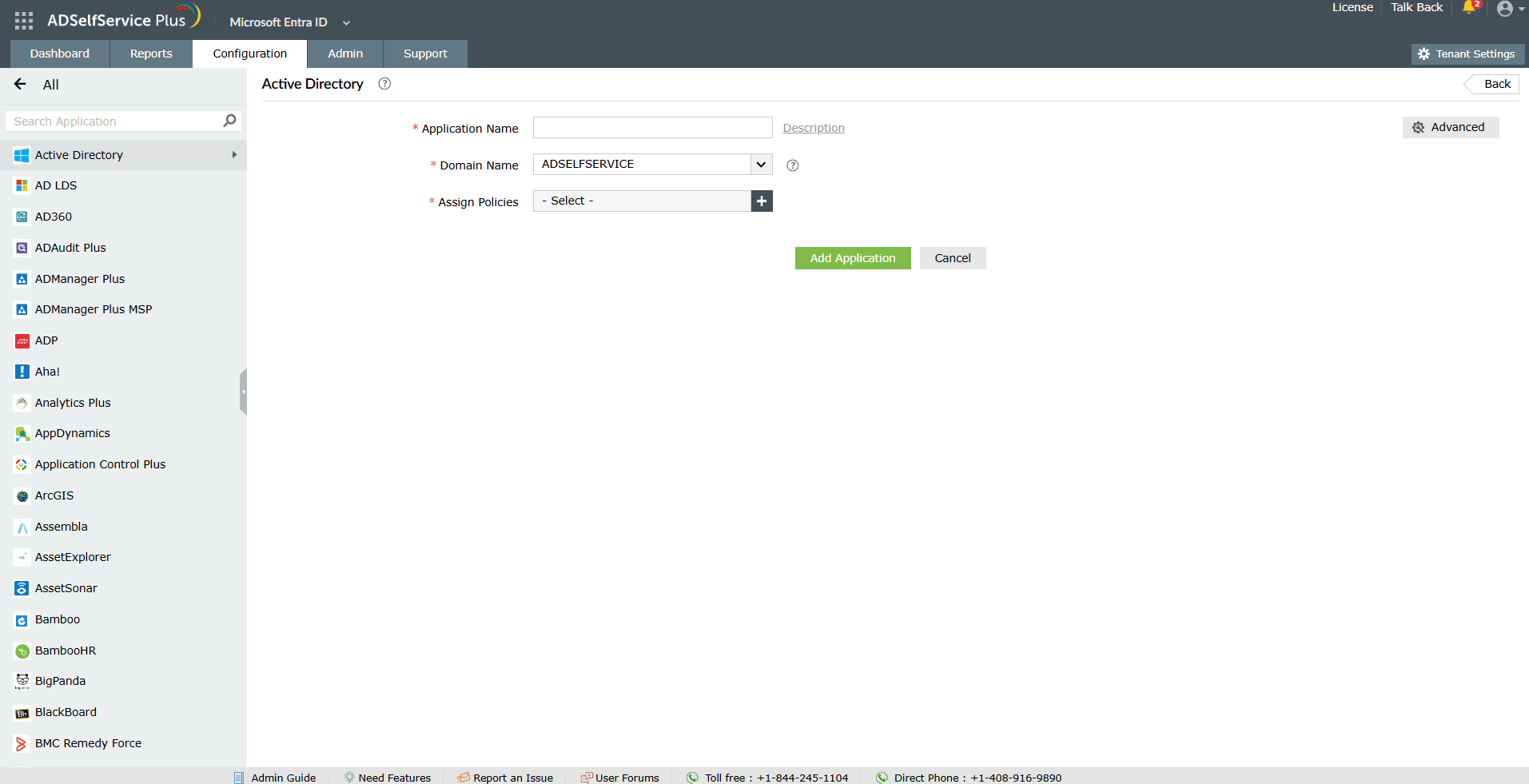
Image 1. Configuration of Active Directory as a target application for Entra ID password
synchronization
Step 3: Enable automatic or manual account linking
To link users' accounts automatically:
- In the Active Directory password synchronization configuration page, click Advanced.
- In the window that opens, select the Enable Auto Account Linking checkbox.
- In the Source Attributes drop-down, select the attributes (one or more) from the AD domain
where the users' password will be reset.
- In the Target Attributes drop-down list , select the attribute whose value will equal the
combined value of the selected source attributes.
- Select the Append Domain checkbox to add the domain's name at the end of the combined value of
the selected source attributes. If the checkbox is selected, the sAMAccountName+Initials becomes,
sAMAccountName+Initials@domain.
- Click Save.Note: If the value of the source attributes is empty, then
sAMAccountName will be taken as the default value. If the value of the source attributes is in email format, then
the domain name will not be appended even if that option is enabled.
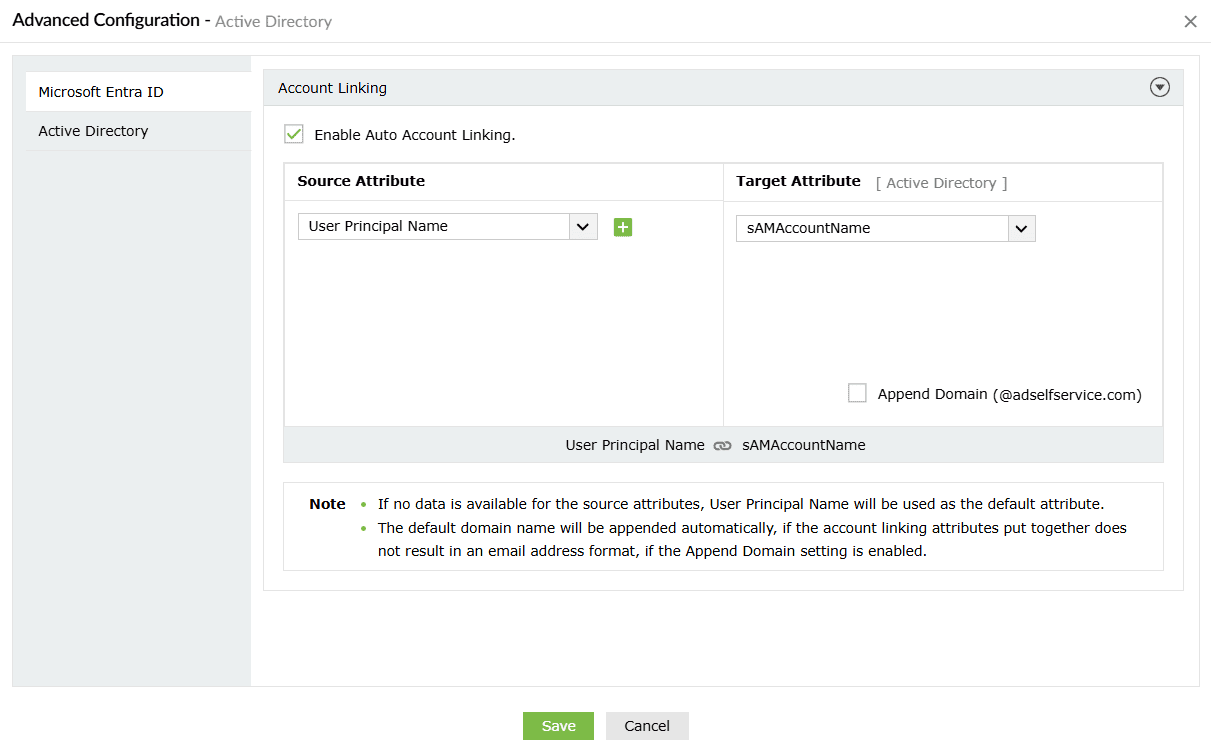
Image 1. Configuration of Active Directory as a target application for Entra ID password
synchronization
To link users' accounts manually
- In the Active Directory password synchronization configuration page, click Advanced.
- In the window that opens, deselect the Enable Auto Account Linking checkbox.
- Click Save.
Why choose ADSelfService Plus for hybrid password management?
- MFA at password reset: Enforce multi-factor authentication before allowing a self-service reset
or unlock, using methods including TOTP, push notification, biometrics, and hardware security keys.
- Have I Been Pwned integration: Automatically checks new passwords against the Have I Been Pwned
breach database at reset time and blocks compromised credentials before they are committed.
- Conditional access-aware self-service password reset: Apply different reset policies based on
user role, OU, group membership, or login context rather than a single org-wide policy.
- Detailed audit and compliance reporting: Every password reset and unlock, and sync event is
logged with user, timestamp, and outcome.
- Active Directory and Entra ID health dashboard: Administrators get a unified view of password
expiry, account lockouts, and sync status across both environments from a single console.
- Self-service from the logon screen: Users locked out before authenticating can reset their
password directly from the Windows, macOS, or Linux logon screen without needing VPN or helpdesk intervention.
FAQs
Q. How do I check if password writeback is enabled?
Sign in to the Microsoft Entra admin center as a Hybrid Identity Administrator, browse to Entra ID > Password
reset > On-premises integration, and confirm that Write back passwords to your on-premises directory is checked.
On the Entra Connect server, you can also open the Microsoft Entra Connect configuration wizard, navigate to
Optional features, and verify that Password writeback is selected.
Q. How long does password writeback take?
Password writeback is near-instant in most environments. Once a user completes a reset through SSPR, the change is
transmitted through the Azure Service Bus Relay to the on-premises Entra Connect agent and applied to AD DS
typically within a few seconds. Delays can occur if the Entra Connect server is under load, if there is network
latency between the server and Azure, or if AD replication to downstream domain controllers has not yet completed.
Q. How do I enable group writeback in Azure AD Connect?
Group writeback is a separate feature from password writeback and is no longer configured through Microsoft Entra
Connect. Microsoft deprecated security group writeback in Entra Connect in June 2024 and moved the capability to
Microsoft Entra Cloud Sync. To enable it, you need to install the Microsoft Entra Cloud Sync provisioning agent,
configure a Microsoft Entra ID to AD sync configuration in the Entra admin center, and define a target OU in
on-premises AD to receive the written-back groups. Microsoft 365 group writeback through Entra Connect Sync remains
available for existing configurations, but new deployments should use Cloud Sync for group writeback.