- Free Edition
- Quick Links
- MFA
- Microsoft Entra ID Security
- Self-Service Password Management
- Single Sign-On
- Password Synchronizer
- Password Policy Enforcer
- Employee Self-Service
- Reporting and auditing
- Integrations
- Related Products
- ADManager Plus Active Directory Management & Reporting
- ADAudit Plus Real-time Active Directory Auditing and UBA
- Exchange Reporter Plus Exchange Server Auditing & Reporting
- EventLog Analyzer Real-time Log Analysis & Reporting
- M365 Manager Plus Microsoft 365 Management & Reporting Tool
- DataSecurity Plus File server auditing & data discovery
- RecoveryManager Plus Enterprise backup and recovery tool
- SharePoint Manager Plus SharePoint Reporting and Auditing
- AD360 Integrated Identity & Access Management
- Log360 (On-Premise | Cloud) Comprehensive SIEM and UEBA
- AD Free Tools Active Directory FREE Tools
Why 2FA/MFA for Windows login?
Stolen or weak machine passwords are a prevalent attack vector. The Microsoft Digital Defense Report states that password spraying accounted for 97% of identity cyberattacks in 2025. Advancements in credential-based attacks mean that increasing the complexity of machine passwords does not keep your systems safe. Depending solely on password-based authentication—especially at the enterprise level—leaves the organizational network, data, and IT infrastructure fragile, possibly resulting in lateral movement, privilege escalation, data exfiltration, ransomware attacks, and other security consequences.
Two-factor authentication (2FA), which is a subset of multi-factor authentication (MFA), is a simple yet sturdy mechanism for credential theft prevention. By enabling Windows 2FA and MFA for workstations and servers, organizations can prevent identity breaches and avoid endpoint takeover.
Secure your logins with a robust Windows 2FA solution
ManageEngine ADSelfService Plus offers the ideal Windows login 2FA solution that's backed by robust authentication methods, risk-based access controls, and offline protection. Its comprehensive Windows MFA capabilities fortify all Windows endpoints, including workstations, servers, RDP, and UAC, and even local Windows logins. The solution supports AD-based MFA and Entra ID MFA.
How MFA for Windows works?
- When 2FA for Windows login is configured, users logging in to their Windows machines must first verify their identities using their AD or Entra ID credentials.
- Next, they complete the Windows login MFA process by authenticating with additional methods such as biometrics, TOTP, or SMS verification. Depending on the configuration, users may need to verify their identities through one or more authentication methods.
- Finally, users are logged in to their Windows machines once they have successfully verified their identities using the configured authentication methods.
The solution supports both Windows local and RDP MFA, providing enhanced login security.

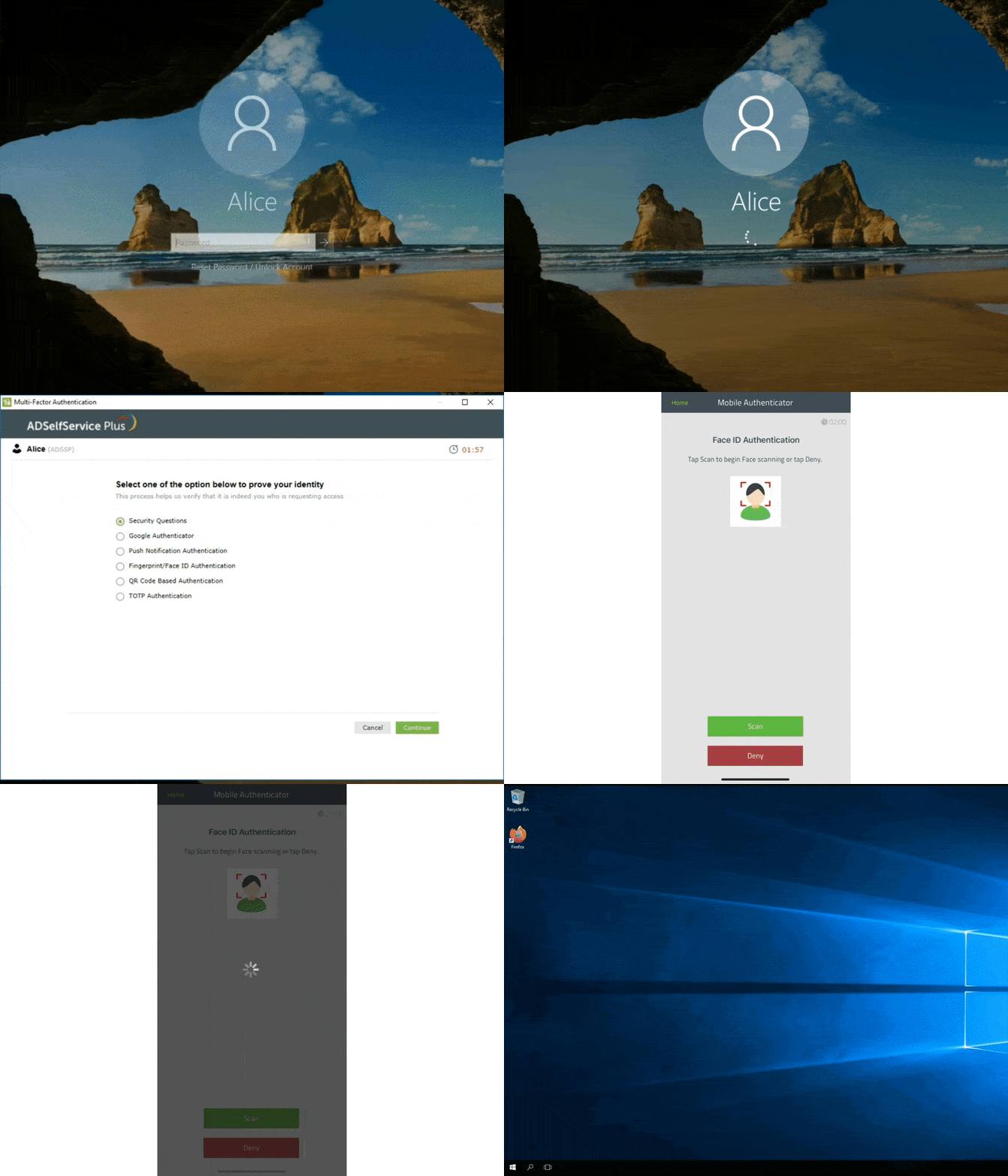
Understanding MFA for Windows authentication
ADSelfService Plus supports a comprehensive list of knowledge, possession, and inference authentication methods for admins to design the Windows login MFA and 2FA flows appropriate to the target users. Here is the complete list of supported authenticators:
A brief comparison for MFA types for Windows login
| Authentication method | Best for | Security level | User experience |
|---|---|---|---|
| Biometric authentication (fingerprint/face) | Securing regular workstation logins quickly | High | Excellent |
| TOTP | Protecting general enterprise users' devices | High | Excellent |
| FIDO passkeys | Fortifying high-risk Windows resources | Very High | Excellent |
| Push notifications | Authenticating a mobile-first workforce | High | Excellent |
Additionally, conditional access policies enhance MFA for Windows login by applying authentication based on user risk, device trust, location, or access type. ADSelfService Plus can require stronger MFA for privileged users, remote or RDP logins, and unmanaged devices, while allowing smoother access from trusted endpoints. This upholds enterprise Windows security as well as seamless user experience.
Setting up phishing-resistant, hardware MFA for Windows login
Hardware token authentication adds a possession-based factor to Windows logins, making stolen passwords far less useful. ADSelfService Plus supports security keys, smart cards, and token devices for stronger endpoint protection.
These methods are widely used as phishing-resistant MFA because they rely on a trusted physical device instead of credentials vulnerable to fake login pages or replay attacks. Hardware token MFA is ideal for Zero Trust strategies and high-risk Windows endpoints such as those belonging to the sysadmin, finance teams, and remote employees.
Implementing seamless, biometric MFA for Windows logins
Biometric authentication offers a fast, user-friendly way to secure Windows sign-ins. Instead of passwords alone, users verify identity through fingerprints or facial recognition. ADSelfService Plus supports biometric MFA as part of a broader Windows login security strategy. It improves protection and login convenience, especially for frontline end users and frequent logins.
How to setup MFA for Windows login via ADSelfService Plus?
- Log in to the ADSelfService Plus web console with admin credentials.
- Navigate to Configuration > Self-Service > Multi-factor Authentication > MFA for Endpoints.
- Select a policy from the Choose the Policy drop-down. This will determine which authentication methods are enabled for each set of users.
- In the MFA for Machine Login section, check the Enable __ factor authentication box, select the number of authentication methods, and specify which ones you'd like to use from the drop-down menu.
- Click Save Settings.

Apart from Windows OS, the solution also supports 2FA for macOS and Linux OS.
Tailored Windows 2FA to fit any organization's needs
Admins can customize ADSelfService Plus' Windows login MFA feature to align with their organization's specific security, policy, and compliance requirements.
- Granular authentication controls: Deploy MFA agents, configure MFA methods, and apply authentication rules based on users' privileges and permissions through groups and OUs. This creates a scalable rollout model for enterprise environments without manual configuration on every machine.
- True MFA: Configure different numbers of authentication levels—with a maximum of three—for users based on their AD domains, OUs, and groups. Heighten or relax the authentication process based on a user's job role and privileges.
- Flexible enrollment policies: Enforce mandatory authentication factors for enhanced security or allow users to choose their desired authenticators from a preconfigured list.
- Trusted device exemption: Allow selected users to skip MFA for Windows login when using a trusted device. A trusted device refers to a device that has been previously authenticated through the MFA process. This trust remains valid for a set period, after which reauthentication is necessary.
Apart from Windows OS, the solution also supports 2FA for macOS and Linux OS.
MFA for Windows RDP
RDP access attempts are the most vulnerable, as remote connections to the organizational network may have exploitable security gaps. By enforcing MFA for RDP, ADSelfService Plus ensures that remote access is secured by advanced authentication methods. Moreover, the solution's Windows RDP 2FA process is twofold, safeguarding both RDP server authentication and RDP client authentication prompts from manipulator-in-the-middle and credential-based attacks.
MFA for Windows UAC
ADSelfService Plus also integrates MFA for Windows UAC elevation prompts. Any time a user or process attempts to perform an administrative action, a second authentication factor is required. This prevents privilege escalation by malicious insiders or malware posing as trusted applications.
Windows server MFA
Enforcing Windows server MFA is crucial for protecting critical servers from unauthorized access. Windows servers often store sensitive data and run essential services, making them a gold mine for threat actors. By implementing Windows server 2FA with authentication methods like biometrics and TOTPs, admins can ensure that even if credentials are compromised, attackers cannot gain access to their Windows Server instances. This feature is compatible with Windows Server 2008 and above.
Machine-centric Windows 2FA
Machine-based 2FA is where the Windows login 2FA is triggered based on the device policy settings rather than individual user account settings. When this is enabled, all users logging in to a specific machine must verify their identities using 2FA. Admins can configure authentication methods for machine-based 2FA for Windows, selecting from a range of authenticators.
Windows offline 2FA
ADSelfService Plus supports offline 2FA for Windows machines, ensuring secure logins even when users are remote, offline, or unable to connect to the product server. Administrators can configure multiple authentication methods for secure logins. To enable offline access, users must enroll in their chosen authentication factors while online. Offline Windows 2FA solution enhances security for remote workers, ensuring continuous protection even without internet connectivity.
Local user MFA
ADSelfService Plus extends MFA protection to local user accounts on Windows machines. This ensures that even accounts not connected to domain controllers are safeguarded against unauthorized access. By enforcing MFA for local logins, organizations can prevent attacks targeting standalone systems and enhance security for all users, regardless of network connectivity.
Benefits of implementing Windows MFA
- Simple deployment: The intuitive admin web portal simplifies Windows MFA configuration and offers scheduler-based, automated MFA agent deployment across end-user devices.
- Comprehensive configuration: MFA extends to macOS and Linux logins, VPNs, Outlook on the web, and major enterprise applications, ensuring an enterprise's attack surface is minimized as much as possible.
- Assured user enrollment: Bulk enrollment and mandated enrollment options are provided to ensure users' Windows machines and domain accounts are secured by 2FA.
- Real-time reporting: The built-in reporting feature offers audit-ready logs that track every authentication attempt across endpoints. These real-time insights help administrators monitor access patterns, detect anomalies, and ensure compliance with security policies.
- Compliance with regulations: The 2FA feature helps organizations meet industry mandates by enforcing strong, identity-based access controls. It aligns with standards like the GDPR, the PCI DSS, HIPAA, and the NIST CSF by minimizing the risk of unauthorized access to sensitive systems and data.
FAQs
Yes. Microsoft Authenticator can be used for Windows login MFA when integrated with solutions like ADSelfService Plus or Microsoft Entra ID MFA. Users first enter their Windows or domain credentials, then approve a push notification or enter a one-time code in the app to complete sign-in securely.
The four common MFA factor types are:
- Something you know: Passwords, PINs, security questions
- Something you have: Mobile authenticator apps, hardware tokens, smart cards
- Something you are: Fingerprints, facial recognition, biometrics
- Somewhere you are or contextual factors: Trusted device, location, risk-based signals
Modern Windows MFA often combines passwords with biometrics, push approvals, or hardware tokens.
MFA on the Windows login screen adds an extra verification step after entering a password. Users may need to approve a push notification, enter a TOTP code, use biometrics, or verify with a hardware token before accessing the device.
This helps prevent unauthorized access even if passwords are stolen. ADSelfService Plus supports MFA for Windows workstations, servers, RDP sessions, and local logins.
Highlights of ADSelfService Plus
Password self-service
Unburden Windows AD users from lengthy help desk calls by empowering them with self-service password reset and account unlock capabilities.
Multi-factor authentication
Enable context-based MFA with 20 different authentication factors for endpoint, application, VPN, OWA, and RDP logins.
One identity with single sign-on
Get seamless one-click access to more than 100 cloud applications. With enterprise single sign-on (SSO), users can access all their cloud applications using their Windows AD credentials.
Password and account expiry notifications
Notify Windows AD users of their impending password and account expiry via email and SMS notifications.
Password synchronization
Synchronize Windows AD user passwords and account changes across multiple systems automatically, including Microsoft 365, Google Workspace, IBM iSeries, and more.
Password policy enforcer
Strong passwords resist various hacking threats. Enforce Windows AD users to adhere to compliant passwords by displaying password complexity requirements.