How to manage the GPO link order with ADManager Plus
Last updated on:In this article
Group Policy Objects (GPOs) in your organization may be linked to specific domains, OUs, or sites. Since GPOs are applied hierarchically, proper GPO management is crucial for enforcing security policies, access controls, and system configurations. The GPO link order impacts which settings take precedence in case of conflicts. Administrators often need to monitor policy applications, generate reports on GPO modifications, and audit changes to ensure alignment with organizational security mandates.
ADManager Plus simplifies managing the GPO link order in your organization.
Steps to manage the GPO link order in ADManager Plus:
- Log into ADManager Plus.
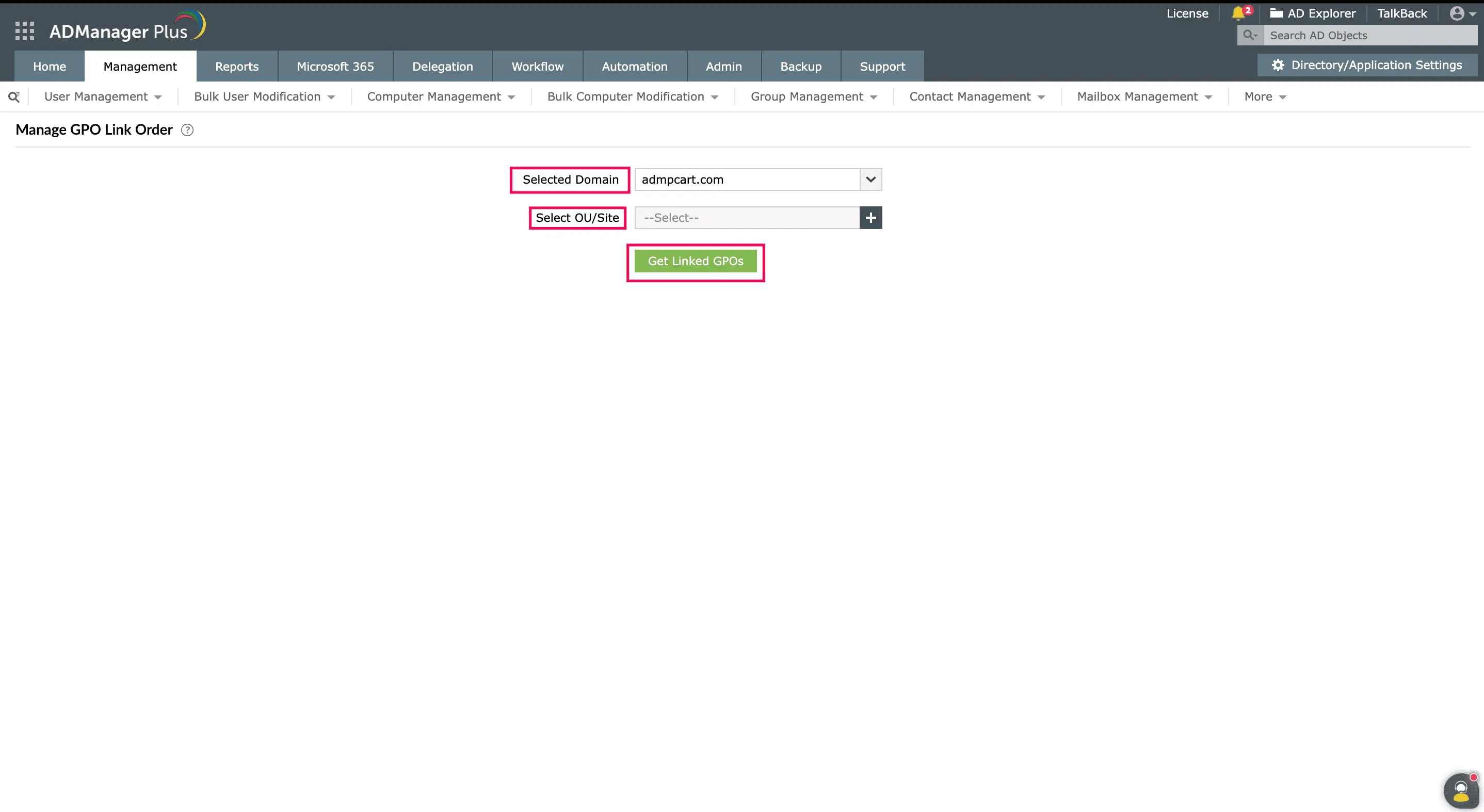
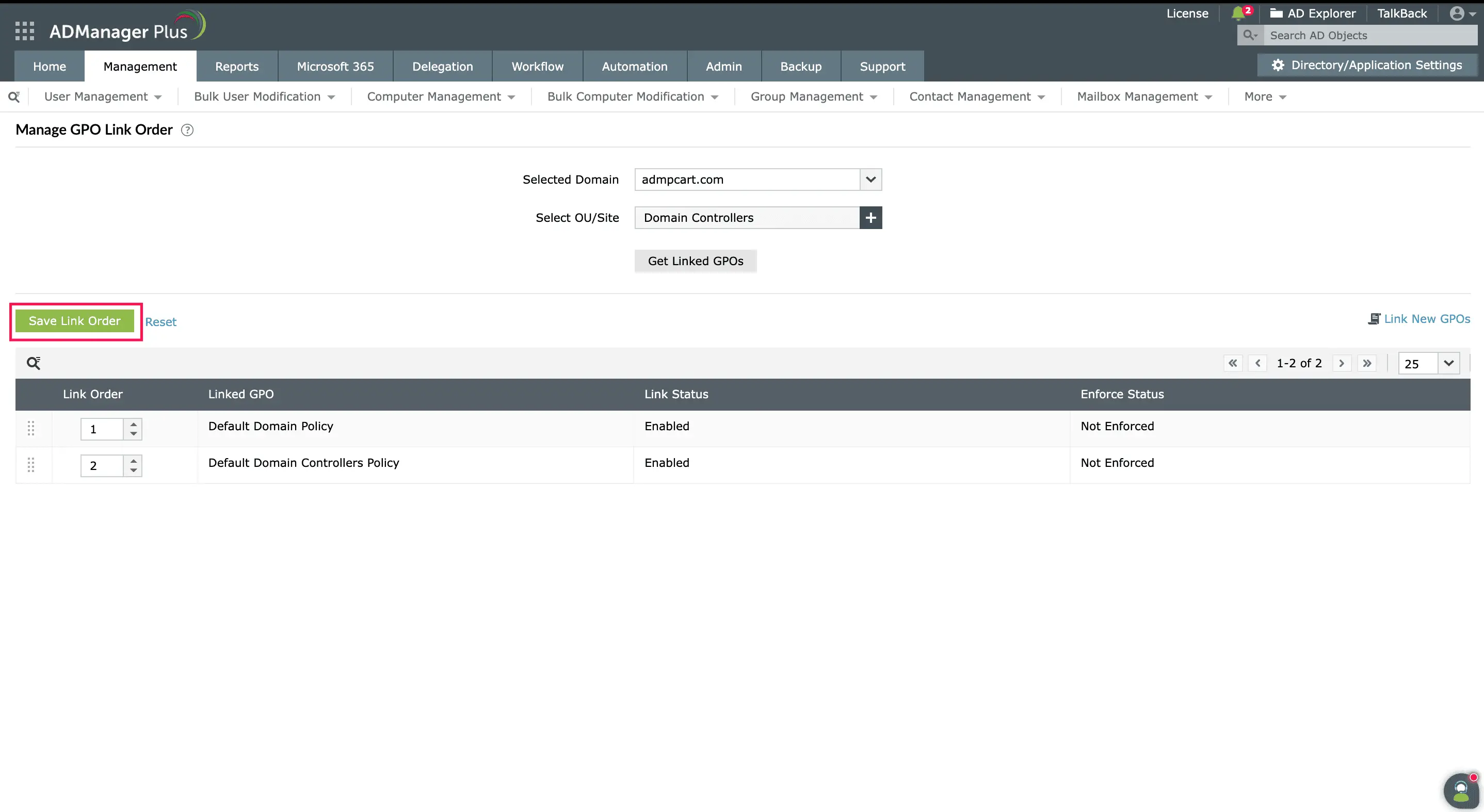
- Navigate to Management > GPO Management > Manage GPO Link Order.
- In the Manage GPO Link Order page, select the required Active Directory domain from the drop-down.
- Now, use the Select OU/Site option to choose the desired locations within the domain and identify the linked GPOs.
- Click Get Linked GPOs.
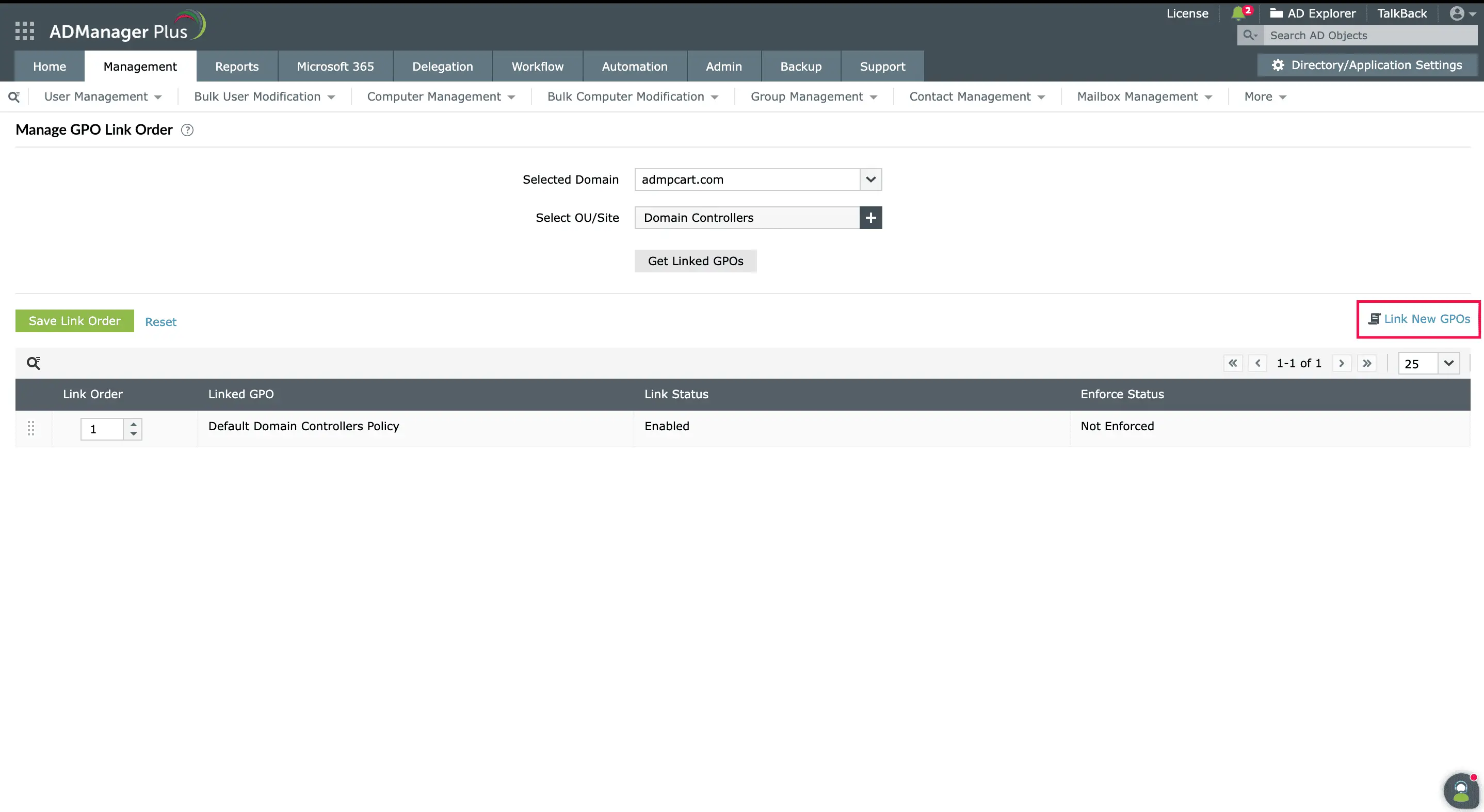
- The page will now list all the linked GPOs in the selected domain in the order of their application.
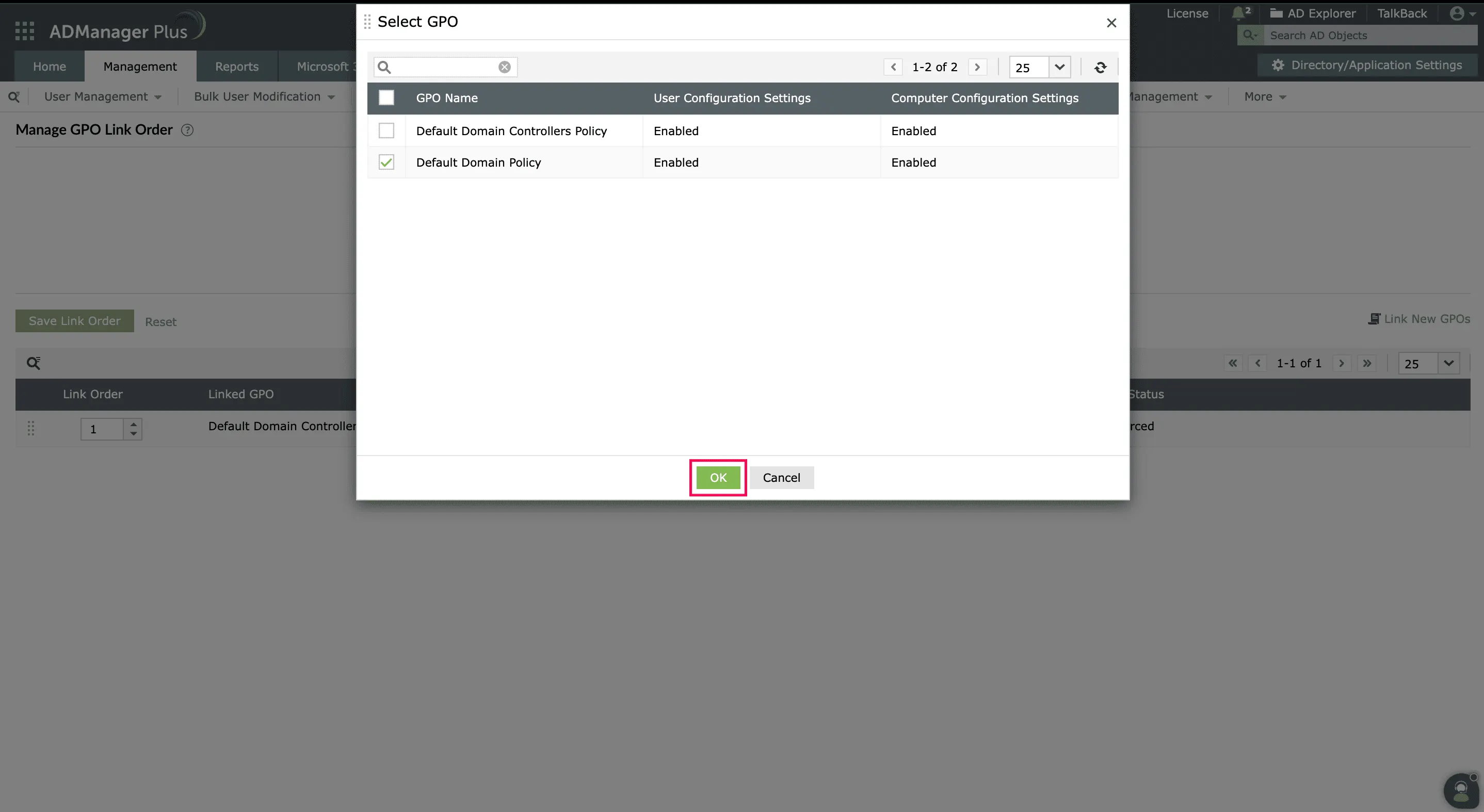
- If needed, you can add new GPOs by choosing the Link New GPOs option, selecting the GPO, and clicking OK.
- Use the arrows under the Link Order column to adjust the GPO's position. You can also drag and drop the GPOs to their preferred positions.
- Click Reset to undo any changes you made, if you wish.
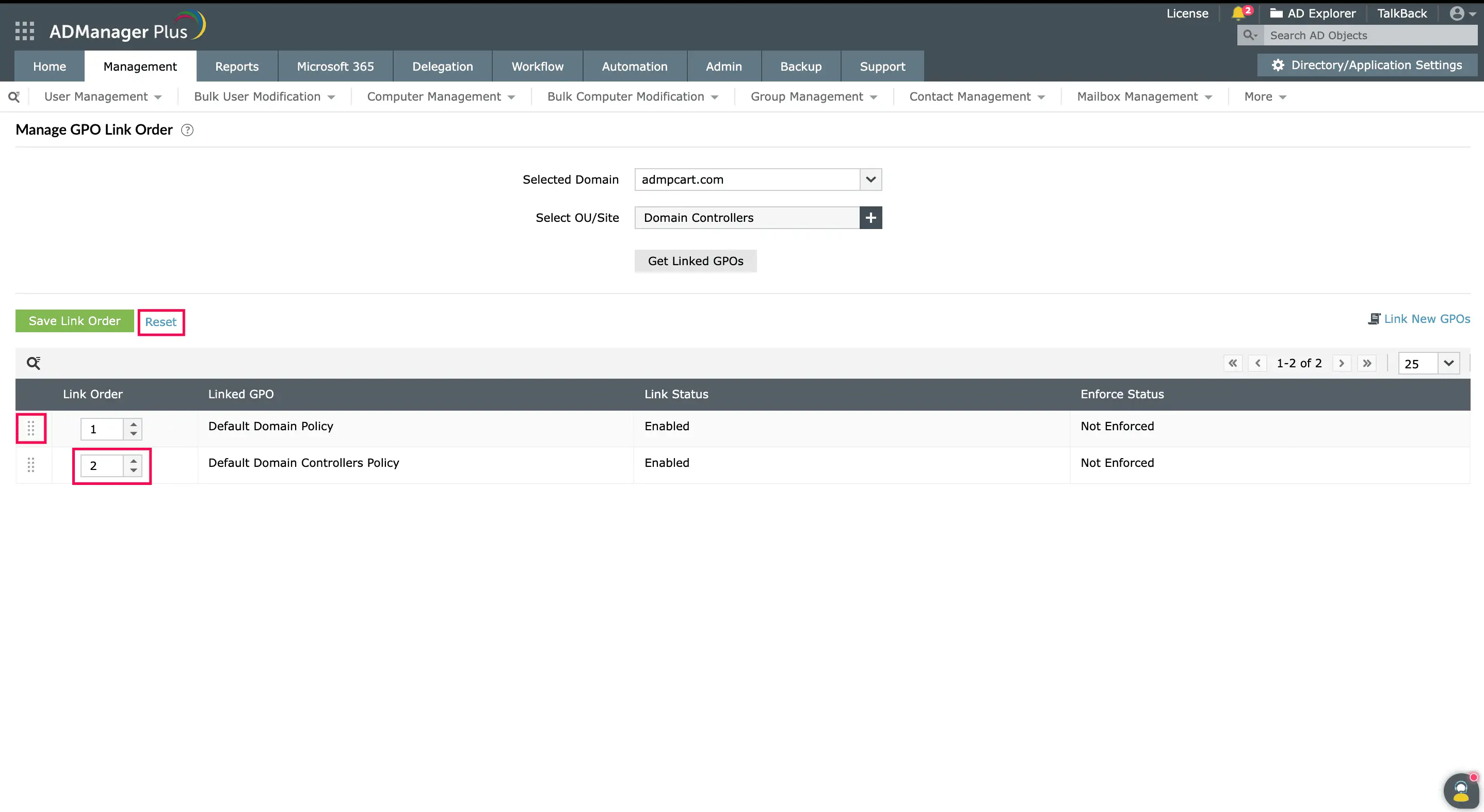
- Click Save Link Order to update the new order.
The updated GPO link order will impact how the policies are applied in your organization. You can change this again easily with ADManager Plus from a single console. Want to try out this feature? Download a free, 30-day trial or schedule a demo with us.
 Free Edition