Executing Custom Scripts For Windows | User Configuration
What is a Custom Script Configuration?
Custom script configuration in Endpoint Central enables administrators to establish and manage essential settings and tasks for their organization. This includes actions like disabling Windows auto update, setting the date format, checking for the existence of a file, etc. These configurations can be applied to the Windows operating systems as User ConfigurationThese scripts offer more flexibility compared to standard options, allowing you to run scripts tailored to your specific requirements. They can be scheduled to run during Every Logon, Subsequent Logon, Refresh Cycle, or just Once.It is important to select the configuration type as User based on the script's behavior.
Supported Language for Windows Custom Script
Windows supported script types - vb, js, ps1, cmd, msi, jse, exe, bat, vbe, vbs, wsf, wsc, wsh, reg.
In Endpoint Central, scripts must be added to the Script Repository before being deployed to end-machines. You can choose from the predefined script templates or add your own scripts to the repository.
How to Deploy a Custom Script Configuration?
In the Endpoint Central console, navigate to Configurations > Add Configurations > Windows Configuration > Custom Script > User Configuration.
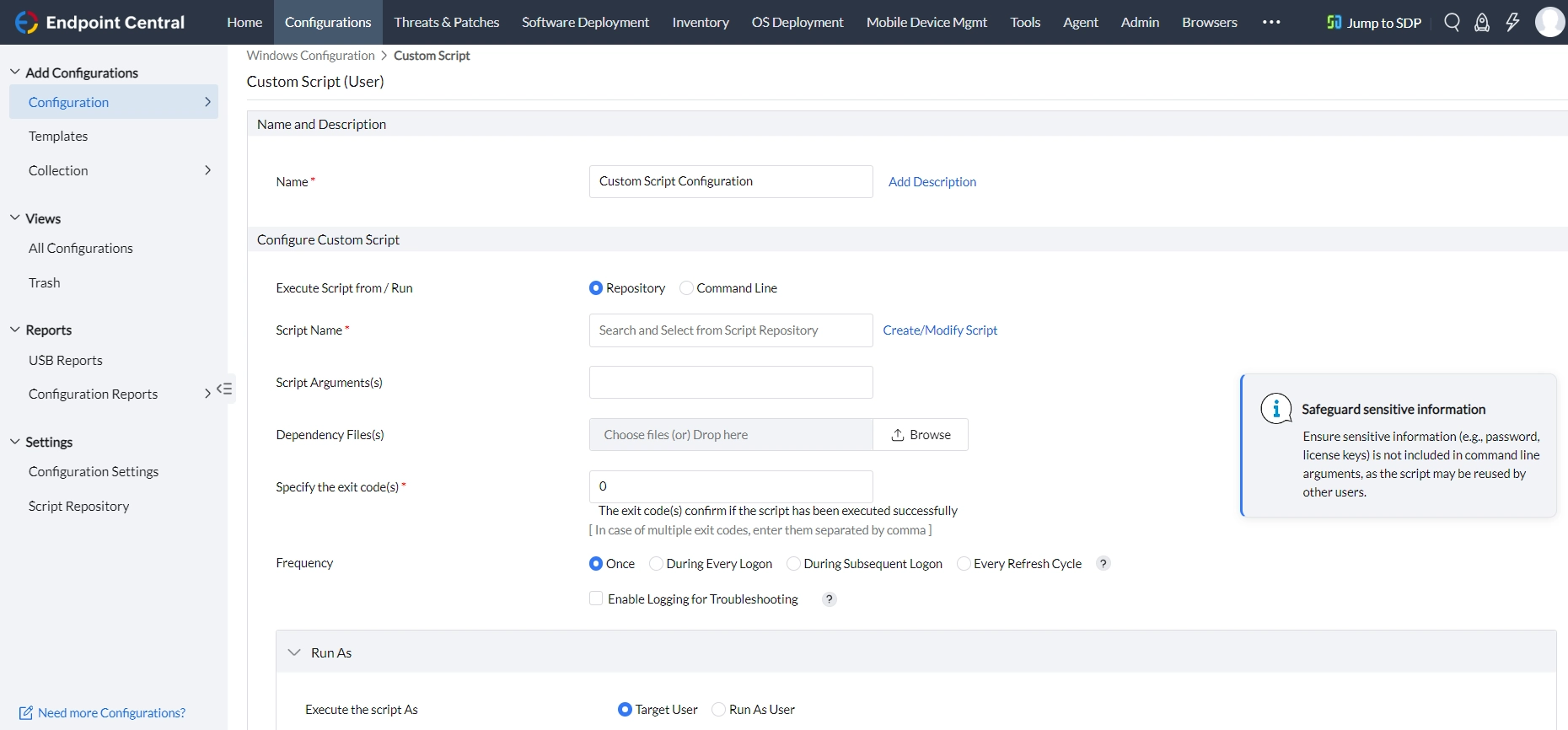
Specify the Name and Description for the configuration
You can execute the custom script using the Repository or Command line option.
If you want to execute scripts that are available in the Script Repository, then you can proceed with the Repository option.
- Select the script from the Script Name field.
Provide Script Arguments, if any
ExampleFor example, in case of blockexe.bat the application to be blocked must be provided in script arguments. In case of hard coded scripts, it may not be necessary. If multiple arguments are required, each argument needs to be enclosed within "...." and each argument is separated from one another by blank white space.NoteIf a script pauses for input (for example, "Press any key to continue"), the deployment fails with The wait operation timed out. To run such a .cmd script without interaction, enter echo. |<scriptname>.cmd in Script Arguments.
- Upload Dependency Files, if any
- Exit codes confirm if the script has been executed successfully. By default, it is 0. If you have any exit codes, you can specify them here. If there are multiple exit codes, separate them with commas [,].
If you want to run commands, then you can proceed with the Command Line option.
Enter the command to be executed in the Command Line. To execute multiple commands, enter them separated by a semicolon [;].Dynamic variables can be assigned if needed.
ExampleFor software installed per user, use a dynamic variable such as $userlocalappdata in the uninstall path so the same configuration works for any logged-on user, instead of a hard-coded user name. For example, to uninstall a per-user Firefox install, enter $userlocalappdata\Mozilla Firefox\uninstall\helper.exe, and to uninstall a per-user Postman install, enter $userlocalappdata\Postman\Update.exe --uninstall.
- Upload Dependency Files, if any
- Exit codes confirm if the script has been executed successfully. By default, it is 0. If you have any exit codes, you can specify them here. If there are multiple exit codes, separate them with commas [,].
Configure the Frequency as per your requirement from the options given below:
- Once: The script will be deployed once.
- During Every Logon: The script will be deployed during every user logon. If execute until is selected, then the script will be executed during every user logon until the configured date and time.
- During Subsequent Logon: The script will be executed for the next number of user logons you select from the dropdown.
- Every refresh cycle: The script will be executed every 90 minutes on the target machine.
- If you select Enable logging for troubleshooting, the executed script output will be logged and it will be displayed in the Remarks section under All configurations > Click any of your User Configuration > Execution Status
Configure Run As as per your requirement from the options given below:
- Target user: The script will be applied to the target users configured under Define Target.
- Run as User: The script will be deployed to the target machine with the credentials you select. We recommend choosing the Domain Admin credentials to avoid access level issues.
NoteThe Target user option relies on the users selected under Define Target. Per-user selection is not available for workgroup targets.
WarningThe script must run completely silently, with no user interaction or prompts (including UAC), even when Run as User admin credentials are used. Endpoint Central cannot respond to prompts, so an interactive script stays in Ready to Execute or Yet to Apply. Note that the System user account is not an administrator.
Define the targets for the deployment.
Specify retry options, if required
You can also enable notificationsto receive emails based on the specified frequency.
Click on the Deploy button to deploy the configuration in the target machines.
To save the configuration as a draft or template for later use, click Save as
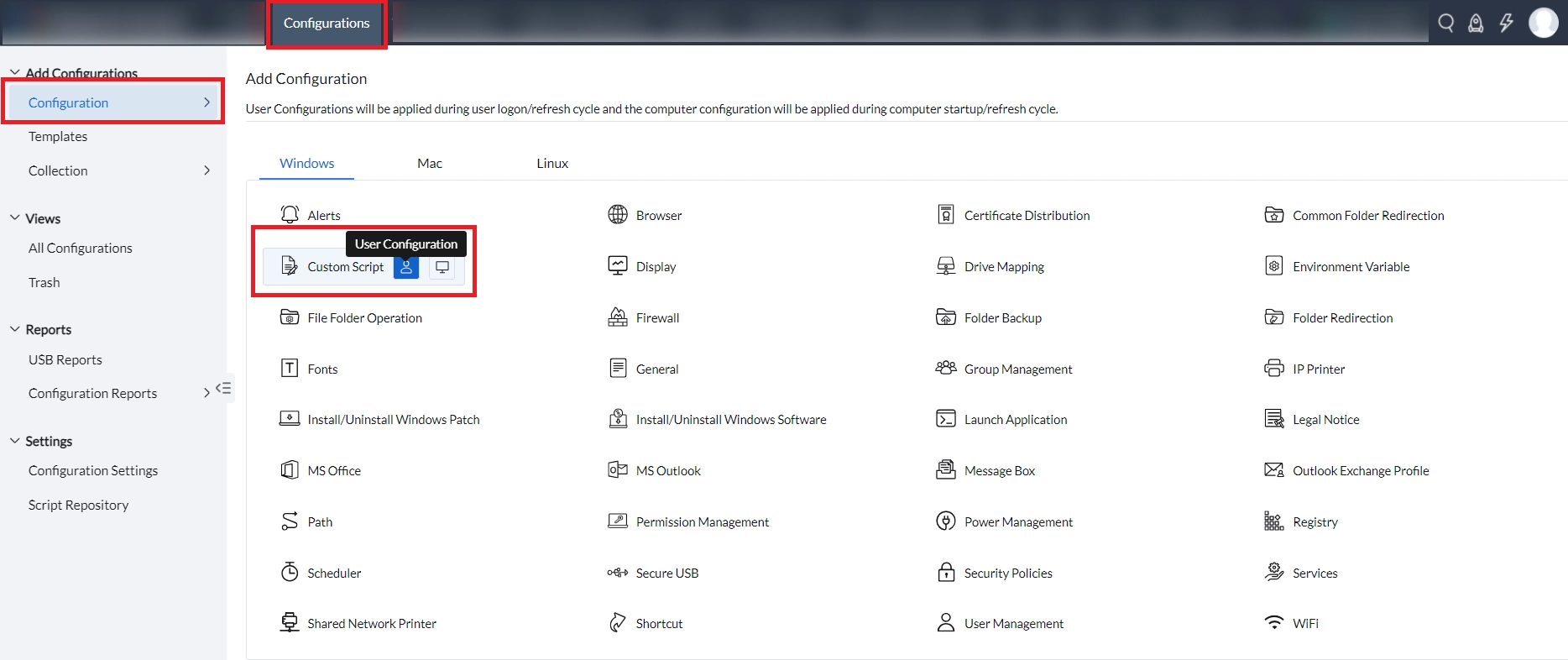
You have successfully added a Windows User-based Custom Script for your endpoints.
Common Use Cases for User Custom Scripts
- Deploy a script as a User Configuration when it acts on per-user resources such as files under the user profile, browser cache, or cookies, since this data lives in user profile paths. Use a Computer Configuration for system-wide scripts.
- Uninstall a per-user installed application by entering its uninstall command under the user's AppData path in the Command Line option, using the $userlocalappdata dynamic variable.
- Deploy a Windows provisioning package (.ppkg) by uploading it as a dependency file and running Install-ProvisioningPackage -PackagePath <path> -QuietInstall in the Command Line option.
- For file-type associations, use the Registry Settings Configuration to write the required registry values as a User Configuration.
Scripts run by the agent cannot change Active Directory objects, for example adding a computer to a security group. Endpoint Central does not operate directly on Active Directory.