
Log360Cloud allows you to create multiple views of the same report. This enables you to view the report based on different parameters such as time, domain, source, etc. The different views will be generated from the same set of log data.
In this help document, you will learn to perform the following operations.
To create a new report view,
 (Manage Custom Views) icon present on the right corner.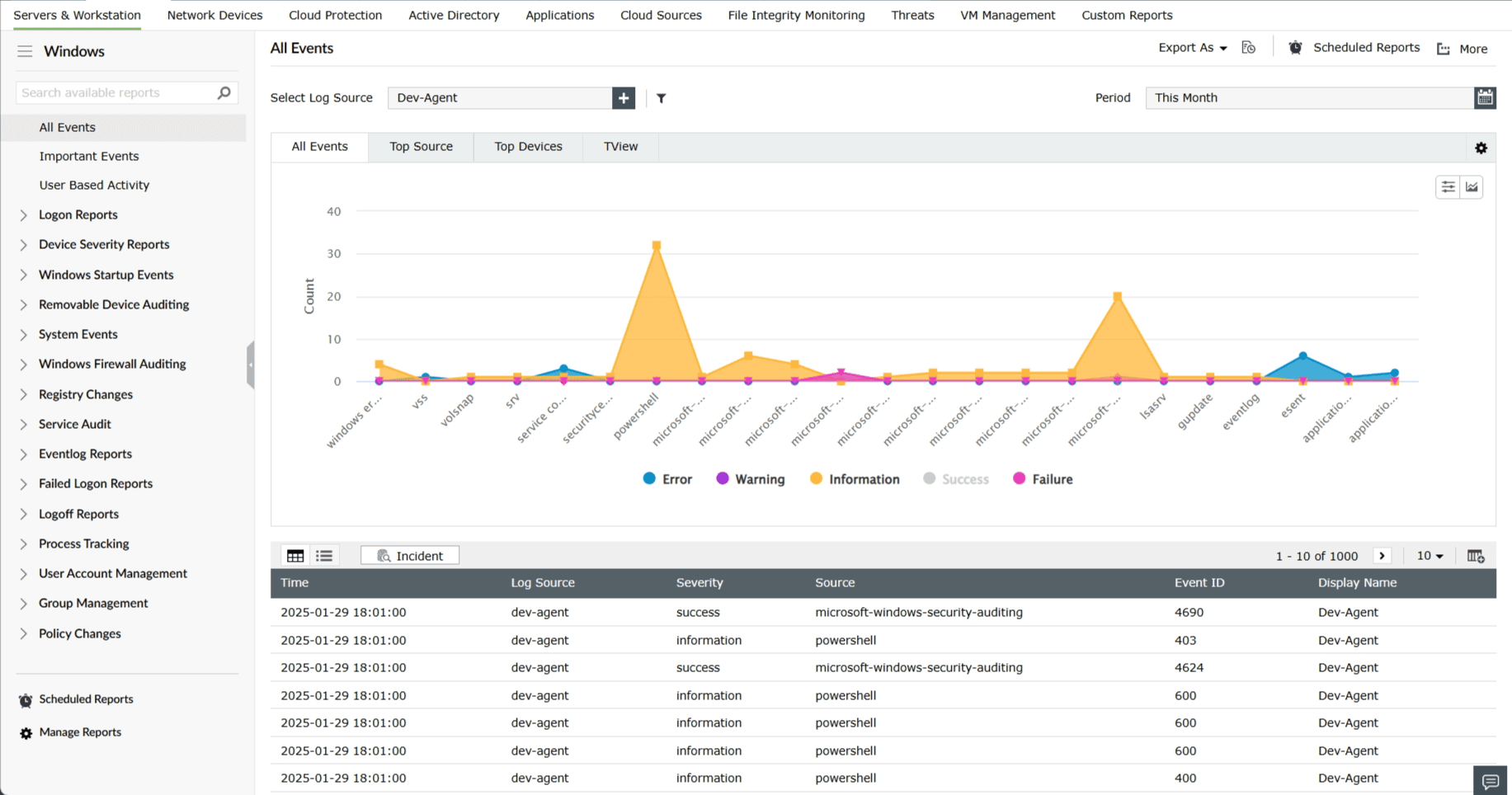
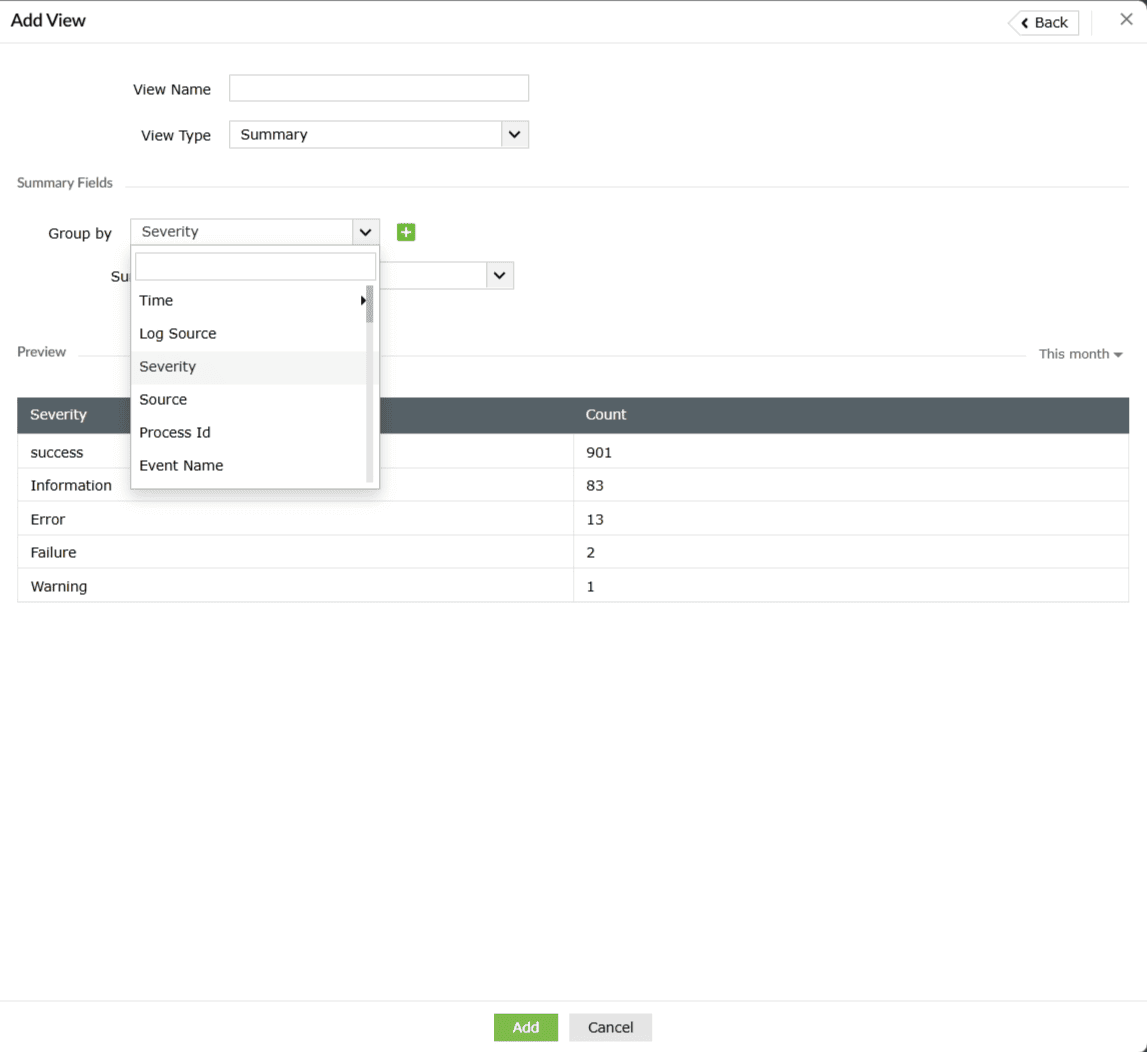

To edit, delete, or disable the views that have been created:
(Manage Custom Views) icon present on the right corner.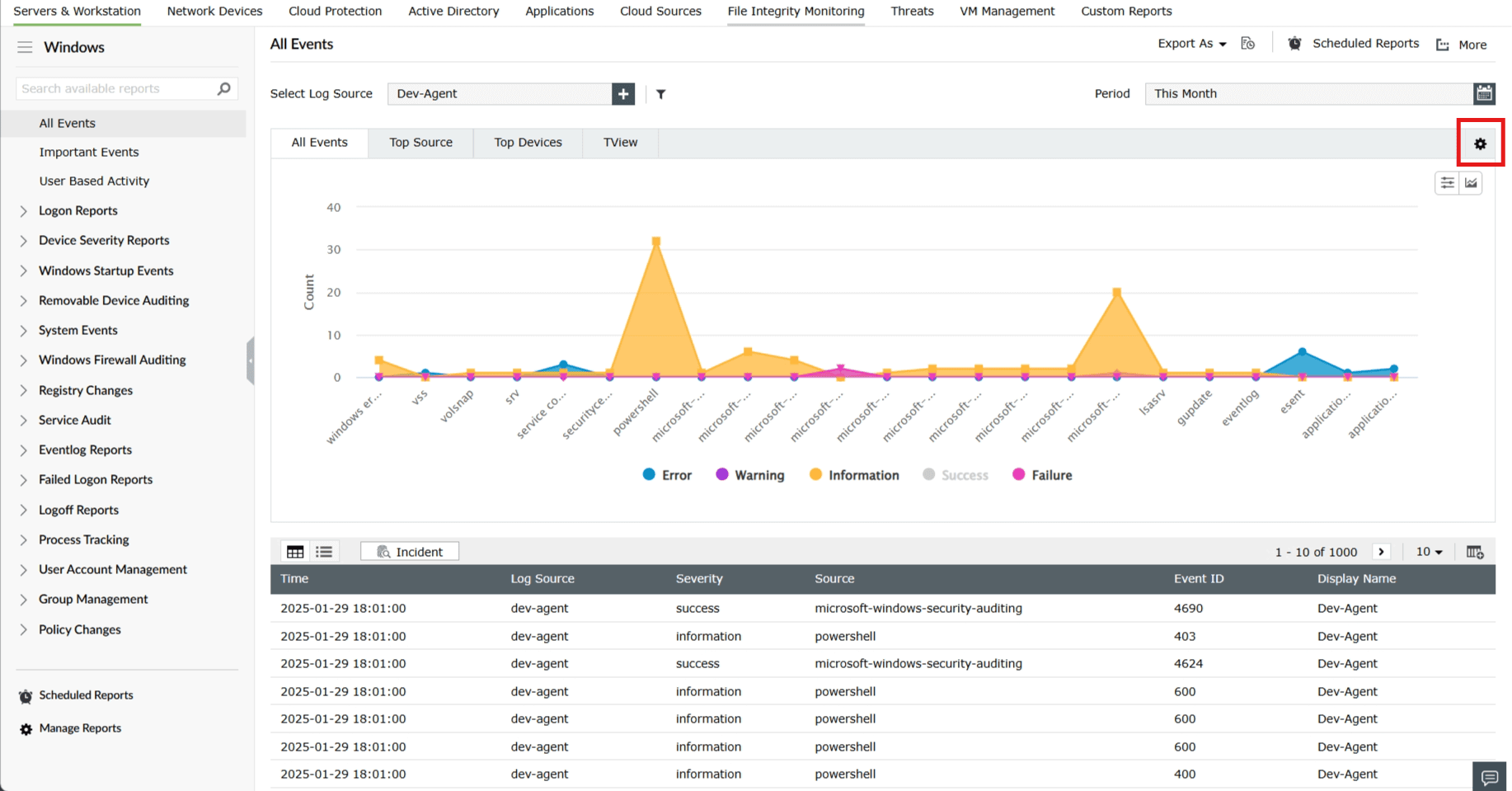
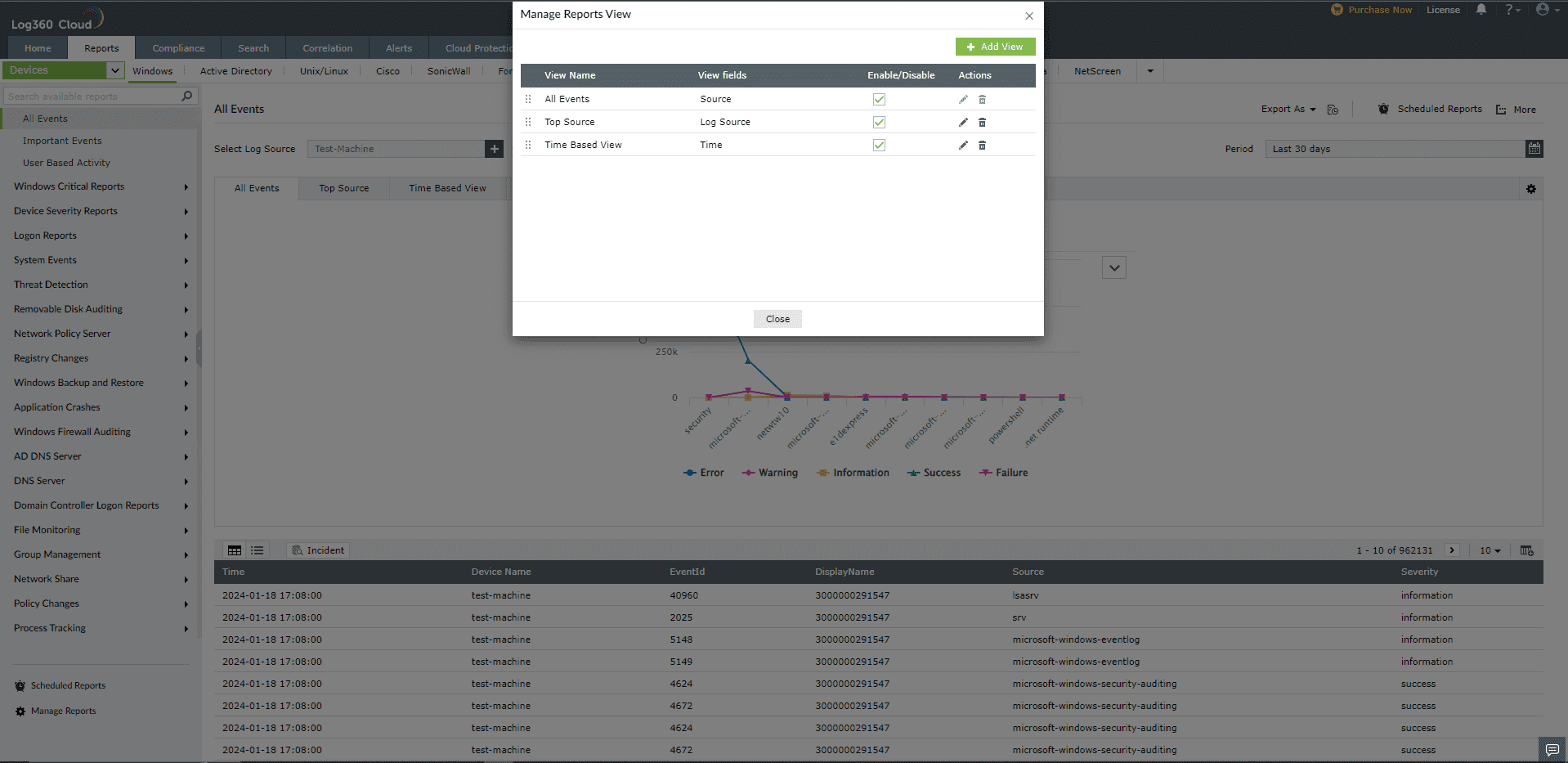
 icon corresponding to the view that you want to modify. Make the required changes and click on Update.
 icon corresponding to the view that you want to delete.
The Filter Options feature allows flexible management of data filters to suit your needs.
It supports two types of filtering behavior, depending on how the data is selected:
Clicking on a complete value applies a filter using an equals (=) condition. This will return only the records that exactly match the selected value.
Manually highlighting a portion of a value applies a filter using a contains condition. This will return records that include the selected text anywhere within the value.
The filters can be applied as a new filter or to existing conditions.


The view customization option present in the top right corner lets you customize the view of reports.

The Sorting and Limits feature lets you set the sorting order for your View and to configure a limit for the displayed content.

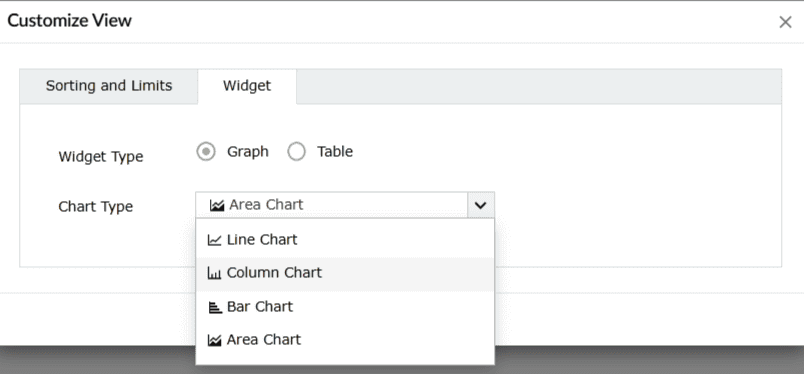
The Widget feature will let you switch between Table or Graph views based on preference.

The chart customization feature will let you choose:

The table customization feature will let you enable or disable the percentage display option for table views.
