Zendesk
Zendesk is a cloud-based customer service platform which, when integrated with Log360 Cloud, empowers IT and security teams to enhance their incident response capabilities. This integration helps detect threats and vulnerabilities in real time, respond to incidents without switching between tools, and streamline operations by managing alerts and tickets directly within Zendesk.
Actions Supported
- Two-way synchronization
- Disable log collection
- Disable ticketing tool notification
- Export incident
Before you begin:
- Sign up and create an account in Log360 Cloud if you haven't already.
Steps to Integrate Log360 Cloud with Zendesk
To manage Log360 Cloud from the ticketing tool, marketplace apps can be installed in the respective ticketing tool and configured. Follow the below steps based on the ticketing tool used.
- Log in to your Zendesk account as an admin.
- Download the Log360 Cloud app from the Zendesk Marketplace.
- Click on Sign in with ManageEngine Log360 Cloud. A new OAuth tab will open—click Accept to authorize Zendesk to perform all Marketplace-related operations in Log360 Cloud.
- Once authenticated, click Install.
- From the Zendesk console, click the Log360 Cloud icon in the left-hand navigation pane.
- Click the Integrate Now! button.

- Select the Data Center of your Log360 Cloud account to complete the integration.


- Admin users will have access to all pages by default. Non-admin users must be associated appropriately to perform actions from the Tickets window.

- To associate users, go to the Associate Users tab in the configuration section and associate the Zendesk users.

Exporting an Incident
Prerequisite: A Zendesk ticket must be raised from a Log360 Cloud Incident.
- Go to the Log360 Cloud tab in the Zendesk ticket's right panel and click Export Incident.
- Click Export to confirm.
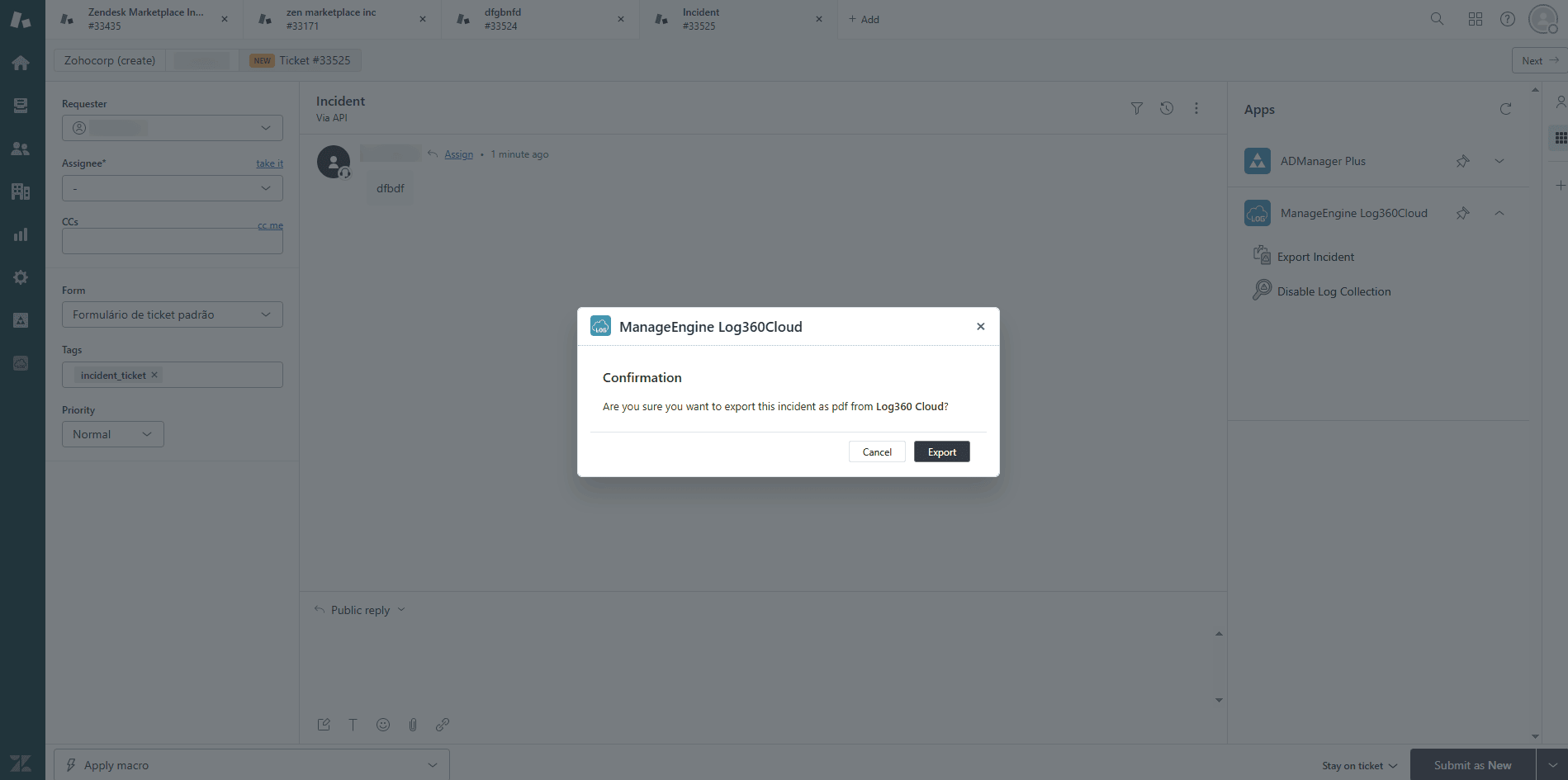
- The incident will be exported as a PDF from Log360 Cloud and downloaded automatically.
Disable Ticketing Tool Notification
Prerequisite: The Zendesk ticket must be raised from the Alerts tab in Log360 Cloud.
- Go to the Log360 Cloud tab in the ticket's right panel and click Disable Ticketing Tool Notification.
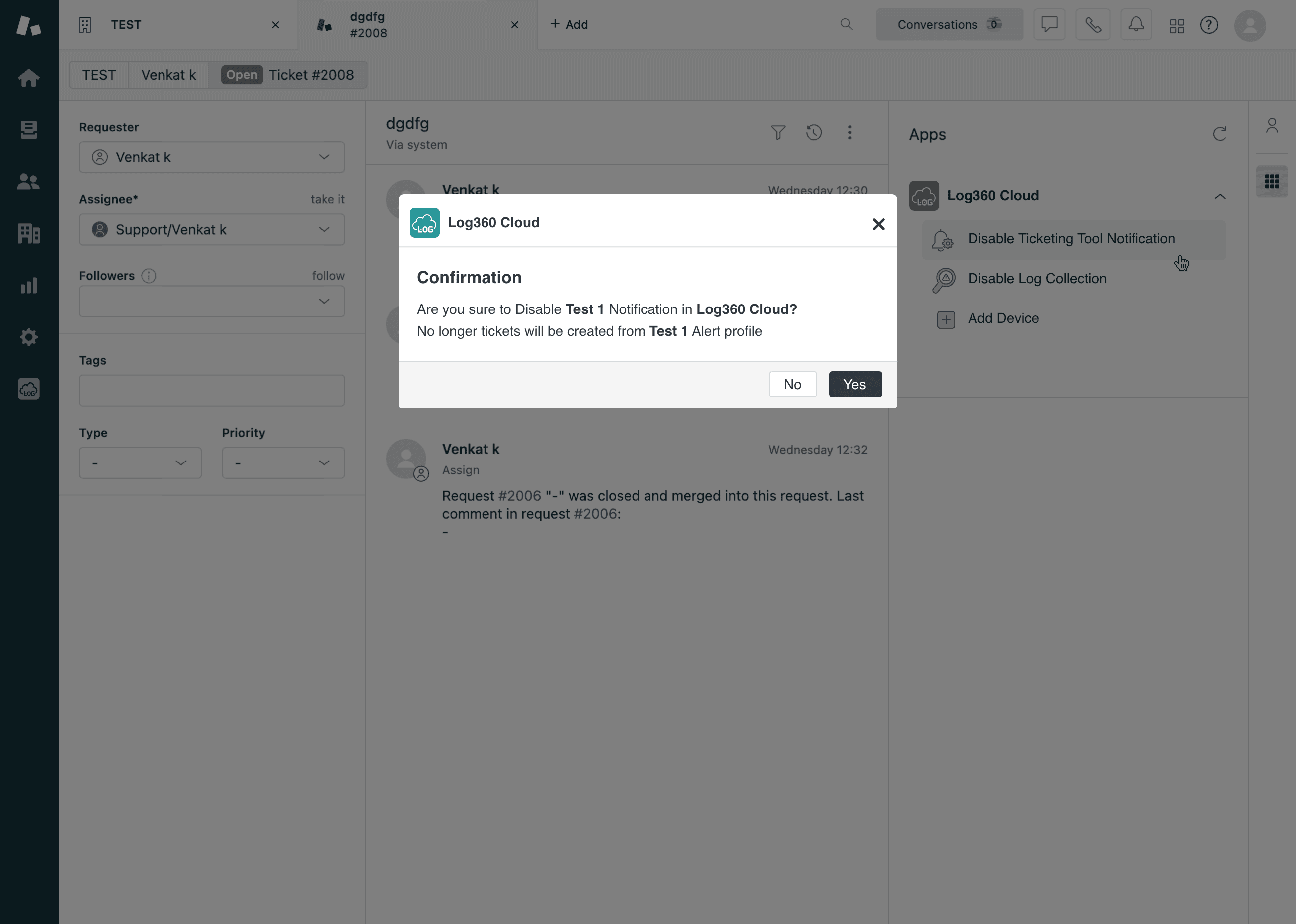
- Click Yes in the confirmation box.
- The notification profile will be successfully disabled.
Disable Log Collection
- Go to the Log360 Cloud tab in the ticket's right panel and click Disable Log Collection.
- Enter the Device Name exactly as it appears in Log360 Cloud to disable log collection for that device.
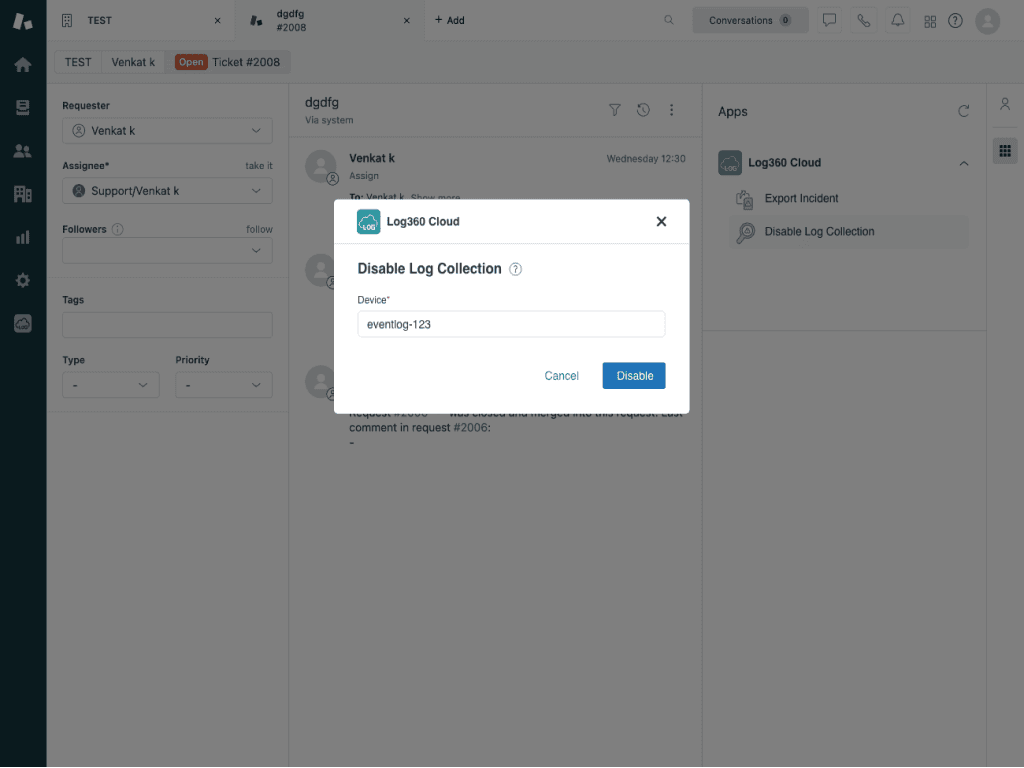
The device will be successfully disabled for log collection.
Note:
- Two-way synchronization will not work in bulk ticket updates.
- Please refer to this link for more details on the Log360 Cloud app for Zendesk.