
The probable reason and the remedial action is:
Probable cause: The device machine RPC (Remote Procedure Call) port is blocked by any other Firewall.
Solution: Unblock the RPC ports in the Firewall.
The probable reasons and the remedial actions are:
Probable cause: The device machine is not reachable from Log360 Cloud Agent machine.
Solution: Check the network connectivity between device machine and Log360 Cloud Agent machine, by using PING command.
Probable cause: The device machine running a System Firewall and REMOTEADMIN service is disabled.
Solution: Check whether System Firewall is running in the device. If System Firewall is running, execute the following command in the command prompt window of the device machine:
netsh firewall set service type=REMOTEADMIN mode=ENABLE profile=all
The probable reasons and the remedial actions are:
Probable cause: By default, WMI component is not installed in Windows 2003 Server
Solution: Win32_Product class is not installed by default on Windows Server 2003. To add the class, follow the procedure given below:
The following are some of the common errors, its causes, and the possible solution to resolve the condition. Feel free to contact our support team for any information.
Cause: The port is already being used by another application.
Solution: Free up the port or use a different port.
Cause: TLS is not configured to support encrypted logs.
Solution: Upgrade the agent to the latest version to configure TLS.
Cause: HTTPS is configured, but the certificate type is not supported.
Solution: Install a proper certificate in the agent.
Cause: Unknown external issue.
Solution: Contact our support team for assistance.
Cause: TLS is configured, but no certificate is found in the ManageEngineLog360 store.
Solution: Install a proper certificate in the agent. Refer here to install a certificate.
Cause: The ManageEngineLog360 certificate store contains more than one certificate.
Solution: Delete the unwanted certificates from the store.
Cause: An expired certificate is installed in the agent.
Solution: Update the expired certificate in the agent and restart the agent.
Cause: The same port is configured for the agent as TLS.
Solution: Delete that TLS port or deselect the agent from the TLS port and update the agent to use a TCP port. Refer here to update agents for an existing syslog port.
Cause: The same port is configured for the agent as TCP.
Solution: Delete that TCP port or deselect the agent from the TCP port and update the agent to use a TLS port. Refer here to update agents for an existing syslog port.
Cause: Error occurred on configuring TLS or TLS Port
Solution: Contact our support team for assistance.
If you use a new port, make sure to change the ports in the forwarding device either manually or using auto log forwarding configuration.
Possible remedial actions include:
To turn on Audit Logging, follow either of these two steps.
Cause: This error message is shown if the application password entered has been deleted or expired.
Solution: Create a new application password and update the same in the product's tenant settings.
Cause: This error message is shown if the Microsoft Entra ID application is deleted.
Solution: Configure a new application in the Azure portal. Follow the steps listed here to configure your application, manually.
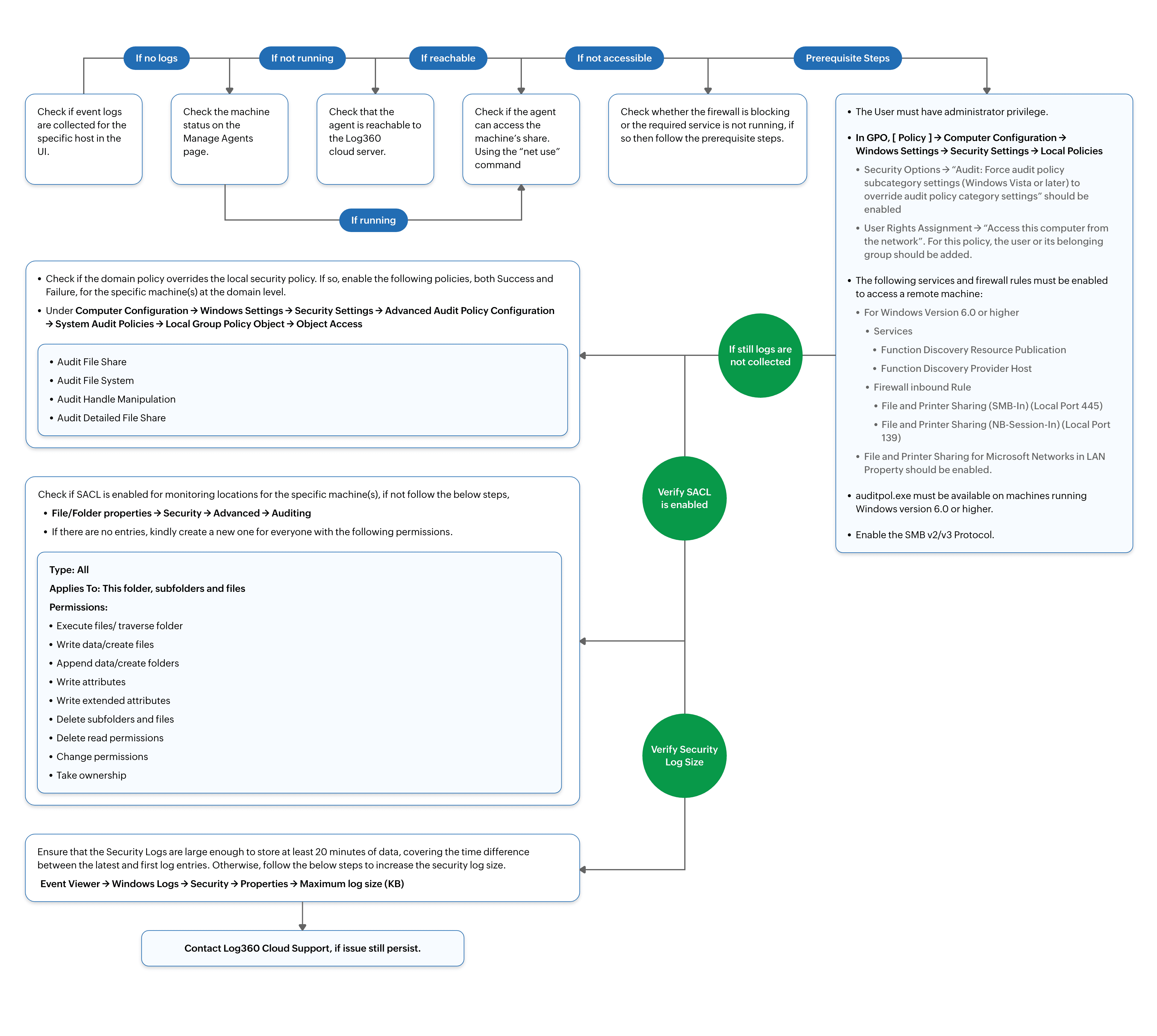
The installation of agents using GPOs may have failed due to one of the following reasons:
Cause: The created GPO is not linked to either the domain or the OU containing the target computers.
Solution: Either an existing GPO or a new GPO can be created and linked to the domain or an OU containing the target computers and vice-versa.

Note: Please ensure that the OU linked to GPO contains required computers.

Note: A GPO can also be applied to the entire domain.
Cause: The shared folder containing the MSI file is not publicly accessible from client machines.
Solution: Enable permissions for all users in the domain to access the shared folder.

Cause: The script parameters and shared folder path entered may be incorrect.
Solution: Ensure they are correctly specified.
Eg: /INSTALLERPATH:"\\Server-1\RemoteFolder\Log360CloudAgent.exe"
Cause: Group policy changes are not reflecting on the client machines
Solution: Need to reboot the machine since we have configured a startup script.
If the above troubleshooting steps do not resolve the issue, try the following:
Please review all the steps mentioned on this page carefully.
Run the following command and analyse the gporesult.html file to check for issues with the configured GPO:
gpresult /H gporesult.html

(Preview of gporesult.html when the policy is applied successfully.)
If GPO changes are not reflecting on the client machine, run the following command and then reboot the machine:
gpupdate /force
This forces the Group Policy Client service to refresh the GPO settings.
Probable cause: The client machine is not reachable from the agent.
Solution: Check if the device machine responds to a ping command. If it does not, then the machine is not reachable. The device machine has to be reachable from the Log360 Cloud Agent in order to collect event logs.
Probable cause: You do not have administrative rights on the device machine
Solution: Edit the device's details, and enter the Administrator login credentials of the device machine. Click Verify Login to see if the login was successful.
Error Code 0x251C
Probable cause: The device was added when importing application logs associated with it. In this case, only the specified application logs are collected from the device, and the device type is listed as unknown.
Solution:
Probable cause: There may be other reasons for the Access Denied error.
Solution: Refer the Cause and Solution for the Error Code you got during Verify login.
Error Code 00x80070005
Scanning of the Windows workstation failed due to one of the following reasons:
Solution: Check if the login name and password are entered correctly.
Solution: Check if Remote DCOM is enabled in the remote workstation. If not enabled, then enable the same in the following way:
To enable DCOM on Windows XP devices:
Solution: Check if the user account is valid in the target machine by opening a command prompt and executing the following commands:
net use \<RemoteComputerName>C$ /u:<DomainNameUserName> "<password>"
net use \<RemoteComputerName>ADMIN$ /u:<DomainNameUserName> "<password>"
If these commands show any errors, the provided user account is not valid on the target machine.
Error Code 0x80041003
The user name provided for scanning does not have sufficient access privileges to perform the scanning operation. This user may not belong to the Administrator group for this device machine.
Solution: Move the user to the Administrator Group of the workstation or scan the machine using an administrator (preferably a Domain Administrator) account.
Error Code 0x800706ba
A firewall is configured on the remote computer. Such exceptions mostly occur in Windows XP (SP 2), when the default Windows firewall is enabled.
Solution:
netsh firewall set service RemoteAdmin
After scanning, you can disable Remote Administration using the following command:
netsh firewall set service RemoteAdmin disable
Error Code 0x80040154
Solution: Install WMI core in the remote workstation.
winmgmt /RegServer.
Error Code 0x80080005
There is some internal execution failure in the WMI service (winmgmt.exe) running in the device machine. The last update of the WMI Repository in that workstation could have failed.
Solution: Restart the WMI Service in the remote workstation:
For any other error codes, refer the MSDN knowledge base.
Error Code 1722, 1726, 1753, 1825
Probable cause: The device machine RPC (Remote Procedure Call) port is blocked by any other Firewall.
Solution: Unblock the RPC ports in the Firewall.
If you are able to view the logs, it means that the packets are reaching the machine, but not to Log360 Cloud Agent. You need to check your Windows firewall or Linux IP tables.
To check if the Log360 Cloud Agent server is reachable, follow the steps given below.
tcpdump -n dst <Log360 Cloud Agent_server_name> and dst port <port_no>
If reachable, it means there was some issue with the configuration. If not reachable, then you are facing a network issue.
Causes
HKEY_LOCAL_MACHINE\SOFTWARE\Wow6432Node\ZOHO Corp\Log360Cloud or HKEY_LOCAL_MACHINE\SOFTWARE\ZOHO Corp\Log360Cloud.
Solutions
Manually install the agent by navigating to the Manage Agent page.
To install agent:
Windows device: Run the Log360CloudAgent.msi. For detailed steps on how to installed an agent, please click here.
Auto log forwarding may fail due to any of the three reasons below.
Agent not communicating status indicates an extended period without communication between the agent and the server.
To resolve this issue, follow these steps:
Causes
The probable reason and the remedial action are:
Probable cause: The device where the agent is installed and the device from which the agent is collecting logs are in different domains. The message indicates that the lookupfield (enrichment log data) won't be available.
Solution: Configure log collection for the respective device with an agent in the same domain.

The probable reason and the remedial action are:
Probable cause: The device where the agent is installed is a client device, and it is collecting logs from servers. The message indicates that the lookupfield (enrichment log data) won't be available.
Solution: Configure log collection for the respective devices with an agent installed on a server.

The probable reasons and the remedial actions are:
Probable cause 1:
The agent and the selected devices are in different domains. It indicates that the lookupfield (enrichment log data) won't be available.
Solution:
Configure log collection for the selected devices with an agent in the same domain.
Probable cause 2:
The agent is installed on a client device and is collecting logs from the selected devices, which are servers.
Solution:
Configure log collection for the selected devices with an agent that is installed on server machines.
Cause:
The Log360 Cloud Agent has stopped functioning because the installation drive is running critically low on disk space.
Resolution:
Ensure that at least 100 MB of free disk space is available on the drive where the agent is installed. Once sufficient space is freed, the agent will resume normal operations.