Executing Custom Scripts
What is a Custom Script Configuration?
Custom script configuration in Endpoint Central enables administrators to establish and manage essential settings and tasks for their organization. This includes actions like disabling blocking applications, changing file owners, checking for the existence of a file, etc. These configurations can be applied to the Mac operating systems as Computer Configuration. These scripts offer more flexibility compared to standard options, allowing you to run scripts tailored to your specific requirements. They can be scheduled to run during Every Startup, Subsequent Startup, During Every Startup Until, or just Once.It is important to select the configuration type as Computer based on the script's behavior.
Supported Language for Mac Custom Script
Mac supported script types - sh, scpt, pl, py, command.
In Endpoint Central, scripts must be added to the Script Repository before being deployed to end-machines. You can choose from the predefined script templates or add your own scripts to the repository.
How to Deploy a Custom Script Configuration?
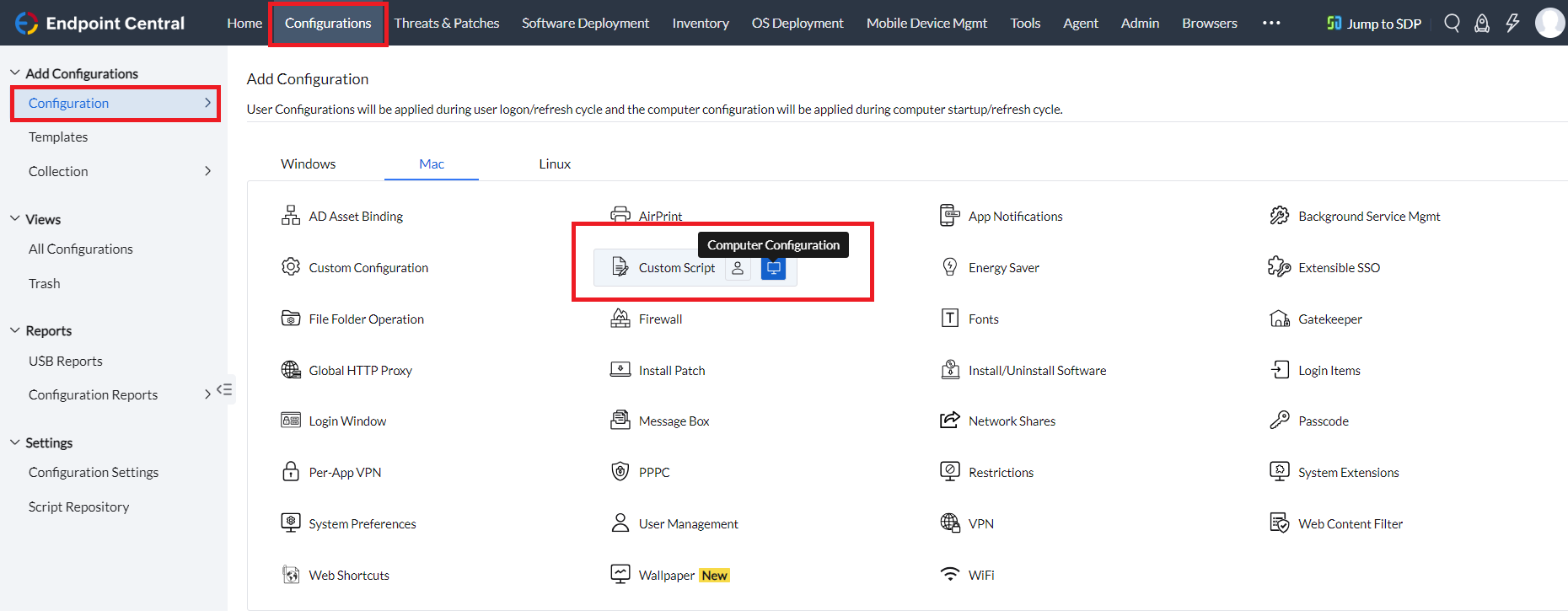
- In the Endpoint Central console, navigate to Configurations > Add Configurations > Mac Configuration > Custom Script > Computer Configuration.
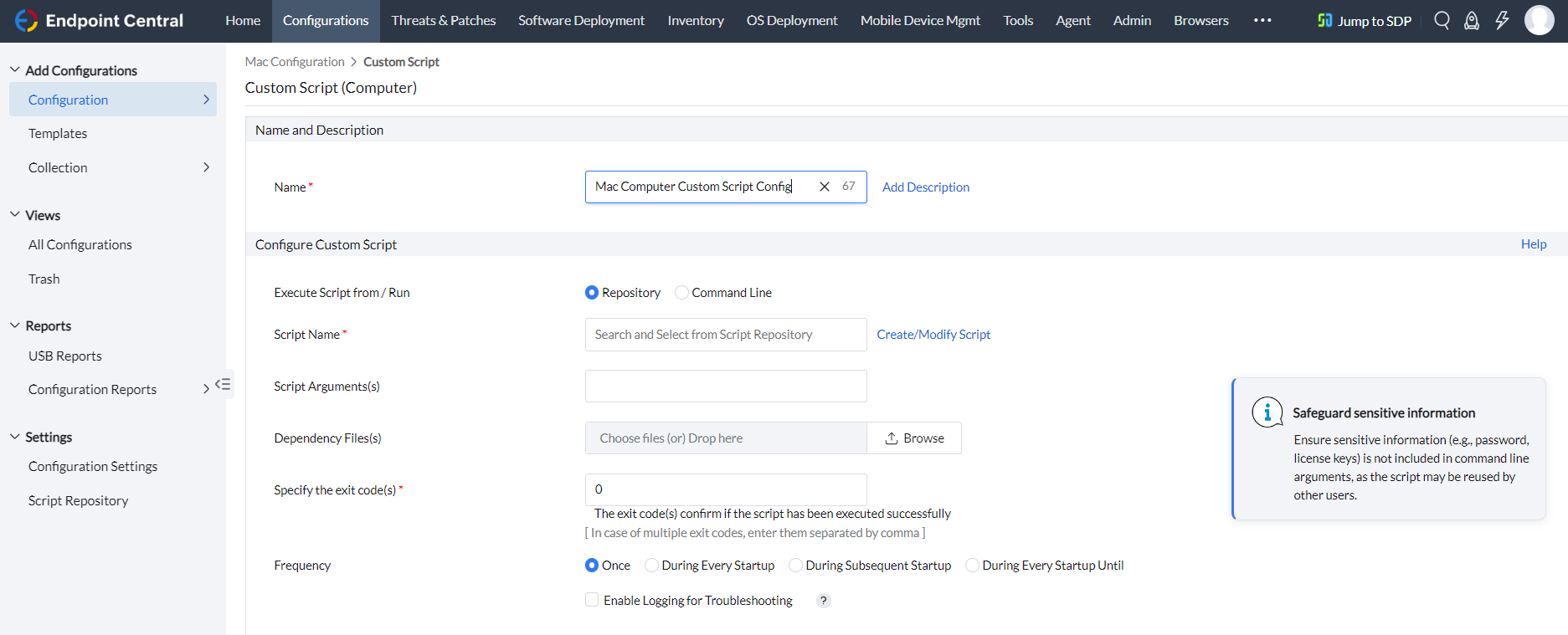
- Specify the Name and Description for the configuration
- You can execute the custom script using the Repository or Command line option.
- If you want to execute scripts that are available in the Script Repository, then you can proceed with the Repositoryoption.
- Select the script from the Script Name field.
- Provide Script Arguments, if any
Note: For example, in case of BlockAppsForMac.sh the application to be blocked must be provided in script arguments. In case of hard coded scripts, it may not be necessary. If multiple arguments are required, each argument needs to be enclosed within "...." and each argument is separated from one another by blank white space.
- Upload Dependency Files, if any
- Exit codes confirm if the script has been executed successfully. By default, it is 0. If you have any exit codes, you can specify them here. If there are multiple exit codes, separate them with commas [,].
- If you want to run commands, then you can proceed with the Command Line option.
- Enter the command to be executed in the Command Line. To execute multiple commands, enter them separated by a semicolon [;].
- Upload Dependency Files, if any
- Exit codes confirm if the script has been executed successfully. By default, it is 0. If you have any exit codes, you can specify them here. If there are multiple exit codes, separate them with commas [,].
- Configure the Frequency as per your requirement from the options given below:
- Once: The script will be deployed once.
If you select Enable logging for troubleshooting, the executed script output will be logged and it will be displayed in the Remarks section under All configurations > Click on any of your Computer Configuration > Execution Status
- During Every Startup: The script will be deployed during every system startup.
- During Subsequent Startup: The script will be executed for the next number of computer startup you select from the dropdown.
- During Every Startup Until: The script will be executed during every startup until the configured date and time.
- Define the targets for the deployment.
- Specify retry options, if required
- You can also enable notificationsto receive emails based on the specified frequency.
- Click on the Deploy/Deploy Immediately button to deploy the configuration in the target machines.
- To save the configuration as a draft or template for later use, click Save as
You have successfully added a Mac Computer-based Custom Script for your endpoints.



